Recommended resources
The freely available resources this lesson will direct you to.
- How to Design Pinterest Pins That Make Sales Step by Stepwww.youtube.com
- How To Create High Converting Pinterest Pins In 2025www.youtube.com
- How To Use Canva To Design Pins That Go Viral - Digital Empireswww.digitalempires.co
- Create Pinterest Pins in Canva that GET CLICKED: Step-by-step ...kristinrappaport.com
Introduction
Welcome back! In our last lesson, you created your first branded graphic for Instagram using Canva. You learned how to apply your brand's specific colors and fonts to a template, which is a crucial first step in building a recognizable online presence.
Today, we're taking that skill and adapting it for a different, but incredibly powerful, platform: Pinterest. While Instagram is great for in-the-moment connection, Pinterest is a visual discovery engine where your content can be discovered for months or even years. For your "cheap and cheerful lifestyle" niche, it's a goldmine for driving traffic.
This lesson is designed to help you design a Pinterest pin using Canva that follows best practices for dimensions and readability. We'll move beyond the square format of Instagram and learn the principles of creating a "scroll-stopping" pin that captures attention and encourages clicks.
1. The Anatomy of an Effective Pinterest Pin
A successful Pinterest pin isn't just a pretty picture; it's a carefully constructed graphic designed to stand out in a fast-scrolling feed and persuade someone to click. The two most important factors are its dimensions and its readability, especially on a small phone screen.
Pin Dimensions: Taller is Better
On Pinterest, vertical space is prime real estate. Taller pins take up more of the screen and are more likely to get noticed. While there are a few different formats, the universally recommended size for a standard pin is a 2:3 aspect ratio, most commonly 1000 pixels wide by 1500 pixels tall.
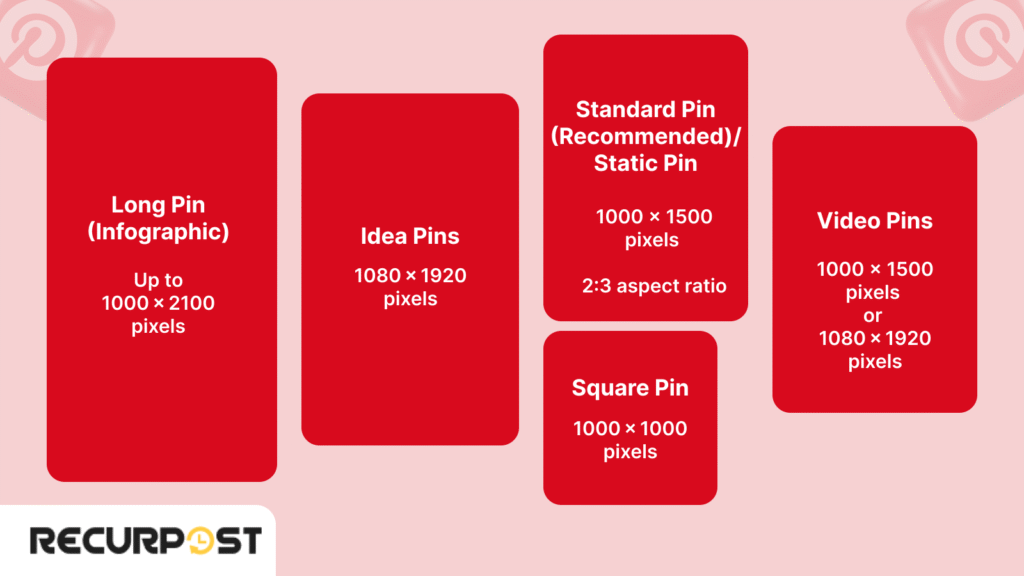
To understand why this specific size is so important, let's hear directly from a Pinterest creator.
How To Create High Converting Pinterest Pins In 2025
The video 'How To Create High Converting Pinterest Pins' explains why the 2:3 aspect ratio is the professional standard.
Watch the segment from 02:53 to 03:54. The creator explains that using the correct 2:3 ratio prevents your pin from being awkwardly cut off in the feed, ensuring it takes up maximum space and looks professional.
Happily, Canva makes this incredibly easy. When you go to create a new design, you can simply search for "Pinterest Pin," and Canva will automatically open a canvas with the perfect 1000 x 1500 px dimensions.

Readability: Your Message at a Glance
Over 80% of Pinterest users browse on their mobile phones. This means your pin's text needs to be big, bold, and instantly readable. If someone has to squint or zoom in, they will scroll right past.
Let's look at some common mistakes and how to avoid them.
How to Design Pinterest Pins That Make Sales Step by Step
The creator of 'How to Design Pinterest Pins That Make Sales' provides excellent visual examples of what to do—and what not to do—when it comes to text.
Watch the section from 01:15 to 03:26. Pay close attention to the visual examples of 'cluttered chaos' and the 'tiny text tragedy.' This will help you understand the importance of simplicity and large, clear fonts.
Key principles for readable text:
- Use Bold, Clear Fonts: Avoid overly decorative or thin script fonts that are hard to read quickly.
- High Contrast is Crucial: Use dark text on a light background, or light text on a dark background. Adding a solid color block or a semi-transparent overlay behind your text can make it pop.
- Keep it Concise: The pin graphic is for the headline. You can elaborate in the pin's description.
2. Action Steps: Designing Your Money-Saving Pin
Now, let's combine these principles and create a pin for your niche. We'll build on the skills you learned in the last lesson (using brand colors and fonts) and apply them to the Pinterest format.
Step 1: Set Up Your Canvas and Background
- In Canva, create a new design and search for "Pinterest Pin" (1000 x 1500 px).
- Choose a high-quality background image. It can be a photo you've taken or a stock photo from Canva's library. Since your niche is "cheap and cheerful," look for images that are bright, clean, and positive.
How To Create High Converting Pinterest Pins In 2025
Let's revisit 'How To Create High Converting Pinterest Pins' for a quick tip on selecting images.
Watch from 01:46 to 02:24. The key takeaway is to always use high-definition (HD) images, whether they are your own or from a stock library like the one inside Canva. Avoid anything grainy or blurry.
Step 2: Write a Compelling & Readable Headline
This is the most important part of your pin. Your headline must grab the attention of someone interested in saving money and be easy to read.
- Be Specific and Aspirational: Instead of a generic title like "Save Money," try "5 Genius Hacks to Cut Your Grocery Bill in Half."
- Use "Buzzwords": Incorporate words that resonate with your audience, like "easy," "free," "budget," "hacks," or "frugal."
- Highlight Keywords: Make the most important words in your headline bigger or use a different color to draw the eye.
This next video provides a fantastic walkthrough of how to write titles that speak directly to an audience's problems and desires—a perfect strategy for your money-saving content.
How to Design Pinterest Pins That Make Sales Step by Step
The 'Making Money With Mama' channel gives a masterclass in writing specific, enticing titles and making them visually pop.
Watch the detailed segment from 09:09 to 12:30. The presenter shows how to transform a generic title like '7 healthy eating habits' into a much more compelling one ('7 healthy eating habits that are actually sustainable') and how to use design to highlight the most important words.
Step 3: Apply Your Brand & Add Final Touches
This is where you bring in the consistency from your brand board.
- Colors & Fonts: Change the text to your brand fonts. Use your brand color palette for text colors or any graphic elements (like shapes behind the text).
- Add Your URL: Always add your website or social media username (e.g., yourfutureblog.com or @YourUsername) to the bottom of your pin. This protects your work and builds brand recognition.
- Add a Call to Action (CTA): Tell the viewer what to do next! A simple text box with "Learn More," "Get the Checklist," or "See the Tips" can dramatically increase clicks.
This article provides a good summary of these final, crucial elements.
Create Pinterest Pins in Canva that GET CLICKED
The article 'Create Pinterest Pins in Canva that GET CLICKED' breaks down the essential elements of a pin, including branding and a call to action.
Read the sections 'Add your Logo or text URL' and 'Add a Call To Action to Increase Click-throughs'. This will reinforce why these small details are so important.
3. Your Task: Create and Download Your Pin
It's time to put it all together.
Your Goal: Create one Pinterest pin for a money-saving tip relevant to your "cheap and cheerful" niche.
Checklist for Your Pin:
- Correct Dimensions: Use the 1000 x 1500 px Pinterest Pin template in Canva.
- High-Quality Background: Use a clean, bright photo or a solid brand color.
- Compelling Headline: Write a specific, benefit-driven headline (e.g., "3 Easy Swaps to Save $100 This Month").
- Excellent Readability: Use large, clear fonts and high-contrast colors.
- Consistent Branding: Apply your brand fonts and colors.
- Your URL: Add your website or username at the bottom.
- Call to Action: Include a clear CTA like "Read the post!" or "Get the hacks!".
When you are finished, click Share > Download and save the file as a PNG for the best quality.
Conclusion
Fantastic work! You've successfully moved from a square Instagram graphic to a vertical, high-impact Pinterest pin. You now understand the key ingredients that make a pin effective: the right size, a compelling and readable headline, and clear branding. This skill will be fundamental as you begin creating content to attract your target audience on Pinterest.
Key Takeaways:
- Always use a 2:3 aspect ratio (1000x1500 px) for standard Pinterest pins.
- Prioritize readability with large, clear fonts and high-contrast colors for mobile users.
- Your headline should be specific and benefit-driven, using keywords your audience is searching for.
- Every pin should include your URL/username and a clear Call to Action (CTA).
Preview of the Next Lesson:
Creating pins one by one is a great way to learn, but it can be slow. To become a successful creator, you need to be efficient. In the next lesson, we will focus on speed and consistency by learning how to build a reusable set of branded templates in Canva for recurring content types.