Hello! Welcome back to our course on global e-commerce.
In the past few lessons, you've learned how to launch and analyze ad campaigns within their native platforms, like Google Ads and TikTok Ads Manager. You now have a framework for deciding when to kill, wait, or scale an ad based on its performance inside that specific channel.
However, a critical question remains: when you look at your overall sales in Shopify or Google Analytics, how do you know which sale came from a Google ad, a TikTok ad, an email, or an influencer post? Without a way to "tag" your traffic, all your sales data gets lumped together, making it impossible to know which marketing efforts are truly profitable.
Today's lesson solves this problem by focusing on the learning outcome: Implement UTM parameters for Google and TikTok ad campaigns to enable cross-channel tracking. We will cover:
- What UTM parameters are and why they are the foundation of good marketing analytics.
- How to implement them efficiently in Google Ads using tracking templates.
- How to implement them in TikTok Ads by constructing a trackable URL.
This is a fundamental skill that allows you to accurately measure your Return on Ad Spend (ROAS) across all your channels, not just within a single platform's dashboard.
1. What Are UTM Parameters?
UTM stands for "Urchin Tracking Module." In simple terms, they are small snippets of text added to the end of a URL to tell analytics tools (like Google Analytics) exactly where the person clicking the link came from.
To get a clear overview of what UTMs are and the standard parameters used, please read the first sections of the following article.
How to Set Up UTM Tracking for Cross-Channel Ecommerce Attribution
This article, 'How to Set Up UTM Tracking for Cross-Channel Ecommerce Attribution' from EcomBiz.AI, provides an excellent introduction to UTM parameters and their importance for e-commerce.
Please read the 'Introduction' and 'What Are UTM Parameters?' sections. Pay close attention to the table that defines the five main UTM parameters: utm_source, utm_medium, utm_campaign, utm_content, and utm_term.
As you read, the core concept is that you build a trackable link by combining your product page URL with these parameters.
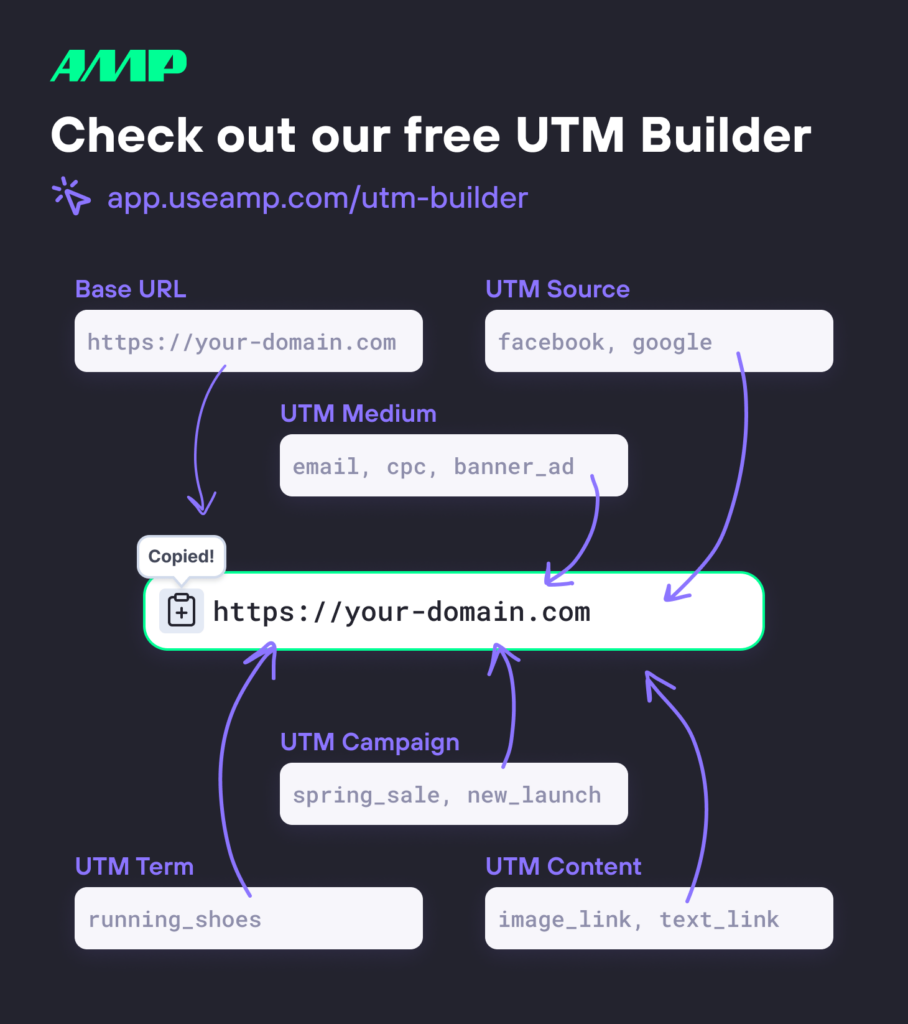
A crucial best practice mentioned in the article is to maintain a consistent, lowercase naming convention. For example, google, Google, and GOOGLE would show up as three separate sources in your analytics, creating messy data. Always stick to one format, like utm_source=google.
2. Implementing UTMs in Google Ads: The Tracking Template Method
In Google Ads, you could manually add UTM parameters to the "Final URL" of every single ad. However, this is inefficient and prone to errors. A much better, more scalable approach is to use a Tracking Template.
A tracking template is a single rule that Google Ads applies to all the ad URLs within a campaign or your entire account. It automatically inserts the correct landing page URL and dynamically fills in campaign-specific information.
This video from LinkedIn Learning provides a perfect demonstration of how to set this up.
Google Ads Tutorial - Setting up a campaign tracking template
This tutorial, 'Google Ads Tutorial - Setting up a campaign tracking template', clearly explains how to use tracking templates and dynamic 'ValueTrack' parameters to automate your UTM tagging.
Please watch the entire video (it's about 3.5 minutes long). Pay close attention to: How the {lpurl} variable works. The difference between static parameters (like utm_source=google) and dynamic parameters (like utm_campaign={campaignid}). The importance of using the 'Test' button to ensure your setup is working correctly.
Your Universal Google Ads Tracking Template
Based on the video and best practices, you can set up a robust tracking template at the account level. This means you set it once, and it applies to all your campaigns.
To do this, navigate to All Campaigns > Settings > Account Settings > Tracking. In the "Tracking template" field, you can paste the following:
{lpurl}?utm_source=google&utm_medium=cpc&utm_campaign={campaignid}&utm_content={adgroupid}&utm_term={keyword}
Let's break this down:
{lpurl}: This is a placeholder that Google automatically replaces with your ad's final URL (your product page).?: This character tells the browser that the tracking parameters are about to start.utm_source=google&utm_medium=cpc: These are static. They will be the same for all your Google Ads.cpcstands for "cost-per-click."&: This separates each UTM parameter.utm_campaign={campaignid},utm_content={adgroupid},utm_term={keyword}: These are dynamic. Google will automatically replace{campaignid}with the ID of the campaign that the ad belongs to,{adgroupid}with the ad group ID, and{keyword}with the specific keyword that triggered the ad (for Search campaigns).
By using this template, you never have to manually build a UTM link for Google Ads again.
3. Implementing UTMs in TikTok Ads: The Manual URL Method
Unlike Google Ads, TikTok Ads Manager does not currently have an account-level tracking template. Therefore, you must manually construct the full, trackable URL and paste it into the "URL" field for each ad you create.
The process is straightforward, but it's crucial to know which dynamic parameters TikTok provides and where to put the URL.
How To Add UTM Parameters To TikTok Ads - Effective Tracking Solution
This video, 'How To Add UTM Parameters To TikTok Ads', by Justin Lalonde, explains the manual process for TikTok and clarifies a common point of confusion.
Watch the sections from 0:52-2:01, 2:01-3:25, 3:25-4:09, and 6:12-6:59. Focus on: Where to add the URL at the ad level (and which fields to ignore). The list of dynamic parameters available for TikTok. The practical example of building the final URL.
Your Universal TikTok Ads URL Structure
To create your trackable URL for a TikTok ad, you'll combine your base URL with static and dynamic parameters. Here are some of the most useful dynamic parameters TikTok offers:
__CAMPAIGN_NAME__: The name of your campaign.__CID__: The numeric ID of your campaign.__ADGROUP_NAME__: The name of your ad group.__AID__: The numeric ID of your ad group.__CREATIVE_NAME__: The name of your ad creative.__VID__: The numeric ID of your ad creative.
Here is a practical template you can use. Let's assume your product page is https://yourstore.com/product.
Your final URL to paste into the ad would be:
https://yourstore.com/product?utm_source=tiktok&utm_medium=paid&utm_campaign=__CAMPAIGN_NAME__&utm_content=__CREATIVE_NAME__
How to use this:
- Replace
https://yourstore.com/productwith your actual product page URL. - When you create a new ad in TikTok Ads Manager, paste this entire string into the URL field.
- TikTok will automatically replace
__CAMPAIGN_NAME__and__CREATIVE_NAME__with the actual names from your campaign setup when a user clicks the ad.
As the video highlights, do not put this URL into the "Impression tracking URL" or "Click tracking URL" fields. Those are for third-party tracking systems and work differently.
Test your understanding!
You are launching a multi-channel campaign for a new product, the "Smart Mug." The product page URL is https://yourstore.com/smart-mug.
You are running two campaigns:
- A Google Shopping campaign.
- A TikTok ad campaign named "smartmug-launch" with a video ad named "ugc-video-1".
What UTM tracking setup would you use for each?
Show answer
-
Google Shopping Campaign: You would not do anything at the ad level. Instead, you would ensure your account-level Tracking Template is set to:
{lpurl}?utm_source=google&utm_medium=cpc&utm_campaign={campaignid}&utm_content={adgroupid}&utm_term={keyword}
Google will handle the rest automatically. -
TikTok Ad Campaign: You would construct the following URL and paste it directly into the "URL" field for the "ugc-video-1" ad:
https://yourstore.com/smart-mug?utm_source=tiktok&utm_medium=paid&utm_campaign=__CAMPAIGN_NAME__&utm_content=__CREATIVE_NAME__
When a user clicks, TikTok will dynamically convert this to something like:https://yourstore.com/smart-mug?utm_source=tiktok&utm_medium=paid&utm_campaign=smartmug-launch&utm_content=ugc-video-1
Conclusion
Congratulations! You now have the foundational knowledge to track every single click from your paid ad campaigns. This systematic tagging is what separates amateur marketers from professional e-commerce operators. It transforms your analytics from a confusing mess into a clear roadmap showing exactly what is and isn't working.
Key Takeaways:
- UTM Parameters are Essential: They are non-negotiable for accurate cross-channel attribution.
- Google Ads = Tracking Templates: Use an account-level tracking template with dynamic ValueTrack parameters like
{lpurl}and{campaignid}for a "set it and forget it" solution. - TikTok Ads = Manual URL Construction: For TikTok, you must build the full, trackable URL with dynamic parameters like
__CAMPAIGN_NAME__and paste it into the ad's destination URL field. - Consistency is King: Always use a standardized, lowercase naming convention for your UTM values to ensure clean and reliable data.
Next Up:
Now that you've set up your campaigns to send clean, tagged data, the next logical step is to learn how to interpret it. In our next lesson, we will dive into Google Analytics. You will learn how to use Google Analytics to analyze which channels are driving traffic and sales to your products, finally closing the loop on your marketing efforts.