
Welcome back. In the previous lesson, you identified Windows as the software running your Lenovo laptop and opened Microsoft Edge, your web browser. Today you will use Edge as your coding workspace: you will open Expo Snack, a website where you can view and run a small mobile-app project without installing complicated software.
This is a deliberately lightweight starting point. You will not write code yet, and you do not need to install Node.js, a terminal, or a code editor. The goal is simply to get a starter app visibly running in the browser. Plan for about 25–30 minutes.
A browser-based app workspace
Most app projects are collections of files containing code, images, and settings. A starter project is a ready-made small project: it gives you a working starting point rather than requiring you to create every piece yourself.
Expo is a set of tools for making apps that can work across iPhones, Android phones, and the web. For this course, you will use Snack, Expo’s browser-based workspace. Think of it as a coding desk that opens inside Edge:
- the file list shows the pieces of the project;
- the code editor is where code can later be changed;
- the preview displays the app while it runs.
The preview may appear inside a phone-shaped frame or directly in a webpage panel. Either is normal.
Read Expo’s short “Tools for development” guide. It introduces Snack and explains that you can select a platform and see an app update in the browser.
Under “Test prototypes with Snack and Expo Go”, read the “Snack” subsection, beginning with the Snack introduction. Focus on the three platform choices—Android, iOS, and web—and on the idea that Snack lets you experiment without downloading development tools to the laptop.
The next image is an example of what you may see. Its exact colors, layout, and buttons may differ because websites change over time, but notice the important three areas: files on the left, code in the middle, and a preview on the right.

Open a new Expo Snack
Follow these steps carefully on your Lenovo:
-
Make sure your laptop is connected to Wi-Fi.
-
Open Microsoft Edge.
-
Click the long address bar at the very top of Edge. You can also press Ctrl and L together; this selects the address already there.
-
Type this address exactly:
snack.expo.dev -
Press Enter.
-
Wait for the Expo Snack website to load.
You may land directly in a project editor, or you may first see a welcome page. Look for a button or link with a name similar to:
- Create Snack
- New Snack
- Try Snack
- Start coding
Select it once.
If Snack asks you to choose a template, choose the simplest option, usually called Blank, Default, or Starter. Do not choose a complicated example such as a game, camera, or navigation demo. We want a clean, working project that we can build on later.
You might be offered the chance to sign in or create an account. If there is a Try without signing in or similar option, you may use it for now. Creating a free account can be useful for saving work, but the essential goal today is to open and run the starter project.
Recognize the workspace
Once the project opens, pause before clicking anything. Locate these parts:
| Area | What it does | What to do today |
|---|---|---|
| File panel | Lists project files | Look, but do not edit or delete files |
| Editor | Displays the selected file’s code | Leave the starter code unchanged |
| Preview panel | Shows the app running | This is where you will check your result |
| Platform selector | Chooses web, iOS, or Android preview | Choose Web today |
You do not need to understand the code you see. Code is simply the set of instructions that tells the app what to display and how to behave. In the next module, you will begin reading and changing small pieces of it.
Run the starter app in a web preview
In Snack, find the preview area—usually on the right side of the page. Locate the platform choice and choose Web.
Snack may begin loading immediately. If it gives you a clear button named Run, Start, Open web, or Preview, select that button once. Then wait. It can take up to a minute the first time because Snack is preparing the project for display.
A successful result is a simple starter screen. It may contain a greeting, instructional text, or a screen title such as “index.” The wording is less important than these facts:
- You can see an app screen in the preview.
- The preview does not show a red error message.
- The project is open in Snack and the Web platform is selected.
The image below shows why Expo is useful for the app you want to make: the same starter project can be displayed in an Android view, an iPhone view, and a web-browser view. Today you are using the web view because it is the quickest way to confirm that your project runs. In the next lesson, you will show the project on your actual iPhone.
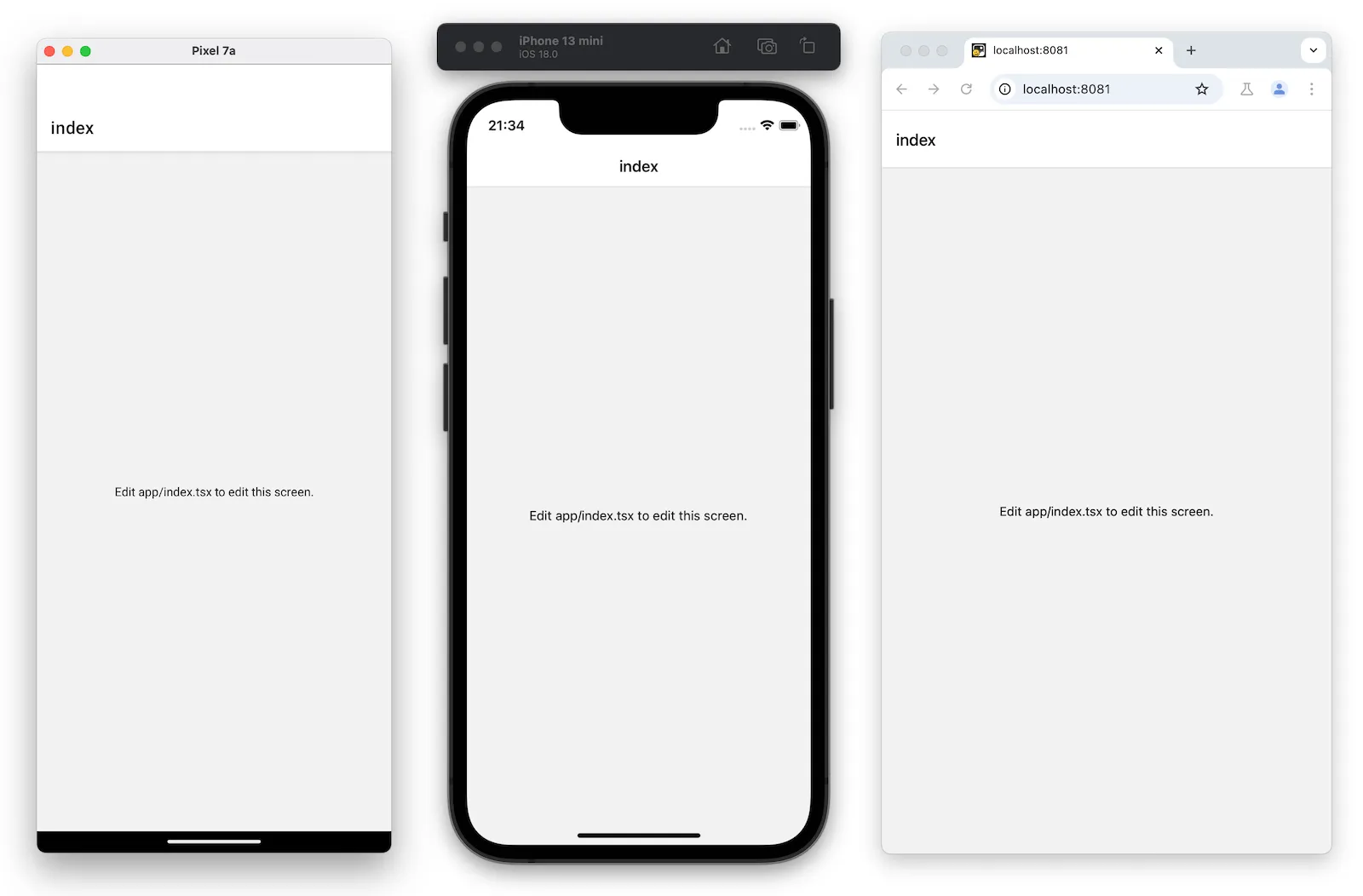
What “running” means here
When an app is running, its instructions are being processed and the app’s screen is visible and usable. The web preview is not yet an app installed on your iPhone, but it is still an important first check: it confirms that Snack has opened the starter project successfully.
For your social-media-style prototype, this shared-project approach matters. Later you will make one set of screens—a feed, camera, and profile—and test those screens on your iPhone while also being able to inspect them in the browser.
If something does not work
Small setup problems are normal. Use the message you see to choose a simple response rather than clicking many things at random.
| What you see | Likely cause | Try this |
|---|---|---|
| “This site can’t be reached” | The laptop is not connected to the internet, or the address was mistyped | Check Wi-Fi, then type snack.expo.dev again in the address bar |
| A blank preview that keeps loading | Snack is still preparing the project | Wait one or two minutes; then refresh Edge with Ctrl and R |
| A very small or strange-looking page | Browser zoom may have changed | Press Ctrl and 0 together to return Edge to normal zoom |
| A red error panel after you changed something | The starter code was altered | Refresh the page or open a fresh Blank/Starter Snack; do not try to fix code yet |
| A sign-in screen | Snack may require an account for that action | Look for a guest or try option; otherwise, ask for help creating a free account before continuing |
Do not worry if your workspace does not precisely match the example image. The important evidence is the visible starter app in the Web preview.
Before closing Edge, keep the Snack tab open if you can. If you signed in, look for a Save control so the project is available later. If you did not sign in, write down that you used Expo Snack and leave the tab open until the next lesson.
Key takeaways
You opened Expo Snack at snack.expo.dev, a browser-based workspace for Expo projects. A starter project contains ready-made files and code; you do not need to understand or change that code yet.
By choosing Web in Snack’s preview area and seeing the starter screen, you have run your first Expo app. Expo can use the same project for web, iPhone, and Android views, which keeps the early version of your social-media app flexible.
Next, you will connect your iPhone to the Expo project and display this starter app on the phone itself.
Can't find a good explanation? Sign up and we'll make it for you
Sign up