
Hello, and welcome to the first step toward building your mobile app. Before writing code, you need to recognize the two tools that will get you into the coding workspace: the operating system that runs your laptop and the web browser that opens websites and browser-based coding projects.
This first module has three short lessons. Today you will identify Windows and a browser on your Lenovo laptop. Next, you will open a starter Expo mobile app in that browser. Then you will display that app on your iPhone.
Plan for about 30–35 minutes. You do not need to install anything or change any settings today.
Your laptop has layers of software
“Lenovo” is the manufacturer of your laptop, not the name of its operating system. An operating system, often shortened to OS, is the main software that starts when you turn on the computer. It manages the laptop’s hardware, lets you open programs, and provides the desktop, taskbar, menus, files, and settings you see.
On a typical Lenovo laptop, the operating system is usually Microsoft Windows. The current common version is Windows 11, though some computers still use Windows 10.
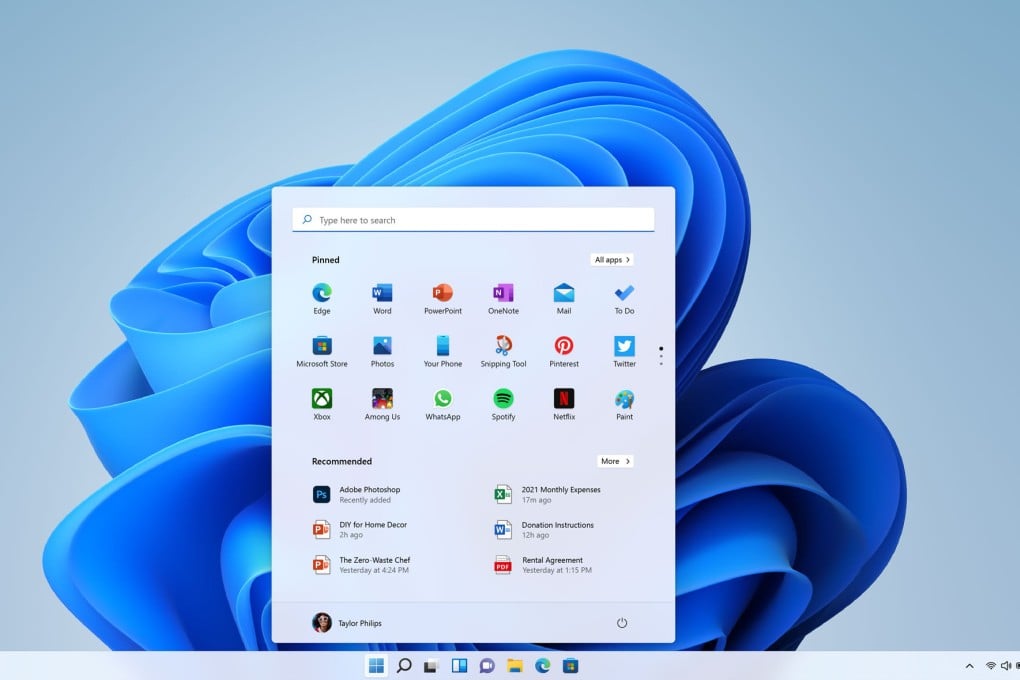
A web browser is a program that displays and lets you interact with websites. In later lessons, you will use one to open an Expo coding project. Common browsers include:
- Microsoft Edge — usually already installed on Windows
- Google Chrome
- Mozilla Firefox
- Safari — normally used on Apple devices such as your iPhone
A browser is not the same thing as a website. For example, Edge is a browser; Google, YouTube, and Expo are websites you can visit inside a browser. A search engine such as Google is also not itself a browser.
Confirm the operating system on your Lenovo
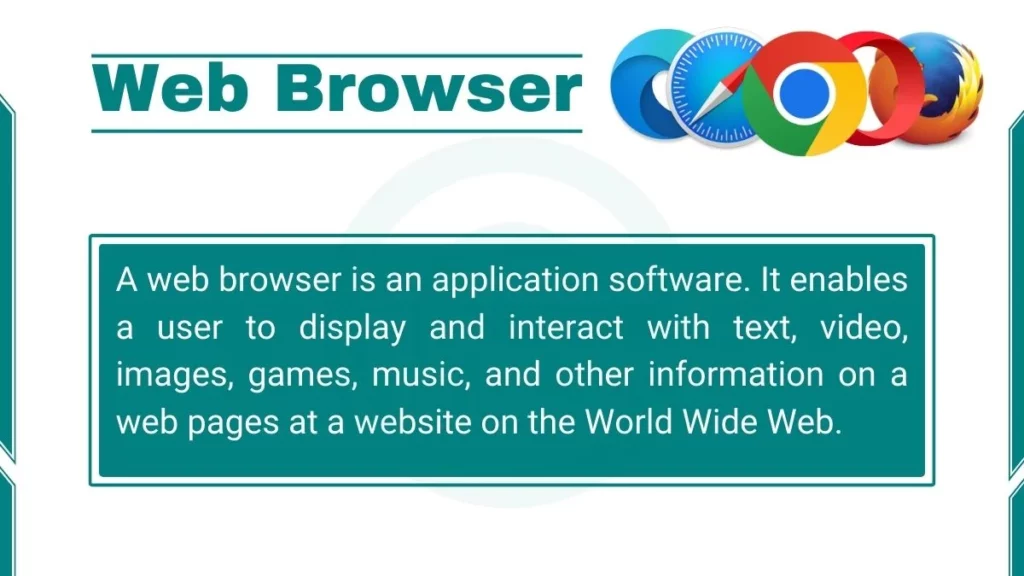
The visual style in the Windows 11 desktop image is a useful clue: the Start button is often centered on the taskbar, and it looks like four small squares. However, rather than relying on appearance alone, you can confirm exactly which Windows edition and version your laptop uses.
Find information about your Windows device
Read Microsoft Support’s short guide because it shows the official place in Settings where Windows names its edition and version.
Expand the section called “Which version of Windows do I have?” Read the Windows-details instructions. Focus on the path through Settings and the “Windows specifications” area, where the edition and version appear.
Now carry out the check on your own laptop.
- Turn on the laptop and sign in, if needed.
- Look at the very bottom of the screen. This horizontal strip is the taskbar.
- Click the Start button, the four-square Windows icon. On Windows 11 it may be near the middle; on some setups it may be at the left.
- Begin typing Settings. You do not need to click a search box first.
- Open the app named Settings, usually marked by a small gear icon.
- Select System if it is not already selected.
- Scroll down and select About.
- Find the heading Windows specifications. Record:
- Edition, such as “Windows 11 Home”
- Version, a number identifying its update release
Your result may look like this:
My operating system is Windows 11 Home, version [the number shown on my laptop].
The important result for this course is the word Windows and whether it is Windows 11 or Windows 10. The edition and version are useful later if a website or tool gives instructions that differ by Windows version.
A backup method
If Settings is difficult to find, use this short alternative:
- Hold down the key with the four-square Windows logo.
- While holding it, press R.
- A small box titled Run should appear.
- Type
winver, then press Enter. - A window titled About Windows will state the Windows version.
You are only looking at information here. Do not worry about the technical entries such as OS build or system type.
Find and open your web browser
For this course, we will use Microsoft Edge whenever possible. It is included with Windows and is enough to open the browser-based Expo project in the next lesson. You may already have Chrome or Firefox too; that is fine, but using one browser consistently will make the instructions easier to follow.
The Microsoft Edge icon is usually a blue-and-green swirl. It appeared among the pinned apps in the Windows 11 image above.
Use this reliable method to find it:
- Open Start.
- Type Edge.
- Look for an app named Microsoft Edge with the blue-and-green swirl icon.
- Click it once to open it.
When Edge opens, notice two parts of the window:
- At the top are tabs. Each tab can hold a different webpage.
- Below the tabs is a long field called the address bar. You can type a website address there, or type words to search the web.
The address bar belongs to the browser. The Windows Start search is different: it searches your computer for apps, settings, and files.
✔️ How to Use Windows 11 - Basics Tutorial for Beginners - Computer Guide for Dummies
Watch “How to Use Windows 11 - Basics Tutorial for Beginners” from Your Windows Guru - Windows 10 & 11 for a guided look at opening and using Microsoft Edge.
Go to the segment on Microsoft Edge, beginning at about 23 minutes. Watch the Edge walkthrough. Focus on recognizing Edge as an application on Windows and on the basic browser window, rather than on downloading a different browser. You do not need to download Chrome or Firefox for this course.
How to verify which browser you opened
The simplest test is to look at the program’s name:
- In the Start search results, Windows labels it Microsoft Edge, Google Chrome, or Firefox.
- Once the browser is open, its name often appears near the top of the window or when you point at its taskbar icon.
- In Edge, you can also select the three dots near the top-right corner, choose Settings, then select About Microsoft Edge. This confirms its name and shows its version.
Do not assume that every blue icon is Edge or every colorful circle is Chrome. Reading the app name beside the icon is the safest habit.
A browser can be installed without being the default browser. “Default” only means Windows uses that browser automatically when you open a web link from another app. For the next lesson, what matters is simply that you can deliberately open Microsoft Edge and use its address bar.
A small readiness routine
Before leaving your laptop, practice this short routine once:
- Close or minimize Settings.
- Open Start and search for Microsoft Edge.
- Open Edge.
- Click once inside the long address bar at the top.
- Type a familiar website, such as
www.google.com, and press Enter. - Confirm that a webpage appears.
If a page does not load, Edge may still be working; the laptop might simply not be connected to Wi-Fi. The next lesson will begin with Edge open and an internet connection available.
Keep this distinction in mind:
| Name | What it is | Example |
|---|---|---|
| Laptop maker | The company that made the physical computer | Lenovo |
| Operating system | Main software that runs the computer | Windows 11 |
| Browser | App used to open websites | Microsoft Edge |
| Website | A place you visit through the browser | Expo |
Key takeaways
Your Lenovo is the physical laptop; Windows is the operating system that runs it. You can confirm its exact edition and version through Settings, System, About, under Windows specifications.
A web browser is an app for viewing websites. On your laptop, open Microsoft Edge from Start search and recognize its address bar, tabs, and blue-and-green swirl icon. You now have the basic vocabulary and navigation needed to enter a browser-based coding project.
Next, you will use Edge to open an Expo project and run its starter mobile app.
Can't find a good explanation? Sign up and we'll make it for you
Sign up