
Welcome back. Last time, you opened a starter Expo project in Microsoft Edge on your Lenovo and confirmed that it runs in Snack’s Web preview. That showed the project works in a browser.
Now you will view that same starter app on your actual iPhone. You will install Expo Go, find the QR code in Snack, scan it with your iPhone, and open the project. Plan for about 25–35 minutes. Keep the Snack tab open on your laptop throughout.
What connects your laptop and iPhone?
Your Expo project remains in Snack, the website open on your Lenovo. A QR code is a square barcode that contains a link. When your iPhone scans Snack’s QR code, the phone receives the link to your project.
Expo Go is an iPhone app that can open and run Expo projects while you are learning. It is not the social-media app you will build; think of it as a safe viewer for the app under construction.
The connection has three parts:
- Snack displays a QR code for the project.
- Your iPhone’s Camera reads that code.
- Expo Go opens the project and displays its starter screen.
You will eventually use this same routine whenever you want to test a change on your iPhone.
Install Expo Go on the iPhone
First, unlock your iPhone and connect it to Wi-Fi. Using the same home Wi-Fi network as your Lenovo is the simplest setup.
- Find and tap the blue App Store icon on your iPhone.
- Tap Search at the bottom of the screen.
- Search for Expo Go.
- Choose the app named Expo Go and install it. You may need to enter your Apple ID password, use Face ID, or ask the person who manages the phone for help.
- When installation finishes, leave Expo Go installed. You do not need to open it yet.
This short Expo video shows the App Store step. The presenter uses a Mac, but only watch this small iPhone-focused section; you do not need the Mac setup shown elsewhere in the video.
How to create your first Expo app | Universal App tutorial #1
Watch “How to create your first Expo app” from the Expo channel to see where Expo Go is found and installed on an iPhone.
Watch Expo Go setup. Focus on the name Expo Go in the App Store and the fact that it is installed on the physical phone before the project is opened.
Find the project QR code in Snack
Return to your Lenovo. The Snack project should still be open in Microsoft Edge. If it is not, open snack.expo.dev again and return to the starter project you made last lesson.
Look in or near Snack’s preview area for a choice such as:
- My Device
- Open on device
- QR code
- a small phone icon
Click My Device or the closest matching option once. Snack should display a large black-and-white square QR code. It may take a short time to appear.
Do not worry if Snack’s buttons do not use exactly these words; its layout can change. The thing you need is the square QR code for opening the project on a device, not the Web preview you used last lesson.
Keep that QR code visible on your laptop screen. Do not close, refresh, or put the laptop to sleep while you are about to scan it.
Scan the code with your iPhone
On the iPhone:
- Open the regular Camera app. Its icon looks like a camera.
- Make sure you are in Photo mode.
- Hold the phone so the QR code on the Lenovo screen fits inside the camera view. You do not need to take a photograph.
- Wait a moment for a banner or link to appear near the top or bottom of the screen.
- Tap the banner or link.
- If iPhone asks whether to open the link in Expo Go, choose Open.

Apple’s instructions below provide the same camera-scanning steps in a compact form.
Scan a QR code with your iPhone camera - Apple Support (VN)
Read Apple Support’s quick guide to confirm the normal iPhone camera process for opening a QR-code link.
In “Use Camera to scan a QR code,” read from positioning the code through tapping the detected link. Use this only if the banner does not appear immediately or you are unsure what to tap.
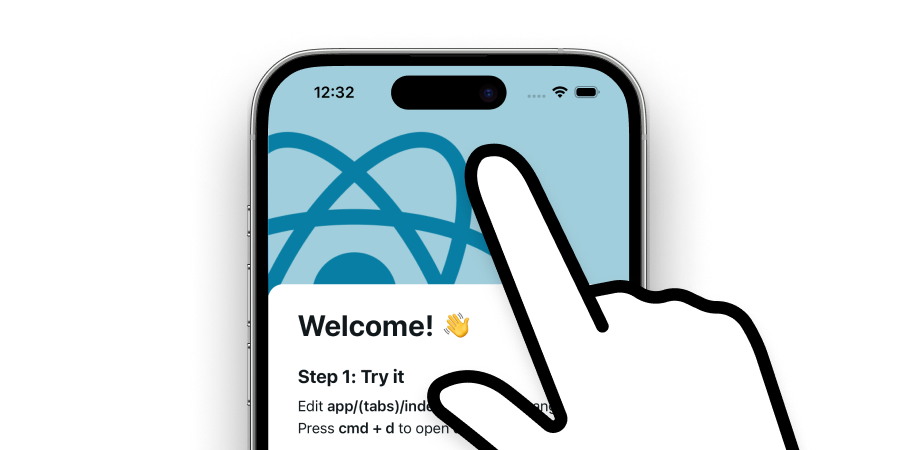
After you tap the link, Expo Go should open. For the first launch, wait patiently: it may show a loading screen while it prepares the project. Then you should see the same simple starter app that appeared in Snack’s web preview.
The words may differ from the browser preview, but a successful result has these signs:
- The app is open inside Expo Go on the iPhone.
- You see a starter screen rather than a camera view or a browser page.
- There is no large red error message.
- The screen corresponds to the project currently open in Snack.
At this point, you have tested a real mobile app on real iPhone hardware—without installing your own app from the App Store.
If the connection does not work
Do one calm check at a time. Most connection problems are small setup issues, not a sign that you did anything wrong.
| What happens | Try this |
|---|---|
| You cannot find a QR code in Snack | Look again for My Device, Open on device, or a phone icon near the preview. If needed, refresh the Snack page once and wait for it to load. |
| The iPhone Camera does not detect the code | Increase the laptop screen brightness, hold the phone a little farther away, and keep the whole square code visible. Clean the camera lens if it is smudged. |
| You installed Expo Go but the link opens in Safari | Look for an Open in Expo Go choice. If one appears, tap it. Return to Snack’s QR code and scan it again if needed. |
| Expo Go opens but stays loading or says it cannot connect | Confirm that both the Lenovo and iPhone are on the same home Wi-Fi network. Avoid a public, school, hotel, or guest network if possible; such networks sometimes prevent devices from communicating properly. Then close Expo Go, reopen it, and scan again. |
| Snack’s preview or QR code looks unusually tiny | In Edge, press Ctrl and 0 together. This returns browser zoom to normal size. |
| A red error screen appears in Expo Go | Do not edit code yet. Return to Snack and check whether its Web preview also shows an error. Refresh the Snack page or open a fresh starter project if necessary. |
Expo’s documentation notes that a phone and computer need to be on the same Wi-Fi network when opening an app from a local development server. Later, when you use more advanced tools, you may see a setting called Tunnel if a network blocks the normal connection. For now, use your home Wi-Fi and Snack’s device QR code; it is the most straightforward route.
Keep a simple testing habit
Whenever you work on this project in future lessons:
- Open the Snack project in Edge.
- Keep the QR code or device preview available.
- Open the project in Expo Go on the iPhone.
- Check the iPhone after making a change.
The browser preview is convenient, but the iPhone is the important test environment for this course. It lets you see actual screen size, touch behavior, and later the camera experience—features that a browser cannot fully reproduce.
Key takeaways
You installed Expo Go on your iPhone, used Snack’s My Device or QR-code option, and scanned the code with the iPhone Camera app. Tapping the detected link opened the starter Expo project in Expo Go.
The QR code does not permanently install your future social-media app. It opens the current development version so you can test it while building. Keeping your Lenovo and iPhone on the same home Wi-Fi network will prevent many common connection problems.
Next, you will begin changing the app itself with JavaScript constants—small named places for storing text, numbers, and true-or-false values.
Can't find a good explanation? Sign up and we'll make it for you
Sign up