
Hello. In the previous lab, you separated Planning work-area access from planning-data readiness and verified that Manage Planning Source Systems is available through Setup and Maintenance. This lab takes the next operational step: confirming that the Oracle Fusion source system is enabled and scoped correctly before any collection is attempted.
For Demand Management, Supply Planning, and Replenishment Planning, the planning data repository is the shared operational foundation. The Oracle Fusion source system controls whether Fusion can contribute data to that repository and, crucially, which organizations are eligible for collection. A successful configuration here does not load data by itself; it establishes the source-side eligibility that the targeted collection lab will use next.
What you are configuring, and what you are not
A planning source system identifies where Planning obtains data. In a typical Oracle Fusion Cloud implementation, the Oracle Fusion source system is the internal Fusion application source for planning master data and transactions, such as organizations, items, calendars, on-hand balances, sales orders, purchase orders, work orders, and sourcing-related reference data.
The configuration has two levels:
| Level | Configuration | Why it matters |
|---|---|---|
| Source-system level | Collections Allowed | Permits the source system to contribute data to the planning data repository. |
| Organization level | Enable for Collections | Limits collection to the organizations that are actually in planning scope. |
Both levels matter. Enabling the Oracle Fusion source system without enabling a required inventory organization produces a later “missing item” or “missing supply” symptom that can be mistaken for a plan-configuration problem.
The Oracle Fusion source system is predefined. Your usual implementation task is to inspect it, enable collections if required, refresh its organization list, and enable the intended organizations. Do not create a second Oracle Fusion source system to solve a collection issue.
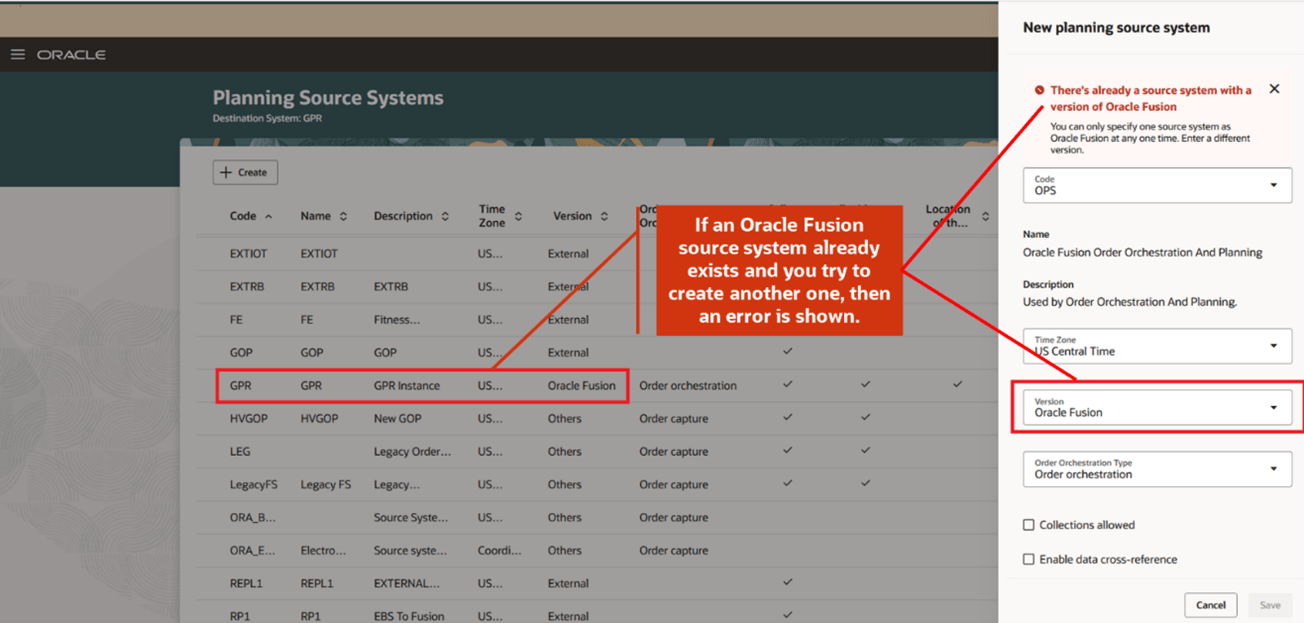
Oracle permits only one source system whose version is Oracle Fusion at a time. Other rows you may see, such as External or Others, serve different integration patterns and are not substitutes for the predefined Fusion source.
Read the Oracle configuration rules before changing setup
Use these two short Oracle references as your guardrails for the lab. The first describes the core source-system and organization procedure; the second explains the 26B Redwood page and its edit restrictions.
Manage Planning Source Systems for Data Collections
Read Oracle Help Center's "Manage Planning Source Systems for Data Collections" to establish the source-level and organization-level controls that determine collection eligibility.
In the opening section, locate the Setup and Maintenance path under the Supply Chain Planning offering. Then read the source system role in the subsection "The Oracle Fusion Source System." In the later subsection "Organizations Enabled for Data Collections," read the organization procedure. Focus on the required order: refresh the Oracle Fusion organization list first, then enable organizations, and collect organizations before relying on other planning data.
Redwood: Manage Planning Source Systems Using a New User Experience
Read Oracle's 26B readiness note to recognize the Redwood page, distinguish its navigation from the classic task, and understand which Oracle Fusion attributes are intentionally restricted.
In the opening section, read the Redwood overview, including the explanation of how the profile option changes the Quick Actions label. In "Create Planning Source System," read the type rules. Then, in "Edit Planning Source System" and "Manage Organization List," read editing and organization management. Treat the edit restrictions as design controls, not as missing functionality.
Lab setup: define one controlled collection scope
Use one end-to-end test scenario rather than enabling every organization in the environment. Select:
- one inventory organization that has at least one planning-relevant item;
- one item you expect to validate in the planning data repository later;
- one planner or organization owner who can confirm whether the organization belongs in planning scope.
Record the following before changing anything:
| Evidence item | Example of what to record |
|---|---|
| Environment | Student pod name, URL, and 26B environment |
| Source system | Code, name, and Version value of the Oracle Fusion row |
| Test organization | Organization code and name |
| Initial state | Whether Collections Allowed and Enable for Collections are selected |
| Change owner | Your user and the date/time |
| Expected downstream result | Organization and its item should become eligible for targeted collection |
This is deliberately narrow. In production, enabling a new organization can increase collection volume and introduce additional data-quality issues. A controlled scope lets you prove the configuration and isolate defects.
Lab 1: navigate to the correct page and inspect the Oracle Fusion row
Oracle 26B can expose either the Redwood experience or the classic Manage Planning Source Systems task. The underlying objective is the same, but the entry path can differ.
Step 1: Use Setup and Maintenance as the primary route
- Open Setup and Maintenance.
- Search for the task Manage Planning Source Systems.
- Confirm the context:
- Offering: Supply Chain Planning
- Functional Area: Supply Chain Planning Configuration
- Task: Manage Planning Source Systems
- Open the task.
If you have the Redwood experience, you may also reach the page from the Supply Chain Planning work area:
- Open Supply Chain Planning.
- Select View More.
- Open Actions.
- Open Plan Inputs.
- Select Planning Source Systems.
A Quick Action label can reveal which page design is active:
- Planning Source Systems typically opens the Redwood page.
- Manage Planning Source Systems typically opens the classic page.
Do not change the Redwood Page for Planning Source Systems Enabled profile option merely to make the page look familiar. Treat page variation as a navigation difference unless the project explicitly requires a UI rollout decision.
Step 2: Locate the one Oracle Fusion source system
On the source-system list, filter or scan the Version column for Oracle Fusion. Select that row.
Do not select a row solely because its code looks familiar. Source-system codes are customer-specific and can differ among environments.
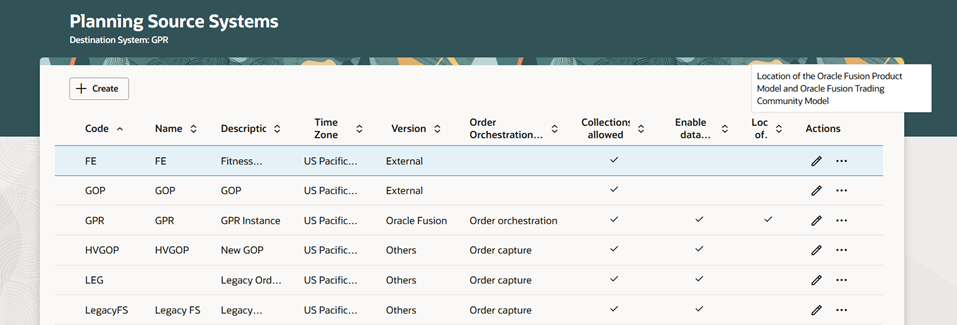
Capture these baseline attributes:
| Attribute | Expected observation | Interpretation |
|---|---|---|
| Code | A populated, environment-specific identifier | Identifies the source system; it is not editable. |
| Name | A meaningful source-system name | Useful evidence, but do not rely on name alone. |
| Version | Oracle Fusion | Confirms this is the internal Fusion source used for collection. |
| Order orchestration type | Order Orchestration | Expected behavior for the Oracle Fusion version. |
| Collections Allowed | Selected for an active collection source | Source-level permission to collect planning data. |
| Organization-management action | Available for the source row | Used to refresh and enable scoped organizations. |
A row with Version External represents a fully external source pattern. A row with Version Others supports specific Oracle integration patterns. Neither should be altered as a workaround for an Oracle Fusion collection issue.
Lab 2: enable Collections Allowed safely
For an Oracle Fusion source system, the key editable source-level control is Collections Allowed. Oracle intentionally restricts other attributes. For example, the source-system code cannot be edited, and you should not expect to change the time zone or order orchestration type as you might for other source-system versions.
Step 1: Inspect the current setting
- Select the Oracle Fusion source-system row.
- Click the Edit icon, usually shown as a pencil.
- Locate Collections Allowed.
- Record its initial value before changing it.
Step 2: Make the minimum needed change
If Collections Allowed is already selected:
- Leave it selected.
- Do not save a no-op change.
- Continue to organization configuration.
If it is not selected:
- Select Collections Allowed.
- Save the change.
- Reopen the source system or refresh the page.
- Verify that the check box remains selected after save.
Use this implementation principle:
Enable only the setting required for the stated collection design, then validate its persistence before proceeding.
The setting means the source system is allowed to participate in collections. It does not determine which specific organizations, items, or transaction entities will be collected. Those decisions are refined by enabled organizations and, in the next lesson, collection parameters and filters.
Step 3: Record the configuration decision
Use a concise decision record like this:
| Setting | Lab decision | Reason |
|---|---|---|
| Oracle Fusion source system | Use predefined row | Fusion source is predefined and only one Oracle Fusion version is permitted. |
| Collections Allowed | Enabled | Makes the source eligible for Planning data collection. |
| Organization scope | Enable one test organization | Limits collection volume and creates a traceable test case. |
| Flexfield mapping | No change | Requires an approved requirement to expose descriptive flexfields in planning. |
| External data source selection | No change | Not needed for a standard Fusion collection scenario. |
Lab 3: refresh and enable the planning organization
This is the critical configuration action. The organization list is not a static setup list; Oracle requires a refresh for the Oracle Fusion source system before you enable organizations for planning collection.
Step 1: Open the organization list
- Return to the selected Oracle Fusion source-system row.
- Select Manage Organization List.
- Review the organizations currently displayed, but do not assume the list is current.
Step 2: Refresh first
- Click Refresh Organization List.
- Wait for the refresh to complete.
- Search for your selected test organization by organization code or name.
- Confirm that you are selecting the correct operating organization, especially if similar names exist across business units or legal entities.
The refresh is mandatory when adding Oracle Fusion organizations to the planning collection scope. If you skip it, a recently created or recently enabled organization may not be available for selection, leading to an avoidable collection gap.
Step 3: Enable the organization for collections
- Select the Enable for Collections check box for the test organization.
- Save the organization-list change.
- Refresh or reopen the list.
- Confirm that the selected organization still shows Enable for Collections.
At this point, your configuration evidence should state:
The predefined Oracle Fusion source system is collection-enabled, and organization
<organization code>is explicitly enabled for Planning data collection after refreshing the organization list.
Do not yet conclude that its items or orders are in Planning. That conclusion requires the collection run and repository validation performed in the next lessons.
Step 4: Understand the recommended initialization order
During initial setup, Oracle recommends collecting the order-orchestration reference objects from the predefined Oracle Fusion source system and considering an organization collection first. The reason is practical: Planning needs the network and organizational context before later collections of item, demand, and supply records can be interpreted correctly.
Your next lab will use a targeted collection to control exactly which data types and organizational scope are collected. For now, leave the organization setting saved and retain its evidence.
Configuration boundaries: flexfields and hybrid external data
The Oracle Fusion source system page can expose advanced actions that are valid but should not be changed casually during a basic collection setup.
Flexfield mapping
Define Flexfield Mapping is available only for the Oracle Fusion source system. It is used when descriptive flexfield segments must be mapped into planning attributes for entities such as:
- items;
- purchase orders;
- transfer orders;
- work orders.
A mapping should exist because a planning requirement needs the attribute for analysis, segmentation, measures, exception handling, or plan logic. Do not create mappings merely because the page makes the action available. An ungoverned mapping can create ambiguity about which source attribute is authoritative.
Select Data Sources and hybrid mode
Select Data Sources supports a hybrid design in which, for a particular organization and entity, Planning obtains data either from Fusion collections or from FBDI/CSV upload.
A valid example is contract manufacturing: work orders for a contract-manufacturing organization may be loaded through FBDI, while work orders for other organizations are collected from Fusion.
The key design rule is:
For a given entity and organization, choose one authoritative loading method: Fusion collection or CSV upload.
Do not enable external-data settings for your controlled Fusion test organization unless you intentionally need an FBDI design. Otherwise, you risk confusing the source of a planning record and complicating root-cause analysis later.
Troubleshooting the source-system setup
Use the symptom to classify the issue before altering configuration.
| Symptom | Likely cause | Correct response |
|---|---|---|
| No row has Version Oracle Fusion | Wrong environment, incomplete setup, or an access/display issue | Recheck the task and environment. Escalate with screenshots; do not create a replacement Fusion source system. |
| Error when creating another Oracle Fusion source | One Oracle Fusion source system already exists | Locate and use the existing row. This is an expected design restriction. |
| Collections Allowed is selected, but an organization is absent later | Organization was not enabled, list was not refreshed, or later collection scope excluded it | Refresh the organization list, enable the organization, then validate the next collection parameters. |
| Expected organization is missing from Manage Organization List | Source organization data is not currently available to the list, or security/setup is incomplete | Refresh first. If still absent, verify the organization’s upstream setup and raise a scoped data/security issue. |
| Source system fields appear read-only | Expected Oracle Fusion version restriction or insufficient task privilege | For Oracle Fusion, only Collections Allowed is normally editable. If the required organization action is unavailable, capture the task-level security issue. |
| Need to change source-system code | Unsupported change | Treat the code as an immutable identifier. Create a governed integration design only if the requirement genuinely calls for another source type. |
The duplicate-source error is not a problem to bypass. It is Oracle protecting the single-Fusion-source design.
Validation checkpoint and implementation evidence
Before you leave the page, capture a screenshot or configuration note containing:
- the Oracle Fusion source-system code and Version;
- the selected Collections Allowed value;
- the test organization with Enable for Collections selected;
- the date, environment, and user;
- confirmation that the organization list was refreshed before enabling the organization.
A concise senior-consultant interview response could be:
“I use Manage Planning Source Systems to validate the predefined Oracle Fusion source, rather than creating a new one. I confirm that Collections Allowed is enabled, refresh the organization list, and enable only organizations in the approved planning scope. I then collect organization and reference data before validating items and transactions in the planning data repository. If data is missing, I distinguish source eligibility and organization scope from collection parameters and repository results.”
That explanation establishes the dependency chain without claiming that a source-system configuration alone loads planning data.
Key takeaways
- The predefined Oracle Fusion source system supplies internal Fusion planning data to the planning data repository.
- There can be only one source system with Version Oracle Fusion.
- For the Oracle Fusion source system, Collections Allowed is the principal editable source-level control.
- Organization eligibility is separate: open Manage Organization List, refresh the list, then select Enable for Collections for each organization in scope.
- Do not use External, Others, flexfield mappings, or hybrid FBDI settings as a workaround for a basic Fusion collection issue.
- Completion of this lab proves collection eligibility and scope; it does not yet prove that data has been collected.
Next, you will create collection filters and run a targeted collection for selected organizations, items, calendars, sourcing data, and planning transactions.
Can't find a good explanation? Sign up and we'll make it for you
Sign up