
Hello. This course is organized as a set of implementation and troubleshooting labs, beginning with the foundation that makes every later planning activity meaningful: confirming what the environment actually exposes, what is configured, and what your user can use.
This first lab establishes a disciplined baseline for Oracle Fusion Cloud 26B. You will verify separate access to Demand Management, Supply Planning, and Replenishment Planning, then use Setup and Maintenance to confirm that the Supply Chain Planning configuration framework is available. The goal is not merely to see tiles: it is to collect enough evidence to distinguish a provisioning, security, navigation, or data-readiness problem before attempting configuration or plan runs.
The four layers behind “I can’t access Planning”
When someone says that a planning module is “not enabled,” that phrase can describe four different conditions. Treating them as one problem produces slow, unfocused troubleshooting.
| Layer | Question to answer | Typical evidence | Owner most likely to resolve an issue |
|---|---|---|---|
| Service entitlement and provisioning | Is the relevant Oracle service provisioned for this environment? | Product is available in the environment; its work area can potentially be assigned | Subscription / environment administrator; Oracle Support if provisioning is incomplete |
| Offering and implementation setup | Is the Supply Chain Planning offering and its configuration task framework available? | Supply Chain Planning offering and planning setup tasks in Setup and Maintenance | Functional implementation team |
| Security | Does this user have the roles and data access required to open and use the work area? | Navigator entry, Springboard tile, successful opening of page | Security administrator and functional lead |
| Operational readiness | Is enough planning data and analytics setup present to use plans meaningfully? | Collected calendar, catalog, organizations, items, repository records | Functional planning team |
The first three layers are central to this lesson. The fourth becomes the focus of the next lessons on source systems and collections.
A visible tile is useful evidence, but it is not proof that the module is fully usable. Conversely, an absent tile does not prove the product is unlicensed: it may simply be hidden by role-based security.
Learn the intended navigation model
Oracle identifies the available Supply Chain Planning work areas as dependent on both licensed/configured products and privileges assigned to the user. Read the following short reference before entering the environment.
Overview of Supply Chain Planning Work Areas
Read Oracle’s overview to anchor your verification in the intended Navigator and Springboard paths, and to confirm the work-area-to-product mapping.
In “Navigation to Work Areas,” read from the navigation explanation. Then read the full table in “List of Supply Chain Planning Work Areas,” focusing on the work area mapping. Note particularly that Demand and Supply Planning is a combined work area requiring both products; do not use it as a substitute test for the individual Demand Management and Supply Planning work areas.
The primary mapping for this lab is straightforward:
| Capability to verify | Expected dedicated work area | What it proves if it opens |
|---|---|---|
| Demand Management | Demand Management | Your account can navigate to the demand-planning workspace |
| Supply Planning | Supply Planning | Your account can navigate to the supply-planning workspace |
| Replenishment Planning | Replenishment Planning | Your account can navigate to the replenishment-planning workspace |
| Shared non-plan setup/data access | Plan Inputs | Supporting planning input functions are exposed; it does not replace a test of the three modules |
The Demand and Supply Planning work area is a useful supplemental check only. Oracle documents it as applicable when both Demand Management and Supply Planning are configured. Its presence can support your conclusion, but your evidence should always name the individual work areas.
Lab 1: verify work-area visibility and successful entry
Use a browser session in your 26B student environment. If possible, begin from a new session rather than a page that has remained open for days; this avoids confusing cached navigation behavior with current role assignment.
Step 1: Establish your test identity
- Sign in with the exact account that you would use in an implementation or support scenario.
- Record the environment name or URL, your username, and the date and time.
- From the global Home page, open the Navigator using the menu icon.
- Locate the Supply Chain Planning heading.
Do not start by searching for a plan. At this stage, your question is whether the product-level work area is exposed to the current user.
Step 2: Test all three work areas from the Navigator
Under Supply Chain Planning, locate and open each work area separately:
- Demand Management
- Supply Planning
- Replenishment Planning
For each one, wait for the initial page to finish loading. Record one of these precise outcomes:
- Pass — opens successfully: The work area opens without an authorization or page error.
- Visible but fails on opening: The menu entry exists, but the page displays an access error, blank/error page, or repeated redirect.
- Not visible: The entry is absent from Navigator.
- Visible, but no usable data: The page opens but lists no plans, items, organizations, or related data. This is normally a data scope/readiness issue, not proof of missing product access.
A passing result at this stage is: “The work area is visible and loads for this user.” Do not overstate it as: “The module is completely configured.”
Step 3: Repeat through the Springboard
Return to the Home page. Locate the Supply Chain Planning Springboard tile and open it.
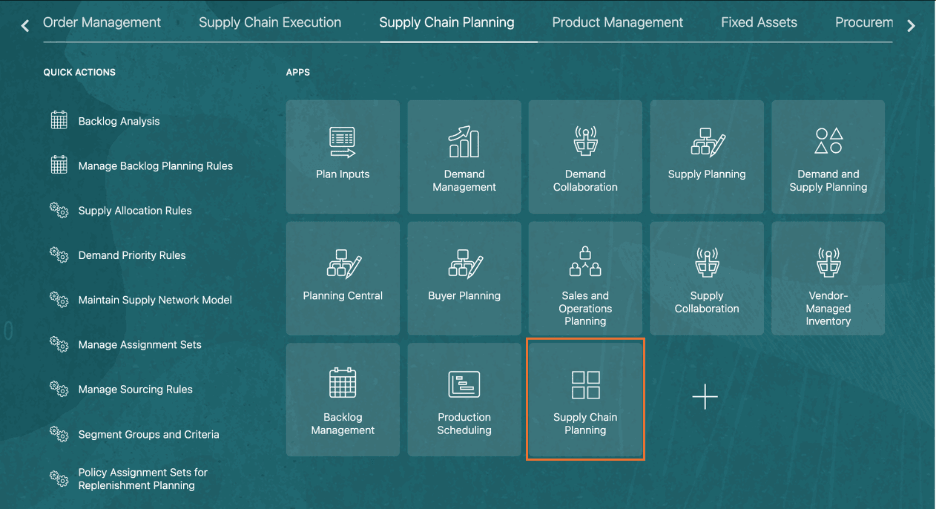
Confirm that the dedicated tiles for Demand Management, Supply Planning, and Replenishment Planning appear. Open at least one tile through this route and confirm it lands in the same work area you reached through Navigator.
The two routes test related but slightly different things:
- Navigator confirms that the work area is available through the global application menu.
- Springboard confirms that the planning application group and its tile-level navigation are available.
- Successful page entry confirms that the user gets beyond navigation into the workspace.
If Navigator works and the Springboard tile is absent, document that as a navigation presentation issue or role/UI configuration difference. It is not enough evidence to conclude that the module itself is unavailable.
Step 4: Capture minimum evidence
For interview-quality implementation evidence, create a simple verification note rather than relying on memory:
| Test | Expected result | Actual result | Evidence to retain |
|---|---|---|---|
| Demand Management from Navigator | Work area opens | Screenshot or navigation note | |
| Supply Planning from Navigator | Work area opens | Screenshot or navigation note | |
| Replenishment Planning from Navigator | Work area opens | Screenshot or navigation note | |
| Supply Chain Planning Springboard | Dedicated tiles displayed | Screenshot | |
| One successful tile launch | Correct work area opens | Screenshot or URL/page title | |
| Setup and Maintenance planning tasks | Tasks searchable/openable | Task name and screenshot |
Use this language in an interview: “I validated entitlement and user access independently from master-data readiness. I checked the dedicated work areas through Navigator and Springboard, then verified the planning configuration task framework in Setup and Maintenance.”
Lab 2: verify the Supply Chain Planning configuration framework
The functional configuration surface is Setup and Maintenance. This is where you establish whether your environment exposes the Supply Chain Planning offering and the tasks used to administer shared planning setup.
Oracle’s configuration documentation makes an important distinction: the Oracle Fusion source system is predefined, while activities such as data collection and planning analytics configuration are needed for Planning Central, Supply Planning, and Demand Management to operate successfully. This distinction will matter throughout the course.
Supply Chain Planning Configuration Tasks
Read Oracle’s 26B task overview to understand which shared setup tasks are available, which are foundational for plan execution, and where Oracle expects you to access them.
In the configuration-task table, read from the planning task list. Focus on the difference between “Manage Planning Source Systems,” “Collect Planning Data,” and “Configure Planning Analytics.” Then read “Work Areas to Use to Access the Tasks,” from the access guidance, noting both the Setup and Maintenance and work-area Task menu paths.
Step 1: Open the Supply Chain Planning offering
- From the Navigator, open Setup and Maintenance.
- Search for the Supply Chain Planning offering. Depending on the page layout, use the Offerings area or search by offering name.
- Open the offering and inspect its functional areas and task lists.
- Locate the configuration area that contains Define Supply Chain Planning Configuration tasks.
Your objective is not to change setup yet. You are verifying that the functional setup framework is available to your account.
Record:
- whether you can open Setup and Maintenance;
- whether the Supply Chain Planning offering is visible;
- whether you can reach the planning configuration tasks;
- whether the environment is in a state that permits implementation changes, if that status is displayed.
Step 2: Search for shared planning tasks
Use the Setup and Maintenance task search to locate these tasks:
- Manage Planning Source Systems
- Collect Planning Data
- Configure Planning Analytics
For this first lab, open each task only far enough to verify access. Do not save changes. Later lessons use Manage Planning Source Systems and Collect Planning Data in detail.
Interpret the outcomes carefully:
| Observation | Most likely interpretation | Immediate next action |
|---|---|---|
| Supply Chain Planning offering and tasks are visible | Functional configuration access exists | Continue with work-area checks and later data-readiness labs |
| Offering is visible, but task cannot be opened | User lacks a setup privilege or task-level security | Capture the error and request the needed implementation role/privilege |
| Setup and Maintenance opens, but offering is absent | Offering scope, provisioning, or role visibility needs investigation | Compare with an administrator; do not assume a data issue |
| Demand/Supply work area opens but plans cannot run | Shared configuration or planning data may be incomplete | Check collections and Planning Analytics later |
| Replenishment Planning opens but expected setup is not found in a shared task list | Setup is exposed differently or role access is incomplete | Verify the relevant replenishment setup path and security; do not infer absence of the module from one task search |
Notice that Oracle calls Collect Planning Data required for Demand Management and Supply Planning, because these work areas use data collected in the planning data repository. It also calls Configure Planning Analytics required, including collection of calendars and appropriate dimension hierarchies, for plans to run successfully. Therefore, an accessible Demand Management or Supply Planning tile is only the beginning of the readiness check.
Step 3: Cross-check from a planning work area
Oracle also states that planning configuration tasks can be accessed from the Tasks menu in Planning Central, Supply Planning, Demand Management, or Sales and Operations Planning.
- Open Demand Management.
- Locate its Tasks menu.
- Confirm whether setup/administrative task links are shown for your user.
- Repeat from Supply Planning if the menu is available there.
This is a secondary check. Setup and Maintenance is the authoritative functional setup route for the lab because it isolates whether you possess implementation access. A missing Tasks menu may result from role design even when the offering and work areas are correctly available.
Troubleshooting: classify the failure before escalating it
A senior functional consultant should report an access problem as a testable diagnosis, not as “Planning is not working.” Use the following sequence.
Case A: All Supply Chain Planning work areas are absent
First verify that you are in the intended environment and account. Then ask an administrator to compare your assigned job roles with a known working Planning user. The likely causes are:
- Supply Chain Planning services were not provisioned or are not included in the environment subscription.
- The user has no applicable planning job role or custom role.
- The user’s roles were changed but the session has not been refreshed.
- The environment has a different feature or security configuration than expected.
Do not begin with collections. Missing collected data cannot hide a work area from Navigator.
Case B: Demand Management is visible, Supply Planning is absent
This can indicate module-specific access rather than a failure of the whole planning platform. Confirm:
- whether Supply Planning is absent from both Navigator and Springboard;
- whether a known working user can see it in the same environment;
- whether your assigned job role includes only demand-planning functions;
- whether the environment has the Supply Planning capability provisioned.
The combined Demand and Supply Planning work area is not a shortcut around missing Supply Planning access. Because it depends on both products being configured, its absence adds little until the dedicated work areas are checked.
Case C: The work area opens but contains no plans or data
This is common in a newly provisioned student environment. Separate these two questions:
- Can the user open the work area and navigate to its actions? This is an access pass.
- Are the organizations, items, calendars, and transactions required for a meaningful plan present? This is an operational readiness question.
The next lessons address planning source systems, targeted collections, and repository validation. A good support note would say: “Demand Management access passed; no plan-ready data is currently visible. Next validation is planning data collection and repository content.”
Case D: Setup and Maintenance is available but planning task access fails
Capture the exact task name, timestamp, screenshot, and error text. Check whether the issue occurs for all planning tasks or one task only:
- Failure for all setup tasks generally points to missing functional setup security.
- Failure for one task can point to a custom role missing a specific privilege.
- A visible task with read-only behavior may be appropriate in a controlled environment; clarify whether the user needs verification access or implementation-change access.
Avoid compensating by using a more privileged generic account without documenting the difference. It masks the actual security design gap.
A practical verification script for a 15-minute environment check
Use this exact compact script before beginning a new implementation, SIT cycle, or interview demonstration:
- Record environment, username, and current time.
- Open Navigator and verify the Supply Chain Planning heading.
- Open Demand Management, Supply Planning, and Replenishment Planning individually.
- Open the Supply Chain Planning Springboard and confirm the same dedicated tiles.
- Open Setup and Maintenance, find the Supply Chain Planning offering, and search for Manage Planning Source Systems, Collect Planning Data, and Configure Planning Analytics.
- Classify any failure as provisioning, security, navigation, or data readiness.
- Save screenshots and a one-line result for each test.
The discipline here matters more than the number of clicks. It prevents a later plan-run failure from being incorrectly blamed on a forecasting profile, sourcing rule, or replenishment policy when the actual problem is simply missing data collection or user access.
What “complete” looks like for this lesson
By the end of the lab, your evidence should support a statement such as:
In the 26B environment, I verified the Demand Management, Supply Planning, and Replenishment Planning work areas from both Navigator and the Supply Chain Planning Springboard. I also verified that the Supply Chain Planning offering and shared setup tasks are accessible through Setup and Maintenance. The result confirms work-area and configuration-framework access; plan readiness remains dependent on planning source data, collections, calendars, and analytics configuration.
Amend that statement honestly if a module is unavailable. For example:
Demand Management and Replenishment Planning open successfully. Supply Planning is absent from Navigator and Springboard for this user. Setup and Maintenance is accessible, so I would compare role assignments and module provisioning with a working Supply Planning user before investigating collected data.
Key takeaways
- Verify Demand Management, Supply Planning, and Replenishment Planning individually; do not infer access from the combined Demand and Supply Planning work area.
- Work-area availability depends on product provisioning/configuration and user security.
- A tile that opens confirms access, not full planning readiness.
- Setup and Maintenance, using the Supply Chain Planning offering, is the functional setup verification point; the Tasks menu in planning work areas is a useful supplementary route.
- For Demand Management and Supply Planning, collected planning data and Planning Analytics configuration are prerequisites for meaningful plan operation, not merely optional refinements.
Next, you will inspect the predefined Oracle Fusion planning source system in Manage Planning Source Systems. That will connect this access baseline to the source from which the planning data repository is populated.
Can't find a good explanation? Sign up and we'll make it for you
Sign up