
Hello. In the previous lab, you confirmed the prerequisite collection scope: the predefined Oracle Fusion planning source system is collection-enabled, and a controlled test organization is enabled for collections. This lesson uses that eligibility to execute an actual, deliberately narrow data load.
The objective is not simply to “run collections.” You will build a collection request whose scope can be explained and defended: which item catalog is included, which organization supplies item master data, which organization supplies transactions, which reference entities support calendars and sourcing, and which supply transactions are loaded. This is the controlled initial-load pattern you should be able to describe in a senior functional-consultant interview.
Targeted collection: the right mechanism for this lab
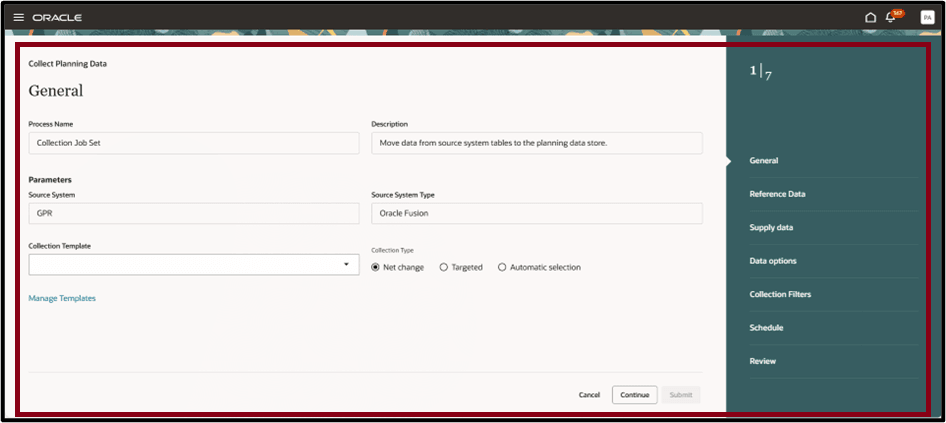
Oracle Fusion Planning provides several collection types. For this controlled lab, choose Targeted.
| Collection type | Intended use | Use in this lab? |
|---|---|---|
| Targeted | Refreshes the selected planning-data entities, with explicit entity selection and optional filters. It is the collection type used for Demand Planning history. | Yes |
| Net change | Collects changed eligible records since the previous successful collection. | No; this is the next lab. |
| Automatic selection | Uses a predefined collection template. Entity selection is driven by that template. | No; avoid it while learning and validating scope. |
A targeted collection is not a general “refresh everything” button. It is a complete refresh approach for the business entities you select, and filters can reduce the source data included for eligible entities. This distinction matters:
- Source-system organization enablement is persistent setup. It determines whether an organization is eligible to contribute data at all.
- Collection filters are run-level scoping. They limit the data included in this specific collection submission.
- Selected entities determine which kinds of data are collected: items, calendars, sourcing rules, on-hand, purchase orders, and so on.
For example, selecting one organization in an Organizations Filter for Transaction Data filter does not automatically collect its items unless the relevant reference entities are selected and the item scope is also valid.
Before using the page, review Oracle’s short explanation of filters and templates.
Collection Filters and Collection Templates
Read Oracle's overview to distinguish filters from reusable templates and to identify the prerequisite process that makes filters available.
In the Collection Filters section, read from the opening purpose statement through the examples of catalog and order-type filters. Then read all of Enabling Collection Filters, beginning with the prerequisite process. Focus on the fact that filters must be enabled before the collection request is created.
The following Oracle procedure is published for a later 26C documentation set, but the targeted-collection concepts and sequence apply to the 26B student environment. Treat minor labels or page styling differences as UI differences, not a reason to change the collection design.
Collect Data Using the Targeted Collection Type
Read Oracle's end-to-end procedure once before performing the lab. It is especially useful for separating reference-data selection from demand and supply transaction selection.
Start at the beginning of Collect Data Using the Targeted Collection Type and read the targeted collection purpose. In the procedure beginning with the Parameters tab, note the source-system, Targeted, and filter steps. Then read the Supply Planning Data instructions from the supply-entity selection step. Finish with the submission guidance, from submit through monitoring.
Lab design: define a traceable collection scope first
Do not begin by selecting every available entity. That can make the job slower, make repository results ambiguous, and conceal missing dependencies.
Create a short scope record for one scenario in your student pod. Use an existing item and organization that have at least one transaction you can identify in the source application.
| Scope component | Your controlled-lab choice | Why it is needed |
|---|---|---|
| Source system | Your predefined Oracle Fusion source-system code | Identifies the source of all collected records. |
| Item organization | One enabled inventory organization, | Provides the item and item-structure context. |
| Transaction organization | Usually the same for this lab | Limits on-hand, orders, reservations, and other transaction records. |
| Item catalog | A catalog containing your test item | Provides a practical way to restrict item collection. |
| Calendar | The calendar used by , such as a manufacturing or shipping calendar | Required for date interpretation and later supply-plan logic. |
| Sourcing design | One sourcing rule and its assignment set relevant to and | Required to validate a buy or transfer recommendation later. |
| Transactions | On-hand plus the open demand/supply transactions that actually exist | Gives Planning a usable planning position. |
A precise point about item and calendar selection
The collection-filter UI commonly offers Items Filtered by Catalog. It filters at the catalog level, not necessarily at one individual item-number level. Therefore:
- if your catalog contains only the test items, it is a very clean lab scope;
- if it contains 500 items, all 500 are potentially in the collection scope;
- selecting an item in a catalog in Product Management does not itself prove that the item is planning-eligible or that it will appear in the repository.
Likewise, calendars are normally selected as a reference data entity on the collection request. Do not claim that the organization transaction filter limits calendar collection unless the page explicitly documents that behavior. The safe implementation statement is: “I selected the Calendars reference entity because the plan requires calendar master data; I used organization and catalog filters to constrain item and transactional scope.”
Lab 1: enable and validate the collection-filter list
Collection filters do not necessarily appear immediately in a new environment. Oracle requires the Load Filter Names for Planning Data Collection scheduled process to load the available filter values.
Step 1: run the prerequisite process
- Open Tools and select Scheduled Processes.
- Click Schedule New Process.
- Search for Load Filter Names for Planning Data Collection.
- Select the process and submit it as soon as possible.
- Record the process request ID.
- Refresh until its status is Succeeded.
Do not proceed merely because the process was submitted. If it ends in Error, open its log and output, capture the request ID, and resolve the process issue before configuring filters. A missing filter panel later is often a prerequisite-process or privilege issue, not proof that the source system is incorrectly configured.
Step 2: open Collect Planning Data
Use either route available in your environment:
- In a Supply Chain Planning work area, open the Tasks panel.
- Under Plan Inputs, select Collect Planning Data.
Or use Setup and Maintenance:
- Open Setup and Maintenance.
- Search for Collect Planning Data.
- Confirm:
- Offering: Supply Chain Planning
- Functional Area: Supply Chain Planning Configuration
- Task: Collect Planning Data
Step 3: establish the request identity
On the General or Parameters step:
- Enter a useful process name or submission comment, such as
LAB_TC_O1_CATALOG_SOURCING_YYYYMMDD. - Select the predefined Oracle Fusion source system validated in the prior lesson.
- Select Targeted as the collection type.
- Select Select Collection Filters.
- Continue to the Collection Filters step.
The process name is not cosmetic. It lets you locate this exact request in Scheduled Processes, distinguish it from background automation, and explain evidence during a defect review.
Lab 2: apply filters for items and organizations
The filter page can show many available filter families. For this lab, use only the filters that implement your written scope.
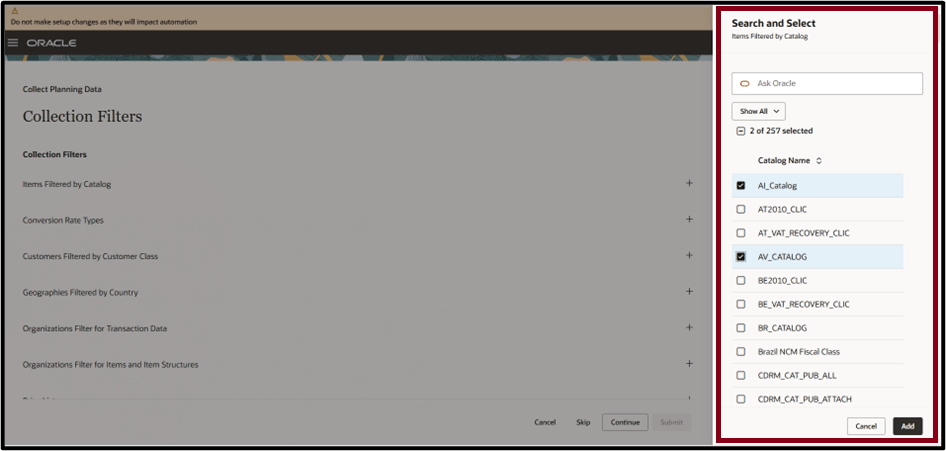
Step 1: filter items through the test catalog
- Expand Items Filtered by Catalog.
- Click the add icon or selection control.
- Search for your controlled-lab catalog.
- Select the catalog containing .
- Confirm the selection and return to the filter page.
Record both the catalog name and the expected item number. You will use both in the next lesson because a catalog-level filter can legitimately return more than one item.
Step 2: filter item master and item structures by organization
- Expand Organizations Filter for Items and Item Structures.
- Add your item organization .
- Confirm that only the intended organization is selected.
This filter governs the organizational context of item and item-structure data. It is particularly important for supply planning because an item can exist globally but carry organization-specific planning attributes, such as make-or-buy behavior, lead times, order modifiers, and planning method.
Step 3: filter planning transactions by organization
- Expand Organizations Filter for Transaction Data.
- Add your transaction organization .
- Confirm the result.
Keep the two organization filters conceptually separate. In a real design, an item may be planned in one organization while demand, supply, or inventory transactions occur in a related organization. For this lab, use the same organization unless you are intentionally testing a transfer network.
Step 4: leave unrelated filters unselected
Do not select customer class, geography, price list, conversion-rate, or other available filters merely because they are visible. Add them only when the business requirement requires that scope restriction.
At the end of this step, capture a screenshot or record containing:
- selected catalog;
- item/item-structure organization;
- transaction-data organization;
- source-system code;
- date and environment.
Then click Continue.
Lab 3: select reference data for the planning foundation
In the Reference Data step, move only the needed entities from Available Entities to Selected Entities. Exact entity names can vary slightly by page release and enabled products, so use the labels displayed in your environment.
For this lab, select these categories where present:
| Reference-data need | Entity or entities to select | Reason |
|---|---|---|
| Organization context | Organizations | Allows Planning to interpret the selected organization. |
| Item master | Items | Brings the filtered catalog items into Planning. |
| Organization-specific structures | Item Structures, if your scenario uses a BOM | Needed for a manufactured item or component explosion; not required for a pure buy-item test. |
| Calendar context | Calendars | Supports working-day, lead-time, and availability interpretation. |
| Units and related master data | Units of Measure and any required displayed dependencies | Prevents missing master-data relationships. |
| Buy or transfer sourcing | The displayed entities for Sourcing Rules and Assignment Sets | Brings the rule and assignment logic used by supply planning. |
| Supplier context for a buy item | Relevant supplier and supplier-site reference entities, if not already present | Supports the sourcing relationship and purchase-supply interpretation. |
A sourcing rule without its effective assignment set is a common “looks collected but does not plan” situation. The sourcing rule defines a source, while the assignment set determines whether that rule applies to the item, organization, category, or other assignment level used by the plan.
Use the minimum viable dependency principle:
- For a buy-item scenario, include the selected item, organization, calendar, sourcing rule, assignment set, applicable supplier data, and the operational transactions you will select next.
- For a transfer-item scenario, include both relevant organizations, calendar data, the transfer sourcing rule and assignment set, and transfer-order data if it exists.
- For a make-item scenario, add item structures and later select the applicable work-order and resource-related entities only if the scenario requires them.
Do not select every reference entity to compensate for uncertainty. If a dependency is genuinely unclear, note it in the collection evidence and validate it in the planning data repository rather than expanding scope without a hypothesis.
Lab 4: select planning transactions deliberately
On Supply Planning Data, move the applicable operational entities to Selected Entities. Select only data that exists and that your future scenario will use.
A practical minimum for a buy-item scenario is:
| Transaction entity | Select when | What it contributes |
|---|---|---|
| On Hand | Always, if has inventory | Starting inventory position. |
| Sales Orders | A customer-demand record exists | Independent demand. |
| Purchase Orders | Open purchase supply exists | Firm incoming supply. |
| Purchase Requisitions | Requisitions are part of the scenario | Proposed or approved purchasing demand/supply context. |
| Reservations | Reservation behavior needs testing | Links available inventory to demand or supply commitments. |
Select these only for the corresponding scenario:
- Transfer Orders for interorganization supply or demand.
- Work Orders for manufactured supply.
- Resource-related entities and resource availability only when you are testing capacity-aware planning. If selecting resource availability, choose and document either a fixed date range or a rolling collection window; an unexplained short window can later appear as missing capacity.
For this particular collection, leave Demand Planning Data unselected unless the purpose includes collecting sales history for statistical forecasting. Demand history is not required to validate an item, calendar, sourcing rule, on-hand balance, and open supply transaction. Keeping it out makes this lab faster and isolates the Supply Planning data path.
Before moving forward, perform this design review:
| Check | Expected result |
|---|---|
| Source system | The single predefined Oracle Fusion source is selected. |
| Collection type | Targeted, not Net change or Automatic selection. |
| Filters | Test catalog plus correct item-master and transaction organizations. |
| Reference scope | Organizations, items, calendars, and sourcing/assignment data are selected. |
| Transaction scope | On-hand and only the demand/supply transaction types relevant to the test case are selected. |
| Scope coherence | The test item belongs to the chosen catalog and exists in the filtered organization. |
This review prevents a frequent implementation error: selecting purchase orders and then investigating missing purchase supplies when the Items reference entity, item catalog, or transaction organization was never included.
Lab 5: submit, monitor, and preserve execution evidence
Step 1: schedule the request
- Open the Schedule step.
- For this controlled lab, select As soon as possible.
- Do not create a recurring schedule yet.
- Open Review and check the selected source, filters, reference entities, supply entities, and schedule.
- Click Submit.
- Record the collection request ID.
A scheduled recurring targeted collection can be appropriate later, often through a governed template or automation design. At this point, an immediate manual run gives you a traceable baseline and prevents accidental broad refreshes.
Step 2: monitor the collection job set
- Open Tools and select Scheduled Processes.
- Search using your submission comment, process name, submission time, or request ID.
- Open the collection parent process.
- Confirm its final status.
- Review child processes or log details for each selected entity group.
- Download or record output and log details if there is an error or warning.
The parent collection job may be a job set that starts several child processes. Do not interpret “the parent started” as “all selected data is available.” Your completion criterion is:
The collection request completed successfully, and the child-process evidence does not show a failed selected entity.
Use this evidence format:
| Evidence | Example |
|---|---|
| Collection request | Request ID and submission comment |
| Source and type | Oracle Fusion source; Targeted |
| Filters | Catalog ; item organization ; transaction organization |
| Reference entities | Items, Organizations, Calendars, Sourcing Rules, Assignment Sets |
| Supply entities | On Hand, Sales Orders, Purchase Orders |
| Process status | Parent and relevant children Succeeded |
| Time | Submission and completion timestamps |
Common scope and execution problems
| Symptom | Likely root cause | Correct action |
|---|---|---|
| Select Collection Filters is unavailable or filters are missing | Load Filter Names for Planning Data Collection was not successfully run, or the user lacks access | Verify the prerequisite scheduled process and task privileges before changing source-system setup. |
| Item is absent after collection | Item is not in the selected catalog, wrong item organization filter was used, Items was not selected, or the source organization is not collection-enabled | Check each layer in that order: source eligibility, catalog membership, organization filter, entity selection. |
| On-hand or open orders are absent, while the item exists | Transaction organization filter excludes the transaction organization, or the transaction entity was not selected | Confirm the transaction organization separately from the item organization and select the applicable supply entity. |
| Sourcing rule seems present but is ineffective in a plan | Assignment set, sourcing-rule assignment, supplier context, or plan assignment-set option is missing | First prove the source reference entities were selected; later validate effective assignment in Plan Inputs and plan options. |
| Calendar data is missing | Calendars reference entity was not selected, or the required source calendar setup is incomplete | Add Calendars in a targeted refresh and validate the source setup if it remains absent. |
| Job runs much longer than expected | Catalog or organizational scope is broader than intended, or unnecessary entities were selected | Compare the submitted filter values and selected entities with your scope record before resubmitting. |
| The UI forces Automatic selection and disables filters | A collection template is selected | Clear the template and choose Targeted for this controlled diagnostic run. |
Notice the troubleshooting order. Do not start with plan configuration when data is missing. First prove the request’s source, filters, entity selection, and completion status; only then inspect the planning data repository.
Key takeaways
- Use Targeted collection when you need explicit control over the reference and transaction entities being refreshed.
- Enable filters first by successfully running Load Filter Names for Planning Data Collection.
- Use a catalog filter to scope items and separate organization filters for item master/item structures and transaction data.
- Select Calendars, Items, Organizations, and the relevant sourcing rules and assignment-set entities as reference data.
- Select only the planning transactions required by the scenario, such as on-hand, sales orders, purchase orders, requisitions, transfer orders, work orders, or reservations.
- A successful parent job is not enough: preserve the request ID and confirm the selected entity processes completed successfully.
Next, you will use Review Planning Data Repository to validate one end-to-end item-organization scenario: the collected item master, calendar and sourcing context, on-hand position, and selected planning transactions.
Can't find a good explanation? Sign up and we'll make it for you
Sign up