
Hello. In the previous lesson, you created a controlled replenishment-plan baseline: a single organization, a daily horizon, a forecast source, collected inventory, and a selected segment group for item scope. This lesson makes that segment group tangible. You will create a small, explainable segmentation model, execute it, inspect the outcome, and apply one deliberate item-location exception.
For implementation and interview purposes, treat segmentation as a governed classification process, not as a one-time screen configuration. It determines which item-locations can receive particular replenishment policies, while an override provides a controlled exception when the calculated classification is not operationally appropriate.
By the end of this lab, you should have evidence of:
- a segment group whose source system and granularity are compatible with your replenishment-plan design;
- two ranked segments with transparent criteria;
- a completed Execute Parts Segmentation process;
- a reviewed segmentation summary and member-level result; and
- one item-location assigned to a manual override segment.
Plan for approximately 40 minutes.
Understand the segmentation model before configuring it
Segmentation works at the item-location combination level. It evaluates collected planning data against rules and assigns a combination to a segment. That segment can then be used for replenishment-plan scope, policy assignment, and analysis.
Keep these objects distinct:
| Object | Purpose | Lab example |
|---|---|---|
| Segment group | Container for the shared source system, granularity, segments, and rules | RPSEG_<initials>_LAB |
| Segment granularity | Dimensions that define the level at which classification occurs | Product and Organization |
| Segment | A business classification and its criteria | RPSEG_<initials>_TARGET |
| Rank | Resolves overlapping segment criteria | Target segment rank 10; review segment rank 20 |
| Segment member | A specific item-location evaluated by segmentation | Item AS54888 at organization M1 |
| Segment override | A manual exception for an individual member | Assign one target member to the review segment |
For a replenishment policy design, Product + Organization is the practical starting granularity. It lets the same item receive different classifications at different replenishment locations. For example, the item may be fast-moving at a distribution center but slow-moving at a regional depot.
The source system is a non-negotiable dependency. The source system selected in the segment group must match the source system selected in the replenishment plan that will use the group. A mismatch can make an otherwise valid group unavailable or produce an unexpected population.
For this controlled lab, use criteria based on stable master-data attributes rather than measures. Oracle supports measure-based criteria, but those require an appropriate forecast-generating plan to have run, a table containing the required measure, and dimensions consistent with the segment group. That is useful for mature volume-based segmentation, but it adds unnecessary dependencies to this first validation.
Read Oracle’s configuration guidance before creating the group.
Read Oracle Help Center’s “Create a Segment Group” guidance to connect the screen fields with the segmentation logic you will configure in the lab.
In Create the Segment Group, begin with the navigation and source-system instructions. Pay particular attention to granularity setup: the lowest levels displayed for the chosen dimensions define what Oracle actually classifies. Then read Define the Segments through the explanation that lower rank wins. Finally, in Define Criteria for the Segments, read both the dimension-based and measure-based paths. Focus on the grouping rule: criterion groups evaluate same-numbered rows with AND logic and different groups with OR logic.
Prepare a controlled segmentation design
Choose one item-location that meets all of the following conditions:
- The item is collected from the Oracle Fusion source system used by your replenishment plan.
- The item belongs to a known Product Lifecycle Management category.
- The item exists at your selected replenishment organization.
- The item is intended for Replenishment planning.
- You can identify its category and organization values in the source data or Planning data repository.
Use a small design that deliberately demonstrates both rank and override behavior.
| Segment | Rank | Criteria intent | Expected result |
|---|---|---|---|
RPSEG_<initials>_TARGET | 10 | Item belongs to the chosen product category and is in your lab organization | Your target item-location belongs here automatically |
RPSEG_<initials>_REVIEW | 20 | Item is in the same lab organization | The target also meets this rule, but rank 10 takes precedence |
The second segment is intentionally broad. It gives you a valid alternate segment for the override test. Because the target satisfies both segments, Oracle should classify it into TARGET during normal segmentation: rank 10 is lower than rank 20.
This is a compact model of a real business rule. For example, an organization may classify all replenished items as “Review,” while a strategic category at that organization is classified as “Target” and receives a different service or policy treatment.
Create the segment group and segment criteria
1. Open the segment-group work area
- Navigate to Replenishment Planning.
- Open the Tasks panel.
- Under Plan Inputs, select Manage Segment Groups and Criteria.
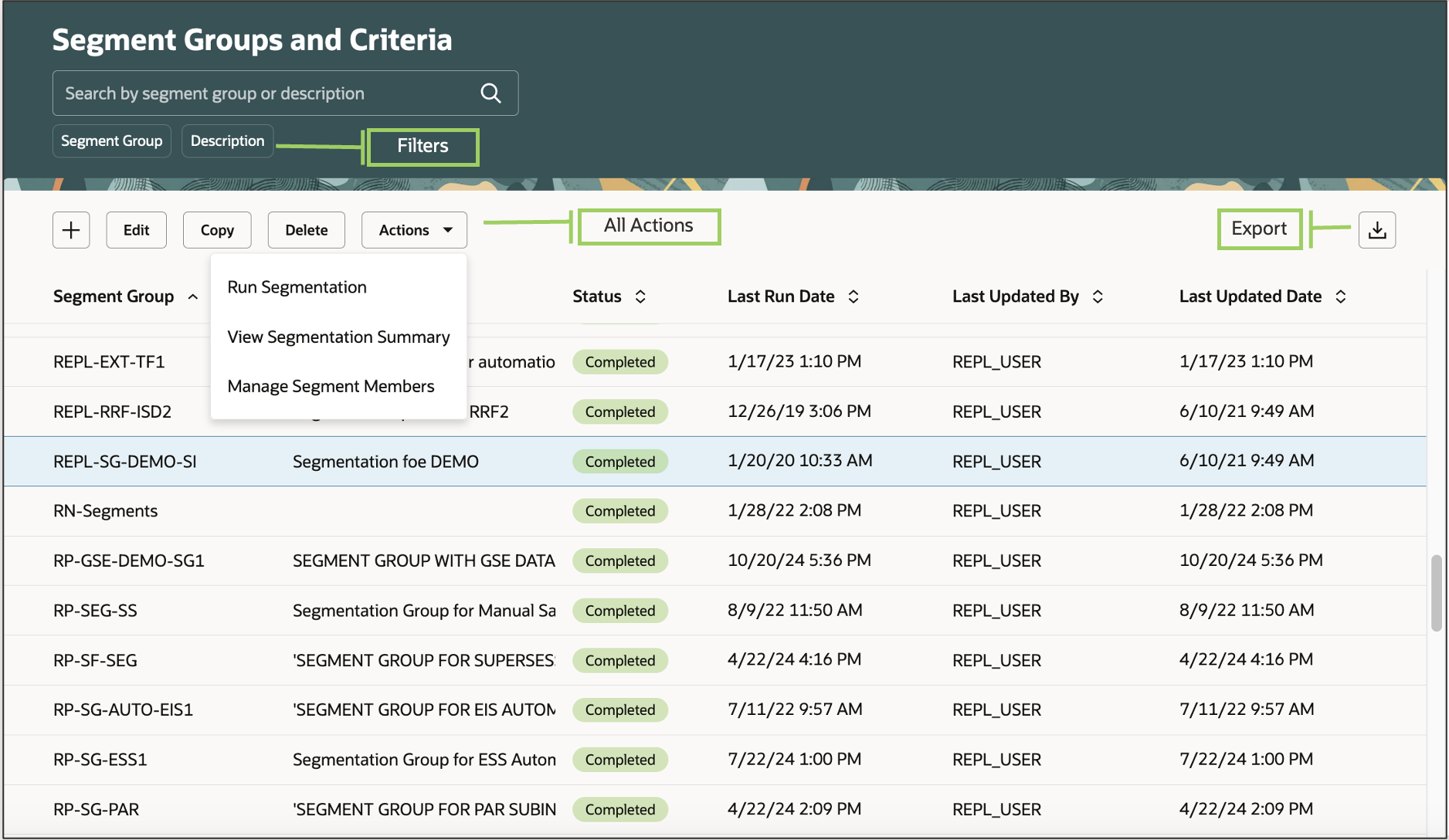
- On the search-results page, select Actions > Create.
2. Create the segment-group header
Complete the header using your lab values.
| Field | Lab value and validation |
|---|---|
| Segment Group | RPSEG_<initials>_LAB |
| Source System | Select the same Oracle Fusion source system used in your replenishment plan. |
| Simulation Set | Select the simulation set required by your environment. If you later simulate the same item attributes at both group and plan levels, use the same simulation set in both places. |
| Description | State the grain and purpose, such as “Product-organization segmentation for M1 replenishment policy lab.” |
| Catalog | Select the relevant Oracle Product Lifecycle Management catalog if you will use Product Category in the criteria. |
Under Segment Granularity, add these dimensions:
- In the first row, select Product.
- Add a second row and select Organization.
- Review the Level column. Oracle displays the lowest available level for each selected dimension. These levels jointly define the member grain.
- Save the segment group.
Do not add Customer or Demand Class merely because they are available in another planning context. The group should remain compatible with the intended Replenishment Planning scope and policy design.
3. Create the two segments
Under Segments, select the Add Row icon twice and create the following entries.
| Segment name | Description | Rank |
|---|---|---|
RPSEG_<initials>_TARGET | Target product category at lab organization | 10 |
RPSEG_<initials>_REVIEW | General review segment at lab organization | 20 |
Save.
Rank is not a display preference. It is a functional priority. If an item-location satisfies both sets of criteria, Oracle assigns the segment with the lower numeric rank. Leave gaps such as 10, 20, and 30 rather than using 1, 2, and 3. The gaps make later rule insertion easier without renumbering every segment.
4. Define criteria for the target segment
Select RPSEG_<initials>_TARGET, then under Segment Criteria, select Add Row.
Create the first criterion:
| Field | Value |
|---|---|
| Dimension | Product |
| Attribute | Category |
| Operator | Equal to |
| From Value | The category containing your target item |
| Group | 1 |
If Category is not available as an attribute, return to the header and verify that a Product Lifecycle Management catalog was selected. Category values are derived from the selected catalog.
Add a second criterion:
| Field | Value |
|---|---|
| Dimension | Organization |
| Attribute | Select the organization-identifying attribute available in your environment |
| Operator | Equal to |
| From Value | Your lab organization, such as M1 |
| Group | 1 |
Both rows are in Group 1, so the target item-location must meet both conditions. A category match at a different organization is not enough.
Save the criteria.
5. Define criteria for the review segment
Select RPSEG_<initials>_REVIEW, then add one criterion:
| Field | Value |
|---|---|
| Dimension | Organization |
| Attribute | The same organization-identifying attribute used above |
| Operator | Equal to |
| From Value | Your lab organization |
| Group | 1 |
Save again.
At this point, your intended target item-location meets both segments:
- It is in the target category and in the selected organization.
- It is also in the selected organization.
The rank resolves the overlap, so its calculated segment should be RPSEG_<initials>_TARGET.
Run segmentation and validate the scheduled process
Segmentation is executed by the Execute Parts Segmentation scheduled process. It evaluates the current collected data and criteria; creating a segment group alone does not populate members.
Read Oracle Help Center’s “Execute Parts Segmentation” reference for the process purpose and its run parameters.
Read the opening explanation of the process purpose, then review the Parameters table in full. Focus especially on Retain segment overrides and Save the last segmentation result, because these options control what happens to manual exceptions and historical comparison evidence on a rerun.
Return to Manage Segment Groups and Criteria and follow these steps:
- Search for and select
RPSEG_<initials>_LAB. - Select Actions > Run Segmentation.
- Confirm that Segment Group contains the correct group.
- For the first run, set:
- Retain segment overrides: No
There are no overrides yet, so this establishes a clean calculated baseline. - Save the last segmentation result: Yes
This gives you a prior-run comparison point when you repeat the process during testing.
- Retain segment overrides: No
- Submit the process.
- Open Scheduled Processes and locate the submitted Execute Parts Segmentation request.
- Wait for a final status of Succeeded or Completed, according to the status wording in your environment.
A completed process is necessary but not sufficient. A successful process can still produce no usable member for your target if the collected category, organization, source system, or logical criteria do not match your expectation.
Record the process request ID, completion time, and parameter choices in your implementation test evidence.
Review the segmentation summary and member-level result
Return to Manage Segment Groups and Criteria, select your group, and choose Actions > View Segmentation Summary.
The summary is your first business-level validation. Review the result for these questions:
- Did the segmentation run complete for the expected group and source system?
- Does the result show population assigned to your expected segments?
- Is the result consistent with the small, controlled population you designed?
- Does the run timestamp match the scheduled process you just monitored?
Next, choose Actions > Manage Segment Members. This is the detailed validation view. Search for your target item and organization, then inspect the item-location row.
For the initial calculated result, validate the following:
| Column or evidence | Expected state |
|---|---|
| Item | Your chosen target item |
| Location | Your lab organization |
| Segment | RPSEG_<initials>_TARGET |
| Segment Override | Blank |
| Preview Segment | The calculated target segment, if displayed |
If the item was assigned to REVIEW rather than TARGET, do not override it yet. That is a configuration-validation failure, not a legitimate exception. Start with the target segment’s category criterion, confirm both target criteria are in the same group, and confirm rank 10 is lower than rank 20.
Override one item-location result
An override is appropriate when the automated segmentation logic is generally correct, but an individual item-location needs an approved exception. For example, a newly introduced item may temporarily need a high-service policy despite insufficient history or an ordinary category classification.
In Manage Segment Members:
- Search for your target item-location.
- Select its check box.
- Select Override Segments.
- In the override panel, select
RPSEG_<initials>_REVIEW. - Select Override to save the exception.
- Return to the member grid and confirm the result.
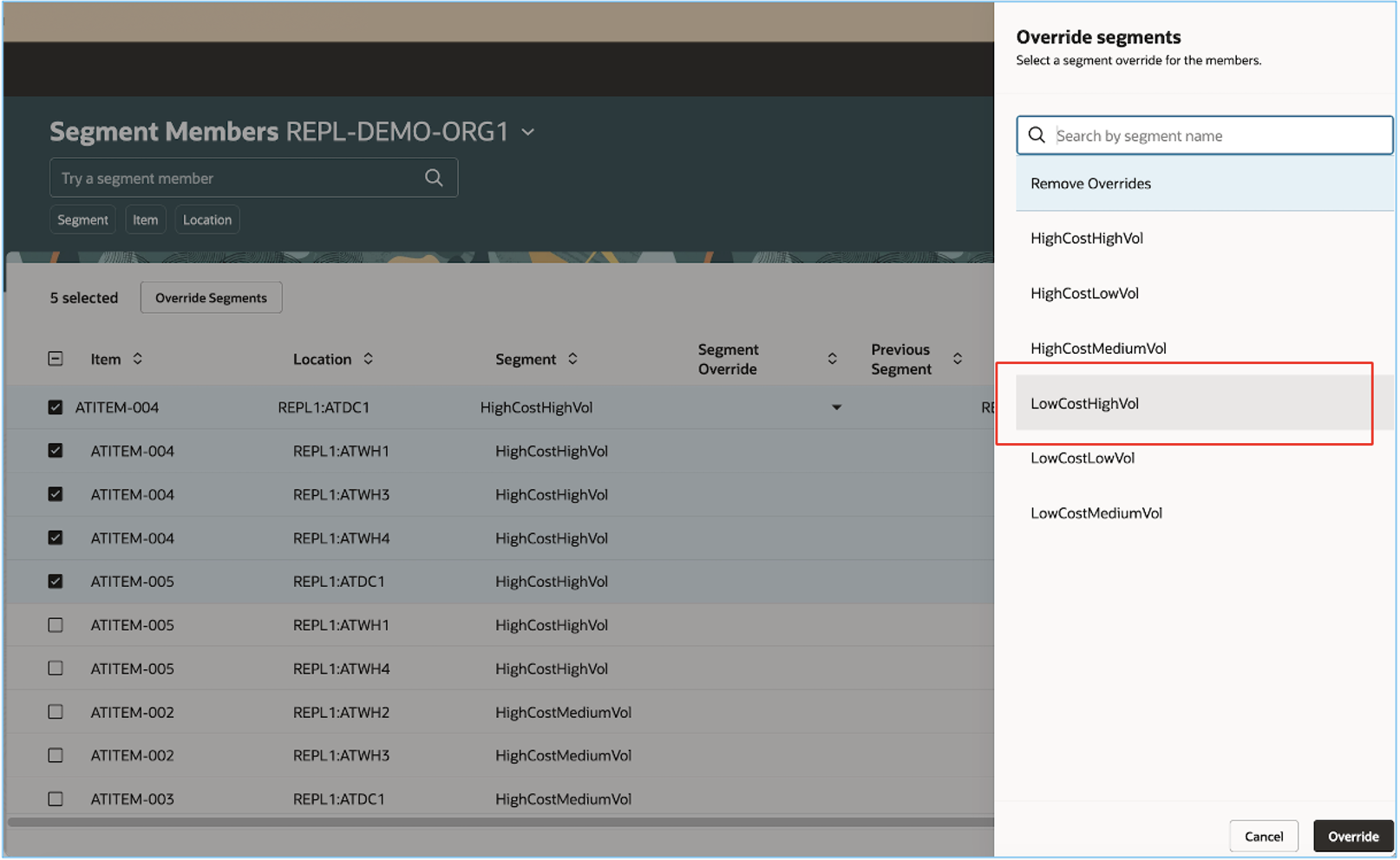
Use the three related fields carefully:
| Field | Meaning |
|---|---|
| Segment | The original result of the segmentation criteria and rank logic |
| Segment Override | The manually selected exception segment |
| Preview Segment | The segment Oracle presents as the effective result after considering the override |
For your lab, the expected evidence is:
- Segment:
RPSEG_<initials>_TARGET - Segment Override:
RPSEG_<initials>_REVIEW - Preview Segment:
RPSEG_<initials>_REVIEW
This distinction is particularly useful in an interview. You can explain that an override does not rewrite the source item’s category or invalidate the calculated segmentation logic. It records an item-location-specific planning exception while preserving visibility of the original calculated classification.
If the override represents a lasting business change rather than a temporary exception, correct the underlying master data or segmentation criteria through the approved governance process. Manual overrides should be traceable and periodically reviewed; otherwise, they gradually become hidden substitutes for proper configuration.
Rerun behavior and fast troubleshooting
For a quick persistence test, rerun Execute Parts Segmentation for the same group:
- Set Retain segment overrides to Yes.
- Set Save the last segmentation result to Yes.
- Confirm after completion that your target still has the
REVIEWoverride.
This parameter is important operationally:
| Rerun choice | Expected treatment of manual override |
|---|---|
| Retain segment overrides = Yes | Preserve the approved manual exception through segmentation reruns |
| Retain segment overrides = No | Allow the fresh criteria evaluation to replace the prior override result |
Use No only when the business intends to reset exceptions and return members to calculated classifications.
Root-cause guide
| Symptom | Likely root cause | First diagnostic action |
|---|---|---|
| Segment group is unavailable when selected in the replenishment plan | Group source system differs from plan source system, or segmentation has not completed successfully | Compare source-system values on the group and plan; verify the segmentation process status |
| Segmentation completes but target item-location is absent | Item, organization, category, or other required data is not collected at the expected grain | Verify the item-location in the Planning data repository, then inspect the actual source attribute value |
Target is in the broad REVIEW segment instead of TARGET | Category criterion does not match, criteria groups are incorrect, or rank is wrong | Check the category/catalog, confirm both target rows use Group 1, and verify ranks 10 and 20 |
| No Product Category attribute is available | No valid Product Lifecycle Management catalog is selected in the segment-group header | Select the correct catalog, save, and return to the criterion |
| Measure-based criterion cannot find a plan or measure | The chosen plan did not generate a forecast, was not run, lacks the required table, or uses incompatible dimensions | Use dimension-based criteria for this lab; validate plan and table dependencies before adopting measure-based criteria |
| Override disappears after rerun | Segmentation was run with Retain segment overrides = No | Reapply the approved override, then use Yes on future reruns |
| Member belongs to the right segment but does not appear in the replenishment plan | Plan organization scope, selected segment scope, or item planning method excludes it | Recheck plan scope and verify the item’s MPS and MRP Planning Method is Replenishment planning |
You have now created a Product-Organization segment group, configured ranked criteria, run and reviewed segmentation, and applied a controlled manual exception to one item-location.
The essential implementation takeaway is that segmentation has two layers of governance: calculated membership driven by data and rule rank, and manual overrides retained or reset deliberately during later runs. In the next lesson, you will use this segment group to create a replenishment policy assignment set and configure the policy parameters that govern replenishment behavior for each segment.
Can't find a good explanation? Sign up and we'll make it for you
Sign up