
Hello. This begins the Replenishment Planning configuration module. The immediate objective is to build a valid replenishment plan shell that has a deliberately controlled scope and credible inputs. In an implementation interview, the important distinction is not merely knowing where Create Plan sits: it is being able to explain why a plan includes a particular item-location, where its demand comes from, and why its starting inventory is or is not usable on a particular day.
This lesson uses a daily, organization-calendar plan for one distribution organization. Keep the plan small enough to validate, then scale its scope only after its input lineage is clear. Later lessons will configure segmentation, policy assignments, policy calculation, simulations, and release; here, use existing successful setup objects where they are required.
Configuration model and pre-lab decisions
A replenishment plan is bounded by the intersection of three choices:
- Organization scope: which organizations, and optionally subinventories, are eligible.
- Item scope: which item-locations belonging to a successful segment group are eligible.
- Planning inputs and calendar: which demand schedule, inventory/supply data, and time buckets the plan uses.
An item appearing in collected planning data does not by itself mean it will appear in a replenishment plan. The item-location must satisfy all plan-scope filters, and the item’s MPS and MRP Planning Method must be set to Replenishment planning.
Before creating the plan, identify these objects in the student environment:
| Lab object | Recommended lab choice | Why it matters |
|---|---|---|
| Planning source system | Oracle Fusion source system used in collections | It must match the source system associated with the selected segment group. |
| Organization | One replenishment-enabled distribution organization | Restricts the first test to an understandable item-location population. |
| Segment group | An existing group with a successful segmentation run | Determines the candidate item-location segments. |
| Segment | One segment containing a small group of replenishable items | Prevents a plan from becoming difficult to validate. |
| Planning calendar | Organization calendar | Supports daily replenishment buckets, plus weekly or period options if needed. |
| Demand source | Either a forecasting profile in this plan, or an approved external/demand-plan schedule | Determines the demand that policy and replenishment calculations will use. |
| Policy assignment set | An existing valid set for the selected segment group | Required when this plan calculates policy parameters. |
For this lab, use the following design:
- Plan name:
RP_<your initials>_<organization>_LAB - Scope: one organization and one existing segment
- Calendar and level: organization calendar, Day
- Horizon: 56 daily buckets
- Processing: Generate forecast, Calculate policy parameters, and Calculate replenishments
- Access: Private while testing; Public only when the configuration is ready for shared use
- Inventory rebalancing: leave unselected for this lab. It is a separate capability, not a prerequisite for normal replenishment calculation.
A 56-day daily horizon is a practical test choice: it shows enough demand and supply timing to validate policy behavior without hiding detail in monthly aggregation. In production, the horizon should extend far enough to cover the relevant replenishment lead times and the period in which planners must take action.
Read Oracle’s creation guidance now, especially the dependencies between the plan-processing check boxes.
Read Oracle Help Center's "Create a Replenishment Plan" to confirm the creation paths, plan ownership choices, and the dependency rules among forecasting, policy calculation, and replenishment calculation.
In the opening procedural guidance, read from the creation sequence, noting the two ways to reach the Plan Options page and the implications of Private versus Public access. Then read the feature table from the processing options. Focus on the source that Oracle requires when a plan does not generate its own forecast or policy parameters.
Create the plan and select its processing design
- Navigate to Replenishment Planning.
- On the Tasks panel, select Manage Plans.
- On the Manage Plans page, select Actions > Create.
Alternatively, use the Plans panel and select Actions > Create. - Enter the plan name and a description that documents the intended purpose. For example:
Daily replenishment test for Organization M1, using Segment A and a 56-day horizon. - Set Access Level to Private and confirm yourself as the Owner. Private access avoids exposing incomplete plan measures and recommendations to other planners.
- Select Enable for OTBI reporting only if the plan needs OTBI reporting and the scope will remain organization-level. Do not treat a disabled check box as an error when you intentionally select a subinventory; Oracle does not support replenishment-plan OTBI reporting for subinventory-level scope.
- Select:
- Generate forecast
- Calculate policy parameters
- Calculate replenishments
- Leave Enable for incremental planning unselected for the first run. Incremental processing is for later runs after an initial successful full calculation, and Oracle permits it only with replenishment calculation.
- Leave Rebalance inventory unselected. Selecting it enables extra inventory-rebalancing configuration and changes available options, which would complicate this controlled baseline.
This is an integrated replenishment plan for demand forecasting, policy calculation, and replenishment recommendation generation. It is useful for a lab because one run produces a connected result. However, it is not always the production design. A client may forecast in Demand Management, calculate policies in a dedicated replenishment plan, and run a separate replenishment-only plan for operational execution. The plan options make those designs possible through schedule selection.
Define the scope: catalog, organization, items, and time horizon
Open the Scope tab on the Plan Options page. This tab answers the central question: for which item-locations may this plan calculate?
Read the Oracle scope rules before selecting values. They explain several interview-critical reasons an expected item may be absent.
Scope Plan Options for Replenishment Plans - Oracle Help Center
Read Oracle Help Center's scope configuration reference to connect organization filtering, segment-group eligibility, planning calendars, and policy-assignment requirements.
In the "Plan Organizations" and "Plan Items" parts of the Scope tab documentation, read the organization and segment rules. Pay particular attention to the required source-system alignment and the item MPS and MRP Planning Method. Then, in "Plan Parameters," read from calendar, time level, and bucket behavior, followed by the policy-assignment-set requirement in the same parameter table.
1. Select the dimension catalog
In Dimension Catalog, select Default Replenishment Planning Catalog unless the implementation has created a custom replenishment catalog.
Do not select or attempt to use a catalog containing Customer or Demand Class dimensions. Replenishment Planning does not support those dimensions, so such a catalog is unavailable. This is a configuration constraint, not a data-collection issue.
2. Define plan organizations
In Plan Organizations:
- Select the Enterprise hierarchy. It is the supported hierarchy for replenishment plan organization scope.
- Select the appropriate level, such as organization, legal entity, business unit, or subinventory according to the catalog hierarchy.
- Add the lab organization as a level member.
- Select the Oracle Fusion source system used for that organization’s collected planning data.
For the first lab, choose an organization-level member rather than a legal entity or business unit. Wider levels can include multiple organizations unexpectedly, making policy and recommendation analysis harder.
If the requirement is subinventory-level replenishment:
- Select members in the
organization:subinventoryformat. - Confirm that the parent organization was enabled for subinventory-level planning in Maintain Supply Network Model, on its Organizations tab.
- Expect OTBI reporting for the plan to be unavailable.
3. Define plan items through segmentation
In Plan Items:
- Select the existing Segment Group.
- Select the required segment or segments.
- Confirm that the selected segment group was created using the same source system chosen in Plan Organizations.
- Confirm that segmentation completed successfully before treating the group as an available scope object.
Conceptually, Oracle evaluates the scope as the selected organization population combined with the selected segment population. The final set also excludes any items whose planning method is not Replenishment planning. This explains a common defect: the user sees an item in the segment summary but not in the replenishment plan. The item may belong to the segment, yet fail the planning-method requirement or organization filter.
4. Set calendar, bucket level, and horizon
In Plan Parameters, set:
- Planning Calendar: the selected organization calendar
- Planning Time Level: Day
- Number of Buckets: 56
- Policy Assignment Set: select the existing set associated with the segment group
- Measure Catalog: keep the appropriate standard or implementation catalog; avoid enabling unnecessary measures in a performance-sensitive implementation
- Exception Set: leave blank unless a relevant configured exception set already exists
- Simulation Set: leave blank for the baseline plan
The calendar determines the valid planning levels:
| Calendar type | Available planning levels |
|---|---|
| Fiscal | Day or month |
| Gregorian | Month |
| Organization | Day, week, or period |
The Planning Time Level and Number of Buckets jointly determine the plan horizon. After selecting 56 daily buckets, later review the resulting plan start date and plan end date on the Supply tab’s General subtab. Do not assume that “56 buckets” means the same date span under every calendar or every start-date condition.
Configure demand schedules and forecast input
A replenishment recommendation depends on a demand signal. Oracle supports two broad designs:
- The replenishment plan itself generates the forecast.
- The plan consumes a forecast from Demand Management, another forecast-generating replenishment plan, or an external forecast schedule.
Because this lab selected Generate forecast, open the Demand tab and select a suitable forecasting profile. The Demand tab is enabled by the Generate forecast choice. Use a profile already approved for the test item’s demand pattern; profile design and forecast validation are addressed in the Demand Management module.
If the implementation uses an external forecast rather than plan-generated forecast, deselect Generate forecast and configure the source under Supply > Organizations and Schedules > Demand Schedules:
- Select Add.
- Choose the demand plan, forecast-generating replenishment plan, or external forecast schedule.
- Select Use for Demand Schedule for the schedule that supplies demand to this plan.
- Do not select it merely because it is visible in the list; confirm it is the approved forecast source at the correct organization and item grain.
The two check boxes in the schedule list have different meanings. Use for Demand Schedule supplies the forecast demand. Use for Policy Parameters supplies the policy-parameter source when this plan is not calculating policies itself.
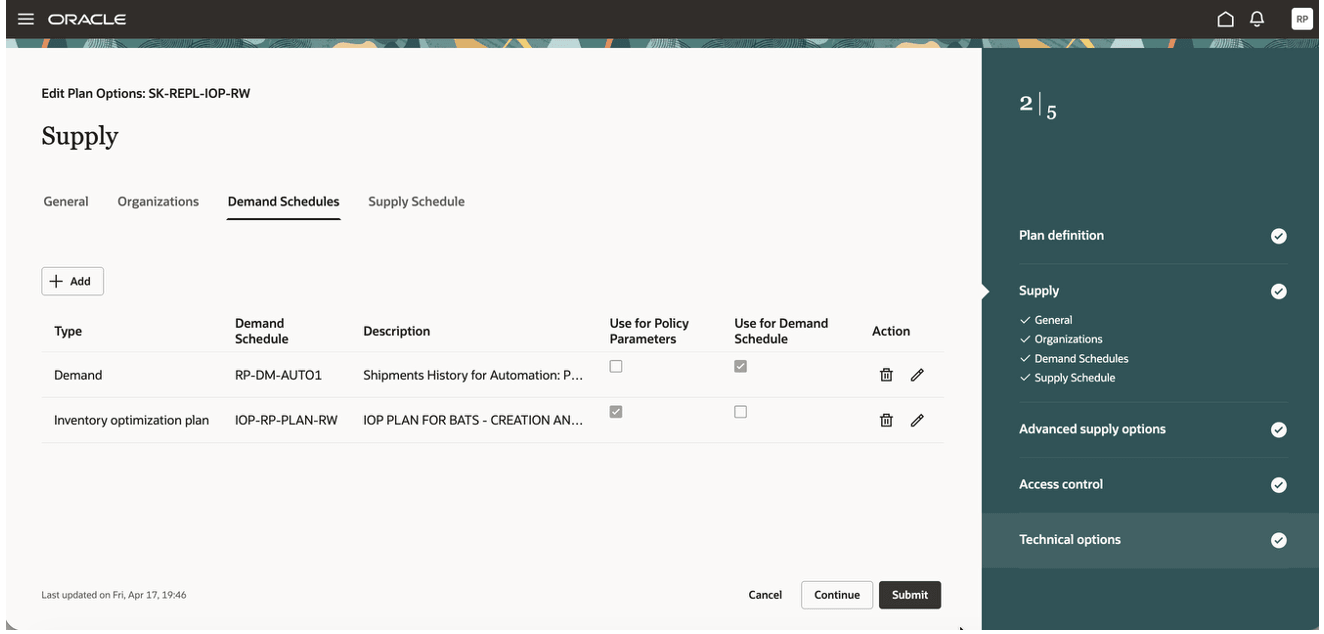
For the integrated lab design, this plan calculates its own policy parameters, so the selected Policy Assignment Set is the key configuration object for policies. Do not select a different plan as the policy-parameter source merely to populate the schedule page.
A useful interview summary is:
| Plan design | Demand source | Policy source |
|---|---|---|
| Integrated replenishment plan | Forecasting profile selected on the Demand tab | Policy assignment set selected in Scope |
| Policy calculation only | External or upstream demand schedule | Policy assignment set selected in Scope |
| Replenishment calculation only | Appropriate upstream demand schedule, if required by the design | Another replenishment plan selected for Use for Policy Parameters |
Configure supply schedule and understand inventory inputs
Move to the Supply tab. On General, verify the plan start and end dates derived from the calendar, time level, and bucket count. Then review the Organizations and Schedules area and its Supply Schedule configuration.
The supply schedule governs the supply-side scheduling context used by the plan. Use the organization, calendar, and available supply-schedule choices that reflect the operational replenishment network. This is not the same object as a demand schedule:
- A demand schedule determines the forecast input.
- A supply schedule provides the supply planning schedule context.
- The inventory position itself is collected planning data; it is not manually entered as a balance on the Plan Options page.
For the initial test, retain the standard supply schedule appropriate to the selected source organization unless your implementation has an explicit alternate schedule to test. An incorrect supply schedule can make planned arrivals appear on unexpected dates even when the demand forecast and policy are correct.
The inventory inputs expected by replenishment planning should already have arrived through planning data collection. For the selected item-location, the relevant data normally includes:
- on-hand quantity and, where enabled, lot-controlled availability;
- existing supply such as purchase orders, transfer orders, work orders, and in-transit or receiving supply;
- dates that affect usability, including hold and expiration dates where applicable;
- calendars, sourcing, lead times, and order modifiers that affect when additional replenishment can arrive.
The following example makes the availability point concrete.
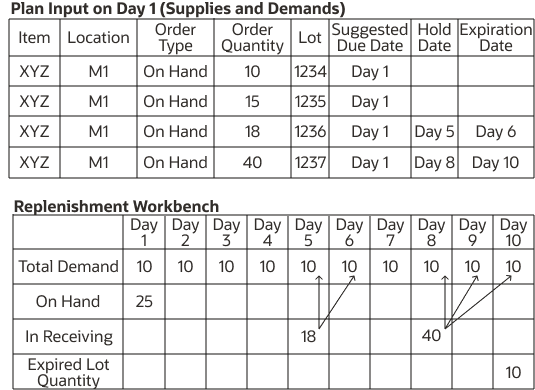
A quantity physically recorded as on hand is not automatically usable on day one. In the image, the workbench distinguishes immediately available on-hand inventory from quantities that become available later and quantity that expires. If a planner expects a replenishment order but the plan does not create one, verify usable inventory by date before changing the policy. Conversely, if a plan creates an apparently unnecessary order, check whether the displayed on-hand quantity is actually on hold or unavailable at the required time.
Save, validate, and diagnose configuration defects
Before submitting the plan configuration, use this focused validation checklist:
- Scope validation: confirm the selected organization, source system, segment group, and segment. Ensure the intended item has planning method Replenishment planning.
- Calendar validation: confirm an organization calendar, Day level, 56 buckets, and sensible displayed start/end dates.
- Demand validation: confirm either a forecasting profile is selected because Generate forecast is enabled, or an upstream schedule is marked Use for Demand Schedule.
- Policy validation: because Calculate policy parameters is enabled, confirm a policy assignment set is selected.
- Inventory/supply validation: confirm planning data collection has already loaded the intended item-organization’s on-hand, supply, and date-related inventory details.
- Security validation: confirm the owner and intended access level are correct.
Select Submit to save the plan definition. At this stage, the success criterion is a valid, saved configuration—not yet a trusted replenishment recommendation. The next lessons establish the segmentation and policy evidence needed to interpret a run.
Fast root-cause guide
| Symptom | Likely cause | First correction |
|---|---|---|
| Segment group is unavailable | Segmentation has not succeeded, uses unsupported dimensions, or source systems differ | Verify segmentation completion, remove Customer/Demand Class usage, and align source systems. |
| Expected item-location is absent | Organization scope, segment selection, or item planning method excludes it | Check all three filters and set the item’s MPS and MRP Planning Method to Replenishment planning where appropriate. |
| Planning calendar is unavailable | It is not included in the selected dimension catalog or is incompatible with selected options | Check the catalog and use an eligible calendar type. |
| Policy assignment field blocks plan completion | Calculate policy parameters is selected without an assignment set | Select a valid assignment set for the segment group, or change the intended processing design. |
| No forecast source is accepted | Generate forecast is off and no demand schedule is marked for demand use | Add the approved upstream schedule and select Use for Demand Schedule. |
| Inventory is unexpectedly absent or late | Collection, scope, lot availability, hold date, expiry, or supply schedule issue | Start with collected inventory data and availability dates before modifying replenishment policies. |
You have now created a controlled replenishment-plan baseline: a selected item-location population, a daily planning horizon, a forecast source, policy-calculation intent, and collected inventory/supply inputs with time-based availability in mind.
Next, you will create and run segmentation, review the segmentation summary, and override one item-location result. That work turns the plan’s item scope from a configuration dependency into an explainable business classification.
Can't find a good explanation? Sign up and we'll make it for you
Sign up