
Hello again. In the previous lesson, we established that Android apps execute as signed, sandboxed processes and access platform capabilities through controlled framework APIs. That stable identity and installation model now become important: Google Play must deliver the same app securely across devices with very different processors, screens, and language settings.
This lesson distinguishes the installable APK from the publishing-oriented Android App Bundle (), then traces what happens from a release build in your project to the APKs installed on a player’s device. This is particularly useful when diagnosing device-specific delivery, validating a Play test release, or discussing why two devices download different amounts of data.
Two artifacts, two jobs
An APK is the artifact Android installs. It contains the compiled code, resources, manifest information, and other files needed for some part of an Android app. An APK can be a single self-contained package, or it can be one member of a coordinated set of APKs.
An Android App Bundle, with the file extension .aab, is the artifact you publish to Google Play. It contains the compiled code and resources for the app, arranged so that Google Play can generate the appropriate APKs later. An .aab is not what Android installs directly on a player’s device.
The distinction is easiest to retain as a separation of responsibilities:
| Question | APK | Android App Bundle |
|---|---|---|
| Primary job | Install and run on a device | Publish one app release to Google Play |
| Typical file extension | .apk | .aab |
| Directly installable by Android? | Yes, either as one APK or as a compatible set of split APKs | No |
| Contains | The code and resources selected for an installed app or app component | The broader set of code, modules, and device-targeted resources from which Play can create APKs |
| Who normally produces the final device-targeted artifacts? | Your build process for direct distribution, or Google Play from a bundle | You build the bundle; Google Play uses it to produce delivery APKs |
| Why it matters | It is the device’s runtime installation representation | It avoids manually building and managing many device variants |
A common misconception is to treat an App Bundle as “a smaller APK.” It is not. It is an input to a delivery system. Its value is that it describes all supported variants once, while Google Play determines which subset a particular device needs.
About Android App Bundles | Other Play guides | Android Developers
Read the opening of Android Developers’ “About Android App Bundles” for the official definition and the core publisher-versus-device distinction.
In the introductory section, read the definition and delivery summary. Focus on the two actions Google Play performs after upload: generating APKs and selecting only the code and resources needed for a particular device.
A practical example
Suppose the tap-to-dodge game eventually supports:
- English, French, and German text;
- multiple drawable density buckets;
- native libraries for more than one CPU architecture;
- an optional “advanced challenges” feature.
A traditional monolithic APK could contain all languages, image densities, native libraries, and feature code. Every player would download files intended for devices unlike theirs.
With an App Bundle, the release can describe all of those variants. A phone configured for English, with a particular screen density and CPU architecture, receives only the matching components needed for its installation. A simple Kotlin game without native code may not need an ABI-specific native-library split at all; Play delivers only splits relevant to the app’s actual contents.
From a release build to a player’s installation
For a normal Play release, think in terms of five stages:
-
Build the release bundle. Android Studio and Gradle compile your project’s Kotlin code into DEX bytecode, process resources, and assemble an
.aabfile. -
Upload the bundle to a Play Console release track. For example, you might begin with internal testing, then move through closed or open testing before production.
-
Google Play processes the bundle. Play examines the base module, any feature modules, and resources targeted at different device configurations.
-
Play creates device-appropriate APKs. These are not necessarily one large APK. For modern Android versions, Play commonly creates a set of split APKs.
-
The device installs the selected APK set as one app. Android treats compatible splits with the same package identity, version, and signing relationship as one installed application.
The important architectural detail is that selection happens before installation. A player does not download every potential language and density asset, then let the phone discard unnecessary files. Google Play serves an APK set already tailored to the device.
Signing in the Play delivery model
This also extends the signing concept from the prior lesson. The signing identity must remain consistent across updates so Android recognizes the new version as an update to the same app.
For a Play release using Play App Signing, your uploaded bundle is authenticated with your upload key, while Google Play signs the generated APKs that reach users with the app signing key it manages. As a result, do not equate the .aab file itself with the exact signed APKs a player receives. The bundle is a secure publishing input; the Play-generated APK set is the installed output.
Later, when configuring Play Games Services, package identity and signing configuration will be consequential. At this stage, retain the delivery relationship: one application identity can have different APK contents on different devices without becoming different apps.
Split APKs: one installed app, several packages
Android 5.0 and later support split APKs. A split APK resembles a regular APK in structure, but Android installs multiple compatible splits together and exposes them as one app.
The Android App Bundle format | Other Play guides | Android Developers
This Android Developers section explains the on-device mechanism that makes optimized Play delivery possible.
Find the “Overview of split APKs” section. Start at the sentence beginning “A fundamental component of serving optimized applications,” and read the split APK mechanism. Continue through the explanation of how a monolithic APK can be divided into smaller packages and why the base APK is the dependency head. Focus on “installed as a single app” rather than treating each split as a separately launchable application.
A typical Play-delivered installation has three conceptual categories.
1. Base APK
The base APK is mandatory. It provides the foundation for the application: the base module’s code and resources, the combined manifest information, and common dependencies. It is the root on which the rest of the installed APK set depends.
Without the base APK, configuration and feature APKs have nothing to attach to. This is why the base is always present even when a player does not install optional features.
2. Configuration APKs
Configuration APKs hold resources or native libraries selected for a device configuration. The most common configuration dimensions are:
| Configuration dimension | What Play can select | Example |
|---|---|---|
| Screen density | Images and other density-specific resources | A drawable intended for an xxhdpi display |
| CPU architecture, or ABI | Native libraries | A library compiled for arm64-v8a rather than x86_64 |
| Language | Localized strings and language-specific resources | French resources for a device using French |
The central saving comes from absence: a player receives the density resources suited to their display rather than every density; likewise, native libraries for an unused CPU architecture are not part of the installation.
3. Dynamic feature APKs
A dynamic feature represents optional app functionality, rather than a device configuration. A feature module might be included when the app is first installed, delivered conditionally, or made available later at runtime. If that feature has language-, density-, or ABI-targeted resources, it can have its own associated configuration APKs.
For a game, this might eventually be appropriate for a substantial optional mode or content area. It is not required merely to publish a small game. The base module plus standard configuration splits already provides device-optimized delivery.
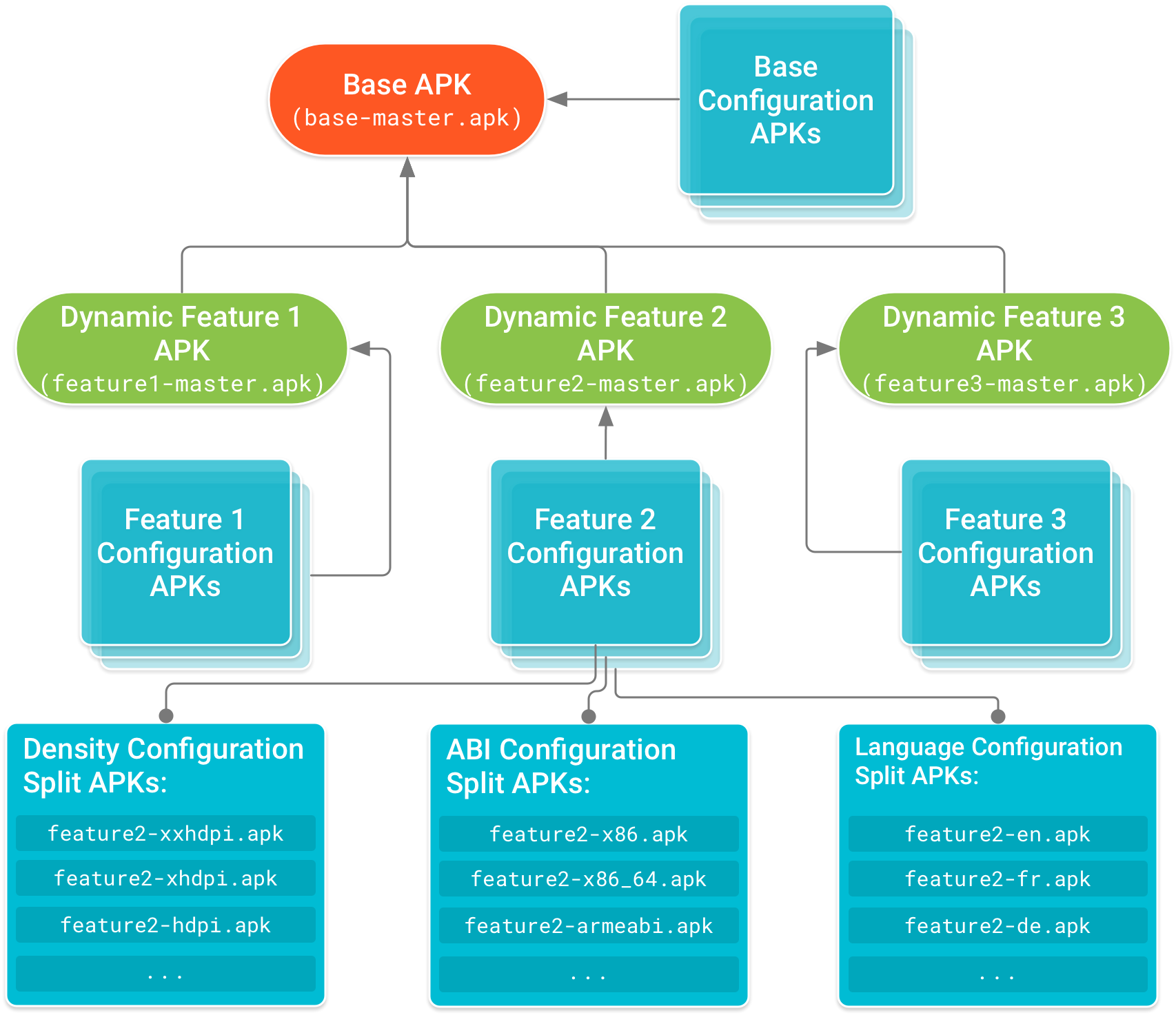
Read the diagram from the top down in terms of dependency, not download order:
- The Base APK is always required.
- Each Dynamic Feature APK depends on that base.
- The blue configuration groups are not extra standalone apps. They provide the selected resources or native code for the base or a particular feature.
- A device receives the branch components appropriate to its configuration and to the features it has installed.
This structure explains why an issue can appear only on a particular class of device. A missing xxhdpi asset, a native-library packaging mistake for one ABI, or an incorrect localized resource may exist only in a configuration-specific APK. The source project is one app, but the delivered installation sets can differ.
What Play chooses for a particular device
Consider two hypothetical players installing the same release:
| Device characteristic | Player A | Player B |
|---|---|---|
| Display | High-density phone | Lower-density tablet |
| CPU | ARM 64-bit | x86_64 emulator |
| Languages | English | English and French |
| Optional game mode | Not installed | Installed |
Both installations include the same base APK. Beyond that, Play can select different density resources, native libraries where the game includes native code, language resources, and any required feature APKs. The package name and app version still identify one application release; the installed payload simply matches each device.
This is why a “works on my phone” result is not enough for release validation. The question is not just whether the base app launches, but whether the APK set selected for representative devices contains the resources and code it should. In Play Console, the App Bundle Explorer and its device-oriented views are useful for inspecting that delivery outcome.
App Bundles: Building your first app bundle - MAD Skills
Watch Android Developers’ “App Bundles: Building your first app bundle – MAD Skills” to see the publishing flow and a concrete inspection of the APKs Play chooses for a device.
Watch the Bundle Explorer tour. The video uploads a bundle to an internal-test release and uses device filters, especially screen density, to inspect the generated download. Then watch the base APK role for the reminder that the base APK is mandatory and carries shared app foundations. Treat the exact Console screen layout as illustrative; focus on the diagnostic idea of inspecting the APK set for a target device.
A legacy exception
Devices running Android 4.4 and lower do not support split APK installation. For those devices, Google Play can provide a device-targeted multi-APK: one APK containing the full experience for that device, optimized across some configuration dimensions. This is a compatibility path, not the model to center in current Android development.
For contemporary devices, the more useful model is: one logical app installed from a base APK plus only the necessary splits.
What this changes in day-to-day work
For development, you may often run a debug APK from Android Studio on an emulator. That is appropriate for rapidly testing Kotlin code and UI behavior. But a Play release introduces a separate delivery verification concern.
Before relying on a Play test release, make sure you can answer these questions:
- What did we upload? A signed
.aab, representing the complete publishable app. - What does a player install? Play-generated APKs, often a base APK plus device-appropriate configuration splits and required features.
- Why can downloads differ by device? Density, ABI, language, and feature choices alter the selected APK set.
- What remains consistent? The app’s package identity, versioned release, and signing relationship.
- Where can we inspect the result? In Play Console’s bundle and device-delivery views, rather than assuming the
.aabitself is the installed payload.
For larger games, App Bundles also support Play Feature Delivery and Play Asset Delivery. Those tools matter when substantial optional code or assets need flexible delivery, but the essential principle remains the same: describe the whole release once, and let Play deliver the relevant portions.
Key takeaways
An APK is an Android installation artifact. An Android App Bundle is an .aab publishing artifact that Google Play uses to generate those installation artifacts; it is not directly installable on a device.
Google Play uses the bundle to build a device-specific APK set. On modern Android, that commonly includes a mandatory base APK, plus selected configuration APKs for density, ABI, and language, and possibly dynamic feature APKs. Android installs the compatible set and treats it as one app.
For release troubleshooting, distinguish the source project, the uploaded bundle, and the APK set delivered to a particular device. They are related representations of the same app, but only the last is the player’s installed experience.
Next, you will configure Android Studio, the Android SDK, and an emulator so you can begin building and testing the Kotlin game locally.
Can't find a good explanation? Sign up and we'll make it for you
Sign up