Recommended resources
The freely available resources this lesson will direct you to.
- Linktree Tutorial 2024 | Full Guide For Beginnerswww.youtube.com
- Instagram Tutorial: Add Clickable Links on Instagram 2024!www.youtube.com
- How to add a link in bio: Instagram, TikTok, and more (2025)www.hostinger.com
- Share links on your YouTube Channel and long-form videoswww.peggyktc.com
- How To Use Linktree | Promote Your Links in One Place (Linktree Tutorial)www.youtube.com
- How to use Linktree to Share Your Links (Beginner Tutorial)www.youtube.com
Introduction
Welcome to the final lesson of Module 2! In our last session, you accomplished a major milestone by creating a central hub for your brand using Linktree. You now have a single, powerful "master link" that's ready to connect your audience to your entire "cheap and cheerful lifestyle" ecosystem.
However, that link is currently just sitting in your notes. To make it work for you, we need to place it where your followers can see and click it.
Today, we will complete your profile optimization by achieving our learning outcome: Add relevant links and your link-in-bio URL to all social media profiles. We'll go through each of your five platforms—Instagram, TikTok, X (Twitter), Pinterest, and YouTube—and add your Linktree URL to your bio. This is the final step that ties all your hard work together, creating a professional and interconnected online presence.
1. Your Master Link: A Quick Reminder
Before we begin, make sure you have your unique Linktree URL ready. As a refresher from our last lesson, you can find it by:
- Logging into your Linktree dashboard.
- Clicking the Share button in the top-right corner.
- Clicking Copy to copy the URL to your clipboard.
Keep this link handy, as you'll be pasting it several times.
2. Action Steps: Adding Your Link to Each Platform
We will now go through each social media platform one by one. The process is slightly different for each, but the goal is the same: to make your Linktree page the one-stop destination for your followers.
The following article provides clear, illustrated steps for Instagram and TikTok. We'll use it as a guide for those platforms.
How to add a link in bio: Instagram, TikTok, and more (2025)
The article 'How to add a link in bio' from Hostinger is a great practical guide. We will use specific sections for Instagram and TikTok.
For now, just be ready to refer to the sections titled 'How to add a link to your Instagram bio' and 'How to add a link in your TikTok bio'.
Instagram is often the central hub for influencers, so let's start here.
Action Steps:
- Open the Instagram app and go to your profile page.
- Tap Edit Profile.
- Tap on Links.
- Tap Add external link.
- Paste your Linktree URL into the URL field.
- You can give the link a title, such as "All My Links" or "Budget Tips & More!".
- Tap the checkmark to save. Your link will now appear in your bio.
The Hostinger article provides screenshots that walk you through this exact process in the section "How to add a link to your Instagram bio."
TikTok
Adding a link to TikTok is simple, but it requires you to have a Business Account. If you followed the setup steps in Module 2, Lesson 2, you should already have this. If not, TikTok will prompt you to switch for free.
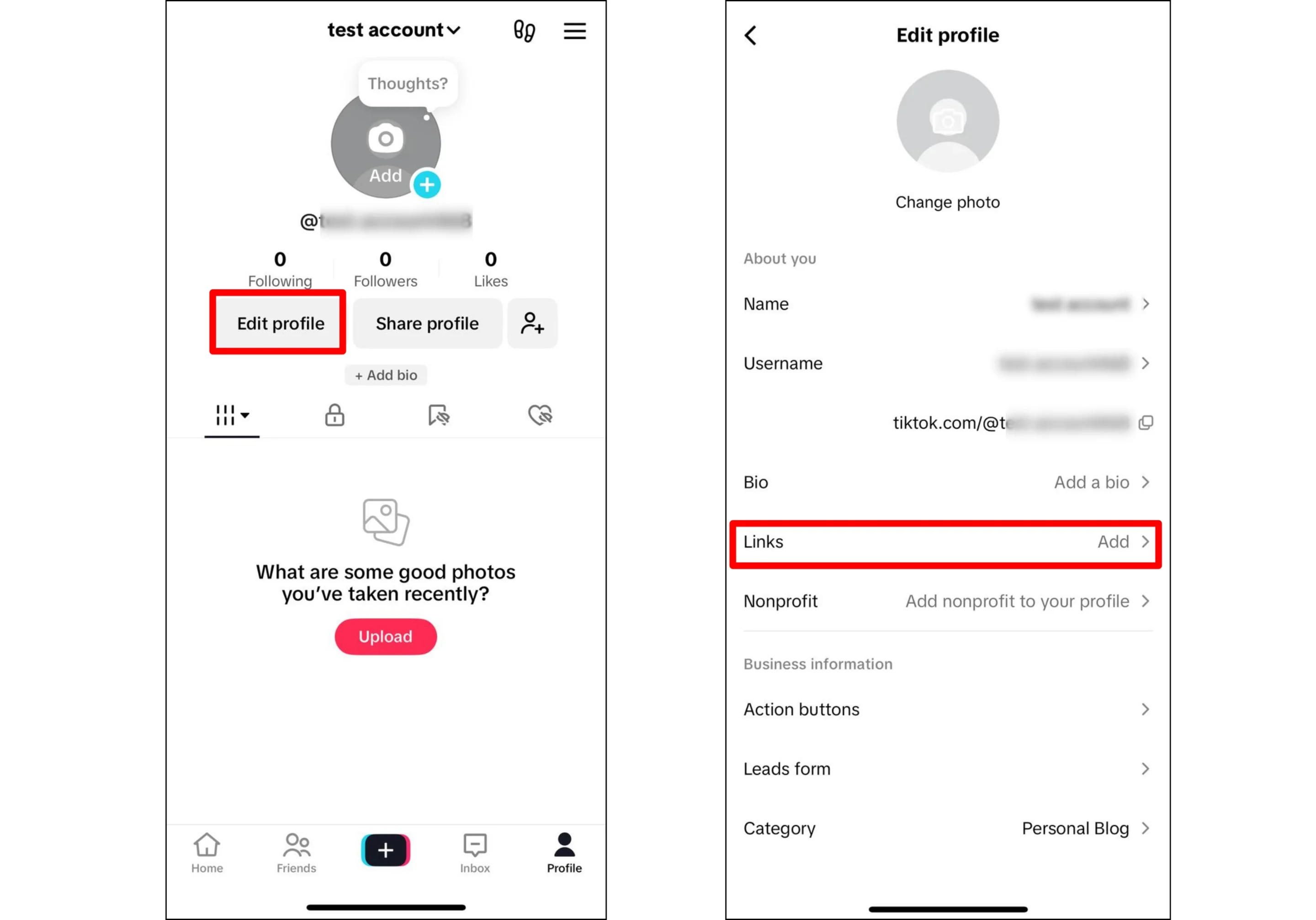
Action Steps:
- Open the TikTok app and go to your profile.
- Tap Edit profile.
- Under the "About you" section, tap Website.
- Paste your Linktree URL and tap Save. The link will now be visible and clickable on your profile.
You can see these steps illustrated in both the image above and in the Hostinger article under the section "How to add a link in your TikTok bio."
X (Twitter)
Adding a link to your X profile is very straightforward.
Action Steps:
- Open the X app and go to your profile.
- Tap Edit profile.
- You will see a dedicated field labeled Website.
- Paste your Linktree URL into this field.
- Tap Save.
Pinterest is a visual discovery engine, and linking out to your content hub is key to driving traffic.
The process for adding your Linktree URL is detailed in the article below.
How to add a Linktree to your Pinterest bio
The Linktree blog has an article written specifically for this task. It gives clear, concise instructions.
Read the four short steps in the article. This will guide you through copying your URL, finding the 'Edit profile' section, and pasting the link into the 'Website' field.
Action Steps (summarized from the article):
- Log in to your Pinterest account.
- Go to your profile and access your Settings (usually a gear icon or three dots), then select Edit profile.
- Paste your Linktree URL into the Website field.
- Click Done or Save.
YouTube
On YouTube, your link can appear prominently on your channel's banner, making it highly visible to visitors. This must be done on a desktop browser.
Action Steps:
- On a computer, go to
studio.youtube.comand log in. - In the left-hand menu, click Customization.
- Select the Basic info tab.
- Scroll down to the Links section.
- Click + Add link.
- For the Link title, enter a short call to action, like "All My Budget-Friendly Tips!".
- In the URL field, paste your Linktree URL.
- Click the Publish button in the top-right corner. Your link will now appear on your channel banner.
3. Final Check and Bio Update
Your work isn't quite done. Now it's time to test and optimize.
-
Test Every Link: Go to each of your five social media profiles on your phone. Click the link in your bio. Does it open your Linktree page correctly? Do all the links on your Linktree page go to the right place? It's crucial to test this from a user's perspective.
-
Update Your Bio Text: Your bio should encourage people to click your link. Revisit the bios you wrote in Module 1 and add a clear call to action. Use an emoji to draw attention to it.
- Before: "Helping you live a cheap and cheerful lifestyle. Money-saving tips and budget finds."
- After: "Helping you live a cheap and cheerful lifestyle. All my best money-saving tips are here! 👇"
This small change explicitly tells your audience what to do and what they will get, which can significantly increase clicks.
Conclusion
Excellent work! You have now completed Module 2. All your social media profiles are set up, visually branded, and, most importantly, interconnected. You've built a solid and professional foundation for your influencer brand. This cohesive ecosystem will make it easy for your followers to engage with you across all platforms and is essential for long-term growth.
Key Takeaways:
- You have successfully added your master Linktree URL to your Instagram, TikTok, X, Pinterest, and YouTube profiles.
- Each platform has a slightly different process for adding a website link, but all are found within the "Edit Profile" settings.
- A strong call to action in your bio text is crucial for directing followers to click your link.
- Your brand's online presence is now a fully connected network, ready for you to start publishing content.
Preview of the Next Lesson:
With your profiles fully optimized, it's time to move on to the most exciting part: creating content! In our next lesson, we will begin Module 3: Creating Static Visual Content. We'll start with the absolute foundation of good visuals by learning how to identify the key principles of good lighting for smartphone photography. Get ready to start capturing beautiful images for your feed