Recommended resources
The freely available resources this lesson will direct you to.
- Create Your Own Monthly Budget & Finances Planner In Canvawww.youtube.com
- How to Create a Digital PDF Checklist in Canva | Perfect for Freebies & Lead Magnetswww.youtube.com
- How to Create a Lead Generating Checklist Freebie in 90 ...www.thecreativesdesk.com
- How To Create An Opt-In Freebie In Canva - Teri-Ann Taggetterianntagget.com
Introduction
Welcome back! In our last lesson, you took a significant step by setting up your Amazon Associates account and learning how to create your first affiliate link. This opened up a direct path to monetization. However, simply having a link isn't enough; you need to give your audience a reason to trust your recommendations and engage with you further.
That's where today's lesson comes in. We'll focus on creating a digital freebie, also known as a "lead magnet." This is a valuable piece of content you give away for free in exchange for someone's email address. For your "cheap and cheerful lifestyle" niche, this is one of the most powerful ways to build a loyal community and a direct line of communication with your followers—your email list.
Your learning outcome for this lesson is to design a one-page digital freebie (e.g., a budget checklist) using Canva to build an email list. By the end of this session, you will have a professional, branded, and valuable resource ready to offer your future audience.
1. What is a "Freebie" and Why Do You Need One?
A freebie is a simple, high-value resource that solves a specific problem for your target audience. Think of it as a friendly handshake—a way to introduce yourself and provide immediate value before asking for anything in return (like a sale or a click on an affiliate link).
Great freebies are:
- Specific: They solve one small, pressing problem. Instead of "How to Manage Your Money," a better topic is "A Weekly Checklist to Stop Impulse Spending."
- Actionable: They give your audience a quick and easy win.
- Easy to Consume: A one-page checklist or a simple guide is perfect.
- Professionally Designed: It should reflect your brand and look polished.
How to Create a Lead Generating Checklist Freebie in Just 90 Minutes
The article 'How to Create a Lead Generating Checklist Freebie' provides excellent insight into picking the right topic and focusing on a quick win for your audience.
Read the sections 'Choosing the Right Type of Lead Magnet' and 'Creating the Lead Magnet - Step 1. Pick the theme or subject.' Pay close attention to the examples provided, like the one for a life coach.
As the article suggests, narrowing your focus is key. For your "cheap and cheerful" niche, some great ideas could be:
- A "Pantry Essentials" checklist for budget cooking.
- A "Thrift Store Shopping" cheat sheet.
- A simple "Monthly Budget Tracker."
These are all topics you can easily turn into a one-page PDF.

2. Action Step: Plan Your Freebie Content
Before you even open Canva, it's crucial to outline your content. A common mistake is to start designing without a clear plan, which often leads to a less valuable and disorganized final product.
How To Create An Opt-In Freebie In Canva
Let's read a quick guide on this 'content-first' approach. This article from Teri-Ann Tagget emphasizes the importance of strategy before design.
Read the section 'Step 1: Outline Your Freebie.' The author explains why focusing on content first allows you to create something truly valuable.
Now, let's apply this.
Your Task (5-10 minutes):
- Choose a specific topic for your one-page freebie. Let's go with a "Monthly Budget Checklist" as it's a perfect fit for your niche.
- Give it a compelling title. For example: "The Simple Monthly Budget Checklist" or "Your One-Page Plan to Master Your Monthly Budget."
- Outline the key sections. Open a notepad or a blank document and list the essential parts. Your outline could look something like this:
- Title: The Simple Monthly Budget Checklist
- Section 1: Income
- Line for Paycheck 1
- Line for Paycheck 2
- Line for Other Income
- Line for Total Income
- Section 2: Fixed Expenses (Bills)
- Rent/Mortgage
- Utilities (Electric, Water)
- Internet/Phone
- Subscriptions (Netflix, etc.)
- Loan Payments
- Section 3: Variable Expenses (Spending)
- Groceries
- Gas/Transport
- Entertainment
- Personal Care
- Section 4: Savings Goals
- Emergency Fund
- Vacation
- Debt Payoff
Having this outline will make the design process in Canva incredibly fast and straightforward.
3. Action Step: Design Your Freebie in Canva
Now for the fun part! We'll use your outline to create a beautifully branded checklist in Canva. We'll be referencing a video tutorial that creates a very similar document. You don't have to follow it exactly, but it demonstrates all the core skills you'll need.
Create Your Own Monthly Budget & Finances Planner In Canva
The video 'Create Your Own Monthly Budget & Finances Planner In Canva' from The Canva Nerd is a perfect walkthrough. We'll use its techniques to build your checklist.
Watch from 00:44 to 07:00. The creator shows you everything you need to know: Setting up your document (00:44): Start with a standard size like A4 or US Letter (8.5 x 11 inches). Creating sections with titles (01:01): Use shapes and text boxes for your 'Income' and 'Expenses' sections. Adding lines and columns (01:41): Learn how to use the line tool and the 'Tidy Up' feature to create neat, organized lists. Duplicating elements (03:46): See how to quickly copy sections to build out your checklist without starting from scratch. Adding checkboxes (05:12): Use circle shapes to create checkboxes your audience can use. \nPause the video as you go and apply these techniques to build the checklist you outlined in the previous step.
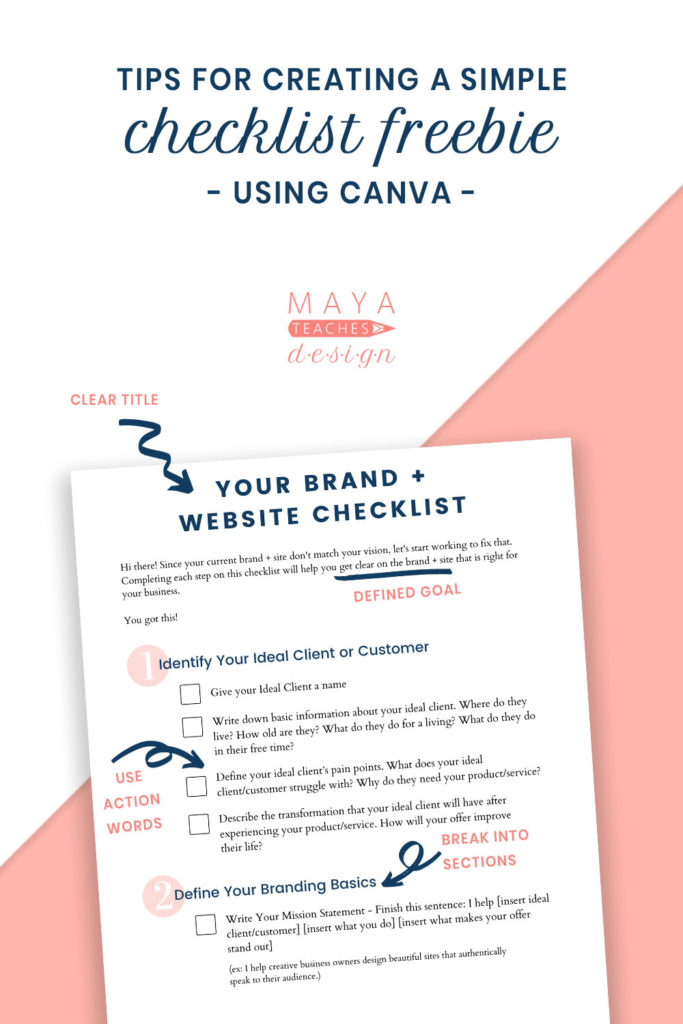
Key Design Tips to Remember:
- Use Your Brand Kit: Remember the brand colors and fonts you selected in Module 1? Apply them here for consistency.
- Add a Title Page: As suggested in the video "How to Create a Digital PDF Checklist in Canva," consider adding a simple title page. It makes your freebie look more substantial and is great for creating promotional mockups later.
- Include an 'About Me' Section: At the bottom or on a second page, add a small photo of yourself, a brief bio, and links to your social media profiles. This builds brand recognition.
- Don't Forget Your Disclosure! If you mention any specific products and plan to link to them (using the affiliate links you created in the last lesson!), you MUST include your Amazon Associates disclosure: "As an Amazon Associate I earn from qualifying purchases." A good place for this is in the footer.
4. Level Up: Make Your Freebie Interactive
To make your freebie even more professional and user-friendly, you can make it a fillable PDF. This means users can type directly into the fields and check the boxes on their computer or phone, without needing to print it. This is a small touch that makes a big difference.
The process involves two steps:
- Downloading your design from Canva as a "PDF Standard."
- Uploading it to a free online tool called PDFescape to add the interactive fields.
How to Create a Digital PDF Checklist in Canva | Perfect for Freebies & Lead Magnets
The video 'How to Create a Digital PDF Checklist in Canva' by Mariah Magazine explains this entire process perfectly. We'll pick up right where she exports from Canva.
Watch from 13:52 to 18:02 to see the step-by-step process: Download as PDF Standard (13:52): It's crucial to use this format to keep links active and file size small. Upload to PDFescape.com (14:21): This is a free, web-based tool. Add 'Form Fields' (15:20): Use the 'Checkbox' type for your checklist boxes and the 'Text Paragraph' type for any fields where you want users to type numbers or notes. Save & Download: Click the green 'Save & Download' icon to get your final, interactive PDF.
This step is optional, but highly recommended. It shows your audience that you care about providing a high-quality, convenient experience.
Conclusion
Excellent work today! You've moved beyond just planning and have created your very first digital asset. This checklist is more than just a PDF—it's a tool for building trust, providing value, and growing a community that will be the foundation of your success as an influencer.
Key Takeaways:
- A digital freebie (or lead magnet) is a high-value resource you offer for free to build your email list and establish authority.
- The most effective freebies are specific, actionable, and solve a real problem for your audience.
- Always plan your content before you start designing in Canva to ensure your freebie is strategic and valuable.
- Using Canva, you can create a professional, branded freebie that aligns with your "cheap and cheerful" aesthetic.
- You can make your PDF interactive with fillable fields and checkboxes using a free tool like PDFescape, which adds a layer of professionalism.
Preview of the Next Lesson:
You now have a fantastic freebie, but how do you actually deliver it to your audience and collect their email addresses? In the next lesson, we will set up a simple link-in-bio storefront (e.g., Beacons) to offer your digital freebie. This will be the public-facing hub where you direct all your followers.