Hello! Welcome to your next lesson in the "Launching on Walmart Marketplace" module.
In our last session, you successfully navigated the rigorous Walmart Seller application and verification process. With your account approved, you now have access to your new digital storefront's command center: the Walmart Seller Center. This is where all the action happens.
Today, we'll get you comfortable and confident in this new environment. The learning outcome for this lesson is to navigate the Walmart Seller Center to manage listings, pricing, and orders. We will take a practical tour of the dashboard, focusing on the three most critical areas you'll use daily to run your business.
1. Your Command Center: An Overview of the Seller Center
The Seller Center is the central hub where you will manage every aspect of your Walmart Marketplace business. At first, it might seem like there are a lot of options, but its functions are organized into logical categories.
To get a high-level overview of the platform's layout and purpose, the official guide from Walmart is the best place to start.
Getting started in Seller Center
This guide, 'Getting started in Seller Center,' provides a map of the entire platform. It will introduce you to the main tabs and their functions.
Read the introductory sections, specifically 'Getting started in Seller Center' and 'All about Seller Center'. Focus on understanding the overall purpose of the Seller Center and the main categories it's organized into.
Now, let's see it in action. The following video provides a concise visual tour of the main navigation panel.
How To Set Up Your Walmart Seller Account Step By Step
Watch this quick tour of the Seller Center dashboard from the video 'How To Set Up Your Walmart Seller Account Step By Step' by Noah Mincis. It highlights the three core areas we'll be focusing on today.
Watch from 06:02 to 06:56. Pay attention to the three main tabs he points out on the left-hand menu: Items & Inventory, Order Management, and Analytics & Reports. These are your primary controls.
As you can see, the layout is designed around the lifecycle of selling a product: you add products (Catalog), you fulfill sales (Orders), and you analyze your success (Analytics).
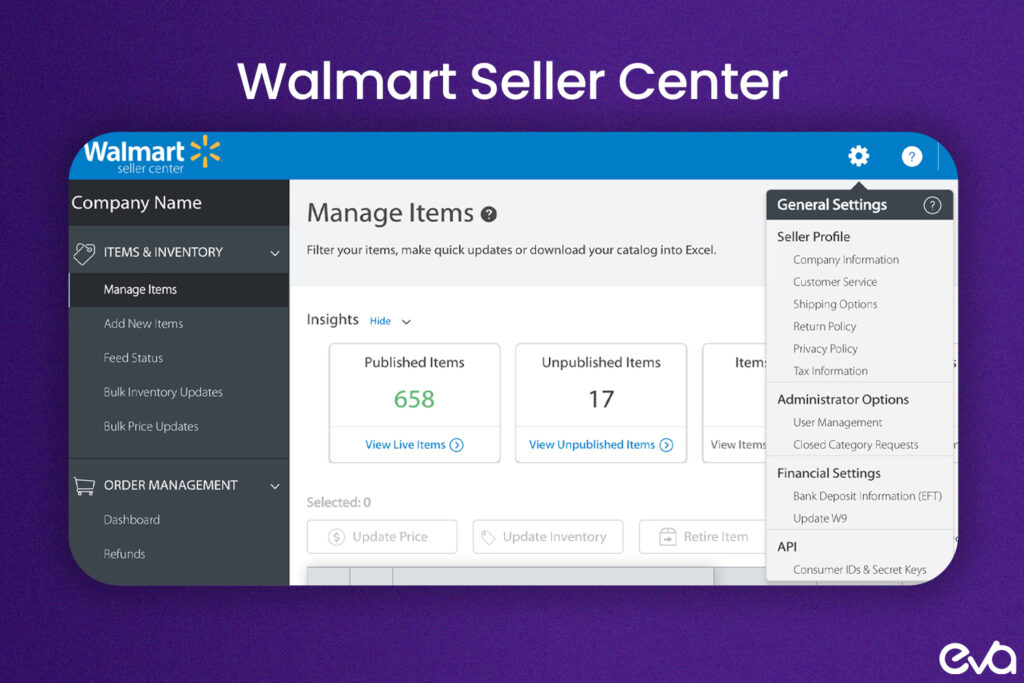
2. Managing Your Products: The Catalog Tab
The Catalog tab is where you control your product inventory. This is where you will add new products, update existing ones, and monitor the status of your listings.
Let's dive into the specifics of this section using Walmart's guide.
Getting started in Seller Center
This section of the 'Getting started in Seller Center' guide details the 'CATALOG' tab, explaining its function for adding and managing your items.
Read section '1 Create and manage your catalog'. Focus on understanding what the Catalog tab is used for and the different subtabs available for managing listings.
Walmart provides three primary methods for adding products to your catalog. For your first few products, you'll likely use the "Add a single item" method. As you scale, you may use the bulk upload or API options.
The video below explains these three methods.
How To Set Up Your Walmart Seller Account Step By Step
This clip from Noah Mincis's video explains the practical options for adding products to your catalog.
Watch from 06:49 to 08:07. Note the three options presented: Add a single item: Manually adding one product at a time. Add items via bulk: Using a spreadsheet (CSV file) to upload many products at once. Add items through API: Using third-party software to connect and sync your inventory automatically (a more advanced method we'll touch on later in the course).
In our next lesson, we will walk through the process of creating a new product listing from scratch using the "Add a single item" method. For now, the key takeaway is knowing that the Catalog tab is your home for all listing management.
3. Managing Your Sales: The Orders Tab
Once your products are live, the Orders tab will become one of your most frequently visited sections. This is where you view incoming orders, update shipping information, and manage returns. Efficient order management is critical for maintaining good account health.
Walmart provides a dedicated, detailed guide for the Order Management Dashboard. It's a crucial resource for understanding how to process your sales.
Order Management Dashboard in Seller Center
The 'Order Management Dashboard in Seller Center' guide is your manual for handling sales. It breaks down every part of the orders screen, from finding an order to viewing its details.
Study this guide carefully. Pay attention to three key parts: 'Navigate to the Order Management Dashboard': Understand the main columns like 'Order Status', 'Order #', and 'Ship by'. 'Filter and Search': Learn how to use filters to find specific orders (e.g., all 'Unshipped' orders, or orders that are 'Overdue'). 'Order Details': See how clicking on a Purchase Order (PO) number shows you everything about that sale, including customer details and payment info.
To reinforce this, the next video gives a quick summary of where to track orders and monitor your performance metrics.
How to Sell on Walmart Marketplace in 2026 | Step-by-Step Guide
In the video 'How to Sell on Walmart Marketplace', Jimmy Smith provides a concise overview of the order and analytics tabs.
Watch from 07:57 to 08:41. He reinforces that the Orders tab is for tracking and shipping, while the Analytics tab is for monitoring your performance—a key activity for maintaining a healthy seller account.
Test your understanding!
You receive two new orders. One will be fulfilled via dropshipping (Merchant Fulfilled), and the other is for a product you plan to send to Walmart Fulfillment Services (WFS).
- In which tab in Seller Center would you see both of these new orders?
- Using the
Filterfunction in the Order Management dashboard, how could you isolate only the orders you need to ship yourself?
Show answer
- You would see both new orders in the Orders tab.
- You would use the
Filteroption and select 'Fulfilled by' > 'Seller'. This would hide the WFS orders (which Walmart handles for you) and only show the Merchant Fulfilled orders that you are responsible for shipping.
4. Managing Pricing and Payments
Finally, let's look at where you control your pricing and track your earnings. These functions are split between the Pricing and Payments tabs.
The Walmart guide provides a clear explanation of each.
Getting started in Seller Center
This final reading from the 'Getting started in Seller Center' guide covers the 'PRICING', 'PAYMENTS', and 'PERFORMANCE' tabs.
Read the sections for 'ORDERS', 'PAYMENTS', and 'PRICING'. Pricing Tab: Note that this is where you can set prices and create promotions. Payments Tab: This is where you'll track your transaction history and see how much you will be paid out.
A quick but important note on payments for new sellers: Walmart places a temporary hold on your funds to ensure you are a reliable seller.
As mentioned in the video by Noah Mincis (resource LINK, section 3), new sellers typically face a 14-day payment hold on each order until two criteria are met:
- 90 days have passed since your first order was shipped.
- You have achieved over $5,000 in gross merchandise value (GMV).
This is a standard procedure and is important for your financial planning when you start.
Conclusion
Well done! You've completed a full tour of the Walmart Seller Center and now know how to locate the essential tools for managing your business. While there are many other features to explore, mastering these core areas is the foundation for everything else.
Key Takeaways:
- The Seller Center is your command hub, organized logically around the selling process.
- The
Catalogtab is where you manage your product listings—adding, editing, and monitoring their status. - The
Orderstab is your daily workspace for fulfilling sales, tracking shipments, and managing customer returns. Knowing how to filter and search here is a critical skill. - The
PricingandPaymentstabs allow you to control your item prices and monitor your financial transactions and payouts.
Next Up:
You now know where to manage your products. In the next lesson, we'll put that knowledge into practice. We will walk through the step-by-step process of creating a new product listing optimized for Walmart's search algorithm, turning a product from your sourcing efforts into a live offer for customers.