Recommended resources
The freely available resources this lesson will direct you to.
- How to Find Trending Sounds on TikTokwww.youtube.com
- How to add Music, Voiceovers and Text Overlays to TikTok Videos (Easy Tutorial for Beginners!)www.youtube.com
- A Beginners Guide to TikTok - Newfound Marketingnewfoundmarketing.ca
- 2026 trending TikTok and Instagram Reels audio [updated ...www.heyorca.com
Introduction
Welcome back! In the last lesson, you took a huge step forward by editing your first short-form video in CapCut. You now have a polished, silent video clip saved on your phone, ready for the final, crucial element that makes short-form content come alive: sound.
This lesson directly addresses the learning outcome: Add trending audio or music to a short-form video using TikTok's or Instagram's native editor. We'll explore why trending audio is so powerful, how to find the right sounds for your "cheap and cheerful" niche, and the step-by-step process for adding them to the video you just edited.
By the end of this lesson, your video will not only look professional but will also be equipped with the audio it needs to capture attention and get discovered by new audiences.
1. Why Trending Audio Matters
Before we get into the "how," let's quickly cover the "why." On platforms like TikTok and Instagram, trending audio isn't just background music. It's a powerful tool for growth.
2026 trending TikTok and Instagram Reels audio
This article from HeyOrca explains what trending audio is and why it's so important for creators.
Read the sections 'What is trending audio?' and 'Is it better to use trending audio?'. Pay attention to the benefits listed, like algorithmic favor and increased reach.
In short, using a trending sound tells the algorithm that your content is relevant right now. This increases the chances of your video being shown to a wider audience, including people who don't follow you yet. For your niche, you can adapt trends to showcase money-saving tips in a fun, popular format.
2. How to Find Trending Audio
Finding the right sound is a creative skill in itself. You're not just looking for something popular; you're looking for something that fits your "cheap and cheerful" brand and the specific message of your video.
Finding Trends on TikTok
TikTok's "For You" page is your best research tool. The more you use it strategically, the better it gets at showing you trends relevant to your niche.
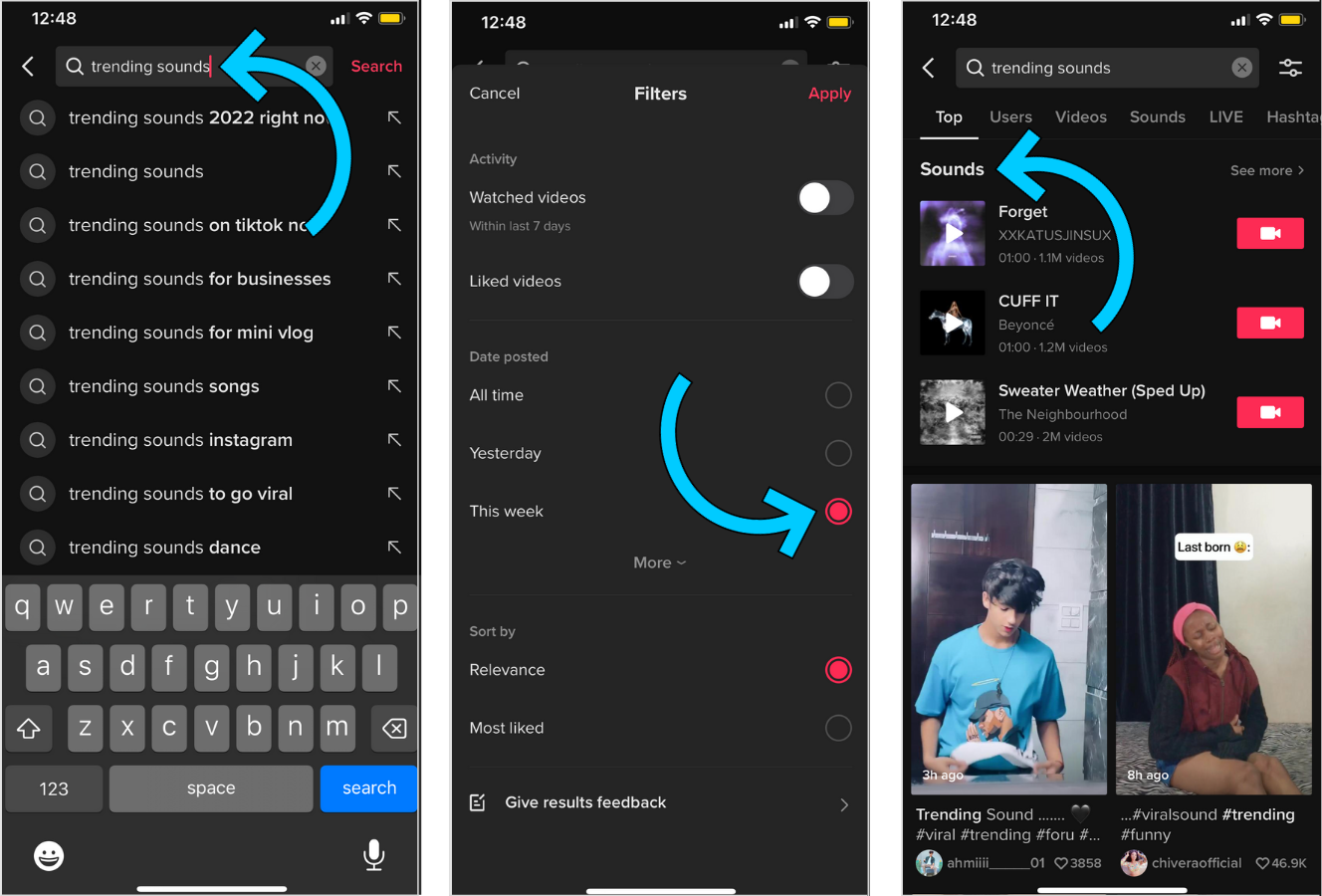
How to Find Trending Sounds on TikTok
This video from Mike Yanda offers three excellent, practical strategies for discovering trending sounds on TikTok before they become oversaturated.
Watch the entire video (it's short!). Pay special attention to the three distinct methods: Searching directly for 'trending sounds' (00:26). Finding trend alert accounts (01:50). The most powerful method: Optimizing your 'For You' page by engaging with creators in your niche (03:30).
Finding Trends on Instagram
The process on Instagram is similar, focusing on the Reels feed and the search function.
2026 trending TikTok and Instagram Reels audio
Let's return to the HeyOrca article, which provides a clear, actionable list of methods for finding trending audio specifically on Instagram.
Read the section 'How to find trending Instagram audio'. This gives you five distinct methods, from scrolling Reels to checking the 'Professional dashboard' once your account is set up.
Your Action Step: Find and Save a Sound
Before moving on, spend about 10 minutes using the methods above on both TikTok and Instagram.
- Look for sounds that are popular but also feel like they could fit a money-saving tip.
- When you find one you like, save it for later. On both platforms, you can tap the sound at the bottom of the screen and look for a "Save" or "Add to Favorites" button.
3. Adding Audio to Your Video
Now it's time for the main event. Take the video you edited and exported in the last lesson and let's add the sound you just saved.
On TikTok
You'll upload your silent video and add the sound directly in the TikTok editor.
How to add Music, Voiceovers and Text Overlays to TikTok Videos (Easy Tutorial for Beginners!)
This tutorial provides a simple walkthrough of adding music and adjusting volume levels within TikTok.
Watch from 01:19 to 01:43 and from 03:04 to 03:28. The key takeaway here is the 'Volume' control. See how you can lower the music volume so that your original voiceover (or in your case, the talking in your video) can still be heard clearly.
Your Action Step (TikTok):
- Open TikTok and tap the + icon.
- Tap Upload and select the edited video from your phone.
- Tap Add sound at the top of the screen. Go to your Favorites to find the sound you saved, or pick a new one from the "TikTok Viral" playlists.
- Once the sound is added, tap Volume on the right-hand side.
- This is the most important step:
- "Added sound" is the music you just picked.
- "Original sound" is the audio from your video file (you talking).
- Adjust the sliders. A good starting point is to set the Added sound to a low volume (e.g., 5-15%) and keep the Original sound at 100%. This way, the music adds energy without drowning out your voice.
- Tap Next, add your caption, and you're ready to post (or save it as a draft).
On Instagram Reels
The process is very similar on Instagram.
Your Action Step (Instagram):
- Open Instagram, swipe right to open the camera, and select Reel.
- Tap the icon in the bottom-left to open your camera roll and select your edited video.
- Tap the music note icon on the left-hand menu.
- Go to Saved to find the audio you saved earlier, or browse for a new one.
- After selecting a sound, tap the music note icon again to open the audio controls.
- Just like on TikTok, you will see two sliders:
- "Camera audio" is your original voice.
- The second slider is the music you added.
- Lower the music volume so your voice is the primary focus.
- Tap Done, then Next to proceed to the captioning and sharing screen.
4. Pro-Tip: The Best of Both Worlds
You learned to edit in CapCut (which offers more control) and you've now learned to add audio in the native apps (to get the trending boost). How do you combine them?
If you add music in CapCut and upload the final video, TikTok and Instagram will label it with "Original Audio," and you'll miss out on the algorithmic benefits of the trend. Here’s the professional workaround.
2026 trending TikTok and Instagram Reels audio
The HeyOrca article explains a clever trick to solve this problem. This is a technique many successful creators use.
Read the section 'How to download audio from TikTok and Instagram', and pay very close attention to the 'Orca tip' at the end. This explains the process of adding the trending sound in-app but turning its volume down to 1% so the platform recognizes it, while your main audio comes from your edited video.
The Pro Workflow:
- Edit your video with your voiceover in CapCut, but do not add music. Export the silent (or talking-only) video.
- Upload this video to TikTok or Instagram.
- Add the trending sound using the native editor, as we just practiced.
- Go to the volume controls.
- Turn the "Added sound" (the trending music) volume all the way down to 1%. Do NOT set it to 0%.
- Keep your "Original sound" (your voice from the CapCut edit) at 100%.
This way, you get the high-quality edit from CapCut and the discoverability boost from the trending sound.
Conclusion
Excellent work! You've now mastered one of the most important skills for creating successful short-form video. Your content is not just visually polished, but it's also integrated with the sounds and trends that drive conversations on TikTok and Instagram.
Key Takeaways:
- Trending audio is a tool for reach: Using it helps the algorithm show your content to new people.
- Find trends by being a user: Actively browse your "For You" and Reels feeds to see what's popular in your niche.
- Balance is key: Always adjust audio levels to ensure your voice is clear and the music is supportive, not distracting.
- Use the "1% volume" trick: This pro-tip allows you to combine the power of external editors with the algorithmic benefits of native trending audio.
Preview of the Next Lesson:
We've spent the last few lessons focused on creating engaging short-form video. Now, we're going to switch gears to the cornerstone of many influencer strategies: long-form content. In the next lesson, we will begin our journey into YouTube by learning how to plan and outline a YouTube video using a structure (hook, intro, main content, call to action).