
Hello. In the previous lesson, you traced a record update through validation, Flow, triggers, commit, and post-commit work. That explained when Salesforce attempts an action. This lesson addresses a prior question: is the user authorized to perform that action at all?
We will focus on the first two layers of Salesforce data access:
- Object access: Can the user create, read, edit, or delete records of this object?
- Field access: If they can access the object, which individual field values can they see or change?
A later lesson handles the third layer, record access: which particular Accounts, Cases, or custom-object records the user can reach.
Start with the access model, not the Setup screens
Salesforce access is assembled from several assigned artifacts:
- Every user has one profile.
- A user can have multiple permission sets.
- A user can have multiple permission-set groups.
- A permission-set group contains permission sets and provides their combined permissions to assigned users.
The current Salesforce design preference is a restrictive baseline profile—often Minimum Access - Salesforce or a carefully controlled clone—then reusable permission sets that grant exactly the extra capabilities required. A group then bundles those task-level permission sets into a persona-oriented package, such as Recruiter, Inside Sales Representative, or Support Agent.
Read the following Trailhead section for the terminology and design rationale before applying the model to an example.
Manage Salesforce Object Access
Read Salesforce Trailhead’s “Control Access to Objects” to establish the respective roles of profiles, permission sets, and permission-set groups. Its key design principle is a minimal profile baseline with reusable grants.
In “Manage Object Permissions,” read from the object-permissions introduction. Then continue to the subsection “Use Permission Sets and Permission Set Groups to Grant Access.” Focus on the distinction between a task-oriented permission set and a persona-oriented permission-set group, and on the fact that permissions are reusable building blocks.
Profiles provide the baseline
A profile is not merely a set of object permissions. It also contains baseline user settings such as assigned apps, record types, page-layout assignments, login hours, and IP-range restrictions. Since a user can hold only one profile, profiles are a poor fit for every variation in a person’s duties.
For example, imagine two support agents with the same baseline app access and login restrictions. One temporarily helps with an escalation queue. Rather than creating a new “Support Agent plus Escalations” profile, assign that person a narrowly scoped Escalation Case Management permission set. Remove the assignment when the temporary duty ends.
Permission sets grant; they do not ordinarily take away
A permission set is additive. It can grant:
- object permissions;
- field permissions;
- Apex class access;
- app, tab, and Visualforce access;
- system and user permissions;
- custom permissions and connected-app access.
When determining ordinary effective access, collect the permissions granted by the profile, all directly assigned permission sets, and all assigned permission-set groups. If any active source grants a particular capability, the user has it.
That additive behavior gives a practical rule:
Do not assume a restrictive profile prevents access that another assigned permission set grants.
If an employee’s profile lacks Case Delete, but a permission set grants Case Delete, the employee has that object-level Delete permission.
Permission-set groups package a persona
A permission-set group is not a separate kind of permission. It is an assignment and maintenance mechanism for a collection of permission sets.
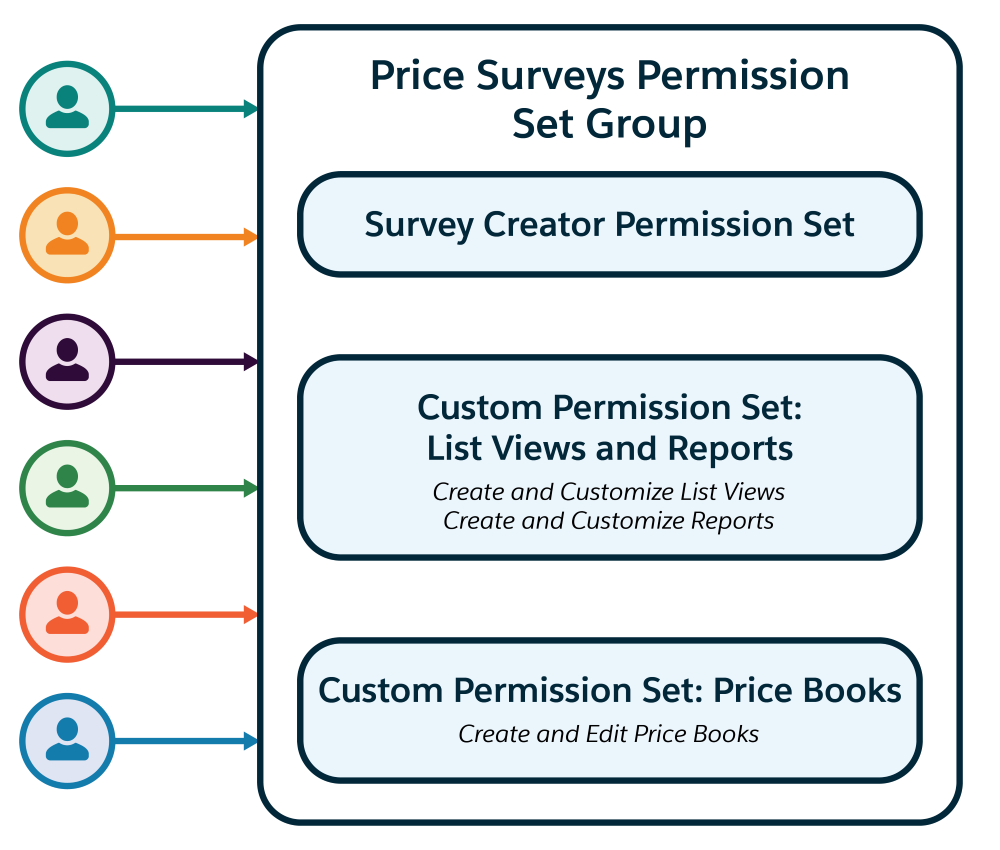
The diagram shows why groups reduce administrative overhead. Instead of assigning three separate permission sets to every price-survey user, an administrator assigns one group. The component permission sets can also be reused in another group if another persona needs one of the same duties.
Watch this short Salesforce Support explanation of the model and its important exception: muting permissions.
How to Use Permission Set Groups | Salesforce Who Sees What Ch. 4
Watch “How to Use Permission Set Groups” from Salesforce Support to see how task-level permission sets become a manageable persona-level package.
Watch the group model for the distinction between individual permission sets and groups. Then watch muting and summaries. Focus on “combined permissions” as the group’s aggregate view, and on why a muting permission set is not a general-purpose denial mechanism.
Muting is a qualified exception
A muting permission set can suppress selected permissions that originate within that permission-set group. It lets you reuse a broad permission set in a more restrictive persona.
For instance:
Lead Managementgrants Create, Read, Edit, Delete on Leads.- The
Sales Repsgroup includes it unchanged. - The
Marketing Specialistsgroup also includes it, but its muting permission set mutes Delete.
Marketing Specialists assigned only through that group do not receive Lead Delete from Lead Management.
However, muting does not revoke a permission granted from elsewhere. If the user’s profile, a directly assigned permission set, or another permission-set group independently grants Lead Delete, they still have it. Treat muting as “remove this grant from this group’s bundle,” not “deny this user everywhere.”
Object permissions: the action ceiling
At the object level, the core permissions are usually summarized as CRUD:
| Permission | User can do this, subject to later record-access checks |
|---|---|
| Create | Make new records of the object |
| Read | Open and view records of the object |
| Edit | Change records they can edit |
| Delete | Delete records where they have the required record access |
An object permission answers a question about the type of record, not a particular record. For example, Case Read allows a user to access Cases in principle; it does not tell us whether they can read every Case in the organization.
Two special object permissions may also appear:
- View All permits viewing all records of that object, bypassing ordinary sharing for that object.
- Modify All permits broad management of all records of that object and effectively bypasses ordinary sharing restrictions for that object.
These are powerful permissions. They should be assigned deliberately and distinguished from basic CRUD during an access review.
Object access is not tab visibility
A common diagnosis error is to equate a visible tab with authorized object access.
- A tab makes an object easier or harder to navigate to.
- A page layout determines which fields are placed on a particular page.
- Object permissions determine whether a user can perform CRUD actions.
- Field-level security determines whether a field is readable or editable.
- Record sharing determines which individual records are available.
A user may see a tab but lack object Read access. Conversely, a user may have object Read and reach records through a related list, report, search result, API, or direct URL even if a tab is hidden. Tabs and layouts help shape the experience; they are not substitutes for authorization.
This Salesforce Support walkthrough reinforces the baseline-profile and additive-permission-set approach.
Control Object Access with Profiles and Permission Sets | Salesforce Who Sees What Ch. 3
Watch “Control Object Access with Profiles and Permission Sets” from Salesforce Support for a concise explanation of profiles as baseline access and permission sets as targeted additions.
Watch profiles and baseline access, noting that a user has one profile and that profiles also contain login and app settings. Continue with permission set grants for the recommended task-based design of permission sets.
Field-level security: access to values, not just records
A user may legitimately work with Candidate records while having no business reason to see a candidate’s Social Security number, personal email, compensation range, or other sensitive data. Field-level security (FLS) handles this requirement.
For each field on an object, FLS principally controls:
- Read access: whether the user can see the field value;
- Edit access: whether the user can change it.
Field-level permission is evaluated alongside object access. A user needs access to the object before field access is useful. To edit a particular field on a particular record, all relevant conditions must hold:
- The user has object-level Edit.
- The user has record-level permission to edit that record.
- The user has field-level Edit for that field.
Field edit access necessarily includes the ability to read the field. A field can therefore be read-only for a user: Read is granted, Edit is not.

The distinction between hidden and read-only is essential:
| Effective field permission | What the user experiences |
|---|---|
| No Read | The field value is not available to the user |
| Read only | The value is visible but cannot be changed |
| Read and Edit | The value is visible and may be changed, provided object and record access also permit editing |
Read Trailhead’s treatment of why FLS, rather than a page layout, protects a sensitive field. Then follow its small Candidate example.
Improve Field-Level Security Settings - Learn How
Read Salesforce Trailhead’s “Control Access to Fields” for the security distinction between field-level security and page layouts, followed by a concrete permission-set configuration example.
In “Modify Field Permissions,” read the explanation of field-level security. Focus especially on the places where field permissions apply beyond record detail pages. Then read “Set Field Permissions in a Permission Set,” from the opening explanation through the Candidate interviewer scenario, and identify which fields are editable, read-only, and unavailable.
Page layouts are presentation, not protection
If you remove Social_Security_Number__c from a page layout, it may disappear from that layout, but this does not establish field security. Layouts do not govern every possible surface, such as reports, list views, related lists, and search results.
Conversely, a field may be allowed by FLS yet absent from a particular layout. That means the user is authorized to access the field, but the layout does not place it on that page. Do not report this as a security denial until you verify FLS.
A compact way to classify a field issue is:
| Symptom | First thing to inspect |
|---|---|
| Field is absent everywhere for one user | Field-level Read permission |
| Field appears but is not editable | Field Edit, object Edit, then record access |
| Field is absent only on one record page | Page layout or Dynamic Forms configuration |
| Field is unavailable in reports, lists, and search | Field-level Read permission |
| User can see the field but cannot see a particular record | Record sharing, covered next lesson |
A worked access determination
Suppose Priya is assigned the following access artifacts for the custom object Candidate__c.
| Access source | Object permissions | Relevant field permissions |
|---|---|---|
Profile: Minimum Access Clone | Read | Email__c: Read |
Direct permission set: Interview Feedback | Read, Edit | Interview_Score__c: Read and Edit |
Permission-set group: Recruiter | Create, Read, Edit; its group muting removes Delete | Email__c: Read; Social_Security_Number__c: Read |
Direct permission set: Temporary Candidate Delete | Delete | None |
Determine access by evaluating one permission at a time, rather than labeling Priya simply “a recruiter.”
Step 1: Combine the object grants
Across all sources, Priya receives:
- Create from the Recruiter group.
- Read from every listed source.
- Edit from Interview Feedback and the Recruiter group.
- Delete from the directly assigned Temporary Candidate Delete permission set.
The Recruiter group’s muting permission set means that group does not contribute Delete. It does not cancel the direct Temporary Candidate Delete grant. Priya therefore has Create, Read, Edit, and Delete at the Candidate object level.
Step 2: Combine field grants independently
Now inspect the individual fields:
| Field | Effective access | Why |
|---|---|---|
Email__c | Read only | Profile and Recruiter group grant Read; neither source grants Edit |
Interview_Score__c | Read and Edit | Interview Feedback grants both |
Social_Security_Number__c | Read only | Recruiter group grants Read but not Edit |
Phone__c | No access, assuming no other assigned source grants it | No source in the scenario gives Read |
A field does not inherit editability merely because the user has object Edit. Object Edit answers “may Priya edit Candidate records?” Field Edit answers “may Priya edit this field on an editable Candidate record?” Both must be granted.
Step 3: State the limitation clearly
The conclusion is not “Priya can edit every Candidate.” It is:
Priya has Candidate object CRUD. She can edit fields for which she has field Edit—such as
Interview_Score__c—only on Candidate records that record-sharing rules allow her to edit.
That final clause is not a technicality. In a private organization-wide-default model, a user can have full Candidate CRUD and still be unable to open or modify most other users’ Candidate records.
Verify rather than infer
In a real org, an accurate answer requires inspection of assignments rather than assumptions based on job title or profile name.
Use Salesforce’s built-in summaries:
- Open Setup, then Users, and select the user.
- Select View Summary to inspect the object, field, and user permissions assigned to that person and identify how each was granted.
- To investigate from the object side, open Object Manager, select the object, and choose Object Access. This identifies profiles, permission sets, and permission-set groups that grant access to that object.
- To inspect a specific permission set or group, open it in Setup and select View Summary. For groups, inspect the component permission sets, combined permissions, and any muting permission set.
This verification path matters when an unexpected permission comes from a reused permission set, an additional group assignment, or a broad profile grant. The effective answer is based on all active assignments, not the access source an administrator happened to check first.
Key takeaways
Profiles, permission sets, and permission-set groups work together:
- Each user has one profile, which provides baseline settings and may grant access.
- Permission sets are reusable, additive grants for specific tasks.
- Permission-set groups bundle permission sets into manageable user personas.
- A group’s muting permission set suppresses permissions only within that group; it cannot revoke a grant from a profile, direct permission set, or another group.
- Object permissions establish whether a user can create, read, edit, or delete a type of record.
- Field-level security independently determines whether individual fields are hidden, read-only, or editable.
- Page layouts and tabs affect presentation and navigation, not the fundamental security decision.
- Use View Summary on the user record to verify effective object and field access and trace its source.
Next, you will add the record-sharing layer: organization-wide defaults, role hierarchy, sharing rules, teams, and manual sharing determine which records remain available after object and field permissions have allowed access.
Can't find a good explanation? Sign up and we'll make it for you
Sign up