
Welcome back. In the previous lesson, you learned to treat command output and logs as streams: redirect results into files, connect tools with pipes, filter with grep, and inspect recent events with tail. Those techniques help you see a problem. Linux permissions determine whether a user or service is allowed to read a configuration file, run a startup script, or write a model artifact in the first place.
This lesson covers how Linux assigns ownership, how to interpret the permissions shown by ls -l, and how to change access safely with chmod, chown, and chgrp. You will work entirely in your existing ~/ai-infra-lab sandbox. Plan for about 40 minutes.
The access-control model: owner, group, and others
Every Linux file and directory has:
- An owner: one user account.
- A group: a named collection of users.
- Permission rules for others: everyone who is neither the owner nor in the assigned group.
Linux records three permissions for each of those categories:
r— readw— writex— execute
The meaning changes slightly depending on whether the item is a regular file or a directory.
| Permission | On a file | On a directory |
|---|---|---|
r | Read its contents | List the names within it |
w | Modify its contents | Create, rename, or remove entries inside it—normally together with x |
x | Run it as a program or script | Traverse/search it: enter it with cd and access named items inside |
The directory meaning of x is especially important. A directory is not an executable program, but Linux uses the execute bit to mean search/traverse permission. If a service cannot traverse /srv/models, it cannot access /srv/models/model.bin, even if it has permission to read the model file itself.
The permissions diagram below gives the overall layout you will see in ls -l.
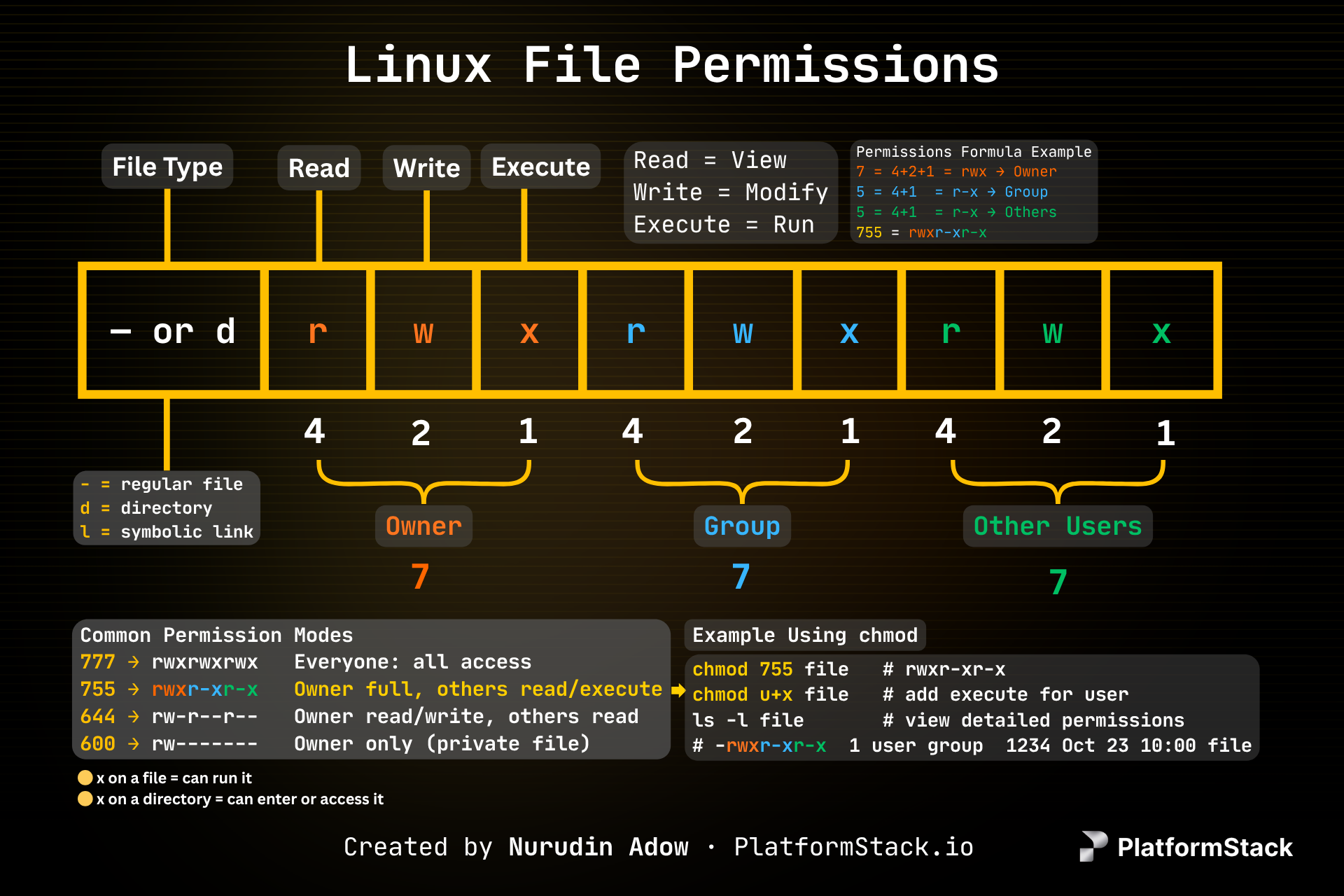
A key rule prevents a common misunderstanding:
Linux chooses one applicable permission class. If you own the file, Linux checks the owner triplet—not the more permissive group or other triplets. If you do not own it but belong to its group, it checks group. Otherwise, it checks other.
For example, for a file with mode -rw-r-----:
- The owner can read and write.
- Members of its assigned group can read.
- Everyone else has no access.
A group member does not combine the group permission with “other”; Linux does not add permissions across categories.
For a short visual walkthrough of this layout, ownership, and numeric permissions, watch:
Linux File Permissions in 5 Minutes | MUST Know!
Watch “Linux File Permissions in 5 Minutes | MUST Know!” by Travis Media for a compact tour from permission categories through ls -l, chown, and numeric chmod modes.
Watch the complete sequence from access classes through reading ls output. Then continue through ownership changes, numeric chmod, and common modes. Focus on the position of each permission triplet: owner first, group second, others last.
Read ls -l as an access report
Move into a new safe workspace and create a few representative files.
mkdir -p ~/ai-infra-lab/permissions
cd ~/ai-infra-lab/permissions

printf '%s\n' '#!/usr/bin/env bash' \
'echo "starting local model service"' \
> serve-model.sh

printf '%s\n' 'model_name=demo-sentiment' \
> model-info.txt

printf '%s\n' 'API_TOKEN=replace-me-not-a-real-secret' \
> local.env

mkdir artifacts

ls -ld . artifacts
ls -l
The local.env file contains only a fake placeholder. Do not paste real API keys, passwords, cloud credentials, or private keys into practice files or shell commands. Later, you will use appropriate secret-management patterns; here it is simply a file whose permissions should be restrictive.
Your initial output will vary because of your system’s default umask, username, and group. A typical ls -l line might look like this:
-rw-r----- 1 learner mlops 20 Mar 8 10:30 model-info.txt
Read it from left to right:
| Portion | Example | Meaning |
|---|---|---|
| Type and mode | -rw-r----- | File type plus access permissions |
| Link count | 1 | Number of hard links; not important for this lesson |
| Owner | learner | User account that owns the file |
| Group | mlops | Group assigned to the file |
| Size/date/name | 20 ... model-info.txt | Metadata and file name |
The first 10 characters are the core access information:
-rw-r-----
│├─┬─┤├─┬─┤├─┬─┤
│ │   │   │
│ owner group other
│
file type
- The first
-means a regular file. - A
din that position means a directory. - The next three characters are the owner’s permissions:
rw-. - The next three are the group’s permissions:
r--. - The final three are permissions for others:
---.
Use these commands to see your own identity and the ownership metadata of a file:
id
id -un
id -gn

stat -c 'mode=%A (%a) owner=%U group=%G name=%n' model-info.txt
On a standard GNU/Linux system, stat produces a compact report such as:
mode=-rw-r----- (640) owner=learner group=learner name=model-info.txt
Here %A is the symbolic mode, %a is the numeric mode, %U is the owner, and %G is the group.
For a concise written reference, read the indicated parts of DigitalOcean’s guide.
How to Set Permissions in Linux: A Guide to chmod and ...
Read this guide from DigitalOcean to reinforce how the permission string, chmod, and ownership tools fit together. It is useful as a reference once you begin seeing permission errors in real infrastructure work.
In “Understanding Linux Permissions,” read the permission-string explanation and identify the file-type character plus the three permission triplets. Next read “The chmod Command: Symbolic and Numeric Modes,” beginning with the sentence chmod’s purpose and continue through the numeric and symbolic examples. Finally, in “How to Use chown and chgrp,” read the explanation beginning ownership changes. Stop before the later section on recursive permissions; applying modes recursively needs extra care and is not needed for this lab.
Set permissions with chmod
chmod means change mode. It changes the read, write, and execute bits, but it does not change who owns the file.
There are two useful ways to use it:
- Numeric mode sets all three permission triplets at once.
- Symbolic mode makes a targeted adjustment, such as “add execute for the owner.”
Numeric mode: a compact complete setting
Each permission has a numeric value:
| Permission | Value |
|---|---|
r | 4 |
w | 2 |
x | 1 |
Add values within each owner/group/other triplet.
| Digit | Permission string | Meaning |
|---|---|---|
0 | --- | No access |
1 | --x | Execute/search only |
2 | -w- | Write only |
3 | -wx | Write and execute/search |
4 | r-- | Read only |
5 | r-x | Read and execute/search |
6 | rw- | Read and write |
7 | rwx | Read, write, and execute/search |
A three-digit mode is therefore three independent settings:
640
│││
││└── others: 0 = ---
│└─── group:  4 = r--
└──── owner:  6 = rw-
Set deliberate permissions for your lab files:
chmod 600 local.env
chmod 640 model-info.txt
chmod 700 artifacts

ls -ld artifacts
ls -l local.env model-info.txt
Interpret the intended results:
local.envwith600becomes-rw-------: only you, its owner, can read or change it.model-info.txtwith640becomes-rw-r-----: you can read/write; the assigned group can read; others get nothing.artifactswith700becomesdrwx------: only you can list, create in, and enter that directory.
For ordinary non-sensitive files, 644 is common: owner can read/write; group and others can read. For directories intended to be readable and traversable by other local users or a service, 755 is common. These are conventions, not universal rules—select permissions based on who actually needs access.
Symbolic mode: change only what you mean to change
Symbolic mode uses:
u— user/ownerg— groupo— othersa— all categories+— add a permission-— remove a permission=— set an exact permission selection
Try a few small, inspectable changes:
chmod g+w model-info.txt
ls -l model-info.txt

chmod o+r model-info.txt
ls -l model-info.txt

chmod g-w,o-r model-info.txt
ls -l model-info.txt
The mode moves through these states:
640  -rw-r-----   initial: owner read/write; group read
660  -rw-rw----   after chmod g+w
664  -rw-rw-r--   after chmod o+r
640  -rw-r-----   after chmod g-w,o-r
Symbolic mode is especially useful when you want a surgical change and do not want to accidentally reset other bits. For example:
chmod u+x serve-model.sh
means: “add execute permission for the owner, leaving every other permission unchanged.”
Execute a script—and understand the resulting error
A shell script is still a text file. The x bit lets the operating system treat it as an executable program when you run it with a path such as ./serve-model.sh.
First remove execute permission intentionally:
chmod 600 serve-model.sh
ls -l serve-model.sh

./serve-model.sh
You should see a “Permission denied” error. The file is readable and writable by you, but not executable.
Now add execute permission only for its owner:
chmod u+x serve-model.sh
ls -l serve-model.sh

./serve-model.sh
The mode should now be:
-rwx------
and the script should print:
starting local model service
A common real-world setting for a deployment script shared with a trusted group is:
chmod 750 serve-model.sh
This means:
-rwxr-x---
- Owner: read, write, execute
- Group: read and execute
- Others: no access
This does not create a group or add users to it; it only declares the permissions that would apply to members of the file’s current group.
One subtle point: if you run:
bash serve-model.sh
you are asking the bash program to read the script as input. The script itself does not need its execute bit for that invocation. In operational scripts and service entrypoints, though, ./serve-model.sh is common, so the execute bit matters.
Ownership: chown and chgrp
The owner and group are separate from the permission bits.
chmodchanges the mode: read, write, execute.chownchanges the owner, and optionally the group.chgrpchanges only the group.
Files you create are usually owned by your current user and assigned to your primary group. Confirm the group associated with model-info.txt:
ls -l model-info.txt
id -gn
You can safely set the file’s group to your own primary group:
chgrp "$(id -gn)" model-info.txt
stat -c 'mode=%A (%a) owner=%U group=%G name=%n' model-info.txt
In a multi-user system, an administrator might use commands like these:
sudo chown serviceuser:mlops /srv/model-cache
sudo chgrp mlops /srv/model-cache
The first changes both owner and group; the second changes only the group.
Changing ownership to a different user normally requires administrative privileges via sudo. That restriction is deliberate: otherwise, a user could hand files to another account in ways that undermine access control. Do not experiment with sudo chown on home directories, system paths, or broad paths you do not fully understand.
Ownership becomes highly practical in AI infrastructure when a process runs under a service account rather than your login account. For example:
- An inference server may run as
modelserver. - Model files may be owned by a deployment account.
- A shared operations group may need read access to logs or model artifacts.
- A container may write mounted files as
rootor another numeric user ID, leaving your host user unable to modify them.
Later, when you run containers as non-root users and deploy services, you will diagnose these cases by checking both ownership and mode rather than responding with broad permission changes.
Permission safety habits
Permission problems invite shortcuts. Avoid these:
- Do not use
chmod 777as a default fix. It gives every local user read, write, and execute/search access. In shared environments, that can let unrelated users alter scripts, replace artifacts, or delete directory entries. - Do not use recursive commands casually.
chmod -Randchown -Raffect every nested item. Files and directories need different execute semantics, so applying755to all descendants can accidentally make ordinary files executable. - Do not rely on filename extensions. A file named
deploy.shis not executable because of.sh; it needs thexpermission. - Inspect before and after changes. Use
ls -l,ls -ld directory-name, orstat. - Give the minimum access needed. A private local environment file often merits
600; a group-readable artifact might merit640; a script needsxonly for users expected to run it.
Finally, remember that deletion is controlled mainly by the parent directory. If you can write to and traverse a directory, you may be able to delete or rename a file inside it even if that file itself is read-only. This is why directory permissions deserve equal attention.
Key takeaways
- Every Linux file and directory has an owner, an assigned group, and permissions for others.
ls -ldisplays a type character followed by owner, group, and other permission triplets.- On files,
r,w, andxmean read, modify, and run. On directories, they mean list, create/remove entries, and traverse/search. - Numeric
chmodmodes user = 4,w = 2, andx = 1; for example,640isrw-r-----. - Symbolic modes such as
chmod u+x script.shmake targeted permission changes. chownchanges owner and optionally group;chgrpchanges the group only.- Inspect permissions first, apply the least privilege needed, and avoid reflexively using
chmod 777or recursive changes.
Next, you will inspect CPU, memory, and process usage, then safely stop a malfunctioning process—skills that pair naturally with the permission and log-inspection techniques you now have.
Can't find a good explanation? Sign up and we'll make it for you
Sign up