
Hello again. In the previous lesson, you installed the Microsoft Python extension and selected the Python interpreter that VS Code should use. VS Code is now ready to work with Python files.
This lesson establishes a simple habit that will matter for every project you build: keep each program’s files together in a project folder, then create Python source files inside that folder. By the end, you will have opened a folder as a VS Code workspace and created your first empty .py file.
A project folder is your program’s home
A folder holds related files in one place. For a small beginner program, that may be only one Python file. Later, a project folder may contain several Python files, data files, notes, and a virtual environment.
When you open a folder in VS Code, VS Code calls it a workspace. This does not transform the folder into anything mysterious: it simply tells VS Code, “This is the group of files I am working on.”
For this course, use a location you can find easily, such as your Documents folder. We will name the new project folder:
python-beginnings
The particular name is not important, but clear, lowercase names with hyphens are a good habit. Windows allows spaces in folder names too, but avoiding them makes some future command-line work simpler.
Read the relevant parts of Microsoft’s official Getting Started with Python in VS Code guide before following the detailed steps below. It reinforces the distinction between opening a folder as a workspace and creating a Python source file within it.
Getting Started with Python in VS Code
Read Microsoft’s instructions for making a workspace folder and creating a Python file. They use hello and hello.py; you will use your own folder and filename in this lesson.
In the section “Start VS Code in a workspace folder,” read the explanation of the workspace and the alternative that begins with the operating-system option. Do not create a virtual environment yet; that is a later-course topic. Then find the later section “Create a Python source code file.” Read from the filename instruction through the paragraph explaining why the .py extension matters. Focus on the idea that the file belongs inside the opened workspace folder, not merely somewhere on the computer.
Create and open your workspace folder
-
Open VS Code. If you see the Welcome page, that is fine.
-
From the top menu, choose File, then Open Folder….
You may also see an Open Folder button on the Welcome page. Either choice opens the Windows folder-selection window.
-
In that window, navigate to Documents or another location you will remember.
-
Click the New folder button. Its icon commonly looks like a folder with a small plus sign.
-
Type:
python-beginningsThen press
Enter. -
Select the new
python-beginningsfolder and click Select Folder. On some Windows versions, the button may be named Choose Folder.
VS Code should now show the folder name in the left-hand Explorer panel. It will be empty at first, which is exactly what you want.
Workspace Trust prompt
VS Code may display a message asking whether you trust the authors of the files in this folder. Because this is a new folder you created yourself, choose the option that says you trust its contents.
In the future, do not automatically trust folders downloaded from unknown sources or received unexpectedly. Trusting a workspace can allow VS Code features and extensions to run project-related code.
Why open the folder first?
It is possible to create an untitled file first and save it later. But opening the folder before making the file prevents a common beginner problem: creating a file and then not knowing where it was saved.
Once the folder is open:
- the Explorer shows the files belonging to this project;
- new files you create in the Explorer are placed in the right location;
- future terminal commands can start in this project folder;
- you can close VS Code and reopen the same work later.
Create your first Python file
Look at the Explorer panel on the left. Hover over the python-beginnings folder name. Small action icons should appear beside it.
-
Click the New File icon, usually a document with a small plus sign.
-
Type this filename:
hello.py -
Press
Enter.
VS Code opens hello.py in the central editor area. The Explorer should now list it beneath python-beginnings.
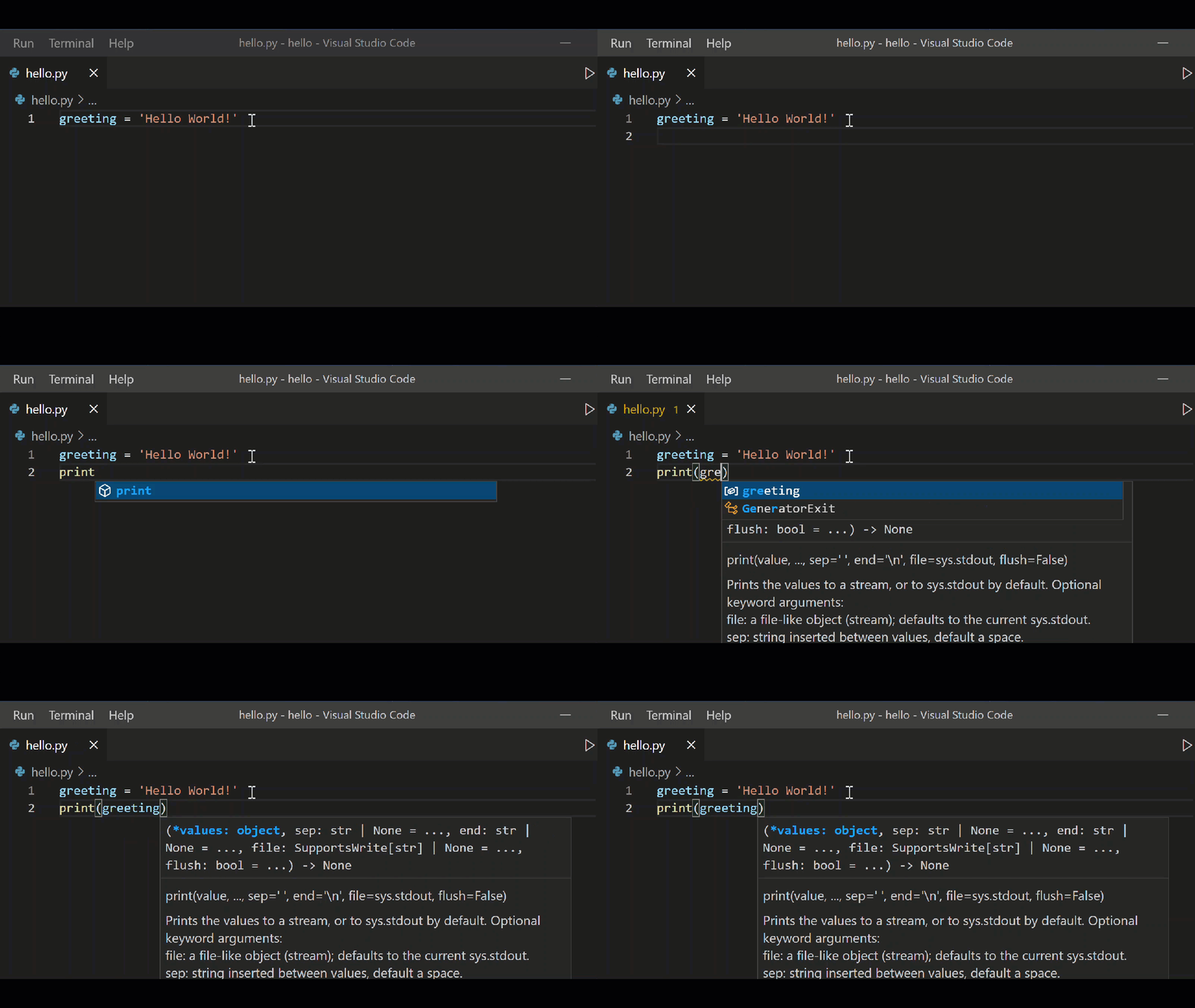
A Python program is stored as plain text in a file whose name ends in .py. That ending is called a file extension:
| Part | In hello.py | Meaning |
|---|---|---|
| Filename stem | hello | Your descriptive name for the program |
| Extension | .py | Tells VS Code and Python that this is Python source code |
The filename can be different. For example, greeting.py, practice.py, and weather_check.py are all valid Python filenames. For now, use hello.py, since you will add and run a first program in it soon.
A few filename rules worth keeping
Choose names that are easy to read and are valid across operating systems:
- Use letters, numbers, and underscores when needed:
bill_splitter.py. - Prefer lowercase letters:
greeting.py, notGreeting.PY. - Do not use spaces: choose
my_program.py, notmy program.py. - Do not name a file after a Python built-in or common library module, such as
input.py,list.py,random.py, orjson.py. Those names can cause confusing problems later. - Ensure the name ends in
.py, not.py.txt.
When creating the file from the VS Code Explorer and typing hello.py exactly, VS Code handles the extension correctly. You do not need to change any Windows “file type” setting.
Confirm that the file is in the right place
Before moving on, use the following visual checks:
- In Explorer, you see the
python-beginningsfolder. - Indented beneath it, you see
hello.py. - The editor tab at the top says
hello.py. - Near the bottom-right of VS Code, you may see Python as the file’s language mode and the Python version you selected in the prior lesson.
Your file can remain empty today. An empty .py file is still a real Python source file; it simply contains no instructions for Python to run yet.
If you accidentally created hello.py outside the workspace, do not panic. In Explorer, right-click the unwanted copy and choose Delete, then create it again by clicking the New File icon beside the python-beginnings folder. The Explorer is your most reliable confirmation of where a file lives.
A small organizational habit
At the start of future work sessions:
- Open VS Code.
- Choose File > Open Recent.
- Select
python-beginnings. - Create or edit files only within the Explorer folder shown on the left.
For a single small program, one folder and one file is enough. As programs grow, you will create folders such as data or tests inside the project folder. Keeping that structure from the beginning prevents files from becoming scattered across Desktop, Downloads, and Documents.
Completion check
You have achieved this lesson’s outcome if you can confirm all four items:
- You created a folder named
python-beginningsin a location you can find again. - You opened that folder using File > Open Folder… in VS Code.
- The folder appears in VS Code’s Explorer panel.
- You created
hello.pyinside that folder and it opens in the editor.
You now have a clean VS Code workspace and a Python source file ready for code. The essential pattern is: one project folder holds the files for one program, and a .py file is where Python instructions are written. Next, you will run a Python script directly from VS Code.
Can't find a good explanation? Sign up and we'll make it for you
Sign up