
Welcome back. You now have a python-beginnings workspace open in VS Code and an empty file named hello.py inside it. The Python extension and interpreter you set up earlier are what allow VS Code to hand your file to Python for execution.
In this lesson, you will put one instruction into hello.py, save it, and run the entire script from VS Code. You will also learn where to look for the program’s output and what to do if the usual Run button is unavailable.
What it means to run a script
A script is a Python file containing instructions for Python to carry out. When you run hello.py, VS Code uses the interpreter you selected and asks it to execute the file from top to bottom.
For now, put this one line in hello.py:
print("Hello from VS Code!")
Do not worry yet about all the details of print() and quotation marks; those are coming later in this module. For this lesson, it is simply a small visible instruction that lets you confirm your program ran.
Before running the file, save it with Ctrl+S. Saving matters because Python runs the version that is stored in the file, not necessarily the latest unsaved text visible in the editor.
The official Microsoft documentation gives a compact overview of the two full-file methods you will use: the editor’s Run button and the right-click menu.
Running Python code in Visual Studio Code
Read the opening of Microsoft’s official guide to see how VS Code runs a complete Python file in its integrated terminal.
In the section “Run Python code,” read the primary run method. Then read the next numbered option, beginning “Right-click anywhere in the editor window,” through the context-menu alternative. Focus on two ideas: the program runs in a terminal panel, and the command runs the whole saved script rather than just one line.
Run hello.py with the play button
With hello.py open in the central editor, look in the top-right corner of the editor. You should see a triangular play icon, labeled Run Python File in Terminal when you hover over it.
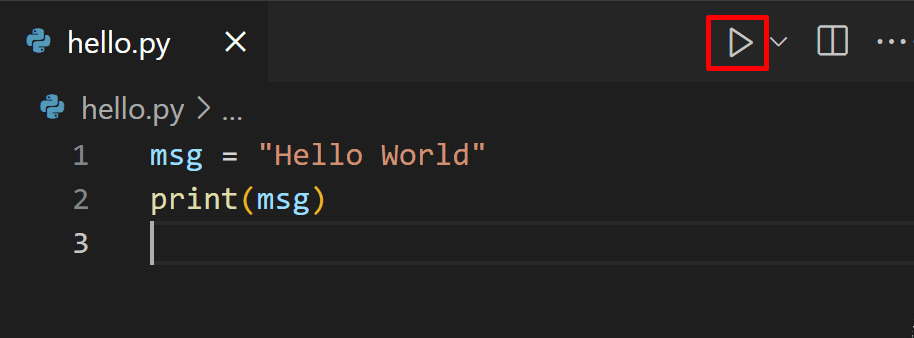
Follow these steps:
-
Confirm that
hello.pycontains:print("Hello from VS Code!") -
Press Ctrl+S to save.
-
Click the triangular Run Python File in Terminal button once.
-
Look at the lower part of the VS Code window. A panel called Terminal should open automatically.
-
Find your program’s output in that panel:
Hello from VS Code!
The terminal may also show several other lines before or after your output. Those can include a PowerShell prompt, the location of Python, an environment-activation message, or the command that VS Code used to start the script. That is normal. The important confirmation is the line:
Hello from VS Code!
The panel is called an integrated terminal because it is a terminal built into VS Code. You do not need to type a command into it for this lesson; VS Code has done that part for you.
Why this button is useful
The button runs the complete file currently open in the editor. This becomes your everyday workflow:
- Write or change code in the editor.
- Save the file.
- Run it.
- Read the output in the terminal.
- Make another change and run again.
For a program to behave differently, you must edit its code and run it again. Python does not continuously update a program while you type.
Make one change and run again
Change the text in hello.py to your own message, such as:
print("I am learning Python.")
Save with Ctrl+S, then click the Run Python File button again.
Your terminal should now contain the new message. It may still show the output from the previous run above it; terminals preserve earlier output as a record. Read the most recent lines near the bottom to see the latest result.
This small edit-run-observe cycle is fundamental to programming. A run gives you evidence about what the current version of your program actually does.
A reliable fallback: use the right-click menu
If you cannot find the play button, or simply prefer menus, you can run the same script from the editor’s context menu.
- Right-click anywhere in the
hello.pyeditor. - Choose Run Python or Run. The wording can vary slightly with VS Code and extension versions.
- Select Run Python File in Terminal.
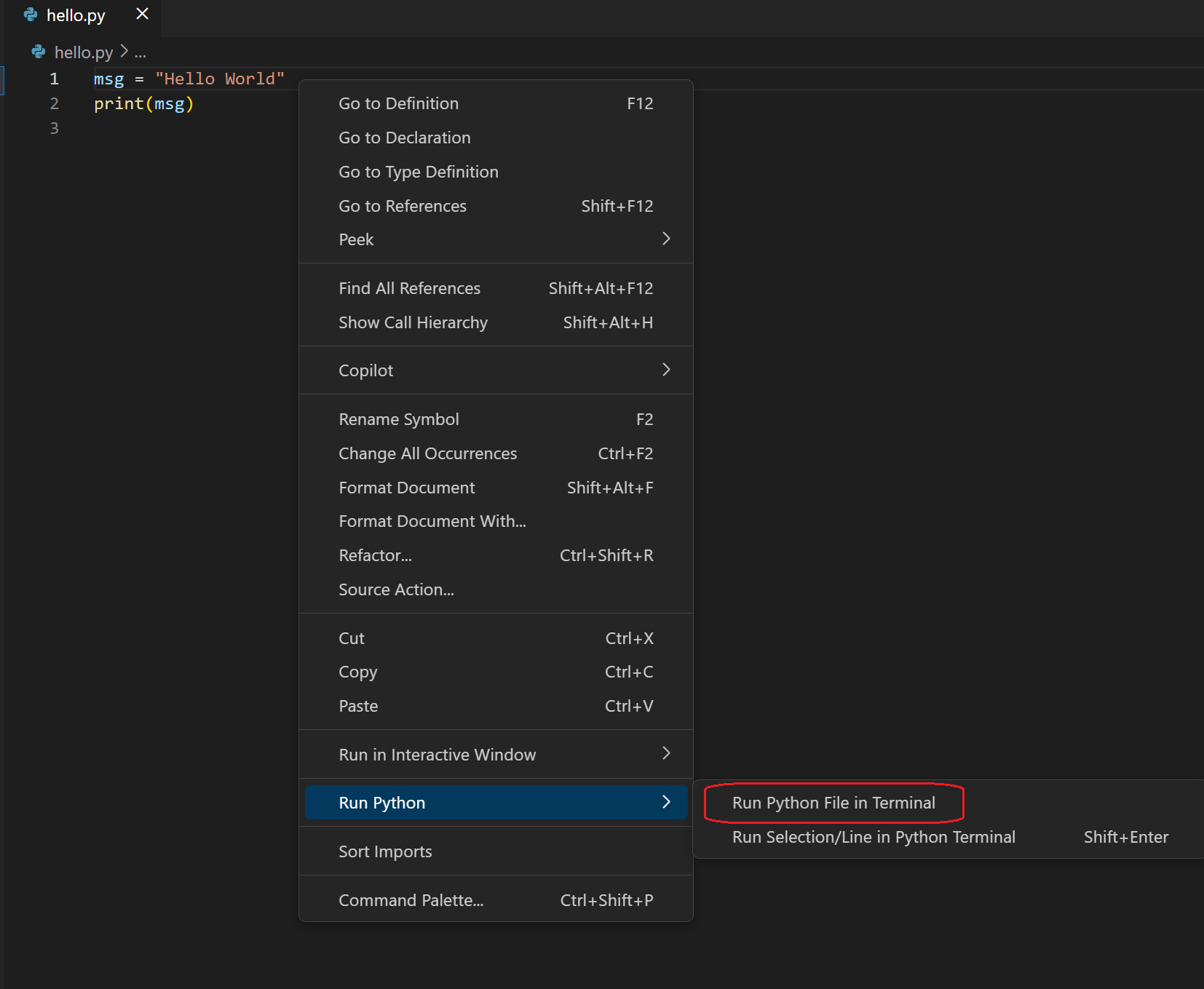
This method runs the same file in the same kind of terminal panel. In particular, do not choose Run Selection/Line in Python Terminal for this lesson. That option is useful for experimenting with a piece of code, but running the whole file is the dependable habit for building programs.
If it does not work
Most first-run problems come from a small setup issue rather than from the one-line program itself. Check these items in order.
The Run Python File button is missing
Make sure all of the following are true:
- Your file is named
hello.py, nothello.py.txt. hello.pyis open in the editor.- The Microsoft Python extension is installed and enabled.
- VS Code recognizes the file as Python. The bottom-right status area should show Python as the language mode.
- An interpreter is selected. The Python version should appear in the lower-right status area.
If an interpreter is not shown, press Ctrl+Shift+P, search for Python: Select Interpreter, and choose the installed Python 3 interpreter you selected in the earlier lesson.
The terminal opens, but your changed text does not appear
Save the file with Ctrl+S, then run it again. Unsaved edits are a common cause of seeing an older result.
You see red text instead of your message
Red text often indicates an error. First compare your file carefully with this working version:
print("Hello from VS Code!")
Check especially for:
- both opening and closing parentheses;
- both opening and closing quotation marks;
- the spelling of
print, all in lowercase.
Later in the course, you will learn to read error messages systematically. For now, a short program gives you a useful baseline: if the exact version above runs, the VS Code setup is working.
No terminal panel is visible
Click Terminal in the top menu, then choose New Terminal. The panel should appear at the bottom. Run the file once more using the play button or the right-click method.
Completion check
You have met this lesson’s goal when you can verify all of these:
-
hello.pycontains aprint(...)line. - You saved the file with Ctrl+S.
- You ran it with Run Python File in Terminal from the play button or right-click menu.
- The VS Code terminal displayed the text from your program.
- You changed the text, ran the file again, and saw the updated output.
You can now execute a complete Python script without leaving VS Code: edit the .py file, save it, run it, and inspect the terminal output. The next lesson will run the same kind of script from PowerShell using the Windows py command, giving you a second way to execute Python when VS Code is not doing the launching for you.
Can't find a good explanation? Sign up and we'll make it for you
Sign up