Hello! Welcome back to your course on building a global e-commerce business.
In our last lesson, we focused on the Inventory Performance Index (IPI), your high-level health score for FBA inventory. We established a weekly routine for monitoring the four key pillars: Excess Inventory, Sell-Through Rate, Stranded Inventory, and In-Stock Rate.
Today, we're moving from that high-level dashboard to the granular data that powers smart inventory decisions. This lesson directly addresses the learning outcome: to use FBA inventory reports to make data-driven decisions on restocking or removing inventory. You will learn which reports to pull, what data to look for, and how to use that information to decide precisely when to reorder products and when to cut your losses on poor performers. Your experience with inventory in your physical shop will be valuable here, but we'll be applying those principles to Amazon's specific set of tools and reports.
Navigating to Your FBA Inventory Reports
Almost all the reports we will discuss today are located within the Reports section of Seller Central. The primary path you'll use is Reports > Fulfillment.
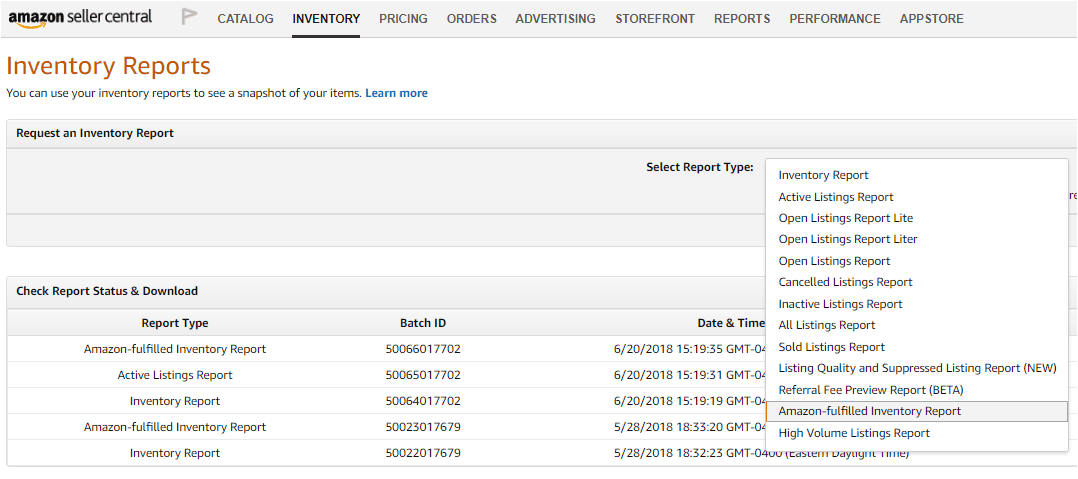
Within the Fulfillment reports section, you'll find a wide array of data. We'll focus on a few key reports that give you the most actionable information for restocking and removal decisions.
The Restocking Decision: When and How Much to Reorder?
The most common and costly mistake in inventory management is running out of stock on a popular product. This not only stops your sales but also hurts your product's search ranking. Amazon's tools are designed to help you prevent this.
The primary tool for this is the Restock Inventory page. It uses your sales history and demand forecasts to recommend when and how much to send to FBA. However, its recommendations are only as good as the information you provide.
To make the tool work for you, you need to configure it with details about your specific supply chain.
The 'FBA Restock Tool Guide' from Amazon provides a clear, visual walkthrough of how to set up the restock tool. Configuring these settings is a critical, one-time task for each product that makes all future recommendations more accurate.
Read through the sections titled 'Lead Time', 'Replenishment', and 'Economics'. Focus on understanding what each input means (e.g., supplier lead time, case pack quantity, cost of purchase) as these are the exact inputs you will need to configure for your own products.
As the guide shows, the tool's logic is based on a fundamental inventory formula:
- Average Daily Sales: Calculated by Amazon based on your recent sales velocity.
- Lead Time: The total time it takes from when you place an order with your supplier to when it's checked in at an Amazon warehouse. You must provide this.
- Safety Stock: Extra inventory to buffer against unexpected sales spikes or shipping delays.
By accurately configuring your lead time and other replenishment settings, you empower the Restock Tool to give you reliable "ship-by" dates and quantities, forming the core of your data-driven restocking plan.
The Removal Decision: Identifying and Acting on Unprofitable Inventory
Just as important as restocking good products is removing bad ones. Inventory that doesn't sell costs you money in storage fees and drags down your IPI score. Several reports help you identify these products and make the decision to remove them.
To get an overview of the key reports and how to use them, let's watch a practical walkthrough.
You'll Fail If You Don't Understand These Numbers (Amazon Seller Central Reports Tutorial)
The video 'You'll Fail If You Don't Understand These Numbers' by Camron James provides an excellent tour of the most critical reports for sellers. We will focus on the sections covering Fulfillment reports and, most importantly, Customer Returns.
Please watch the following two segments: Fulfillment Reports Overview (17:17 - 21:57): Pay attention to the discussion of reports for Monthly Storage Fees, Long-Term Storage Fees, and Reimbursements. This will show you where to find the financial data that justifies removing old inventory. FBA Customer Returns Report (23:31 - 26:21): This is a crucial section. Focus on how to generate the report and analyze the 'Reason' for the return (e.g., 'defective', 'didn't like the color'). This qualitative data is vital for your removal decisions.
A Framework for Removal Decisions
Based on the video and best practices, here are the key reports and questions to ask when deciding whether to remove a product:
- Inventory Health / Manage Excess Inventory Report:
- Where:
Inventory > Inventory Planning > Manage Excess Inventory
- What to look for: Look for products with a high "Days of supply" (e.g., over 90 days) and an "Estimated long-term storage fee." These are your primary candidates for removal.
- Where:
- Monthly and Long-Term Storage Fee Reports:
- Where:
Reports > Fulfillment > Payments
- What to look for: These reports show you exactly how much you are paying to store each item. If the storage fees for a slow-moving product are eroding its potential profit margin, it's a strong signal to remove it.
- Where:
- FBA Customer Returns Report:
- Where:
Reports > Fulfillment > Customer Concessions
- What to look for: This is often the deciding factor. If a product on your "excess" list also has a high return rate with comments like "defective," "item not as described," or "poor quality," it confirms that the product itself is flawed. Restocking it would likely lead to more negative reviews and losses.
- Where:
Once you've decided to remove inventory, you have a few options on the Create Removal Order page.

Your main options are:
- Return-to Address: Have the inventory shipped back to you or a third-party logistics (3PL) provider.
- Dispose: Have Amazon destroy the inventory for a fee.
- Liquidate: Have Amazon sell your inventory to a wholesale liquidator. You typically recover a small percentage (5-10%) of the item's value. This is often better than paying for disposal.
Test your understanding!
You are reviewing a product, "SKU-123". You notice it has 150 days of supply on your Manage Excess Inventory report. The Long-Term Storage Fee report shows that you will soon be charged significant fees for this SKU. You then check the FBA Customer Returns report and see that 20% of recent orders have been returned with the reason "defective - does not power on."
What is your most logical course of action for SKU-123, and why?
Show answer
The most logical course of action is to create a removal order for all remaining units of SKU-123 and to not restock it.
The combination of data from three different reports leads to this conclusion:
- Manage Excess Inventory: Shows it's a very slow seller (150 days of supply).
- Storage Fee Report: Confirms it will soon cost you money just to keep it in the warehouse.
- FBA Customer Returns Report: Provides the critical insight that there is a fundamental quality issue with the product ("defective"). Selling more units would likely lead to more returns, negative reviews, and damage to your account health.
Conclusion
You now have a practical framework for using Amazon's FBA reports to make informed, data-driven decisions. This moves you beyond simple monitoring and into strategic inventory management, a skill that is absolutely essential for long-term profitability on the platform.
Key Takeaways:
- Restocking decisions start with configuration: Use the Restock Inventory tool, but first, configure it with your accurate lead times and supply chain details to get trustworthy recommendations.
- Removal decisions are based on a combination of data: Don't rely on one report. Synthesize information from the Manage Excess Inventory, Storage Fee, and FBA Customer Returns reports to build a complete picture.
- High return rates for "defective" are a major red flag: This qualitative data often provides the final piece of evidence needed to remove a product and not reorder it from your supplier.
Next Up:
Now that you know how to manage your stock levels—what to keep, what to remove, and when to reorder—our next focus is on improving the sales performance of the inventory you have. In the next lesson, we will use the 'Detail Page Sales and Traffic' report to identify products for listing optimization. This report helps you diagnose why a product might be underperforming and what you can do to improve its conversion rate.