Hello! Welcome to your next lesson in our journey to build a global e-commerce business.
In our last session, we focused on capturing leads at a critical moment—just before they leave your site—using exit-intent popups. This is a powerful strategy, but what about the visitors who ignore the popup and leave anyway? Today, we address exactly that. We'll learn how to bring those "lost" visitors back.
This lesson focuses on a fundamental technique in digital advertising: retargeting. You will learn how to use a retargeting pixel (from TikTok and Google) to build custom audiences of your website visitors for future ad campaigns. This allows you to show highly relevant ads to people who have already demonstrated interest in your products, dramatically increasing your conversion rates and making your ad spend far more efficient.
1. The Power of the Second Chance: Understanding Retargeting Pixels
First, let's clarify what a retargeting "pixel" (or "tag") is. It’s a small snippet of code that you place on your website. This code works silently in the background, tracking how visitors interact with your site—which pages they visit, what actions they take (like adding a product to the cart), and how long they stay.
This data is then sent back to ad platforms like TikTok and Google, allowing you to group these visitors into specific lists, called custom audiences.
Why is this so powerful for your e-commerce business?
- Efficiency: You're not advertising to a cold, uninterested audience. You're targeting "warm" leads who already know your brand.
- Relevance: You can create ads tailored to their specific behavior. For example, you can show an ad with a special discount for the exact product a user left in their shopping cart.
To understand the core concept and benefits, let's start with two short readings.
Google Ads Remarketing Pixel Setup: A Step-by-Step Guide
First, read this brief introduction to the concept of remarketing from an article by AdyNext. It clearly explains how it differs from traditional targeting.
Read the section 'Understanding Remarketing and the Google Ads Remarketing Pixel'. Focus on the distinction between behavior-based targeting (remarketing) and demographic/interest-based targeting.
TikTok Pixel: How to Get Started (Small Business Guide)
Now, let's see how this applies to TikTok. This official blog post from TikTok outlines the key benefits of using their pixel, directly highlighting audience building.
Read the section 'Benefits of using the TikTok Pixel'. Note how it allows you to 'Build marketing audiences' to retarget users who have already shown interest.
2. Setting Up the TikTok Pixel & Building Audiences
Since TikTok Shop is one of your key target platforms, we'll start here. The process involves two main steps: installing the pixel to collect data, and then using that data to create your audiences.
Step 1: Install the TikTok Pixel
You have an IT background, so you'll appreciate that the most robust way to manage pixels is with Google Tag Manager (GTM). It acts as a central container for all your tracking codes, so you don't have to edit your website's code every time you add a new one.
This video from Ivan Mana provides a very detailed, practical walkthrough of setting up the TikTok Pixel using GTM and TikTok's own "Event Builder" tool. The Event Builder makes it easy to define user actions (events) without writing code.
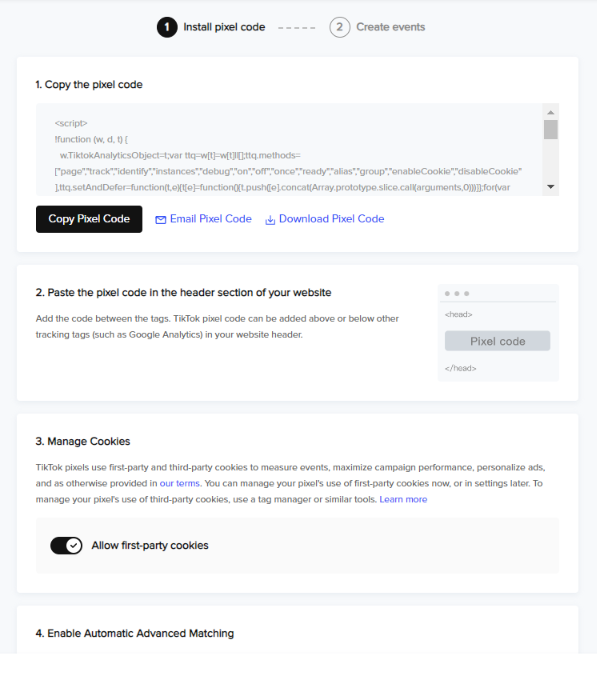
Now, let's dive into the detailed setup.
TikTok Ads Tutorial | Everything You Need to Know (Complete 2025 Guide for Beginners)
This video walks through the entire pixel setup process. You'll see how to connect TikTok to Google Tag Manager and then use the Event Builder to track key e-commerce actions like 'Contact,' 'Submit Form' (for leads), 'Initiate Checkout,' and 'Complete Payment.'
Watch from 12:44 to 26:38. Focus on the overall process rather than memorizing every click. The key steps are: Connecting your TikTok account to Google Tag Manager. Using the Event Builder tool to navigate your website and 'tag' specific URLs or buttons as conversion events.
Step 2: Create Custom Audiences from Pixel Data
Once the pixel is installed and events are configured, TikTok starts collecting data. Now you can use this data to build your retargeting audiences.

Let's return to the same video to see how this is done. The instructor will now create specific audience lists based on the events he just set up.
TikTok Ads Tutorial | Everything You Need to Know (Complete 2025 Guide for Beginners)
This segment shows the practical application of your pixel setup. You'll learn how to create lists of people who performed specific actions, such as viewing an ad, buying a product, or abandoning their cart.
Watch from 48:28 to 54:07. Pay close attention to how different audiences are created: Buyers: People who triggered the 'Complete Payment' event. Cart Abandoners: People who triggered 'Initiate Checkout' but excluded those who also triggered 'Complete Payment'. Leads: People who triggered the 'Submit Form' event.
Test your understanding!
You want to create a retargeting ad campaign to offer a 10% discount specifically to people who added a product to their cart but didn't buy. Based on the video, what two conditions would you use to define this custom audience in TikTok Ads Manager?
Show answer
You would create a custom audience that includes people who triggered the Initiate Checkout event within a certain timeframe (e.g., the last 14 days) and excludes people who triggered the Complete Payment event in the same timeframe.
3. Setting Up the Google Ads Tag & Building Audiences
The process for Google Ads is conceptually identical. You install a "tag" (Google's term for a pixel) on your site and then create audience lists in Google Ads based on visitor behavior. This is essential for running Google Shopping ads or Display ads to bring people back to your Amazon, Walmart, or personal store listings.
This next video from Loves Data will guide you through setting up remarketing in Google Ads. We will focus on creating audiences directly within Google Ads, which is the most straightforward method.
Setup Google Ads Remarketing with Google Analytics and Google Ads
This guide shows how to create website visitor audiences directly in Google Ads and install the necessary tag using Google Tag Manager.
Watch from 07:22 to 13:16. Follow the steps to: Create a 'Website Visitors' audience segment inside Google Ads. Get your 'Conversion ID' from the Google Tag setup. Create the 'Google Ads Remarketing' tag within Google Tag Manager using that ID. Publish the tag.
The power here is creating highly strategic segments. For example, you can create audiences for:
- General Website Visitors: Anyone who visited your site.
- Product Page Viewers: People who viewed specific product pages but didn't add to cart.
- Cart Abandoners: People who added items to their cart but didn't complete the purchase.
- Past Purchasers: Your existing customers, who you might target with ads for new products.
Conclusion
Today, you've learned one of the most cost-effective strategies in digital marketing. Instead of constantly paying to acquire new, cold traffic, you now have a system to re-engage warm leads who have already raised their hand and shown interest in your business.
Key Takeaways:
- Retargeting pixels (or tags) are code snippets that track user behavior on your website.
- The primary goal is to build custom audiences—lists of users who have taken specific actions (e.g., visited a page, abandoned a cart).
- Platforms like TikTok and Google allow you to create highly specific audience rules, such as including users who took one action while excluding those who took another.
- Using a tool like Google Tag Manager streamlines the process of adding and managing these pixels across your web properties.
Next Up:
We have now covered strategies for capturing leads directly (popups) and creating audiences to bring back those you missed (retargeting). In our next lesson, we'll focus on what to do immediately after a lead signs up through your popup. We will set up an email marketing tool and create a 'welcome sequence' to nurture that new relationship and guide the subscriber toward their first purchase.