
Hello! Let's dive into our next lesson.
In our last session, we mastered pagination, a crucial skill for retrieving large datasets from APIs. You learned how to fetch hundreds or thousands of items that APIs deliver in smaller pages. This naturally leads to the next question: once you have all those items, what's the best way to process them?
Sending a thousand items simultaneously to another service is a recipe for errors, timeouts, and hitting rate limits. This brings us to today's learning outcome: Use the Split In Batches node to process items in groups.
Today, we'll explore how to take a large list of n8n items and process them in a controlled, manageable way. You'll learn how to throttle your workflows to respect API limits and process data more robustly. Your software development background will be helpful here, as the concepts are analogous to batch processing jobs or using iterators to handle large collections in code.
A quick note on naming: In older n8n versions and some of the resources we'll use, this node was called "Loop Over Items." Its current name is Split In Batches, which more accurately describes its primary function.
1. The Need for Controlled Processing
By default, n8n is incredibly efficient. When a node receives a list of items, it typically executes its logic for every single item in that list automatically. For many tasks, this is exactly what you want.
However, consider the output of our last lesson: a single list containing 1,000 contacts. If you connect this list directly to a Google Sheets "Append Row" node or an "Update Contact" API call, n8n will try to execute all 1,000 operations almost instantly. This can cause several problems:
- API Rate Limiting: Most APIs enforce rate limits (e.g., "no more than 10 requests per second"). Sending 1,000 requests at once will get you temporarily blocked.
- Timeouts: The receiving service might not be able to handle such a high volume of concurrent requests, leading to dropped connections or timeouts.
- Memory/CPU Spikes: Processing a very large number of items in a complex, memory-intensive step can strain your n8n instance.
The Split In Batches node is the solution. It acts as a gatekeeper, taking a large list of items and feeding them to subsequent nodes in smaller, defined groups.
2. How the Split In Batches Node Works
Conceptually, the node operates like a controlled loop. It has two outputs: loop and done.
- Input: The node receives the entire list of items (e.g., 100 items).
- Batching: It takes the first "batch" of items, determined by its
Batch Sizeparameter (e.g., 10 items), and sends them out of theloopoutput. - Processing: The nodes connected to the
loopoutput process this small batch. - Looping: Once the batch is processed, the workflow loops back to the Split In Batches node, which then sends the next batch of 10 items out of the
loopoutput. - Completion: This continues until all 100 items have been processed in 10 batches. When the final batch is done, the node executes its
doneoutput, passing along the combined results from all loop iterations.
This blog post provides an excellent plain-language explanation of this mechanism.
Why 'Loop Over Items (Split in Batches)' is the most underrated node in n8n
To get a clear mental model of how the node functions, read the section 'How the Loop Over Items node works' in this article from a no-code professional, Juliet Edjere.
Focus on the six numbered steps that describe the flow of data from input, through the 'Loop' output, and finally to the 'Done' output.
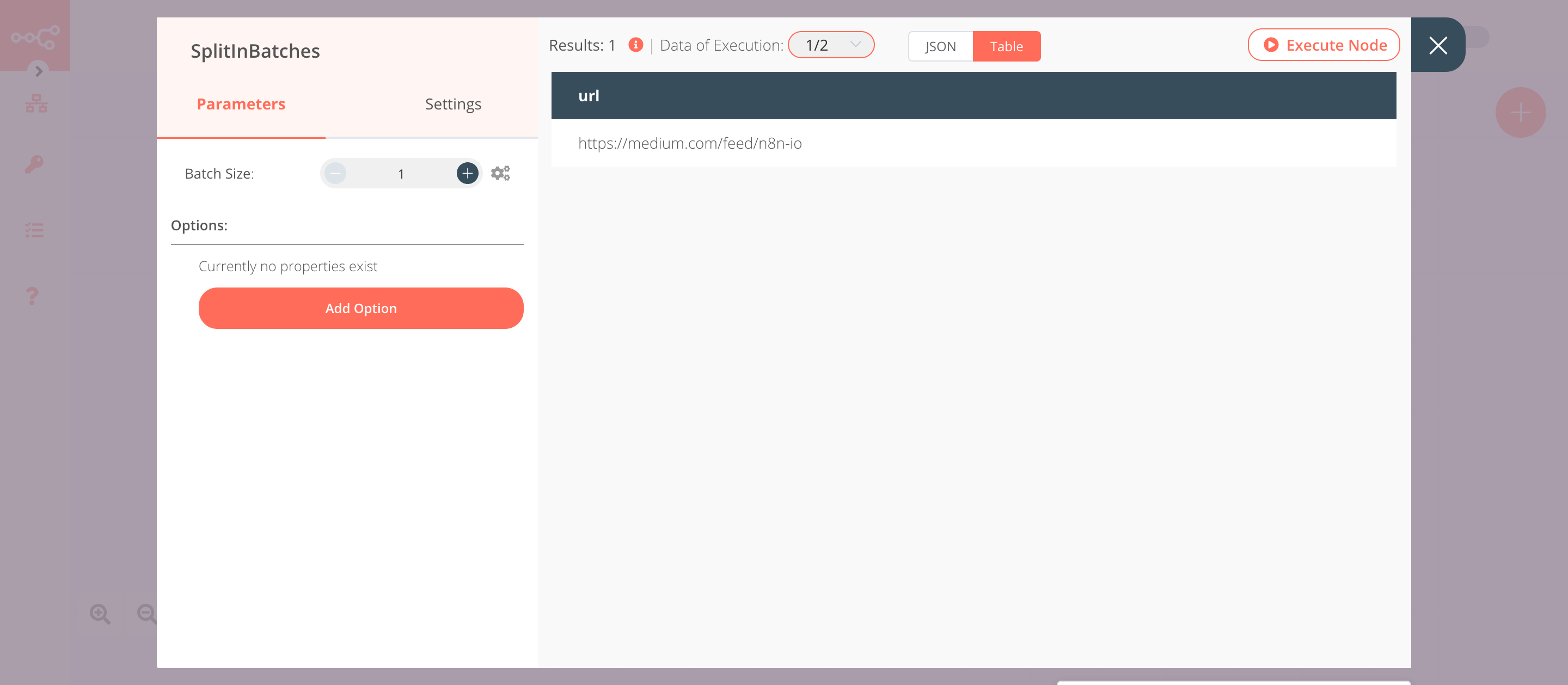
The most important setting you'll configure is Batch Size, which defines how many items are in each group.
3. Practical Example: Batching with a Rate Limit
Let's see this in action. The most common use case is processing a large list of items against an API with a rate limit. The pattern is to combine Split In Batches with a Wait node.
The following video provides a perfect demonstration. It takes 100 items and appends them to a Google Sheet in batches of 10, waiting between each batch to simulate respecting a rate limit.
n8n Loop Over Items: The RIGHT Way vs The WRONG Way
Watch this segment from the 'Ryan & Matt Data Science' channel. It provides a clear, practical demonstration of batch processing.
Watch from 11:53 to 16:45. Pay close attention to how the Batch Size of 10 is configured and where the Wait node is placed in the loop to control the speed of the workflow.
As you saw, the core workflow structure for this pattern is:
- A node that outputs many items (e.g., from a database or a paginated API call).
- A Split In Batches node with
Batch Sizeset to your desired group size (e.g.,10). - The
loopoutput is connected to the node that performs the action (e.g., HTTP Request, Google Sheets Append). - The action node is connected to a Wait node (e.g., wait 2 seconds).
- The Wait node is connected back to the input of the action node to form the loop.
This ensures your workflow processes items in controlled bursts rather than all at once.
Test your understanding!
You've used pagination to fetch 500 company domains from a database. You need to use the HTTP Request node to call an external API for each domain to get company details. The API has a strict rate limit of 60 requests per minute.
How would you configure the Split In Batches and Wait nodes to handle this task safely and efficiently?
Show answer
There are a few good approaches, but a very common and robust one is:
- Split In Batches node: Set the
Batch Sizeto 50. This creates 10 batches in total (500 / 50). - Wait node: Place the Wait node after the HTTP Request node in the loop. Set its wait time to 55-60 seconds.
This tells n8n: "Process a batch of 50 domains, then wait for about a minute before processing the next batch of 50." This ensures you stay well within the 60 requests/minute limit. Another valid, though less efficient, approach would be a Batch Size of 1 and a Wait time of 1 second.
4. Advanced Control and Use Cases
Beyond simple rate limiting, the Split In Batches node offers more granular control that is particularly useful in complex workflows.
Forcing One-by-One Processing
Some n8n nodes, particularly older or highly specialized ones, are designed to only process the first item they receive, even if you pass them a list. The RSS Feed Read node is a classic example. If you give it a list of 10 URLs, it will only read the first one.
In this scenario, you must use Split In Batches with a Batch Size of 1. This forces the workflow to loop through your list and feed the items to the problematic node one at a time. The n8n documentation provides a clear example of this.
Loop Over Items (Split in Batches) - Official n8n Documentation
The official n8n documentation provides a great example for when you absolutely must use this node.
Read the example 'Read RSS feed from two different sources'. This demonstrates why a batch size of 1 is necessary when a downstream node can't handle multiple items.
Accessing Loop Context
As a developer, you're likely used to having access to an index variable inside a loop. n8n provides this through special context expressions:
{{$("Split In Batches").context["currentRunIndex"]}}: Returns the current loop iteration number (starting from 0). This is useful for logging, debugging, or custom logic.{{$("Split In Batches").context["noItemsLeft"]}}: Returnstrueif the last batch has been processed,falseotherwise.
Conditional Logic Inside a Loop
What if you need to perform different actions depending on the data within each batch? You can place If or Switch nodes inside the loop. However, this creates a challenge: the loop expects a consistent number of items to flow through it. If some items go down a true path and others down a false path, the loop can get confused.
To solve this, you must bring the divergent paths back together with a Merge node before the loop iteration finishes.
The same video from earlier demonstrates this advanced pattern beautifully.
n8n Loop Over Items: The RIGHT Way vs The WRONG Way
This next segment shows how to handle conditional logic inside a loop, a powerful but tricky pattern.
Watch from 17:35 to 23:12. Notice how an If node is used to split players into 'active' and 'retired'. Critically, see how a Merge node is used to recombine both paths before the Wait node. This is a vital best practice.
This pattern of splitting logic and then recombining with a Merge node is fundamental to building complex, robust workflows in n8n.
Conclusion
You've now added another critical tool to your n8n arsenal. By mastering the Split In Batches node, you can transition from simple automations to building robust, scalable workflows that can handle thousands of items without overwhelming APIs or your n8n instance.
Key Takeaways:
- n8n's default behavior is to process all items in a list at once, which can be problematic for large datasets and APIs with rate limits.
- The Split In Batches node provides control by processing items in smaller, defined groups or
batches. - The most common pattern is to combine Split In Batches with a Wait node inside its
loopto manage API rate limits. - For nodes that only process a single item, you must use a
Batch Sizeof1to force one-by-one execution. - When using conditional logic (
Ifnodes) inside a loop, always use a Merge node to bring the data paths back together before the iteration ends.
In this lesson, we had a brief but important introduction to the Merge node. In our next session, we will explore it in full detail, learning how to use it to combine data from different branches anywhere in your workflow, a key skill for sophisticated data transformation.