
Welcome back. In the previous lesson, you learned how Bash separates a command into its command name, options, and arguments—and why quoting matters when a name contains spaces or special characters. Paths are simply a particularly important kind of argument: they tell Linux where a file or directory is located.
This lesson makes that location explicit. You will use pwd to verify where the shell is currently working, cd to change that location, and two ways of writing paths: absolute paths, which start at the filesystem root, and relative paths, which start from wherever you are now. These are daily operational skills: an administrator constantly moves between configuration directories, logs, home directories, and application data.
The shell always has a current working directory
A shell session has a current working directory: its default location in the Linux directory tree. When you provide a simple name such as notes.txt or reports, Linux interprets it relative to that current location unless you specify otherwise.
Use pwd, short for print working directory, whenever you need certainty:
pwd
Typical output for an ordinary account might look like:
/home/yourname
Your exact username will differ. Do not rely entirely on the prompt’s displayed location; prompts can be customized. pwd is the direct answer to “Where am I?”
To change your working directory, use cd, short for change directory:
cd /
pwd
The expected result from pwd is:
/
The single / is the root directory, the top of Linux’s one unified directory tree. It is not a drive letter such as C: in Windows. Disks and filesystems can be attached at locations within this one tree, but navigation always begins with the same /.
Be careful with terminology: / is the root directory, while root is also the name of the highly privileged superuser account. In this lesson, “root” usually means the directory /.
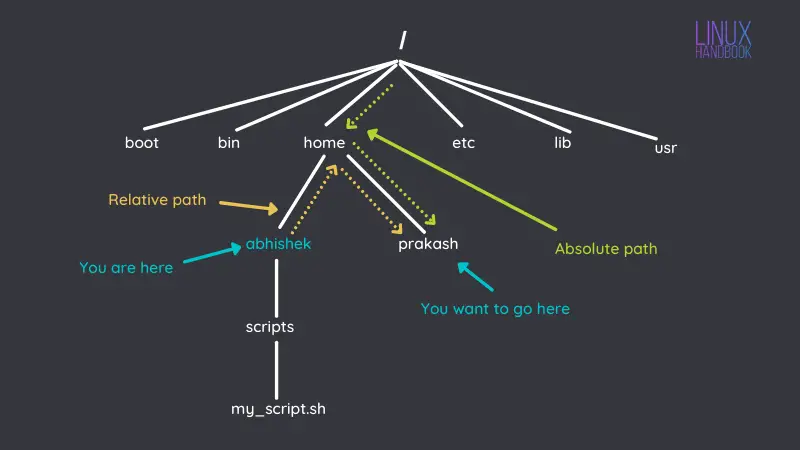
Absolute paths: a complete address from /
An absolute path begins with /. It names a location from the root of the filesystem, so it means the same thing no matter where the shell currently is.
For example:
cd /etc
pwd
This always attempts to enter /etc, a standard system directory. It does not matter whether you started in your home directory, /tmp, or /var/log.
Read /etc from left to right:
- Start at
/, the filesystem root. - Enter the directory named
etc.
A deeper absolute path works the same way:
cd /var/log
pwd
Linux looks for var inside /, then log inside /var.
Absolute paths are valuable when precision matters. Documentation, administrative procedures, service configuration, and incident notes commonly use them because another administrator can run the command from any starting directory.
The following comparison captures the key distinction:
| Path | Type | Meaning depends on your current directory? |
|---|---|---|
/etc | Absolute | No |
/var/log | Absolute | No |
etc | Relative | Yes |
../log | Relative | Yes |
. and .. | Relative special names | Yes |
An absolute path is not guaranteed to exist or be accessible—it is simply interpreted from /.
Relative and Absolute Paths - Linux Tutorial 7
Watch “Relative and Absolute Paths - Linux Tutorial 7” from Caleb Curry. It gives a compact visual demonstration of the current directory, parent directories, sibling directories, and the decisive leading slash of an absolute path.
Watch path basics for the meaning of the current directory, . and ... Continue with relative movement, paying particular attention to how a sibling directory is reached through its parent. Finish with absolute paths, where pwd reveals a full path and cd / resets navigation to the filesystem root.
Relative paths: directions from your present location
A relative path does not start with /. It is resolved from your current working directory.
Suppose your current directory is:
/home/yourname
If that directory contains a subdirectory called projects, this is a relative path:
cd projects
Linux treats it as “find projects inside the directory I am in now.” In this case, you would arrive at:
/home/yourname/projects
But cd projects is not a permanent address. If you first change to /tmp, exactly the same command asks Linux to find /tmp/projects. If no such directory exists, Bash reports:
bash: cd: projects: No such file or directory
That error often means the directory name itself is valid, but your starting location was not the one you assumed. The first diagnostic response is:
pwd
Then inspect the likely parent directory with ls:
ls
You will study ls more fully later, but for navigation it answers the immediate question: “What names are available in this directory?”
The special relative names . and ..
Linux supplies two especially useful directory names:
.means the current directory...means the parent directory: one level above the current directory.
If you are in /home/yourname/projects, then:
cd ..
pwd
places you in:
/home/yourname
You can go up two levels by writing each parent step explicitly:
cd ../..
For a path such as /home/yourname/projects, that ends at /home.
The shell follows the components in order. If you begin in:
/home/yourname/projects/notes
then this command:
cd ../../archive
has a precise interpretation:
..moves fromnotestoprojects.- The next
..moves fromprojectsto your home directory. archiveenters anarchivedirectory within your home directory.
This is a useful technique for moving to a sibling directory. For example, if projects and archive are both inside your home directory, then from /home/yourname/projects you can write:
cd ../archive
The initial .. reaches their shared parent; archive selects the other child directory.
A leading ./ means “start in this directory.” Thus, these are normally equivalent:
cd projects
cd ./projects
The shorter form is conventional. You will see ./ frequently when an explicit “current directory” reference improves clarity, especially later when running a script stored locally.
Home and previous-directory shortcuts
Your personal home directory is the place associated with your login account. For a normal RHEL user it is commonly /home/username, though the safest way to refer to your home is with the shell shorthand ~.
These commands both take you home:
cd
cd ~
You can also name a location beneath your home directory:
cd ~/Documents
Here, ~ is expanded by Bash into your home directory before cd runs. It is not the same category as an absolute path beginning with /, but it is independent of your current directory and is usually more portable than writing your username into a path.
There is one quoting detail carried forward from the previous lesson: quoting the tilde prevents this home-directory expansion.
cd "~"
This tries to enter a literally named directory ~, which normally does not exist. If a directory component below your home contains spaces, quote that component while leaving ~ unquoted:
cd ~/"Client Files"
You could equivalently escape the space:
cd ~/Client\ Files
The other high-value shortcut is:
cd -
This changes to the previous working directory and prints the destination. It is a toggle, not “go up one level.” For example, if you move from your home directory to /etc, then run cd -, you return home. Repeating cd - takes you back to /etc.
Use the shortcuts according to their meanings:
| Command | Destination |
|---|---|
cd | Your home directory |
cd ~ | Your home directory |
cd / | Filesystem root |
cd .. | Parent of the current directory |
cd ../.. | Grandparent of the current directory |
cd - | Directory used immediately before the current one |
A safe navigation routine
Run this short sequence in your lab. It changes only the shell’s location; it does not create, edit, or remove anything.
pwd
cd /
pwd
cd /etc
pwd
cd -
pwd
cd
pwd
As you run it, predict each pwd result before pressing Enter. The expected locations are:
- Your initial directory, often your home.
//etc/- Your home directory.
This is more than memorizing commands. It builds the habit of maintaining a mental model of the filesystem state. Before a future command changes a file, verify its target path—or use an absolute path when the target must be unambiguous.
Paths are arguments, not just inputs to cd
Although cd is the command that changes your current directory, path syntax appears throughout Linux administration. A command can act on a location without moving you there.
For example:
ls /etc
asks ls to list /etc while your current working directory remains unchanged. Likewise:
ls ../
asks ls to inspect your parent directory.
That distinction becomes important when you work with configuration files, logs, and service data. You can either navigate to the directory first and use short relative names, or remain where you are and provide an absolute path to the target. Both are valid; choose the form that makes the command’s target clearest.
A disciplined troubleshooting pattern is:
- Run
pwdto establish your current location. - Decide whether a relative route is clear and convenient.
- Use an absolute path when the task refers to a known system location or must work from anywhere.
- If a relative path fails, check
pwd, spelling, capitalization, and the contents of the relevant parent directory.
Linux names are case-sensitive. Documents, documents, and DOCUMENTS are three different possible names.
Key takeaways
You can now navigate the Linux directory tree deliberately:
pwdprints the shell’s current working directory; use it to replace assumptions with a fact.cdchanges directory, whilecdwith no argument returns to your home directory.- An absolute path begins with
/and is interpreted from the filesystem root regardless of where you are. - A relative path begins from the current working directory, so its meaning changes with location.
.represents the current directory,..its parent,~your home directory, and-the previous directory.- Quote or escape spaces in directory names, while leaving
~unquoted when you want Bash to expand it.
Next, you will move from how to reach a location to what standard Linux locations are for: configuration files, logs, user homes, temporary data, and executable programs.
Can't find a good explanation? Sign up and we'll make it for you
Sign up