
Hello again. Your RHEL-compatible lab is now set up with an ordinary administrative account, verified networking, and recovery paths. That gives you a safe place to make the shell feel routine rather than mysterious.
This lesson focuses on the grammar of a command line: identifying the command, its options, and its arguments; then controlling how the shell interprets spaces and special characters through quoting and escaping. These details prevent a large class of administration mistakes, especially when filenames, paths, messages, or variable values contain unexpected characters.
A command line is parsed before it runs
At a prompt, you type a line and press Enter. The shell—normally Bash on a RHEL system—first interprets that line, then starts the requested command with the resulting pieces of text.
A useful first approximation is:
command [options] [arguments]
Square brackets in documentation mean “optional”; do not type the brackets themselves.
- The command names the program or shell feature to run.
- An option changes how that command behaves.
- An argument supplies the command’s input: often a file, directory, search term, account name, or other value.
For example:
ls -l /etc
Here:
| Part | Meaning |
|---|---|
ls | The command: list directory contents |
-l | An option: request long-format output |
/etc | An argument: the directory to list |
The convention is common, not a universal law. Each command defines its own valid options, required arguments, and ordering. A command may accept several arguments, no arguments, or an option that itself needs a value. For example, in:
useradd -c "Operations trainee" alex
useradd is the command, -c is an option, "Operations trainee" is the value belonging to that option, and alex is the account-name argument. You do not need to memorize useradd yet; the point is that the spaces and quotes determine the structure the command receives.
Linux is also case-sensitive. pwd, PWD, and Pwd are different names. Command names are conventionally lowercase, while environment-variable names are often uppercase.
The Linux command line for beginners - Ubuntu Desktop documentation
Read the relevant parts of Ubuntu Desktop’s beginner command-line tutorial. Its examples use Ubuntu, but the shell syntax discussed here applies directly to Bash on RHEL-compatible systems.
First, in “The importance of case,” read case sensitivity. Then move to “Creating folders and files.” Read the explanation surrounding the mkdir dir1 dir2 dir3 example to see why several space-separated values are separate arguments, followed by the option discussion. Finally, in the passage immediately before “Creating files using redirection,” read three ways to preserve a space. Focus on what the shell considers one argument, rather than on creating the particular directories in the example.
Options change behavior; arguments supply the target
Options commonly come in two forms:
ls -a
ls --all
The short option -a and long option --all have the same purpose for ls: include entries whose names begin with .. Short options are often combinable when the specific command allows it:
ls -l -a
ls -la
Both request long-format output and hidden entries. But do not assume every command accepts combined short options or that every short option has a long equivalent. The command’s own documentation is the authority.
Some options take a value:
grep -i "error" /var/log/messages
In that example, -i needs no value; it changes matching to ignore case. "error" is an argument containing the text to look for, and /var/log/messages is an argument naming the input file. You will work with grep and logs later; for now, notice the distinct roles.
A particularly important convention on GNU/Linux systems is --, which marks the end of options. Anything after it is treated as an argument even if it begins with -.
rm -- -old-notes.txt
Without --, a filename beginning with - can be misread as an option. This is especially valuable with commands that modify or remove files. Do not run that example unless such a test file actually exists; it illustrates the syntax rather than a task you need to perform now.
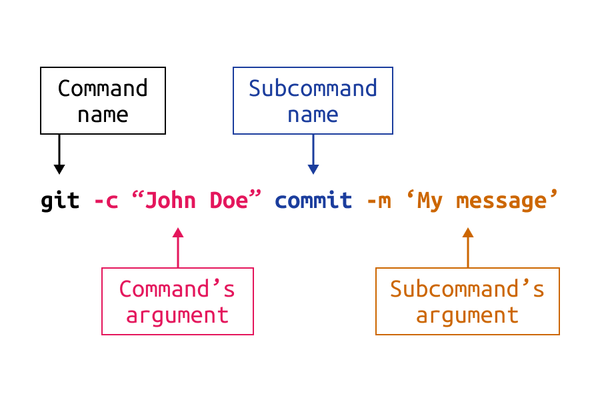
The image also highlights a subtle point: a tool such as Git can have options that belong to the main command and other options that belong to a subcommand. The shell does not decide whether -C or -m is valid—that is Git’s job. The shell’s job is to split and prepare the words correctly before invoking Git.
Spaces are not ordinary characters to the shell
When text is unquoted, the shell generally uses spaces and tabs to split it into separate words. Those words become separate arguments.
Use printf for a safe way to see this. In the examples below, the quoted first argument is simply a display format. The remaining words are the values being inspected.
printf '<%s>\n' release candidate
Output:
<release>
<candidate>
Although release candidate may look like one label to a human, the shell passes two arguments to printf.
Now compare three ways to preserve the space:
printf '<%s>\n' "release candidate"
printf '<%s>\n' 'release candidate'
printf '<%s>\n' release\ candidate
Each produces:
<release candidate>
The command receives one argument in all three cases. The difference lies in how each method treats other special characters.
Single quotes: literal text
Single quotes preserve the literal contents between them. The shell does not expand variables or wildcard characters inside single quotes.
printf '%s\n' 'Cost: $50'
printf '%s\n' '*.log'
Output:
Cost: $50
*.log
This makes single quotes a strong default when you mean “treat this text exactly as written.” A limitation is that a literal single quote cannot appear inside a single-quoted string. For a simple English contraction, double quotes are easier:
printf '%s\n' "don't change this"
Double quotes: preserve spacing, allow selected expansion
Double quotes also group text into one argument, but they permit parameter expansion and command substitution. For now, parameter expansion is the key difference.
lab_name='RHEL lab'

printf '<%s>\n' '$lab_name'
printf '<%s>\n' "$lab_name"
Output:
<$lab_name>
<RHEL lab>
The single-quoted version passes the characters $lab_name literally. The double-quoted version asks the shell to substitute the value stored in lab_name.
This distinction matters in administration. Suppose a variable contains a path or username with spaces. An unquoted expansion can unexpectedly become multiple arguments:
lab_name='RHEL lab'

printf '<%s>\n' $lab_name
printf '<%s>\n' "$lab_name"
The first command receives two values, RHEL and lab; the second receives one value, RHEL lab.
A practical habit is:
Quote a variable expansion unless you specifically need the shell to split or expand its contents.
For ordinary administrative commands, this means writing forms such as:
some-command "$file_name"
some-command "$source_path" "$destination_path"
You will use this habit repeatedly in scripts later, but it is equally important at an interactive prompt.
Linux Command Line for Beginners
Watch “Linux Command Line for Beginners” from Keep On Coding for a visual demonstration of how the shell expands text before the command runs, and how quotes and backslashes change that behavior.
In the later part of the section, watch quotes and escapes. Focus on the contrast between a spaced filename treated as two arguments versus one quoted argument, then on why double quotes still allow a variable to expand while a preceding backslash can preserve a literal dollar sign or asterisk.
Escaping: protect one character precisely
A backslash is an escape character. Outside quotes, it tells the shell to treat the next character literally rather than according to its usual shell meaning.
You have already seen it protect a space:
printf '<%s>\n' release\ candidate
It can also protect shell metacharacters. An asterisk normally has a special role: the shell can use it to match filenames. To pass an actual * character to a command, quote or escape it:
printf '%s\n' '*'
printf '%s\n' \*
Both print:
*
To include a literal dollar sign inside double quotes, escape the dollar sign:
printf '%s\n' "Cost: \$50"
Output:
Cost: $50
Do not think of escaping as “adding a backslash whenever something looks unusual.” It is more precise than that: it changes the treatment of one following character. This precision can become hard to read in long commands, which is why complete single or double quotes are often clearer for data containing spaces.
Inside double quotes, backslash behavior is narrower than outside quotes. For beginner command-line work, use it there primarily before characters that would otherwise be interpreted specially, especially $ for a literal dollar sign and \" for a literal double quote. Inside single quotes, backslash has no escaping role; almost everything is literal.
The key contrast is:
| Form | One argument? | Expands $variable? | Treats * as a filename pattern? |
|---|---|---|---|
text with spaces | No | Yes, if present | Yes, if matching files exist |
'text with spaces' | Yes | No | No |
"text with spaces" | Yes | Yes | No |
text\ with\ spaces | Yes | Not relevant in this example | Not relevant in this example |
The final row protects only the spaces. It does not create a broad protected region in the way quotes do.
Use a deliberate reading order before pressing Enter
When a command grows beyond a few words, pause and parse it from left to right:
- Identify the command. Is it the command you intend to run, with the correct lowercase spelling?
- Identify options. Which words beginning with
-alter its behavior? Does any option require a value? - Identify arguments. Which words are names, paths, search text, or other input?
- Inspect spaces. Should adjacent words be separate arguments, or should they form one value?
- Inspect special characters. Do
$,*, spaces, quotes, or backslashes need literal treatment? - Only then execute. For a command that changes or deletes data, this small pause is a safety control.
For example, read this as the shell will:
printf 'User: <%s>\n' "$USER"
printfis the command.'User: <%s>\n'is one literal format-string argument."$USER"is one argument whose value is substituted by the shell.- The quote characters themselves are not passed to
printf; they guide the shell’s parsing and are removed before the command runs.
That last observation explains many apparent command-line puzzles: the program does not see your quote marks. It sees the already-separated arguments the shell constructed.
Key takeaways
You can now read and compose a basic Linux command line accurately:
- A typical command has a command name, optional behavior-changing options, and input arguments.
- Options usually begin with
-or--;--commonly ends option processing when an argument begins with a dash. - Linux command names are case-sensitive, so type the documented case exactly.
- Unquoted spaces split text into separate arguments.
- Single quotes preserve literal text; double quotes preserve spacing while still allowing variable expansion.
- A backslash escapes one character, such as a space, dollar sign, or asterisk.
- Before executing an administrative command, identify exactly what the shell will pass to it.
Next, you will use these syntax skills to navigate the Linux directory tree confidently with absolute and relative paths.
Can't find a good explanation? Sign up and we'll make it for you
Sign up