
Welcome back. In the previous lesson, we prepared the public-facing assets for our app, including the crucial privacy policy URL. This policy serves as the legal foundation for the data practices we are about to declare to Apple.
This lesson drills down into a critical, mandatory step for App Store submission: completing Apple's App Privacy questionnaire. This is more than just paperwork; it's a structured declaration that becomes a user-facing "nutrition label" on your App Store product page, detailing exactly what data your app collects and how it's used. We'll cover both the user-facing questionnaire in App Store Connect and the newer, developer-facing requirement of the Privacy Manifest file within your Xcode project.
By the end of this session, you will be able to audit your app's data collection, create the necessary PrivacyInfo.xcprivacy file, and accurately complete the App Store Connect privacy form based on your app's specific functionality and the Capacitor plugins you've integrated.
1. Auditing Your App's Data Collection
Before you can declare your data practices, you must have a complete inventory of every piece of data your app and its dependencies collect. As an experienced developer, you know that code, especially when it includes third-party libraries, can have hidden behaviors. A thorough audit is the essential first step.
For our Capacitor application, data collection sources fall into three main categories:
- Your React Code: Any data explicitly requested from the user via forms (e.g., email, name for a user account).
- Capacitor Plugins: Each plugin has the potential to access and transmit user data. This is often the largest and most important area to audit.
- Other Third-Party Services: Any analytics, advertising, or backend services (like Firebase or Supabase) that you call directly from your web code.
Let's focus on the plugins outlined in your course plan. The following Ionic blog post provides an excellent starting point for mapping common plugins to the data types Apple asks about.
Answering App Privacy Questions in App Store Connect - Ionic Blog
This article from the Ionic Blog, while written before the Privacy Manifest was mandatory, contains a very useful table that maps native functionality to data types. This mapping is still perfectly relevant.
Focus on the section "Native Plugin Data Collection". Review the table to see how plugins like Geolocation and Camera correspond to Apple's data type categories.
Based on your project's goals, here's an audit of the plugins we'll be using:
| Plugin | Data Type(s) Collected |
|---|---|
@capacitor/push-notifications | Identifiers: Device ID (to target the device for notifications). |
@capacitor/local-notifications | None: All operations are local to the device; no data is transmitted. |
@capacitor/filesystem | User Content: If the user saves or accesses photos, videos, or other files. |
@capacitor-community/biometric-auth | Sensitive Info: Accesses biometric data (e.g., Face ID), though typically only a success/fail result is returned to the app, not the raw data. |
@capgo/capacitor-updater | Diagnostics & Usage Data: May collect performance data (crash logs, energy use) and product interaction data to manage updates. |
With this audit in hand, we can move on to the technical declaration.
2. The Privacy Manifest (PrivacyInfo.xcprivacy)
Since May 1, 2024, Apple requires a Privacy Manifest file in all new apps and app updates. This is a property list (.plist) file named PrivacyInfo.xcprivacy that you must include in your Xcode project. It serves as a machine-readable declaration of your app's and your third-party SDKs' privacy practices. Xcode uses these manifests to generate a single, aggregated privacy report, which helps you and Apple's review team verify your app's data handling.
The following article from Capgo provides an excellent, up-to-date overview of this requirement.
This article is a comprehensive guide to the new Privacy Manifest requirement, explaining what it is, why it's necessary, and how to implement it.
Read through the following sections to get a full picture: Start with the introduction to understand the file's purpose. Review the key elements that must be declared. See how to create the file in Xcode. Understand the four primary keys you'll configure inside the file. Pay close attention to the section on documenting data and API usage. Finally, read the section on Capacitor and OTA updates, as it's directly relevant to your project's stack.
Creating and Configuring the Manifest
As the article explains, you create this file in Xcode via File > New File > App Privacy. Once created, you'll add entries to it. Here are the key dictionaries you need to configure:
NSPrivacyCollectedDataTypes: An array where you declare each type of data collected. For each type, you must specify:- The data type (e.g.,
NSPrivacyCollectedDataTypeDeviceID). - Whether it's linked to the user's identity.
- Whether it's used for tracking.
- The purpose(s) of collection (e.g.,
NSPrivacyCollectedDataTypePurposeAppFunctionality).
- The data type (e.g.,
NSPrivacyAccessedAPITypes: An array where you declare your use of certain APIs that Apple has designated as "Required Reason APIs" because they could be used for fingerprinting. You must provide an approved reason code for using them. For an app with an OTA updater like Capgo, you'll almost certainly need to declare reasons for:NSPrivacyAccessedAPICategoryFileTimestamp: ReasonC617.1(e.g., to check modification dates of downloaded files).NSPrivacyAccessedAPICategoryDiskSpace: ReasonE174.1(to check for sufficient space before downloading an update).NSPrivacyAccessedAPICategoryUserDefaults: ReasonCA92.1(to store configuration or state).
NSPrivacyTracking: A boolean indicating if your app or a third-party SDK tracks users.NSPrivacyTrackingDomains: An array of domains used for tracking, if tracking is enabled.
Most modern Capacitor plugins now include their own PrivacyInfo.xcprivacy file. When you build your app, Xcode automatically discovers and merges these into a single report. If a plugin does not provide a manifest, you are responsible for declaring its data collection and API usage in your app's main manifest.
3. The App Store Connect Questionnaire
With the manifest in place, filling out the web-based questionnaire in App Store Connect becomes a much simpler task of transcribing your audited and declared information into a user-friendly format.
This video provides a practical walkthrough of the interface.
How To Submit Your iOS App to the App Store (Full Guide)
This segment of a larger app submission guide shows the presenter completing the App Privacy section in App Store Connect. It's a useful visual aid for the steps we're about to discuss.
Watch the portion from "a bit more involved" where the presenter selects data types, specifies their purpose, and answers questions about linking and tracking. Note how his choices are based on his app's specific features (login, push notifications).
Here is the step-by-step process:
- Navigate to App Privacy: In App Store Connect, select your app and go to the "App Privacy" section in the left sidebar. Click "Get Started."
- Declare Data Collection: You will be asked if you or your third-party partners collect data from the app. Based on our audit, the answer is "Yes."
- Select Data Types: You will now see a comprehensive list of data categories. Check the box for every data type you identified in your audit (e.g., Identifiers, User Content, Diagnostics).
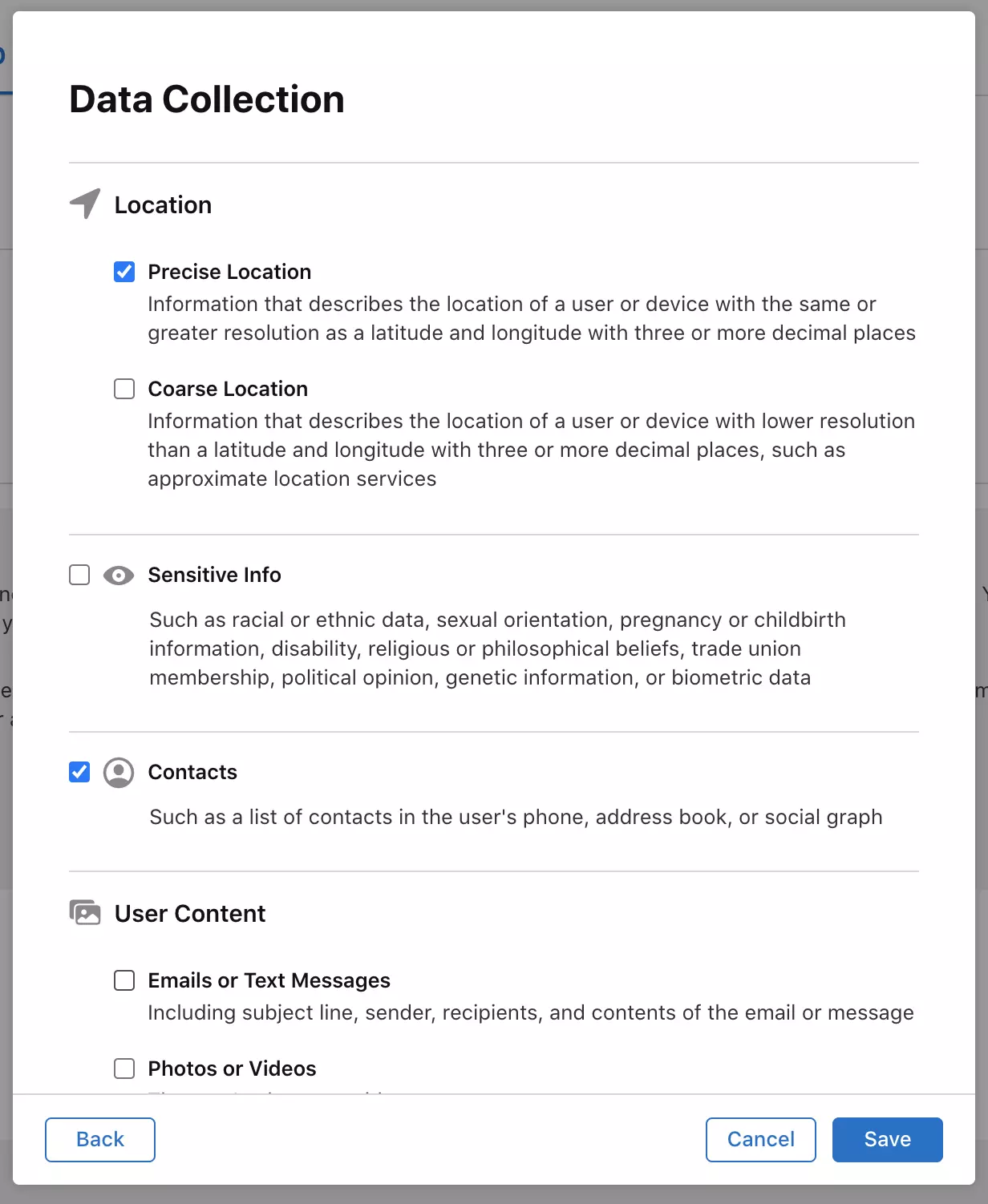
- Detail the Usage for Each Type: For each category you selected, you must provide details:
- Purpose: Check all that apply (e.g., App Functionality, Analytics, Product Personalization).
- Linking: Indicate if the data is linked to the user's identity (their account, device, etc.). For example, a User ID is linked; anonymous crash data might not be.
- Tracking: Answer whether you or your partners use this data for tracking. Apple defines "tracking" as linking data from your app with data from other companies' apps for advertising or sharing with data brokers. This is a strict definition, so read it carefully.
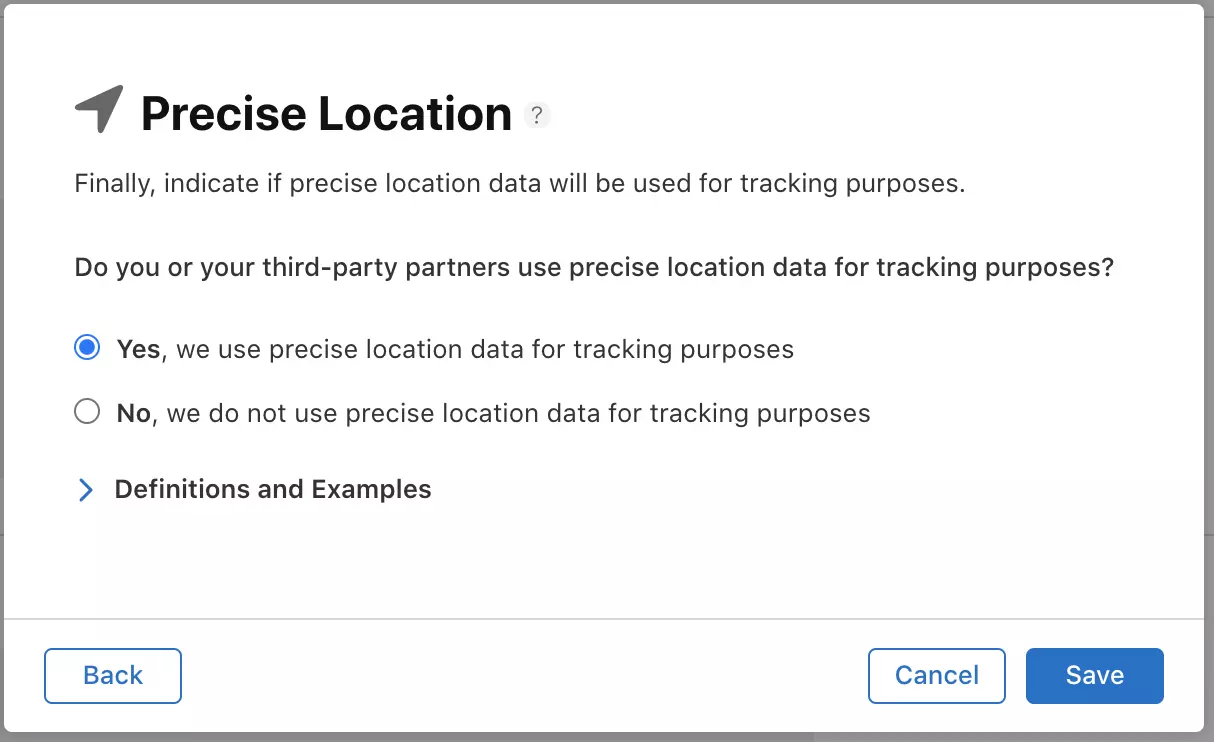
- Review and Publish: After detailing all data types, App Store Connect will show you a preview of the privacy "nutrition label" that will appear on your product page. Review it carefully for accuracy and then click "Publish."
The information you provide in this questionnaire must be consistent with the declarations in your PrivacyInfo.xcprivacy manifest. Apple's review process will likely use the automated privacy report generated from your build to verify the claims you make in the questionnaire. Any discrepancies are a common cause of rejection.
Conclusion
In this lesson, we demystified the process of declaring your app's privacy practices for the App Store. You've learned that this is a rigorous, two-part process that demands accuracy and transparency.
Here are the key takeaways:
- Start with an Audit: A thorough inventory of data collected by your code and all third-party plugins is non-negotiable.
- The Privacy Manifest is Mandatory: The
PrivacyInfo.xcprivacyfile is a technical declaration of data collection and sensitive API usage that lives within your Xcode project. - The Questionnaire is the Public Face: The form in App Store Connect translates your technical declarations into a simple, standardized label for users.
- Consistency is Key: The information in your manifest and the questionnaire must align to pass App Store review.
In our next and final lesson of this module, we will address the equivalent requirement for the Google Play Store by completing the Data Safety form. You will see how the two major platforms approach the same goal of data transparency with slightly different philosophies and workflows.
Can't find a good explanation? Sign up and we'll make it for you
Sign up