
In our last session, we navigated the specifics of Apple's privacy declarations, culminating in the App Store's privacy "nutrition label." We now turn our attention to the Android ecosystem to tackle its equivalent: the Google Play Data Safety form. While the goal is the same—providing users with transparent information about their data—Google's approach and terminology have their own nuances.
This lesson completes our module on preparing for distribution by walking you through the entire process of completing the Google Play Data Safety form. You will learn how to interpret Google's definitions of data collection and sharing, map your app's functionality to the required data types, and accurately declare your practices in the Play Console. Getting this right is a non-negotiable step for a successful launch.
1. Understanding Google's Data Safety Framework
Unlike Apple's dual system of a web questionnaire and an in-project PrivacyInfo.xcprivacy file, Google centralizes everything into a single, comprehensive form within the Play Console. The information you provide is then used to generate a standardized summary on your app's store listing page.
Your primary responsibility is to make complete and accurate declarations. Google makes it clear that while they review submissions, the developer is solely responsible for the form's accuracy. Any discrepancies between your declaration and your app's actual behavior can lead to rejection or removal.
Before we begin, it's essential to understand Google's precise definitions of key terms. The official Google Play support documentation is the definitive source for this.
Provide information for Google Play's Data safety section
This official guide from Google explains the core requirements and definitions for the Data Safety form. Pay close attention to how Google defines "collect" and "sharing," as this will govern every decision you make in the form.
In the section "What developers need to disclose in the Data safety form," carefully read the definitions for "Collect" and "Sharing". Note the specific exemptions, particularly the transfer of data to a "service provider" who processes data on your behalf. This is a crucial distinction.
The key takeaways from these definitions are:
- Collection is about data leaving the user's device. Data processed entirely on-device (ephemerally) without being transmitted does not need to be declared as "collected."
- Sharing is about transferring user data to a third party. Transferring data to a "service provider" (like a cloud host or analytics service that only processes data for you) is not considered sharing. However, sending data to an ad network SDK that uses it for its own purposes is sharing.
2. Auditing Your App for Google Play
We'll use the same data audit from our previous lesson, but this time we will map the collected data to Google's specific categories. The plugins in your app determine what you must declare.
Here is a list of the data types and purposes from Google's documentation that are relevant to your app's planned features:
| Plugin | Data Type(s) on Google Play | Purpose(s) on Google Play |
|---|---|---|
@capacitor/push-notifications | Device or other IDs (e.g., Firebase installation ID) | Developer communications |
@capacitor/filesystem | User Content: Photos and videos, Files and docs | App functionality |
@capacitor-community/biometric-auth | Personal info: Other info (for the fact that authentication occurred) | App functionality, Fraud prevention, security, and compliance |
@capgo/capacitor-updater | App info and performance: Crash logs, Diagnostics App activity: App interactions | App functionality, Analytics |
This audit forms the basis for every selection we'll make in the form.
3. Completing the Data Safety Form: A Step-by-Step Guide
With our audit complete, let's walk through the form in the Google Play Console. You can find it under your app's menu at Policy > App content > Data safety.
The following video provides an excellent visual walkthrough of the process. While it uses an app with ads, the principles of declaring data for a third-party SDK are directly applicable to our OTA update and push notification plugins.
How to Fill Google Play Data Safety Section for Google AdMob & Unity Ads Apps
This video guides you through the entire form, explaining the logic behind each selection, particularly for an app that uses third-party services (in this case, AdMob).
Watch the entire video to get a complete picture. Pay special attention to these segments: Initial Questions: See how to answer the first set of yes/no questions. Selecting Data Types: Observe how the presenter selects all the data types relevant to their app's functionality. Data Usage Details: This is the most critical part. Understand the reasoning for choosing "Collected" vs. "Shared" and selecting the various purposes for data use.
Here is a breakdown of the sections and how to approach them based on your app's configuration.
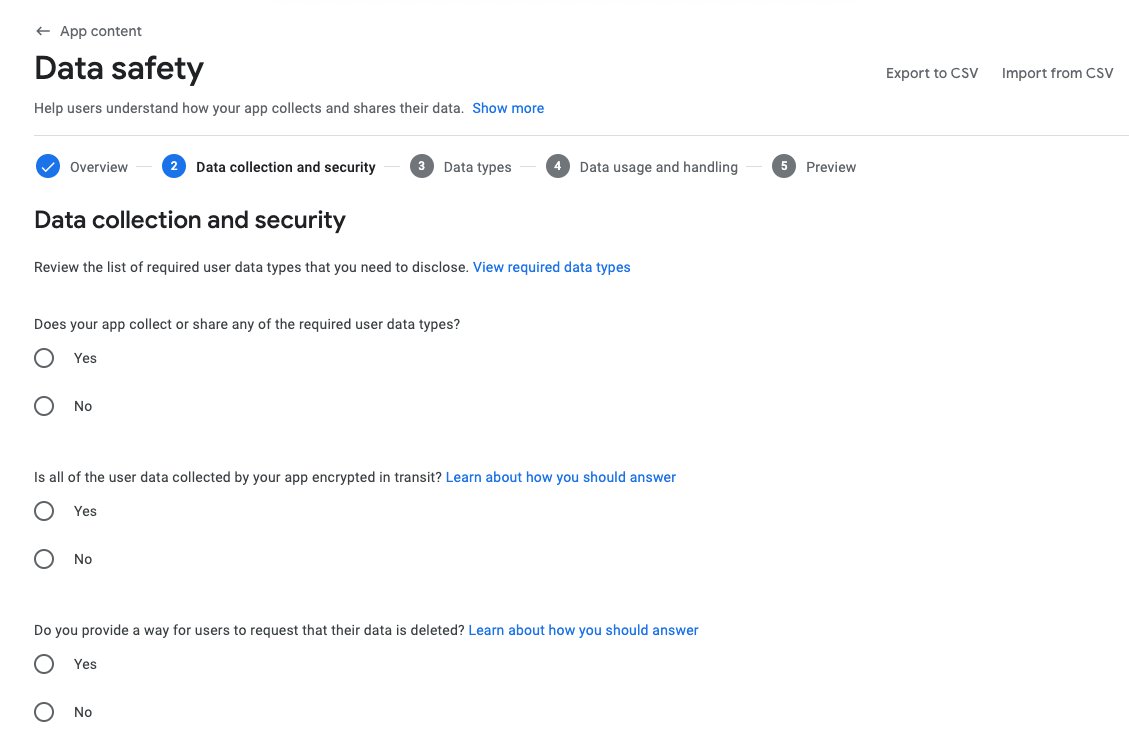
Step 1: Data Collection and Security
This is the initial set of high-level questions.
-
Does your app collect or share any of the required user data types?
- Answer: Yes. Based on our audit, the push notifications, biometrics, and OTA updater plugins all collect data.
-
Is all of the user data collected by your app encrypted in transit?
- Answer: Yes. This is a crucial security practice. Any server communication your app performs (e.g., for user accounts or API calls) and that your plugins perform should be over HTTPS/TLS.
-
Do you provide a way for users to request that their data is deleted?
- Answer: This depends on your app's backend. If your app involves user accounts, you should provide a mechanism for users to request deletion. Answering "Yes" here allows you to display a badge on your store listing, which builds user trust. If your app collects no personal data that can be tied to a user account, you might answer "No." For our purposes, let's assume you'll build this functionality and answer Yes.
Step 2: Data Types
In this section, you'll be presented with a long checklist. Using our audit from earlier, you will check the boxes for:
- Personal info (for Biometric Auth)
- Photos and videos (if using Filesystem for this)
- Files and docs (if using Filesystem for this)
- App activity (for Capgo OTA updater)
- App info and performance (for Capgo OTA updater)
- Device or other IDs (for Push Notifications)
Step 3: Data Usage and Handling
For each data type you selected, you must now provide details. This is the most granular part of the process. Let's take Device or other IDs (for push notifications) as an example.
-
Is this data collected, shared, or both?
- Answer: Collected. The device token is collected and sent to your server, which then uses a service provider (like Firebase Cloud Messaging) to send the push. According to Google's definition, this transfer to a service provider does not count as "sharing."
-
Is this data processed ephemerally?
- Answer: No. The push token must be stored on your server to be able to send notifications later.
-
Is this data required for your app, or can users choose whether it's collected?
- Answer: Users can choose whether this data is collected. Users must explicitly grant permission for notifications. If they decline, the app remains functional.
-
Why is this user data collected?
- Answer: Check
Developer communications. The purpose of the push token is to send news and notifications about the app.
- Answer: Check
You would repeat this detailed process for every data type you declared. For example, for App info and performance data collected by Capgo, you would declare it as Collected, not processed ephemerally, likely Required for app stability, and for the purposes of App functionality and Analytics.
Step 4: Preview and Submit
After completing the details for all data types, the Play Console will show you a preview of how the Data Safety section will look on your store listing. Review this very carefully. It is the public-facing summary of all the detailed choices you just made. Once you are satisfied, you can submit the form.
The form will then go into review. Unlike an app update, changes to the Data Safety form can sometimes be approved relatively quickly, but you should always budget time for a full review.
Conclusion
We have now covered the privacy declaration requirements for both major mobile platforms. While their methods differ, the underlying principle of developer responsibility and user transparency is the same.
Key takeaways from this lesson include:
- Google's Definitions are Key: You must operate based on Google's specific definitions of "collect," "share," and "service provider."
- Audit First, Declare Second: A thorough audit of your app and all its third-party dependencies is the necessary prerequisite for filling out the form accurately.
- One Form, Global Impact: The Data Safety form is global for your app's package name. It must account for all data practices across all versions and regions where your app is distributed.
- Accuracy is Paramount: You are solely responsible for the accuracy of your declarations. Inaccuracies are a common and avoidable reason for rejection.
By completing this module, you have prepared all the necessary metadata and declarations for your app. You are now ready to move on to the final stage: submitting your builds to the stores. In the next module, we will begin by uploading your iOS build to App Store Connect and distributing it to internal testers using TestFlight.
Can't find a good explanation? Sign up and we'll make it for you
Sign up