
Welcome. This module focuses on the configuration choices that make a supply plan trustworthy before any solver run or recommendation release: what organizations and items it covers, which demand it treats as real, what calendar it obeys, and which supply and demand quantities it can net.
For this lab, create a small, auditable baseline supply plan rather than a broad enterprise plan. A controlled plan is faster to run and makes later sourcing, constraint, and late-demand analysis meaningful. Use one finished-good item and, if your environment supports a transfer flow, one supplying organization plus one destination organization.
By the end, you will have a saved supply plan whose scope, demand schedule, rolling horizon, planning calendar, planning mode, and organization-level netting settings are explicitly documented and validated.
Lab design: decide the planning policy before configuring it
A supply plan is not simply a container for collected data. Its configuration tells the planning engine which data is eligible to participate in netting and which business rules shape its recommendations.
Use this baseline design unless your student environment has a prescribed scenario:
| Design element | Baseline lab decision | Why it is useful |
|---|---|---|
| Plan name | SUP_LAB_<initials>_BASE | Identifies the plan as a controlled baseline, not a production-like run. |
| Plan type | Supply plan | Focuses the lab on operational supply recommendations. |
| Planning mode | Unconstrained | Establishes a material-feasible baseline before capacity, supplier, or resource constraints are introduced. |
| Organizations | One demand organization; add its source organization if testing a transfer flow | Keeps sourcing and netting visible without generating excessive data. |
| Item scope | One finished good, plus its components where appropriate | Makes later pegging and Plan Inputs review manageable. |
| Demand schedule | One approved Demand Management schedule or one external schedule | Avoids forecast duplication. |
| Planning horizon | 90 days initially | Usually long enough to expose lead-time effects while remaining practical for a lab plan. |
| Planning calendar | The collected operational calendar for the planned organization | Ensures planned dates respect working and nonworking days. |
Before creating the plan, identify these records in your environment:
- The inventory organization code or name.
- The item number.
- The demand plan or external demand schedule to use.
- The operational calendar assigned to the organization.
- A point in the next 90 days where a nonworking day occurs. You will use this later to validate calendar behavior.
Do not add two schedules that contain the same forecast merely because both are available. For example, loading the same demand forecast through both an external schedule and a Demand Management schedule will inflate demand and produce apparently valid, but incorrect, supply recommendations.
If organization, item, calendar, or demand-schedule lists are unexpectedly empty, stop and record the symptom. The usual cause is not plan setup; it is planning data collection, source-system configuration, or planning data access. Those are configuration dependencies, not values to work around by selecting an unrelated record.
Create the plan shell and choose its mode
Oracle’s Create a Plan procedure establishes the key design decision that is difficult to interpret later: the plan type and planning mode. Read the short procedure first, then apply it to the lab plan.
Read Oracle's “Create a Plan” procedure to confirm the navigation path and the distinction between plan type and supply planning mode.
In the “Create a Plan” procedure, begin with the creation steps. Then read the paragraph beginning “Supply plan and demand and supply plan types”. Focus on when Constrained is available and why mode selection is a design choice rather than just a run-time preference.
Create the baseline plan
-
Navigate to Supply Chain Planning.
-
Open the Tasks panel, select Manage Plans, then select Actions and Create.
-
On Create Plan, enter:
- Name:
SUP_LAB_<initials>_BASE - Description:
Baseline supply plan for configuration and netting validation - Plan Type: Supply plan
- Supply Planning Mode: Unconstrained
- Name:
-
Select yourself as Owner. For a personal student-environment lab, use Private access unless you specifically need another user to review the plan. In a project environment, access design belongs to the implementation security model; do not casually use Public as a substitute for access configuration.
-
Optionally enable OTBI reporting only if you have a reporting validation purpose. It is not required to create or run the plan.
-
Save the plan, then open its Plan Options for configuration. Depending on the 26B page flow in your pod, you may complete tabs directly after creation or reopen the plan through Manage Plans and select Edit Plan Options.
Why begin unconstrained?
An unconstrained supply plan respects material availability, lead times, order modifiers, calendars, and sourcing, but it does not make recommendations feasible against enabled capacity constraints in the way a constrained plan does. It is the right baseline when you need to answer: Given the master data and supply policy, what material supply would the plan recommend?
Later in this module, you will compare it with a constrained scenario. That comparison is only useful if this baseline plan has a stable, documented scope and demand input.
If Constrained is not available, do not treat it as a data issue. Verify the Constraint-Based Supply Planning opt-in and the relevant user privileges. In many environments the mode defaults to Unconstrained because constrained planning is not enabled.
Define scope, rolling horizon, and operational calendar
The plan scope answers where and for what the plan will make recommendations. The horizon and calendar answer when it can make them.
Set the organization and item scope
On the Scope area of Plan Options:
- Add the demand organization to the organization-level scope.
- If the item may be replenished by transfer, add the supplying organization as well. A transfer recommendation cannot be sensibly evaluated when the source organization is absent from the plan scope.
- Restrict the item scope to your selected finished good or item category. If the configuration page requires a broader scope, document that choice and use a distinctive test item when validating results.
- Save the scope selection before moving to Supply options.
The organization members available to the plan are based on source-system data collected into Planning. Selecting an organization in the scope does not create its calendar, on-hand balance, item assignment, or sourcing data. It only makes eligible collected planning data relevant to that organization.
Set a planning horizon you can explain
Configure a 90-day rolling horizon for this first plan. If your business scenario has a long purchased-item or transfer lead time, increase it enough to cover:
For example, a 45-day cumulative lead time with a 14-day review cycle should not be tested with a 30-day planning horizon. The plan may appear to have no feasible recommendation simply because the needed receipt lies outside the horizon.
A planning horizon normally rolls forward when the plan is refreshed or rerun. It is therefore not equivalent to a fixed reporting period. The plan start, horizon length, and the planning cycle timing together determine which dates are visible and eligible for recommendations.
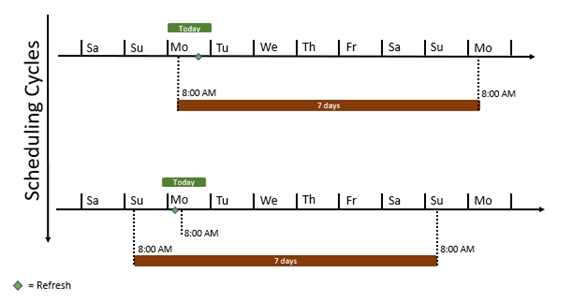
When validating the plan later, compare its displayed start and end dates with your intended 90-day window. If the dates look shifted, first confirm the plan’s run time and cycle setup before assuming demand dates or lead times are wrong.
Select the planning calendar
Select the collected planning calendar that represents operational working time for the scoped organization. Use the calendar that governs when the organization can receive, make, transfer, or process supply in the scenario.
This distinction prevents a common design error:
- The planning calendar controls valid planning dates and how the plan treats nonworking days.
- A forecast spreading calendar distributes a bucketed forecast across dates. It does not replace the operational calendar.
If the plan sees a nonworking Friday and the next workday is Monday, a planned receipt may be dated Monday even when the demand is dated Friday. That can be correct calendar behavior, or it can reveal that the wrong calendar was selected. You need the calendar choice documented to tell the difference.
A useful implementation record is:
| Record | Value selected | Validation evidence |
|---|---|---|
| Plan horizon | 90 days | Plan Options and eventual plan start/end dates |
| Planning calendar | <calendar name> | Calendar Details shows expected work and nonwork dates |
| Demand organization | <organization> | Scope tab |
| Source organization, if used | <organization> | Scope tab |
Configure demand schedules and organization-level netting
Demand schedules determine the demand stream the supply plan sees. Organization-level netting determines which demands and supply types are allowed to offset one another.
Supply Plan Options for Organizations and Schedules
Read Oracle’s guidance on the Organizations and Schedules portion of Supply plan options. It is particularly useful for separating operational calendar choices, supply and demand netting, and Demand Management measure selection.
In “Supply Plan Options for Organizations and Schedules,” read the opening explanation of Organizations and Schedules. In the “Organizations” content, read the passages beginning with subinventory netting and with demand and supply netting. Then, under “Demand Schedules,” read the supported schedule types and measure-selection rule. If your schedule comes from Demand Management, also note the dependent-demand behavior.
Add exactly the intended demand schedule
Navigate to Plan Options, then the Supply area. In some 26B page layouts, Organizations and Demand Schedules are separate subtabs; in others, they appear together under Organizations and Schedules.
- Open Demand Schedules.
- Select Add.
- Choose one schedule type:
- Demand for a demand schedule sourced from Demand Management.
- External for an externally loaded demand schedule.
- Use another type only where it matches an approved solution design, such as a Sales and Operations scenario.
- Select the specific demand schedule.
- For a Demand schedule, use Select for Demand Measures and choose the intended end-item demand measure. Confirm the measure represents the approved forecast you want supply planning to fulfill.
- Save the row.
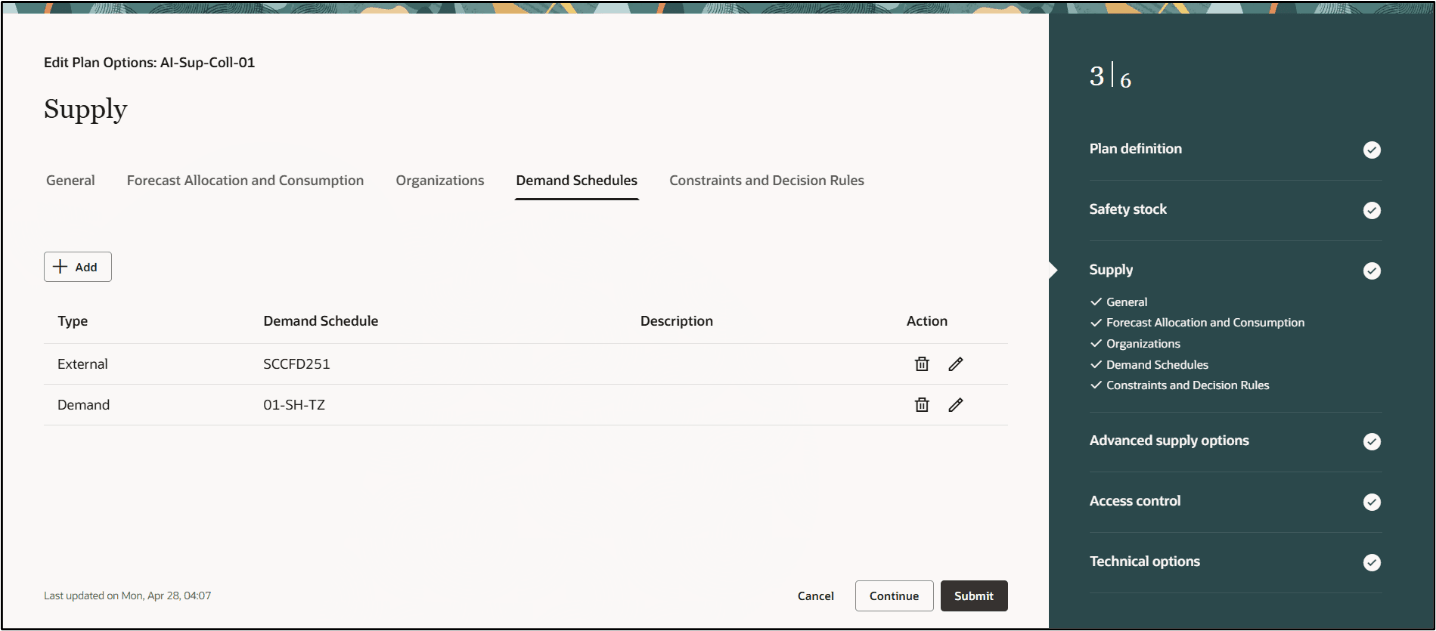
For a controlled Demand Management integration, the important question is not merely “Was the schedule added?” It is: Which forecast measure does this schedule expose to Supply Planning?
Where configured Demand Management dependent demand is relevant, Supply Planning can bring in option-level forecast demand because the explosion is not performed there. If model or option demand must not be planned downstream, resolve that through the approved Demand Management measure design. Do not suppress it by excluding apparently inconvenient supply records after the plan runs.
Configure netting by organization
Open the Organizations subtab and select your demand organization. New plans generally have demand and supply netting enabled by default. Treat each checkbox as a business-policy decision.
Use this baseline:
| Netting area | Baseline setting | Reason |
|---|---|---|
| On-hand quantity | Enabled for usable inventory | The plan should consume inventory that is physically and operationally available. |
| Purchase orders | Enabled | Open supply should reduce new purchase recommendations. |
| Transfer orders | Enabled if transfer is part of the scenario | Existing in-transit or planned transfer supply must be visible. |
| Work orders | Enabled when manufacturing supply is valid | Existing production supply should net demand. |
| Sales orders | Enabled | Firm customer demand should be planned. |
| Reservations | Enabled if reservations are collected and used in the process | Prevents treating reserved inventory as freely available. |
| Quality-hold or nonusable subinventory | Disabled | Inventory that cannot serve demand should not eliminate a shortage. |
For Subinventory Netting, include only subinventories whose inventory is genuinely usable for the supply plan’s purpose. A quarantine or quality-hold subinventory is a standard exclusion. If it remains enabled, the plan can consume unusable on-hand quantity and understate shortage risk.
For Demand and Supply Netting, avoid changing default selections simply to make a result look better. Disabling purchase orders, on-hand, or sales orders changes the model’s business meaning:
- Excluding on-hand creates additional recommendations because the plan cannot use inventory.
- Excluding open purchase orders can create duplicate supply recommendations.
- Excluding sales orders can make the plan look overstocked while ignoring firm demand.
- Excluding reservations can make reserved stock appear available to unrelated demand.
If the Forecast Spreading Calendar is relevant, set it deliberately for each organization. Use it when a higher-level forecast needs to be distributed across lower-level planning dates. Do not select it merely because you have a planning calendar; the two settings solve different problems.
Leave advanced forecast allocation and consumption design for the connected-planning module. For this lesson, the implementation objective is to establish one clear, nonduplicated demand input and prove that the plan is netting the intended operational supply and demand types.
Validate the configuration before the first plan run
Do not begin troubleshooting solver results until this checklist is complete. Reopen Edit Plan Options after saving; a successful save alone does not prove that every selected value is the intended one.
Pre-run validation checklist
| Check | What to verify | Evidence to capture |
|---|---|---|
| Plan identity | Correct name, owner, type, and access level | Manage Plans search result |
| Plan mode | Unconstrained is displayed | General plan details |
| Scope | Intended demand and source organizations are included | Scope tab screenshot or configuration log |
| Item scope | Your test item is eligible in the plan | Scope tab and collected item assignment |
| Horizon | 90-day rolling horizon is configured | Horizon setting |
| Planning calendar | Correct organization calendar is selected | Calendar name and one known nonwork date |
| Demand schedules | One approved schedule is present, with the correct type | Demand Schedules grid |
| Demand measure | Intended end-item measure is selected for a Demand schedule | Demand Measures dialog |
| Supply netting | Usable on-hand and valid open supply types are enabled | Organizations subtab |
| Subinventory netting | Quality-hold or other unusable subinventories are excluded | Subinventory list |
Capture this configuration as part of your lab evidence. In an implementation interview, this record demonstrates that you know a plan is defined by its inputs and policies, not just by the fact that it ran successfully.
Common configuration failures and root-cause path
The organization is missing from the Scope list
- Confirm that the organization is enabled and planning-relevant in the source application.
- Confirm that it was included in the collection scope and that collection completed successfully.
- Review Planning data access for your user.
- Verify collected organization records in the Planning Data Repository.
Do not create a broad plan with unrelated organizations just to continue the lab. That masks the collection or security defect.
The demand schedule is unavailable or cannot be selected
- Confirm the upstream demand plan or external schedule exists and is available for planning.
- Verify that the schedule’s organization and item dimensionality overlaps with the supply plan scope.
- Check that relevant demand data was collected or loaded.
- Verify you have access to the schedule and plan data.
The plan has a Demand schedule but later shows no forecast demand
- Recheck the selected demand measure.
- Confirm forecast dates fall inside the supply-plan horizon.
- Check whether the forecast exists at a level the downstream plan can use.
- Check whether dependent-demand handling is intentionally bringing in, or excluding, option demand.
- Verify the demand schedule was not replaced by a similarly named but empty schedule.
Planned dates appear on unexpected days
- Confirm the plan’s start date and horizon at the time of the run.
- Inspect the selected planning calendar’s working days, exceptions, and shift pattern.
- Verify the calendar collected for the organization is the one selected in plan options.
- Only then review lead times and supplier or transfer calendars.
The plan proposes supply despite apparently sufficient inventory
- Check whether the on-hand subinventory is enabled for netting.
- Check reservations and whether the inventory is already allocated.
- Verify that the on-hand quantity belongs to an organization within scope.
- Review whether the inventory is available on the required date, not merely present at some point in the horizon.
Interview-ready explanation
A concise senior-functional explanation of this configuration would be:
“I start by defining a small, traceable supply-plan scope and selecting unconstrained mode to establish a material-feasible baseline. I select only the organizations that participate in the flow, set a horizon that covers cumulative lead time, and use the organization’s operational calendar so recommendations respect working days. I then add a single approved demand schedule and verify the Demand Management measure behind it, because duplicate schedules or the wrong measure directly inflate supply. Finally, I validate on-hand, open supply, demand, reservations, and subinventory netting at organization level before running the plan. If a record is missing, I trace collection, source setup, repository data, and security before changing plan options.”
Wrap-up
You have created a baseline supply plan and configured its essential planning policy:
- Unconstrained mode provides a material-focused reference scenario.
- Scope limits the plan to the organizations and items you can validate end to end.
- A rolling horizon must cover cumulative lead time and should be interpreted with the plan cycle and start date.
- The planning calendar controls operationally valid dates; it is distinct from a forecast spreading calendar.
- A demand schedule must be selected once, with the correct schedule type and demand measure.
- Netting options determine whether the plan can use on-hand, purchase, transfer, work-order, reservation, and subinventory data.
Next, you will configure a sourcing rule and assignment set for a buy-or-transfer scenario, then prove that the supply plan applies that sourcing policy to the planned item and organization.
Can't find a good explanation? Sign up and we'll make it for you
Sign up