
Good to see the project after its first successful run. You have already completed the essential local loop: Kotlin/Compose source was built by Gradle, installed on the emulator, and launched as an Android app. Now the aim is to make the generated project legible enough that, when a build or configuration problem appears, you know which kind of file to inspect first.
Plan for about 40–45 minutes. By the end, you will be able to switch between Android Studio’s convenient logical view and the real directory structure, then locate the Gradle configuration, manifest, Kotlin source, resources, and generated outputs in your TapToDodge project.
Android Studio shows two useful—but different—project views
Open the Project tool window on the left side of Android Studio. At its top is a view selector that usually starts as Android.
The default Android view is designed for navigation. It groups files by Android concepts such as manifests, Kotlin/Java, and resources. This is convenient while editing, but it is not a literal representation of the directories on disk. It can combine folders, omit generated files, and make source sets look flatter than they really are.
Switch that selector to Project when you need the actual filesystem hierarchy—the same hierarchy you would see in a terminal, Finder, or file explorer.
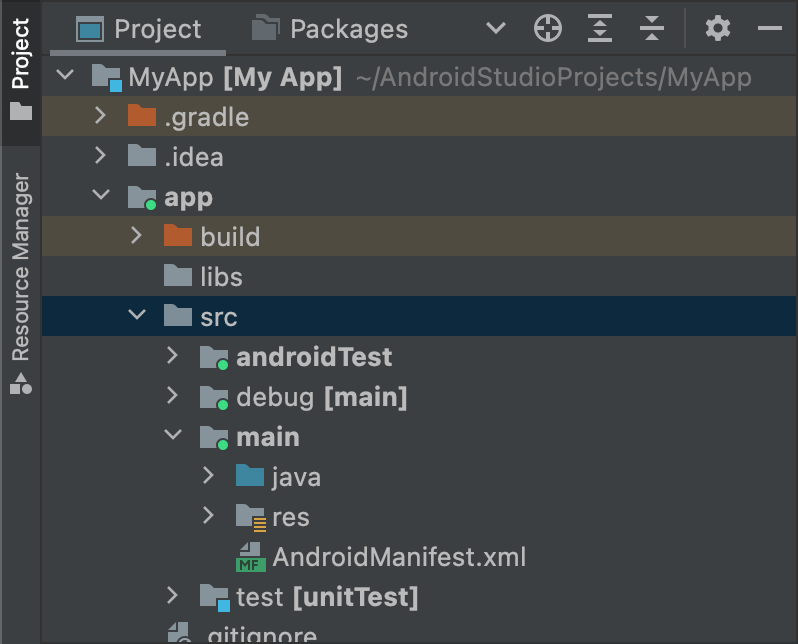
For this lesson, leave the Project tool window in Project view. The image shows the important idea: src contains source sets, while build is created by the build system.
Android build structure | Android Studio | Android Developers
Read Android Developers’ directory-tree overview to connect the paths in Android Studio with each file’s responsibility. It is especially useful for separating version-controlled build configuration from generated or machine-specific files.
On the “Android build structure” page, read the root-project table beginning with the .gradle row and continuing through the gradle/ wrapper entries. Focus on the root configuration entries: which files describe the build and which ones should not be edited or committed. Then read the app/ module row and its build.gradle(.kts) row. Pay particular attention to the module boundary and module build file. Finish with the src/, main/, java/kotlin/, res/, and manifest rows in the source-set portion of the table, from source sets through the entries for Kotlin, resources, and manifest metadata. Notice that main is the shared base for the app’s build variants.
A practical rule follows:
Use Android view to work quickly with app concepts; use Project view to reason precisely about paths, generated outputs, source control, and Gradle behavior.
Start at the project root: files that define the build
At the top of the Project view is the project root, perhaps named TapToDodge. It is a Gradle project that currently contains one Android application module, conventionally named app.
A simplified current Kotlin/Compose project commonly looks like this:
TapToDodge/
  app/
    build.gradle.kts
    src/
      main/
        AndroidManifest.xml
        java/com/example/taptododge/MainActivity.kt
        res/
      test/
      androidTest/
    build/
  gradle/
    libs.versions.toml
    wrapper/
  build.gradle.kts
  gradle.properties
  gradlew
  gradlew.bat
  local.properties
  settings.gradle.kts
Your project may differ in small details. In particular, some projects use .gradle rather than .gradle.kts, and Kotlin source can live in a directory named kotlin/ instead of java/. The roles remain the same.
The root-level Gradle files
Locate these at the project root, not inside app/:
| Path | Primary responsibility | Typical reason to inspect it |
|---|---|---|
settings.gradle.kts | Defines the project and which modules Gradle includes; configures plugin and dependency repositories. | Gradle does not recognize a module, or a multi-module project is configured incorrectly. |
build.gradle.kts | Holds project-wide plugin declarations or shared setup. | A plugin version or common build plugin configuration is involved. |
gradle/libs.versions.toml | Central version catalog for library and plugin versions in many modern templates. | You need to identify or update a dependency version consistently. |
gradle.properties | Gradle execution settings, such as JVM memory, caching, and Android-related flags. | A build environment or performance setting is relevant. |
gradlew and gradlew.bat | The Gradle Wrapper scripts for macOS/Linux and Windows respectively. They run the project’s specified Gradle version. | You need a reproducible command-line build. |
local.properties | Local-machine configuration, often including the Android SDK path. | A machine cannot find its SDK. Do not commit it. |
Two similarly named directories deserve deliberate distinction:
gradle/is part of the project configuration. It includes the Wrapper configuration and often the version catalog. It normally belongs in source control..gradle/is a Gradle-managed local cache. Do not edit it, and do not treat it as source.
This separation is useful in technical triage. A reproducible issue is more likely to involve tracked build files such as app/build.gradle.kts or libs.versions.toml. An issue isolated to one workstation may involve local.properties, a missing SDK component, or a local cache.
settings.gradle.kts answers “what is in this build?”
Open settings.gradle.kts. In a fresh project, look for an inclusion of the application module, often conceptually equivalent to:
include(":app")
This makes app a Gradle subproject—called a module in Android Studio. A project can later include feature modules or shared libraries, but for the game at this stage, app is the module that becomes the installable Android app.
The app module build file answers “how is this app built?”
Now open:
app/build.gradle.kts
This is one of the highest-value files in an Android project. It is where the module declares:
- the Android application and Kotlin/Compose plugins;
- the app namespace and application identity;
compileSdk,minSdk, andtargetSdk;- version code and version name;
- dependencies such as Compose libraries; and
- build behavior specific to this module.
You selected a minimum SDK when creating the project. That setting is represented here, usually inside the defaultConfig block. For the moment, do not modify it. The important recognition skill is this:
- A question about app SDK compatibility, dependencies, versioning, or Compose build features usually starts in
app/build.gradle.kts. - A question about which modules or repositories Gradle can see often starts in
settings.gradle.kts. - A question about a centralized dependency version may start in
gradle/libs.versions.toml.
Enter the app module: src is input, build is output
Expand the app/ directory. Two directories establish a useful mental boundary:
app/src/contains the human-authored inputs used to build the app: Kotlin code, resources, manifest metadata, and tests.app/build/contains material Gradle generates from those inputs: compiled intermediates, processed resources, reports, and final distributable artifacts.
Do not edit files under app/build/. A clean build can delete and recreate them at any time.
Source sets organize code for different contexts
Inside app/src/, locate these directories:
app/src/main/
app/src/test/
app/src/androidTest/
main is the source set that contributes to the normal application. Its files are used for both debug and release builds unless a more specific source set supplies an override.
test holds local unit tests. These usually run on your development machine rather than on an emulator.
androidTest holds instrumented tests, which run on an Android device or emulator and can use Android framework APIs.
You may also see app/src/debug/, as in the project-view image. That is a variant-specific source set: its contents participate in debug builds but not release builds. You do not need to create or edit it now; just recognize that it is an intentional place for debug-only configuration or assets.
For the game code you write in the next modules, your normal destination will be app/src/main/.
The three essential items under src/main
Expand app/src/main/. It contains three different kinds of app input:
app/src/main/
  AndroidManifest.xml
  java/ or kotlin/
  res/
1. AndroidManifest.xml: the app’s declaration to Android
Find and open:
app/src/main/AndroidManifest.xml
The manifest is metadata read by Android’s package manager. It declares facts the system needs to know before or while it runs your app, including:
- application-level configuration;
- Android components, including activities;
- permissions the app requests;
- hardware or platform compatibility requirements; and
- launcher behavior.
The manifest is not where the screen’s visual content is defined in a Compose project. Its role is declarative: it tells Android what the app is and what capabilities it asks for. You will return to it in the app-components module, when permissions and component declarations become practical concerns.
2. java/ or kotlin/: Kotlin implementation code
Find MainActivity.kt, normally at a path resembling:
app/src/main/java/com/example/taptododge/MainActivity.kt
Despite the folder name java, it can contain Kotlin source. Android’s conventional java/ source root supports both Java and Kotlin, so the directory’s name does not mean your Compose project is written in Java.
In your generated project, MainActivity.kt contains the code you edited in the previous lesson: the activity’s onCreate() method and the Compose setContent call. As the game grows, Kotlin files for the game screen, state model, collision logic, and data handling will all live under this package hierarchy.
You will likely also see a package such as:
app/src/main/java/com/example/taptododge/ui/theme/
The theme-related Kotlin files are implementation code too; they define how the Compose UI applies colors, typography, and theming conventions.
3. res/: named Android resources
Find:
app/src/main/res/
This is Android’s resource directory. Resources are named, structured values and assets that Android processes during the build. A Compose app does not normally need XML layout files, but it still uses resources extensively.
A new Compose project commonly contains folders such as:
Directory under res/ | Typical contents |
|---|---|
drawable/ | Drawable XML definitions or image-like resources. |
mipmap-*/ | Launcher icons at different density buckets. |
values/ | XML files for strings, colors, themes, and other named values. |
xml/ | Other structured XML configuration files, when required. |
Open res/values/strings.xml if it exists. This is a common location for user-visible text such as the app name. In later lessons, you will use resources deliberately for strings, colors, dimensions, images, and themes. For now, distinguish them from Kotlin code:
- Kotlin expresses behavior and UI logic.
- Resources provide named values and packaged assets that Android can select appropriately for devices and configurations.
- The manifest provides system-facing app metadata.
Watch the short project-structure walkthrough in “Android Project Structure” by Ben Kadel. It reinforces the distinction between generated build artifacts, source sets, Kotlin/Java code, resources, and the manifest in a real Android Studio project tree.
Watch build artifacts to see why app/build/ appears after compilation and where a debug APK is placed. Then watch source sets for the separation of main, test, and androidTest. Finish with main contents, focusing on the distinct purposes of the code directory, res/, and AndroidManifest.xml.
Trace one build from source to output
The project becomes much easier to navigate when you can trace an observed behavior back to its source file, and a build artifact back to the configuration that produced it.
Consider the greeting text you changed in the last lesson.
- You edited
MainActivity.ktbeneathapp/src/main/java/.... - The module’s
app/build.gradle.ktstells Gradle how to compile that module and which dependencies it needs. - Gradle processes Kotlin source, resources, and manifest metadata into Android build artifacts.
- The debug artifact is written under the module’s generated
app/build/directory. - Android Studio installs that debug artifact on the emulator when you press Run.
The output location for a conventional debug APK is:
app/build/outputs/apk/debug/app-debug.apk
This artifact is created by the build, not manually authored. It is appropriate to inspect or share internally when you explicitly need a debug APK, but not to edit.
There may also be a root-level build/ directory:
TapToDodge/build/
It is generated too, but it tends to hold project-wide or shared build material. The module-level app/build/ is the more relevant place when looking for an application artifact.
Later, when preparing a Play release, you will build a signed Android App Bundle. Its conventional generated location is:
app/build/outputs/bundle/release/
The precise release filename and its availability depend on your release configuration. The important distinction now is that both the debug APK and a release bundle are outputs—they are derived from source and Gradle configuration, rather than places to write application logic.
A focused recognition pass in your project
With TapToDodge open in Project view, take five minutes to expand folders and open each of these items once:
- At the root, open
settings.gradle.kts,build.gradle.kts, andgradle/libs.versions.tomlif present. - Under
app/, openapp/build.gradle.kts. - Under
app/src/main/, openAndroidManifest.xml. - Under the
java/orkotlin/source root, reopenMainActivity.ktand identify the greeting you edited. - Under
res/, inspectvalues/and locate a resource XML file. - Expand
app/build/outputs/and look forapk/debug/app-debug.apk.
If app/build/outputs/apk/debug/ is not present, run the app again or use Build > Make Project, wait for a successful build, and refresh or expand the build directory. Its absence before the first build is normal.
A useful habit is to read a path from right to left when diagnosing:
| Observed need | First location to inspect |
|---|---|
| “Where is the code that renders this?” | app/src/main/java/... or app/src/main/kotlin/... |
| “Where is the app name, icon, or reusable string?” | app/src/main/res/ |
| “Where does Android learn about this app or permission?” | app/src/main/AndroidManifest.xml |
| “Why does this dependency, SDK level, or version apply?” | app/build.gradle.kts, then possibly libs.versions.toml |
| “Why is Gradle not seeing this module?” | settings.gradle.kts |
| “Where is the generated APK from the successful debug build?” | app/build/outputs/apk/debug/ |
Keep authored files and generated files separate
For reliable builds and clean source control, treat these categories differently:
Usually authored and tracked in Git
- Kotlin source under
app/src/main/ - resources under
app/src/main/res/ AndroidManifest.xml- Gradle build scripts, settings, wrapper files, and version catalog
- tests under
app/src/test/andapp/src/androidTest/
Generated or machine-specific
app/build/and rootbuild/.gradle/local.properties
The final group is why deleting build outputs can often resolve stale-artifact confusion without losing your actual app code. The next build reconstructs generated files from the authored configuration and source inputs.
You can now navigate an Android project at the level needed for productive development and initial troubleshooting:
- Project view reveals the real directory hierarchy; Android view provides a simplified, conceptual grouping.
- Root Gradle files define the overall build, while
app/build.gradle.ktsconfigures the Android application module. app/src/main/contains the manifest, Kotlin source, and resources used by the main app.testandandroidTestare separate test source sets.app/build/contains generated artifacts, including the conventional debug APK underoutputs/apk/debug/; it should not be edited.
Next, the course moves into Kotlin essentials, beginning with variables, basic types, operators, and string templates for representing game data.
Can't find a good explanation? Sign up and we'll make it for you
Sign up