
Hello again. Your Unity project now has a stable home, Android support, and a Git history. This lesson gives you the mental map needed to work inside that project without treating the Unity Editor as a collection of mysterious panels.
You will learn how Unity separates files you own from objects currently arranged in a level, and how components and C# scripts give those objects their appearance and behavior. By the end, you should be able to look at an item in the Project window or Hierarchy and explain what it is, where it belongs, and what changing it affects.
One project, two closely related worlds
A Unity project has a project-file world and a scene world.
The project-file world is stored on disk, mainly in the Assets folder. It contains your reusable source material: artwork, sounds, animations, scene files, C# files, and more. Unity calls these items assets.
The scene world is the particular arrangement of objects that makes up a level, menu, or gameplay area. A scene is itself saved as an asset, usually a .unity file, but when you open it in the Editor it contains GameObjects arranged in a world.
For the arena game, you might eventually have:
| Term | Example in your game | Main place to find it |
|---|---|---|
| Asset | Player.png, PlayerController.cs, HitSound.wav, Arena.unity | Project window |
| Scene | The loaded arena level, containing walls, players, camera, and UI | Scene view and Hierarchy |
| GameObject | A particular Player, wall, camera, or score-display object in the arena | Hierarchy |
| Component | Transform, Sprite Renderer, Rigidbody2D, Collider2D, or PlayerController | Inspector |
| C# script | The PlayerController.cs source file that defines custom behavior | Project window; once attached, Inspector |
The key distinction is this:
- An asset is a reusable project resource.
- A GameObject is an object placed in a particular scene.
- A component gives a GameObject data or capability.
- A C# script can define a custom component.
For example, a player image is an asset. Placing that image into the arena does not merely make “the image” part of the game; Unity creates or uses a GameObject that can hold a Sprite Renderer component referring to that sprite asset. Several GameObjects can use the same sprite asset without making separate copies of the image file.
Orient yourself in the Editor
Unity’s main windows make more sense once you know which world each window represents:
- Project window: your project’s available assets.
- Hierarchy window: every GameObject in the currently open scene.
- Scene view: an editor view of the current scene, used to arrange and inspect GameObjects.
- Inspector: the details for whichever GameObject or asset you have selected.
- Game view: what an in-game camera renders when you test the game.
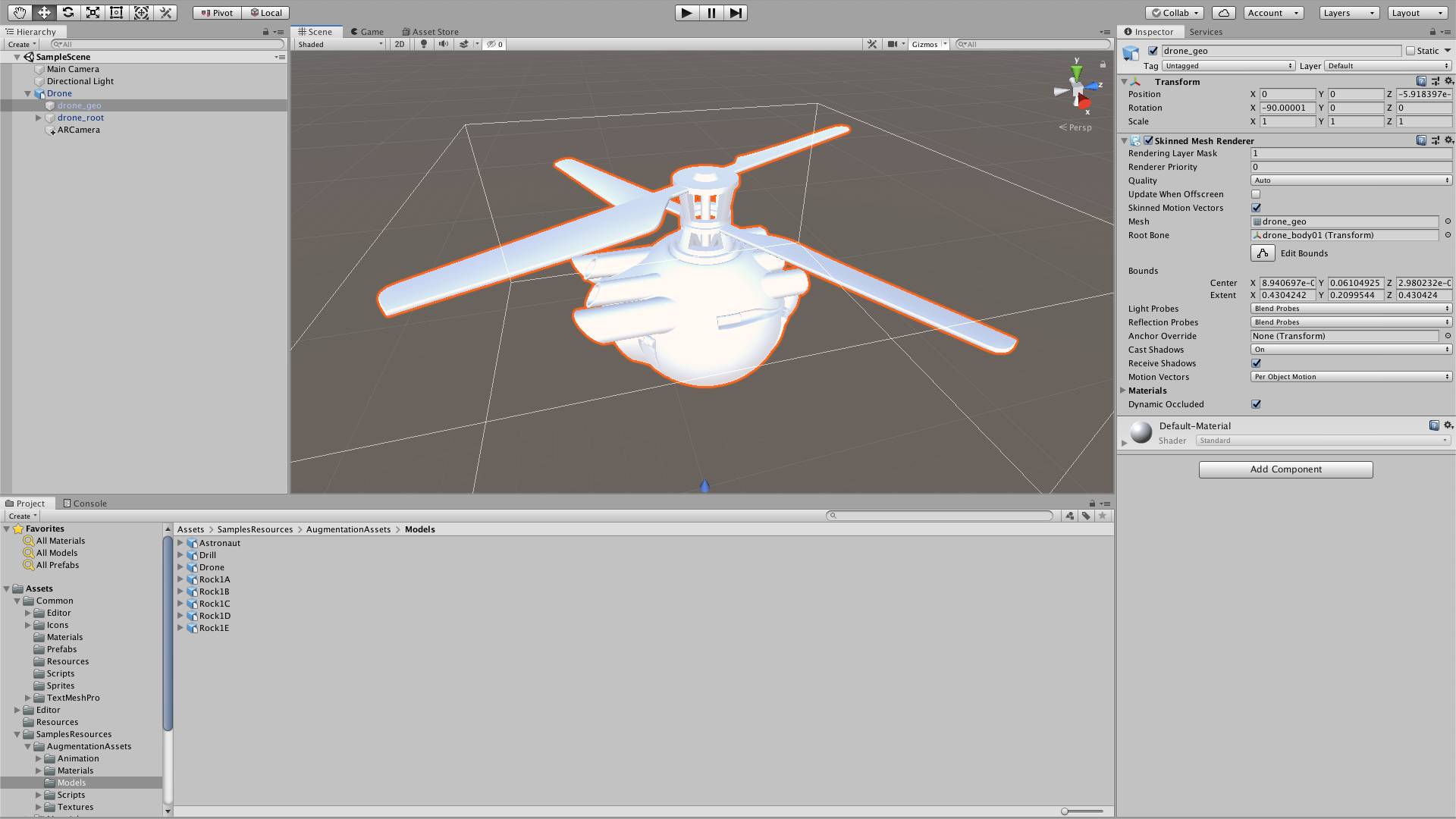
A useful habit is to ask: “Did I select an asset or a GameObject?”
If you select an item in the Project window, the Inspector generally shows information about the source asset: for example, sprite import settings, audio settings, or the contents of a script file.
If you select an item in the Hierarchy, the Inspector shows the components attached to that specific GameObject. This is where you configure where an object is, whether it is visible, whether it collides, and how its attached scripts behave.
Game Objects and Components - Unity Official Tutorials
Watch Unity’s short “Game Objects and Components” tutorial to see the GameObject–component model and the Editor windows working together.
Watch the core model for the definition of GameObjects, components, and Transform. Continue with adding components to see that scripts are attached in the same way as built-in components. Finish with Hierarchy structure, focusing on how every GameObject in the active scene appears in the Hierarchy.
GameObjects are containers, not pre-made behaviors
A GameObject is Unity’s general-purpose object in a scene. It can represent something visible, such as a player or arena wall, but it can also represent something invisible, such as a spawn point, a sound location, or a game-rules manager.
On its own, a GameObject is deliberately minimal. It becomes useful through its components.
Every GameObject has exactly one Transform component. Transform records the object’s position, rotation, and scale. In your 2D arena, you will mostly work with the and positions, while Unity still retains a depth value for ordering and camera relationships.
Other components add specific responsibilities:
| Component | Responsibility | Likely use later |
|---|---|---|
| Sprite Renderer | Draws a 2D sprite asset | Player and arena visuals |
| Rigidbody2D | Lets Unity’s 2D physics system move an object | Player movement |
| Collider2D | Defines a shape used for collisions or trigger detection | Walls, projectiles, melee ranges |
| Camera | Produces the visual output shown in Game view | Following the local player |
| Audio Source | Plays an audio clip asset | Attacks, damage, and UI feedback |
| Your script component | Adds custom rules and behavior written in C# | Input, combat, health, scoring |
A GameObject can have many components at once. Its role comes from their combination, not from a special “player object” category built into Unity. A player might be a GameObject with a Transform, Sprite Renderer, Rigidbody2D, Collider2D, and a future PlayerController script component. A wall might be much simpler: Transform, Sprite Renderer, and Collider2D.
Unity - Manual: Introduction to GameObjects
Read Unity’s “Introduction to GameObjects” manual page for the official description of GameObjects as component containers and the cube example that makes the component stack concrete.
Read the opening explanation, the cube example, and the first paragraph of Details. Start at the core model; then continue through the cube’s Mesh Filter, Mesh Renderer, and Box Collider example. In Details, focus on the statement that every GameObject has a Transform and that scripts can add functionality.
The cube image below is 3D, while your game will be 2D, but the anatomy is the same: a selected GameObject on the left and its component stack in the Inspector on the right.

Notice that components are not just visual features. A Collider can be invisible. A script component may have no visual presence at all. In gameplay terms, these invisible components often do the most important work.
Assets become useful through references
Assets are the reusable building blocks stored in the project. They do not all become GameObjects, and that distinction prevents many beginner mistakes.
A sprite image, for instance, is an asset. You may use that one sprite in the player portrait, in a world object, and in a menu preview. Those usages can be different GameObjects, each with its own Transform and other components, while all refer to the same source sprite.
Similarly:
- An audio clip asset can be referenced by several Audio Source components.
- A C# script asset can be attached to many GameObjects.
- A scene asset stores a particular arrangement of GameObjects and their component settings.
- A material asset can be used by multiple renderers.
This reuse is one reason Unity projects remain manageable as they grow. You change the original sprite asset once; GameObjects that use it display the updated result. But if you move one player GameObject in the scene, you change only that instance’s Transform, not every use of the sprite.
The Unity Learn guide gives a concise window-based explanation of this distinction.
Set up the Unity Editor - Unity Learn
Read the relevant parts of Unity Learn’s “Set up the Unity Editor” tutorial to connect the Project, Hierarchy, Scene, and Inspector windows to the asset-versus-GameObject distinction.
In 1. Set up the Editor’s Layout, read the layout overview and the four-window list that follows it. Then read 2. Organize your project files through the subsection How to organize GameObjects in the Hierarchy. Stop before 3. Install a package via the Package Manager. Focus especially on the Project window as the home of available assets and the Hierarchy as the list of GameObjects used in the current scene.
A scene can also contain parent and child GameObjects. A parent GameObject is often used to organize a group or move it as a unit. For example, an empty GameObject called Arena might contain child objects for Walls, SpawnPoints, and Decorations. This changes the Hierarchy’s organization; it does not turn the parent into a separate type of asset.
Where C# scripts fit
A C# script begins as a .cs file in the Project window. That file is an asset: it is source code saved in your project and tracked by Git.
For the kind of gameplay scripts you will write in this course, the script inherits from MonoBehaviour. When Unity compiles such a script and you attach it to a GameObject, Unity creates a script component instance on that GameObject.
This is the relationship to remember:
| What you see | What it means |
|---|---|
PlayerController.cs in Project | One reusable C# script asset |
PlayerController section in the Player Inspector | One component instance using that script |
| The same script attached to two players | Two separate component instances, each with its own settings and runtime state |
| Edit and save the script file | Unity recompiles the shared code used by those instances |
A script component can read and change other components on its GameObject. Later, a PlayerController script will work with the player’s Rigidbody2D to move the player. A Health script will manage health values and communicate with UI or other gameplay systems. The script does not replace those components; it coordinates them according to rules you define.
This is also why selecting a script asset is different from selecting a GameObject that uses the script:
- The script asset is the reusable code definition.
- The script component is that definition applied to one particular object.
- Fields Unity can serialize appear in the component’s Inspector, allowing you to tune values for that instance without changing the code. You will use this in the next lesson.
A short Editor investigation
Spend about 10 minutes making this model visible in your own project. You do not need to write any code yet.
- Open your project and find the Hierarchy, Project, Scene, and Inspector windows. If a window is missing, open it from Unity’s Window menu.
- In the Hierarchy, select Main Camera. Identify its Transform and Camera components in the Inspector.
- Select the scene file, usually
SampleScene, in the Project window. Notice that the Inspector is now describing a scene asset rather than the camera GameObject. - In the Hierarchy, right-click and choose Create Empty. Rename the new GameObject
SceneNotes. - With
SceneNotesselected, inspect its Transform. It has no visible appearance, but it is still a valid GameObject in the scene. - In the Project window, create a folder named
Scriptsif one does not already exist. Inside it, create a MonoBehaviour Script or C# Script, depending on the wording in your Unity version. Name itSceneNotesBehaviour. - Drag the
SceneNotesBehaviourscript from the Project window onto theSceneNotesGameObject in the Hierarchy. Its name should now appear as a component in the Inspector. - Save the scene. In GitHub Desktop, inspect the changed scene and script files before committing when you reach a comfortable checkpoint.
Do not worry if SceneNotesBehaviour does nothing. That is the point: a script component is a place for behavior, but behavior appears only after you write instructions inside the C# file.
A compact mental model for the arena
When you begin building the arena, read the Editor like this:
- The Project window holds the player artwork, sound effects, C# files, and the arena scene file.
- Opening the arena scene fills the Hierarchy with the particular GameObjects in that level.
- Selecting
Playerin the Hierarchy exposes its component stack in the Inspector. - A Sprite Renderer component refers to a sprite asset; a future PlayerController component uses the
PlayerController.csscript asset. - Pressing Play creates a temporary test of the currently open scene. Changes made during Play mode usually revert when you stop, so make durable scene edits outside Play mode.
Key takeaways
Unity projects are built from assets, while scenes arrange GameObjects that use those assets. GameObjects are containers, and their capabilities come from attached components. Every GameObject has a Transform; additional components make it visible, physical, audible, interactive, or programmable.
A C# file is an asset. When a MonoBehaviour script is attached to a GameObject, it becomes a custom component instance that can define that object’s gameplay behavior.
Next, you will begin using C# directly: variables, primitive data types, operators, and serialized fields for values you can tune in the Inspector.
Can't find a good explanation? Sign up and we'll make it for you
Sign up