
Microsoft Security Workflow Concepts: Alerts, Incidents, Evidence, Entities, Actions, and Remediations
Hello again. In the previous lesson, you mapped Microsoft Sentinel, Defender XDR, Defender for Endpoint, Entra ID, Purview, and Defender for Cloud to their primary security functions. This lesson moves from which product does what to the operational vocabulary used when analysts work a case.
By the end, you should be able to look at a Microsoft security workflow and distinguish the detection signal (alert), the analyst’s case (incident), the supporting artifacts (evidence), the involved objects (entities), the steps taken (actions), and the threat-reducing steps (remediations). These distinctions appear constantly in SC-200 scenario questions.
The six terms: one investigation, different layers
A security event may begin with something small: an email gateway sees a suspicious attachment, an endpoint sensor sees PowerShell launch it, or an identity service sees an unusual sign-in. The SOC must avoid treating every signal as a confirmed breach. Microsoft’s workflow separates the signal, its context, the investigation record, and the response.
| Term | Practical meaning | Key question it answers |
|---|---|---|
| Alert | A security service’s signal that suspicious or malicious activity may have occurred | What needs attention? |
| Incident | A correlated investigation case that groups related alerts, assets, evidence, and activity into an attack story | What broader security situation are we handling? |
| Evidence | Supporting events and artifacts examined during investigation, such as emails, files, processes, URLs, IP addresses, or sign-in records | What supports or refutes the suspicion? |
| Entity | A named, trackable object involved in the case, such as a user, device, mailbox, file, IP address, app, or cloud resource | Who or what is involved? |
| Action | Any recorded analyst or automated operation, including assignment, tagging, investigation, approval, or response | What did a person or system do? |
| Remediation | An action intended to remove, contain, or neutralize a confirmed threat or its impact | What reduced the risk? |
Two relationships are worth memorizing:
- An incident can contain multiple alerts.
- A remediation is a kind of action, but not every action is remediation.
For example, assigning an incident to an analyst is an action, but it does not make the environment safer. Isolating a compromised device is both an action and a remediation because it reduces the attacker’s ability to use that device.
To see these objects in the Defender XDR interface, watch Microsoft Security’s concise portal walkthrough.
How to manage incidents - Microsoft Defender XDR
Watch “How to manage incidents - Microsoft Defender XDR” from Microsoft Security. It shows how alerts, entities, evidence, automated investigations, and resolution status appear together in one incident.
Start with incident correlation to see the incidents queue and its prioritization context. Then watch attack story, focusing on the graph and chronological alert list. Continue through incident tabs for alerts, assets, investigations, evidence, and summary. Finish with incident resolution to see that resolution includes a status and classification decision.
Alert: a detection signal, not a verdict on the whole case
An alert is produced when a security detection identifies activity that may be malicious or suspicious. Its source might be Defender for Endpoint, Defender for Office 365, Defender for Identity, Defender for Cloud Apps, Defender for Cloud, Microsoft Sentinel, or another connected service.
An alert has a narrow scope. It usually describes one detection finding, such as:
- A malicious attachment was delivered or blocked.
- A device executed a suspicious command.
- A user signed in from an unusual location.
- A cloud application attempted an unusual data download.
- A Sentinel analytic rule detected a pattern in collected logs.
The alert may be high severity, but severity is a prioritization input, not final proof that a major compromise occurred. Conversely, several medium-severity alerts together may reveal a serious attack.
In Defender XDR, an alert can be managed with a status such as New, In progress, or Resolved, and it can be classified. Common classifications include:
- True positive: the detection correctly represents a real threat.
- Informational, expected activity: the detection was technically accurate but arose from authorized activity, a test, or an expected simulation.
- False positive: the detection incorrectly treated benign activity as suspicious.
The distinction between expected activity and a false positive is an exam-relevant trap. A penetration test that correctly triggers a suspicious-behavior alert is not necessarily a false positive. The alert detected the behavior accurately; the activity was simply authorized and expected.
Investigate alerts in Microsoft Defender XDR
Read this Microsoft Learn article to anchor the alert-to-incident distinction and understand the classifications an analyst applies during triage.
In the opening explanation, read the alert definition. Continue immediately through the incident relationship. Then find the “Manage alerts” section and read its classification list, beginning with alert status and ending at the analyst inputs. Focus on why a classification expresses an analyst judgment, while an alert itself is only a detection signal.
Incident: the correlated case and attack story
An incident is the higher-level case record used to investigate and manage a potential attack. Defender XDR correlates related alerts and presents the relevant assets, evidence, activities, and investigations in one place. In a unified environment, Sentinel-originated alerts can also contribute to incident handling.
Think of the difference this way:
- An alert says: “A suspicious process ran on this device.”
- An incident may say: “A phishing message led a user to execute that process, after which the account attempted suspicious cloud activity.”
Correlation saves analyst time, but it is not a guarantee that every linked item is malicious. Analysts still validate the relationship, timeline, and business context.
The incident’s attack story and incident graph help answer four initial questions:
- What happened? Review the alerts and evidence.
- Which entities are involved? Identify users, devices, mailboxes, files, apps, IP addresses, and cloud resources.
- How did activity develop over time? Inspect the chronological alert and event sequence.
- What has already been done? Review the activity log, automated investigation results, and remediation status.
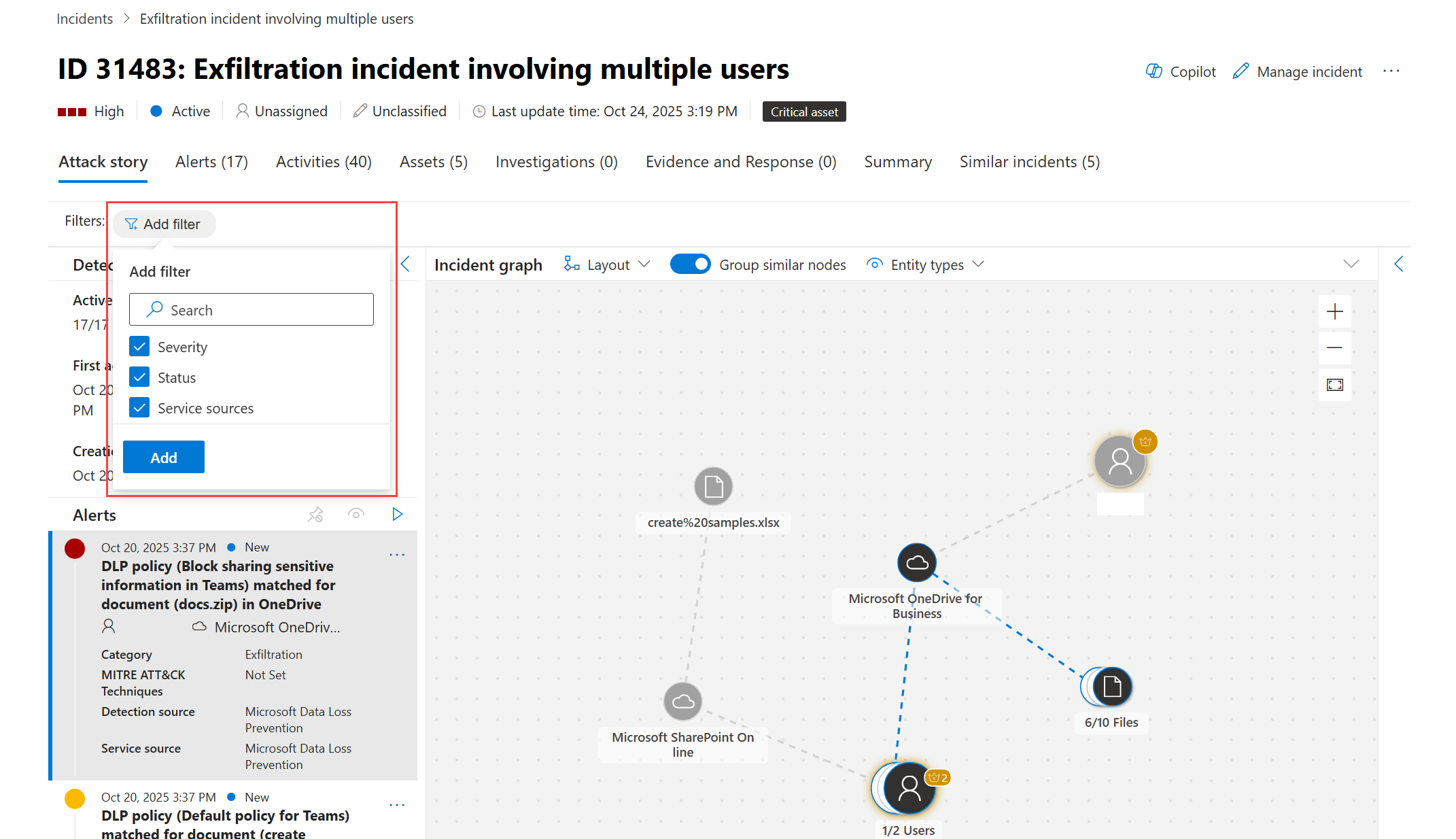
The following image illustrates an exfiltration-related incident in the Defender portal. Notice that the page contains an incident title and severity, a list of related alerts, and an incident graph. The graph visually relates a user, file, OneDrive for Business, SharePoint Online, and other associated entities; it does not by itself prove that each connected object is malicious.
Evidence and entities: related, but not interchangeable
This is the most easily blurred distinction in SC-200 questions.
Evidence is the investigative support
Evidence is the information that helps an analyst determine whether a threat is real, what it affected, and how to respond. It can include:
- An email message and its attachment
- A file hash or file path
- A process name and command line
- A URL, domain, or IP address
- A sign-in event
- A network connection
- A persistence mechanism, such as a service or scheduled task
In Defender XDR’s Evidence and Response view, supported suspicious entities and events can be automatically analyzed. The portal can show verdicts such as Malicious, Suspicious, or Clean, as well as remediation status.
A verdict applies to the analyzed evidence item. It does not mean the whole incident has been resolved. A malicious file can be identified while the user account, other devices, and persistence mechanisms still require investigation.
Entities are the objects you pivot through
An entity is a security-relevant object represented in the investigation. Common entities include:
| Entity type | Examples |
|---|---|
| Identity | User account, service account |
| Device | Laptop, server, virtual machine |
| Messaging | Mailbox, email message |
| File and process | Executable, script, running process |
| Network | IP address, URL, domain |
| Application | Cloud app, enterprise application |
| Cloud | Subscription resource, storage account, workload |
An entity can also be evidence. For instance, a malicious file is both:
- an entity you can select, inspect, hunt for, or take action on; and
- an evidence item whose verdict helps support the incident assessment.
Use the terms according to what the question emphasizes:
- If the question asks for the object affected or an object to map in an investigation, choose entity.
- If it asks for the artifact or event supporting a conclusion, choose evidence.
- If it asks what detection was generated by a product, choose alert.
Microsoft’s incident documentation connects these concepts in the portal workflow.
Investigate incidents in the Microsoft Defender portal
Read the relevant parts of this Microsoft Learn guide as a guided tour of the incident page. It is the best reference for seeing how Microsoft uses the terms alerts, assets and entities, evidence, investigation, and remediation together.
In “Initial investigation,” read the incident overview. In “Attack story,” read the graph explanation; note that the graph is a way to investigate relationships and chronology. Next, in the “Alerts” section, read from the alert timeline discussion. Then review the complete “Activities,” “Assets,” and “Investigations” sections, paying particular attention to the listed asset categories: devices, users, mailboxes, apps, and cloud resources. Finally, in “Evidence and Response,” read the verdict and status explanation, followed by the short “Approve or reject remediation actions” subsection.
Actions and remediations: activity versus risk reduction
An action is any meaningful operation that a human analyst or an automated system performs during the investigation. The incident’s Activities tab records these actions so the team can understand ownership, handoffs, changes, and automated workflows.
Examples of actions that are primarily case-management or investigative actions:
- Assigning an incident to an analyst
- Changing an incident’s status, severity, tags, or classification
- Adding a comment, note, or task
- Running an investigation
- Opening an entity page
- Launching a hunt for a file, user, IP address, or URL
- Approving or rejecting a proposed response action
These actions may be necessary, but none necessarily contain the threat.
A remediation is an action directed at reducing the threat’s impact or removing its cause. Depending on the product, permissions, and policy, remediation can be performed automatically, proposed for approval, or performed manually.
Typical remediation examples include:
- Quarantining or deleting a malicious email
- Blocking a malicious URL, domain, IP address, or file
- Isolating a compromised device
- Removing or quarantining malicious files
- Disabling a compromised account or revoking active sessions
- Resetting credentials after confirmed account compromise
- Removing malicious persistence
- Patching the exploited weakness and returning a cleaned system to service
A useful operational split is:
| Type of step | Example | Is it remediation? |
|---|---|---|
| Triage action | Assign the incident to the on-call analyst | No |
| Investigation action | Use Go hunt for the suspected file hash across devices | No |
| Administrative action | Mark an alert as in progress and add a comment | No |
| Containment action | Isolate the compromised device | Yes |
| Eradication action | Remove the identified malicious file | Yes |
| Recovery action | Restore a cleaned system and monitor for recurrence | Yes |
Do not confuse an incident status with a remediation status:
- An incident may be marked in progress while a remediation is pending approval.
- An incident may be resolved only after the analyst determines it is appropriately handled and provides a classification.
- A pending remediation means an action has been proposed but not yet completed.
- A completed remediation for one evidence item does not automatically prove that every entity in the incident is safe.
This is why analysts examine evidence and remediation status before closure rather than resolving an incident merely because an alert has become quiet.
Walk through a single attack story
Consider this hypothetical case:
A user receives a phishing email with a malicious attachment. The attachment is opened on the user’s laptop, a suspicious process runs, and the same account later shows unusual cloud-app activity.
Here is how the vocabulary applies:
| Item in the scenario | Correct term | Why |
|---|---|---|
| Defender for Office 365 flags the email attachment | Alert | A detection service generated a suspicious-activity signal |
| Defender for Endpoint flags the suspicious process | Alert | A second detection signal, focused on the device |
| Defender XDR groups the related alerts into one case | Incident | It correlates multiple alerts into a broader attack story |
| The user, mailbox, laptop, attachment, process, URL, and cloud app | Entities | They are the identifiable objects involved in or related to the incident |
| Email headers, attachment hash, process command line, sign-in records, and network connections | Evidence | They substantiate or challenge the attack hypothesis |
| An analyst assigns ownership, adds a note, and hunts for the attachment hash | Actions | These advance management and investigation |
| Quarantining the email, isolating the laptop, and removing the malicious file | Remediations | These steps contain or eradicate the threat |
The case may ultimately be classified as a true positive, expected activity, false positive, or undetermined based on the evidence. Classification should follow analysis; it should not be guessed from an alert title alone.
Fast SC-200 decision rules
Use these checks when an exam question uses similar-sounding nouns:
-
Is it a signal raised by a detection rule or security product?
It is an alert. -
Is it the container that correlates alerts and supports ownership, status, investigation, and closure?
It is an incident. -
Is it an object such as a user, device, mailbox, file, URL, IP address, app, or cloud resource?
It is an entity. -
Is it an artifact, event, or analytical result used to establish what happened?
It is evidence. -
Is it something a person or automation did, including a comment, assignment, hunt, or status change?
It is an action. -
Did the action contain, remove, or otherwise reduce the confirmed threat?
It is remediation.
Two final traps to avoid:
- Incident severity is not the same as alert severity. An incident may aggregate alerts with different severities, while its own priority reflects the broader case.
- Correlation is not confirmation. A graph connection, related alert, or suspicious verdict provides investigation context. Validate the attack story against the underlying evidence before taking disruptive remediation actions.
Key takeaways
Microsoft security workflows use a deliberate hierarchy:
- An alert is a detection signal.
- An incident is the correlated case and attack story.
- Entities are the identifiable objects involved.
- Evidence consists of artifacts and events used to validate or refute the case.
- Actions record what analysts or automation do.
- Remediations are the risk-reducing subset of actions that contain, eradicate, or recover from a threat.
You should now be able to read an incident page without treating all its labels as synonyms. Next, you will connect this workflow to the Microsoft security architecture by relating Microsoft 365 tenants, Azure subscriptions, Log Analytics workspaces, and data connectors.
Can't find a good explanation? Sign up and we'll make it for you
Sign up