
Hello! Welcome to the final lesson of our course on n8n.
In our last session, we described the distributed architecture of n8n's queue mode, explaining the roles of the main process, workers, Redis, and PostgreSQL. We covered the what and the why of scaling n8n. Today, we'll focus on the how. This lesson will guide you through the practical steps to implement the architecture we discussed, directly addressing our final learning outcome: Set up n8n in queue mode with a main process and at least one worker.
As a software developer, you're already familiar with containerization and managing services with Docker Compose. We will leverage that experience to assemble a production-ready, scalable n8n deployment from scratch. Let's get started.
Architecture Recap
As a quick refresher, here is the architecture we are about to build.
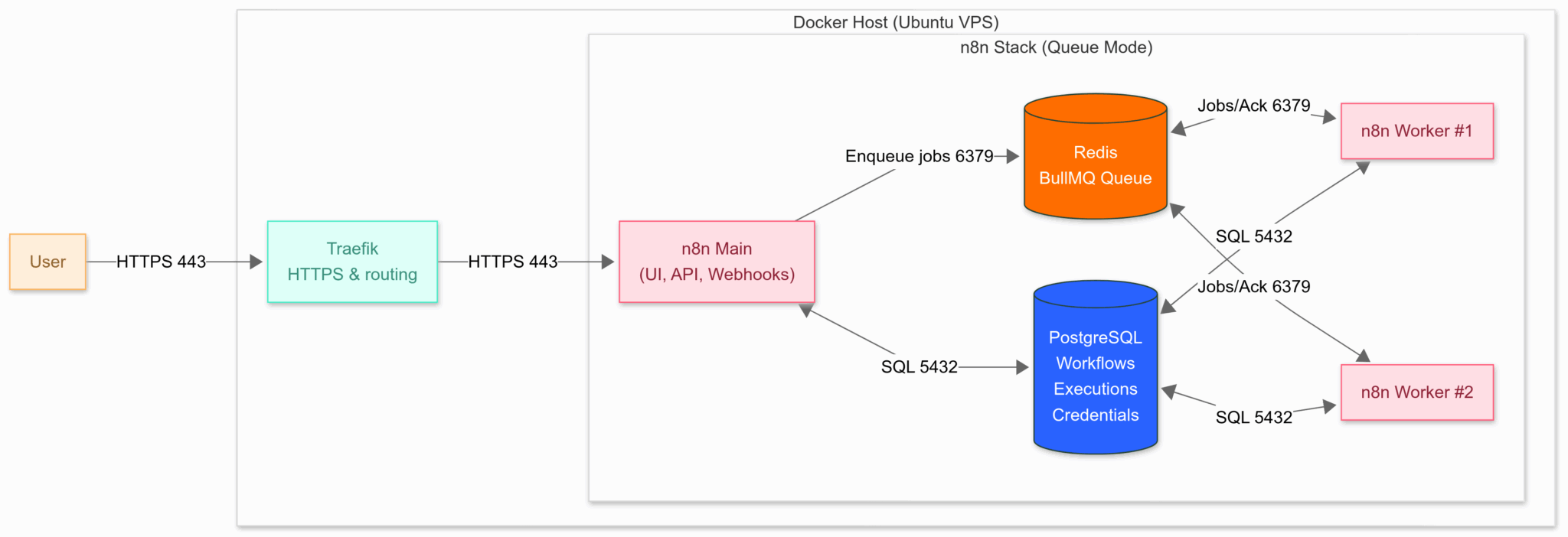
The key principles are:
- Separation of Concerns: The main process handles incoming requests, while workers do the heavy lifting of workflow execution.
- Centralized State: PostgreSQL acts as the single source of truth for all workflows, credentials, and execution logs, enabling multiple workers to operate concurrently.
- Job Queuing: Redis acts as a high-speed message broker, creating a queue of jobs for workers to consume.
The Essential Components: Docker Compose Stack
The most effective way to manage these interconnected services is with Docker Compose. We'll use a minimal, clean configuration that establishes the four core components. The resource "The Queue Mode Setup That Let Us Scale n8n Without Crashes" from Vibepanda provides an excellent, ready-to-use template.
Here is the breakdown of the docker-compose.yml file that defines our services.
services:
  redis:
    image: redis:7
    command: ["redis-server", "--appendonly", "yes"]
    volumes:
      - ./redis-data:/data
    networks: [n8n-net]
    restart: always

  postgres:
    image: postgres:15
    environment:
      POSTGRES_USER: n8n
      POSTGRES_PASSWORD: your_pg_password
      POSTGRES_DB: n8ndb
    volumes:
      - ./pgdata:/var/lib/postgresql/data
    networks: [n8n-net]
    restart: always

  n8n: # Main process
    image: n8nio/n8n:latest
    ports:
      - "5678:5678"
    env_file:
      - ./.env.main
    depends_on:
      - redis
      - postgres
    volumes:
      - ./n8n-data:/home/node/.n8n
    networks: [n8n-net]
    restart: always

  n8n-worker: # Worker process
    image: n8nio/n8n:latest
    command: worker
    env_file:
      - ./.env.worker
    depends_on:
      - redis
      - postgres
    networks: [n8n-net]
    restart: always

networks:
  n8n-net:
    driver: bridge

volumes:
  redis-data:
  pgdata:
  n8n-data:
Service Breakdown:
postgres: Our database service. We use a named volume (pgdata) to ensure workflow and credential data persists across restarts. It uses environment variables to set up the initial user and database.redis: The message broker. Its data is also persisted in a volume.n8n: The main process. This is the only service that exposes a port (5678) to the host machine for accessing the UI. It uses anenv_fileto load its specific configuration.n8n-worker: The worker process. Notice three key differences:- It exposes no ports. It only needs to communicate with other services inside the Docker network.
- It uses a specific
command: workerto start in worker mode. - It uses its own
env_file(.env.worker).
Configuring the Main and Worker Processes
The behavior of the n8n and n8n-worker services is controlled by environment variables. Separating these into .env.main and .env.worker files keeps the configuration clean.
Main Process Configuration (.env.main)
This file configures the main instance to act as the orchestrator.
# Core
N8N_HOST=localhost
N8N_PORT=5678
N8N_PROTOCOL=http
WEBHOOK_URL=http://localhost:5678
N8N_ENCRYPTION_KEY=put_a_long_random_secret_here

# Queue mode
EXECUTIONS_MODE=queue
OFFLOAD_MANUAL_EXECUTIONS_TO_WORKERS=true

# Database (PostgreSQL)
DB_TYPE=postgresdb
DB_POSTGRESDB_HOST=postgres
DB_POSTGRESDB_DATABASE=n8ndb
DB_POSTGRESDB_USER=n8n
DB_POSTGRESDB_PASSWORD=your_pg_password

# Redis (Queue)
QUEUE_BULL_REDIS_HOST=redis
QUEUE_BULL_REDIS_PORT=6379
Key Variables:
EXECUTIONS_MODE=queue: This is the master switch that enables queue mode.N8N_ENCRYPTION_KEY: Crucial! This key encrypts your credentials. It must be identical across the main process and all workers so they can all decrypt the credentials stored in the database.DB_POSTGRESDB_HOST=postgresandQUEUE_BULL_REDIS_HOST=redis: These tell the main process how to find the other services on the Docker network. The hostnames (postgres,redis) match the service names indocker-compose.yml.OFFLOAD_MANUAL_EXECUTIONS_TO_WORKERS=true: A very useful setting that sends executions triggered from the editor (i.e., test runs) to the workers, keeping the UI responsive.
Worker Process Configuration (.env.worker)
This file configures the worker to connect to the shared services and execute jobs.
# Must match main
EXECUTIONS_MODE=queue
N8N_ENCRYPTION_KEY=put_a_long_random_secret_here

# Database
DB_TYPE=postgresdb
DB_POSTGRESDB_HOST=postgres
DB_POSTGRESDB_DATABASE=n8ndb
DB_POSTGRESDB_USER=n8n
DB_POSTGRESDB_PASSWORD=your_pg_password

# Redis (Queue)
QUEUE_BULL_REDIS_HOST=redis
QUEUE_BULL_REDIS_PORT=6379

# Optional: tune concurrency (default is 10)
# N8N_WORKER_CONCURRENCY=5
Notice the worker configuration is a subset of the main one. It needs the same EXECUTIONS_MODE, N8N_ENCRYPTION_KEY, and connection details for the database and Redis. It does not need WEBHOOK_URL or port information, as it doesn't handle any web traffic directly.
Hands-On: Launching the Stack
Now, let's put this together.
- Create Project Structure: Create a new directory for your n8n setup. Inside it, create the three files:
docker-compose.yml,.env.main, and.env.worker. - Populate Files: Copy the contents provided above into the respective files.
- Set Passwords and Keys:
- In
docker-compose.yml,.env.main, and.env.worker, replaceyour_pg_passwordwith a secure password of your choice. Ensure it's the same in all three places. - In
.env.mainand.env.worker, replaceput_a_long_random_secret_herewith a long, random string. This is yourN8N_ENCRYPTION_KEY. It must be identical in both files. You can use a password generator or a command likeopenssl rand -hex 32to create one.
- In
- Launch: Open a terminal in your project directory and run:
Docker will now pull the images for Postgres, Redis, and n8n, and start all four services.docker compose up -d
Verifying the Setup
How do you know it's working? We'll check the logs and run a test workflow.
1. Check the Service Logs
The logs are the best way to confirm that each service has started correctly and can communicate with the others.
Master n8n Queue Mode: Scale Your Workflows to Thousands of Users (Step-by-Step Advanced Tutorial)
The following video segment demonstrates how to check the worker logs to confirm it has successfully registered as a task runner. This is the clearest sign that your worker is ready.
Watch from 34:50 to 35:20. The video shows the docker logs command and points out the key 'Registered as a task runner' and 'Worker is ready' messages.
In your own terminal, you can run the following commands to inspect the logs:
docker compose logs n8n-worker: You should see the "Worker is ready" message.docker compose logs n8n: You should see logs indicating the main n8n web server has started.
2. Run a Test Execution
Now for the definitive test. We'll create a workflow and watch a worker pick it up.
- Navigate to
http://localhost:5678in your browser and set up your n8n owner account. Since you're using a new PostgreSQL database, n8n will start with a fresh setup. - Create a new workflow.
- Add a Manual trigger.
- Add a Wait node after the trigger and set it to wait for 10 seconds.
- Save and activate the workflow.
Now, watch what happens when you trigger it.
Master n8n Queue Mode: Scale Your Workflows to Thousands of Users (Step-by-Step Advanced Tutorial)
This clip perfectly demonstrates the queue mode in action. You'll see multiple workflows being triggered and the worker logs showing jobs being picked up and processed in parallel.
Watch from 38:00 to 39:20. Pay attention to the terminal window showing the worker logs. You'll see messages like 'started execution' and 'finished execution', confirming the worker is handling the jobs passed from the main instance.
When you run your own workflow, you can go to the "Executions" panel in n8n. You should see the execution appear with a "Queued" status for a moment before transitioning to "Running" and finally "Success." Checking your worker logs with docker compose logs -f n8n-worker will show the worker picking up and completing the job, just like in the video.
Test your understanding!
You've set up your queue mode stack. You add a worker service to your docker-compose.yml but forget to add the command: worker line. What is the most likely behavior you will observe?
Show answer
Without the command: worker, the new container will start as another full n8n instance (a main process), not a worker. It will try to connect to the same database and Redis instance. This can lead to unpredictable behavior, as you'd have two "main" processes competing to handle tasks like scheduled triggers, which is not the intended architecture for a simple queue mode setup. The worker will not pick up jobs from the queue because it isn't running in worker mode.
Scaling Your Workers
The beauty of this architecture is the ease of scaling. If your workload increases, you can add more workers with a single command:
docker compose up -d --scale n8n-worker=3
This command will tell Docker Compose to ensure three n8n-worker containers are running, creating two new ones if you started with one. These new workers will immediately connect to Redis and start processing jobs from the queue, tripling your execution capacity.
Conclusion and Course Wrap-Up
Congratulations! You have successfully built and deployed a scalable, production-grade n8n system. This lesson ties together everything we've learned about production operations, from managing configurations with environment variables to architecting for performance and reliability.
Key Takeaways from this Lesson:
- A scalable n8n deployment consists of four key services:
n8n(main),n8n-worker,postgres, andredis. - Docker Compose is the ideal tool for defining, configuring, and managing these services.
- Environment variables are essential for configuring each service, with the
N8N_ENCRYPTION_KEYbeing the critical shared secret. - Verification involves checking Docker logs for readiness messages and observing the "Queued" status of a test execution.
- Scaling is as simple as using the
docker compose --scalecommand to add more workers.
You have now completed the n8n: From First Workflow to Production course. You started with the basics of nodes and data flow and have progressed all the way to deploying and scaling a robust automation platform capable of handling enterprise-level workloads. You have the "full stack" knowledge you set out to acquire—from building individual workflows to managing the underlying infrastructure.
The journey doesn't end here. The skills you've built are a foundation for integrating complex systems, building powerful AI-driven agents, and automating tasks at a massive scale. I encourage you to continue exploring, experimenting, and applying these concepts to your personal and professional projects. Well done