
Hello! Welcome back.
In our last lesson, you successfully packaged a Spring Boot microservice into a Helm chart, incorporating production-ready features like health probes and externalized configuration. You learned the essential commands for the initial deployment (helm install) and cleanup (helm uninstall).
Today, we'll build on that foundation to manage the complete lifecycle of an application. Our goal is to manage application releases using Helm commands, including upgrade and rollback. Software is never static; we constantly deploy new features, bug fixes, and configuration changes. Understanding how to manage these updates safely and efficiently is a core competency for any senior engineer and a frequent topic in microservices interviews.
We will cover how to:
- Upgrade an application to a new version.
- Inspect the history of changes to a release.
- Roll back a faulty deployment to a previously known good state.
This lesson directly prepares you for discussions on zero-downtime deployments and incident response—key areas where interviewers probe for practical, hands-on experience.
1. Understanding Helm Releases and History
Before we can upgrade or roll back, we must first understand what Helm is managing. When you run helm install, you create a Release. A release is a specific instance of a chart running in your Kubernetes cluster, identified by a unique name.
Crucially, Helm doesn't just deploy your application; it also records a history for each release. Every time you perform an install or upgrade, Helm creates a new, numbered revision. This revision is a snapshot of the chart, its values, and the resulting Kubernetes manifests that were applied to the cluster.
To learn more about the components that make this possible, let's review a brief explanation of Helm's architecture.
Helm for DevOps Engineers: From Basics to CI/CD ...
The article 'Helm for DevOps Engineers' provides a clear view of Helm v3's architecture. Understanding what a 'Release' is and how Helm tracks it is key to grasping the upgrade and rollback mechanism.
Please read the section 'Helm architecture (practical, Helm v3 view)'. Focus on the definitions of 'Helm CLI', 'Charts', and especially 'Releases'. Note the detail that Helm stores release history as Kubernetes secrets by default.
This stored history is what gives Helm its power. It's an audit trail that enables you to see exactly what was deployed and when, and it provides the mechanism for reverting to a previous state.
2. Upgrading a Release with helm upgrade
Let's simulate a common real-world scenario: you've developed a new feature, built a new Docker image for your microservice, and now you need to deploy it to your Kubernetes cluster without downtime.
This is where helm upgrade comes in. This command takes an existing release and applies a new set of chart templates or values to it. Helm is smart enough to calculate the difference between the current state and the new state, applying only the necessary changes to your Kubernetes resources. For a Deployment, this typically triggers a rolling update strategy, ensuring zero downtime.
Let's assume you have the my-app-release from our previous lesson running.
Scenario: Deploying a new image version.
Suppose your new image is tagged 1.1.0. You can upgrade your release in two common ways:
-
Using
--set: This is common in automated CI/CD scripts.# We specify the chart path '.' and use --set to override the image tag helm upgrade my-app-release . --set image.tag=1.1.0 -
Using a new
values.yamlfile: This is useful for managing environment-specific configurations (e.g.,values-prod.yaml).# Assuming you updated the tag in a values-prod.yaml file helm upgrade my-app-release . -f values-prod.yaml
After running the command, you'll see a confirmation message. Helm has created a new revision for my-app-release.
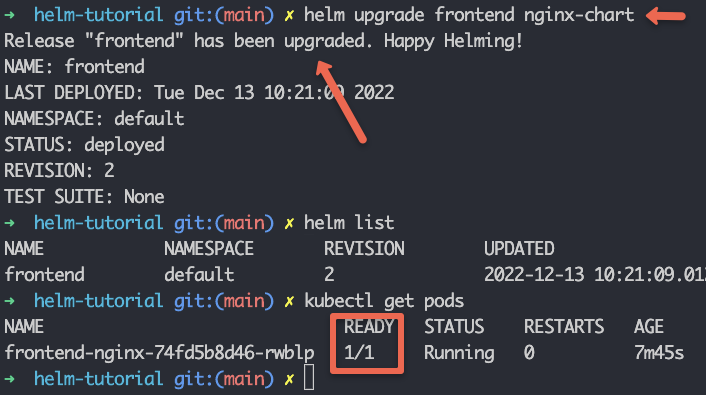
A very useful flag for CI/CD pipelines is --install. The command helm upgrade --install my-app-release . is idempotent: it will upgrade the release if it exists, or install it if it doesn't. This simplifies deployment scripts significantly.
Test your understanding!
An interviewer asks, "How do you upgrade a Helm release, and what happens behind the scenes?" How would you answer?
Show answer
"I would use the helm upgrade command. For example, to update the application's image, I'd run helm upgrade my-release ./my-chart --set image.tag=1.1.0.
Behind the scenes, Helm compares the currently deployed release's manifests (from the last revision) with the new manifests generated from the updated chart or values. It then computes a 'diff' and applies only the necessary changes to the Kubernetes API server. For a standard Deployment resource, changing the Pod template (e.g., the container image) triggers Kubernetes' built-in rolling update mechanism. This creates a new ReplicaSet, gradually brings up new pods, and terminates old ones, ensuring a zero-downtime deployment."
3. Inspecting Release History
After performing an upgrade, how do you verify what happened? The helm history command provides a complete audit trail of your release.
Run this command on the release you just upgraded:
helm history my-app-release
You should see an output similar to this:
REVISION    UPDATED                     STATUS          CHART                       APP VERSION     DESCRIPTION
1           Mon Oct 23 10:30:00 2023    superseded      my-spring-boot-app-0.1.0    1.0.0           Install complete
2           Mon Oct 23 10:45:15 2023    deployed        my-spring-boot-app-0.1.0    1.1.0           Upgrade complete
This output is invaluable. It shows:
REVISION: The sequential version number.STATUS:deployedfor the current version,supersededfor previous ones.CHARTandAPP VERSION: The versions from yourChart.yamlat the time of deployment.DESCRIPTION: A summary of the action taken.
This history is the foundation for our next command: rollback.
4. Rolling Back a Faulty Deployment
Now for the critical part of incident management. You've deployed version 1.1.0, but your monitoring systems show a spike in errors. You've identified a critical bug in the new version and need to revert to the stable version 1.0.0 immediately.
With Helm, this is a single, clean command: helm rollback.
helm rollback my-app-release 1
This command tells Helm: "Find revision 1 of the my-app-release release, and apply its manifests to the cluster."
If you omit the revision number (helm rollback my-app-release), Helm will automatically roll back to the previous revision (in this case, from 2 to 1).
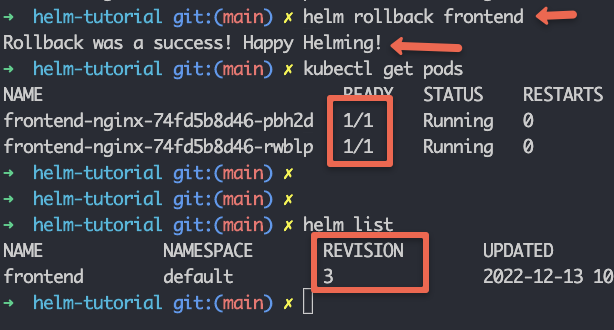
Now, run helm history my-app-release again:
REVISION    UPDATED                     STATUS          CHART                       APP VERSION     DESCRIPTION
1           Mon Oct 23 10:30:00 2023    superseded      my-spring-boot-app-0.1.0    1.0.0           Install complete
2           Mon Oct 23 10:45:15 2023    superseded      my-spring-boot-app-0.1.0    1.1.0           Upgrade complete
3           Mon Oct 23 10:55:00 2023    deployed        my-spring-boot-app-0.1.0    1.0.0           Rollback to 1
Notice a crucial detail: a rollback creates a new revision. Revision 3 is a copy of revision 1. Helm never rewrites history; it appends to it. This preserves the full audit trail, showing that an upgrade was attempted and then reverted.
This section provides an excellent summary and presents these concepts in an interview-friendly format.
70+ Helm Interview Questions and Answers for Kubernetes ...
The '70+ Helm Interview Questions' article has a section that directly addresses upgrades and rollbacks. Reading through these questions and answers will solidify your understanding and prepare you for how these topics might be framed in an interview.
Please read the questions in the 'Deployments and Rollbacks' section, specifically focusing on 'How do you perform a Helm rollback?' and 'Why does a Helm upgrade fail?'. This will reinforce the commands and introduce some practical troubleshooting considerations.
5. Safe Deployment Practices: lint and dry-run
A failed deployment in a production environment is costly. Helm provides two essential commands to catch errors before they are applied to your cluster.
-
helm lint: We covered this in the last lesson. It checks your chart for syntax errors and best-practice violations. You should always run this before any installation or upgrade.helm lint . -
helm upgrade --dry-run: This is one of the most powerful features for safe deployments. A dry run simulates an upgrade. Helm renders all the templates with the new values and outputs the resulting Kubernetes YAML manifests to your console, but it does not apply anything to the cluster.# See what would change if you upgraded to image tag 1.2.0 helm upgrade my-app-release . --set image.tag=1.2.0 --dry-runYou can inspect the generated YAML to ensure your changes are correct. In a CI/CD pipeline, you would typically run
lintanddry-runin a validation stage before proceeding to the actual deployment. If the dry run fails, the pipeline stops, preventing a broken configuration from ever reaching your cluster.
Conclusion
In this lesson, you've mastered the complete lifecycle management of a Helm release. You now have the practical skills to handle application updates and respond to production incidents swiftly and safely.
Key Takeaways:
- A Helm Release is a versioned instance of a chart, with each change creating a new revision.
helm upgradeapplies changes to an existing release, typically triggering a zero-downtime rolling update. The--installflag makes this command idempotent.helm historyprovides a full audit trail of all revisions for a release.helm rollbackreverts a release to a specific previous revision, creating a new revision that preserves the historical record.- Commands like
helm lintandhelm upgrade --dry-runare essential safety checks to validate changes before they are applied, forming a critical part of any robust CI/CD process.
You started by simply installing an application. Now, you can confidently manage its evolution over time. In our next lesson, we will take these powerful commands and automate them by designing a CI/CD pipeline to automatically build, test, containerize, and deploy a microservice to Kubernetes. This will tie together everything you've learned about Docker, Kubernetes, and Helm into a complete, automated workflow.
Can't find a good explanation? Sign up and we'll make it for you
Sign up