
Hello. In the previous lesson, you built the basic map of ServiceNow: an instance contains applications; applications organize access to tables; tables hold records; and metadata defines how those records and interfaces behave.
This lesson turns that model into a working habit. You will use the Application Navigator to find the correct part of the platform, open lists and individual records, and reach table-related configuration without hunting through menus. The objective is not to memorize every module; it is to learn a reliable way to locate what you need in an unfamiliar instance.
The Application Navigator: the platform’s navigation index
In the current Next Experience interface, the Application Navigator is normally opened from All in the unified navigation area. In older UI layouts, it appears as a permanent panel on the left. The placement may vary by release, persona, and instance configuration, but the underlying structure is the same.
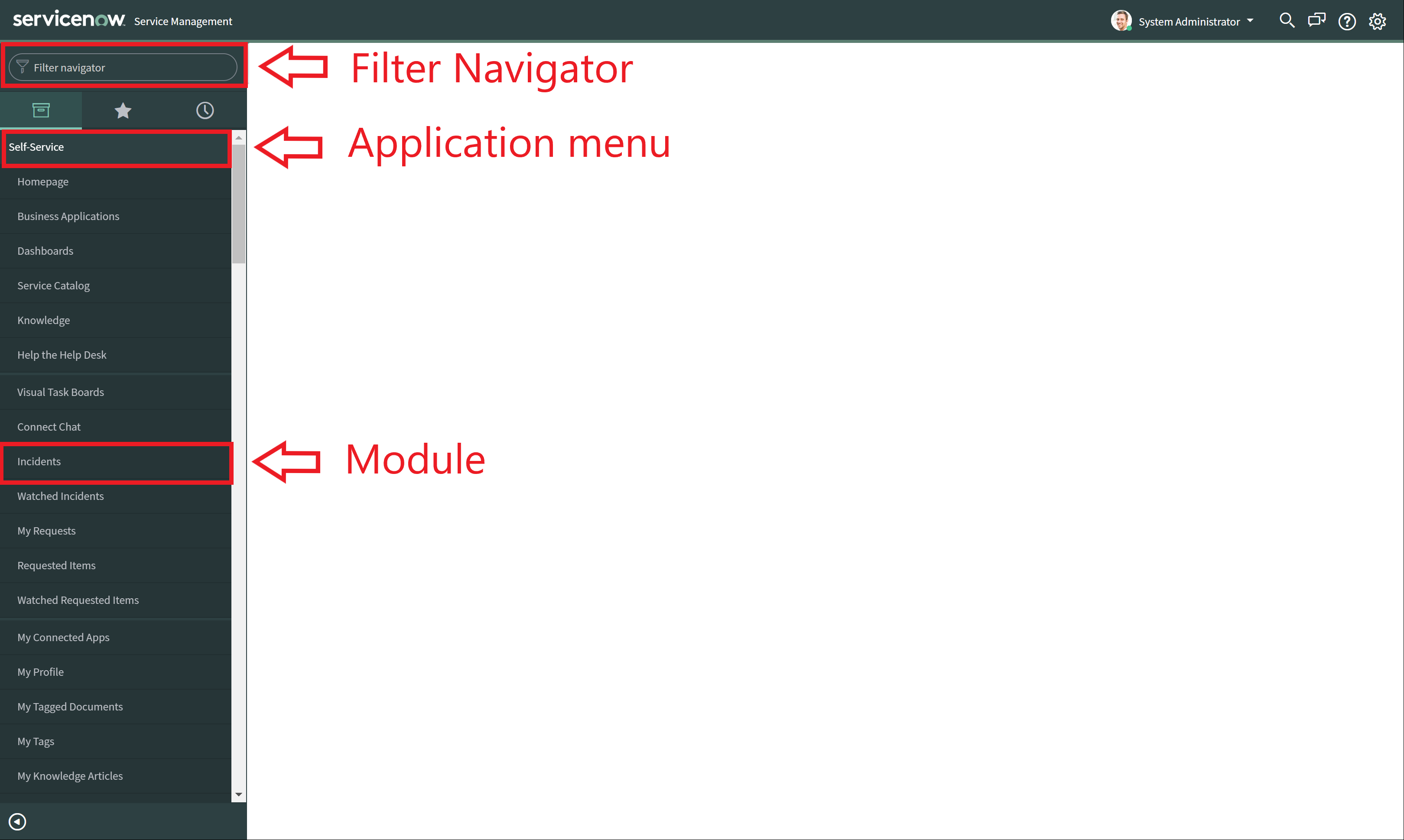
The three terms to keep distinct are:
| Term | What it does | Example |
|---|---|---|
| Application menu or application | Organizes a set of related navigation choices | Incident, Self-Service, System Definition |
| Category | An optional container within an application | A Configuration category that groups several modules |
| Module | The selectable navigation link that actually opens a page | All, Open, Tables, Business Rules |
| Filter Navigator | Narrows the navigation entries currently shown | Typing incident |
An application or category is primarily organizational. Expanding it reveals its contents; it does not necessarily open a working page. A module is the item that loads a list, form, dashboard, workspace, configuration screen, or another destination.
In Next Experience, use the All menu as your usual entry point. It contains the applications and modules your account is allowed to see. A missing module is not necessarily a navigation problem: it may be hidden because your user lacks a role, the feature is not installed, or the instance has been configured differently.
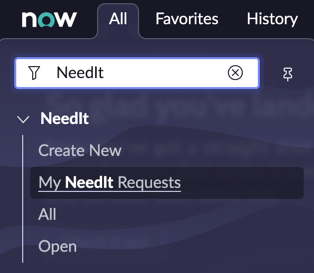
A fast mental routine is:
- Start in All.
- Type a short, distinctive word into the Filter Navigator.
- Identify the application that owns the module.
- Select the module that matches the page you need.
- Check the page title and table name after it opens.
That final check matters. Several modules can have similar names but lead to different data sets or experiences. For example, a self-service incidents module may show only incidents relevant to the signed-in user, while an Incident application module intended for fulfillers can show a broader queue.
ServiceNow User Interface (Next Experience) – Full UI Walkthrough for Beginners
Watch ServiceNow User Interface (Next Experience) – Full UI Walkthrough for Beginners by Knewget for a visual tour of the current navigation, list, and form experience. The interface may not exactly match your PDI, but the navigation model and record views are the important parts.
Start with All navigation. Notice that applications and categories expand or collapse, while modules load a destination page. Then watch list views to see how one table’s records appear as rows and columns, including the list filter and breadcrumbs. Finish with form views, focusing on the move from one list row to the detailed record form.
Two filters that solve different problems
ServiceNow uses the word filter in two different contexts. Confusing them wastes time, especially when you begin debugging or configuring applications.
| Tool | What it filters | Example use |
|---|---|---|
| Filter Navigator | Application names and module names | Type business rule to find relevant navigation modules |
| List filter | Records displayed in a list | Show only incidents whose State is Active |
| Navigator shortcut | A direct route to a technical table or page | Enter incident.list |
The Filter Navigator does not search the contents of records. Typing incident there does not search incident short descriptions; it only narrows visible navigation choices whose titles match the term.
A list filter, by contrast, changes the set of records returned from a table. Suppose an Incident list contains hundreds of records. A condition such as “State is Active” limits the displayed rows to records with that value. The breadcrumbs near the top of the list summarize the conditions currently active. Selecting the unfiltered breadcrumb returns you to the full accessible list.
This distinction also explains why two modules can open the same table but show different rows. Each module can be configured with a predefined list filter or a different interface, while still working with records from the same underlying table.
Lists, records, and forms
Most daily ServiceNow work alternates between two views of a table.
A list displays multiple records from one table:
- each row is a record;
- each column is a field;
- column headers can sort the current result set;
- the list filter narrows the record set;
- a clickable display value, often a record number or name, opens a record.
A form displays one record in detail. It presents labels, field values, actions, sections, and—in many cases—related information lower on the page. You will inspect activity streams, related lists, and system fields more closely in the next lesson. For now, use the form as the place to confirm: Which individual record am I looking at, and which table is it from?
Read the following short guide as a reinforcement of this movement from navigation, to list, to form. Its screenshots use an older interface, so focus on the workflow rather than the exact placement of each icon.
Read Travis Toulson’s Exercise: Navigating the UI. It provides a concise practice sequence for filtering the navigator, opening an Incident list, and selecting a record form.
In the “Review” section, read the “Application Navigator” explanation and the “Filter navigator” subsection. Focus on Filter Navigator behavior: it narrows navigation choices rather than record data. Then read the “List View” and “Form View” subsections. Use the list explanation and the form explanation to reinforce the one-table, many-records versus one-record distinction.
Direct navigation using table names
The Application Navigator is not only a menu search box. Developers can enter a table’s internal name followed by a suffix to open useful destinations directly.
For example, the Incident table’s internal name is incident, while the User table’s internal name is sys_user.
| Enter in the All or Filter Navigator field | Result |
|---|---|
incident.list | Opens the Incident table’s list in the current tab |
incident.LIST | Opens the Incident list in a new tab |
incident.form or incident.do | Opens a blank Incident form in the current tab |
incident.FORM | Opens a blank Incident form in a new tab |
incident.config | Opens a table-related configuration view in the current tab |
incident.CONFIG | Opens the table-related configuration view in a new tab |
The lowercase-versus-uppercase convention is useful when you are in the middle of a task and want to preserve your current page. In practice, table_name.LIST, table_name.FORM, and table_name.CONFIG are convenient for opening reference material in another tab without losing the record or list you were already examining.
Two cautions:
- Use the internal table name, not the label.
sys_user.listworks becausesys_useris the table name; typingUser.listgenerally will not. - A shortcut does not bypass security. The platform still applies your roles, ACLs, and application access rules.
The table_name.config shortcut is especially useful for developer work. It surfaces configuration associated with the specified table, such as dictionary entries, client scripts, business rules, ACLs, and related artifacts. It is not the same as opening a single record form, and it is not necessarily a complete inventory of every artifact in an application. Treat it as a table-centered configuration starting point.
Navigator Filter Shortcuts - Did You Know
Watch Navigator Filter Shortcuts – Did You Know from the ServiceNow Dev Program. It demonstrates direct routes you can use when a table has no convenient module, or when you need to move quickly between data and configuration.
Watch list shortcuts for the distinction between .list and .LIST. Continue with form shortcuts for .form, .FORM, and .do. Then watch configuration access to see the purpose of .config. If you want one additional shortcut, watch empty filtering and note the reminder to use an internal table name rather than its displayed label.
PDI navigation drill
Spend about 15–20 minutes in your PDI completing this inspection-only drill. Do not create or modify baseline records. The goal is to produce a short navigation log you can repeat whenever you join an unfamiliar project.
1. Find an application and module
- Open All to display the Application Navigator.
- In the Filter Navigator, enter
incident. - Inspect the application and module names that remain.
- In the Incident application, open an appropriate list module such as All or Open.
If your PDI does not expose Incident Management or does not contain incident records, use the User table as the fallback. Search the navigator for Users, then open the Users module.
Record the navigation path in words, for example: “In the Incident application, opened the All module.” This is clearer than saying only “I opened Incidents,” because multiple modules can have similar names.
2. Confirm the table behind the page
On the list page:
- Identify the list title or table context.
- Verify that rows represent records and columns represent fields.
- Sort one column, then restore the original order if needed.
- Open the list filter and add a harmless inspection condition, such as a State condition on incidents or “Active is true” on users.
- Look at the breadcrumbs showing the active condition.
- Remove the condition or return to the unfiltered list.
This step demonstrates the difference between filtering the navigator and filtering actual table records.
3. Open and inspect one record
Open a record by selecting its linked number, name, or other display value. On the form, identify:
- the record’s readable identifier, such as an incident number or a user name;
- several visible fields and their values;
- the underlying table name, if shown in the interface;
- at least one field that refers to another record, if available.
Do not save the form. Return to the list, then open History in the navigator and use it to return to that record. History is a quick recovery tool when you were working on a page recently but no longer remember its module path.
4. Inspect configuration safely
In the All or Filter Navigator field, enter either:
incident.config
or, if you used the User table:
sys_user.config
Inspect the categories or records presented. You are looking at configuration metadata associated with the table, not its runtime business data. Do not edit anything yet.
Finally, locate the table definition through the navigator:
- Filter for
tables. - Open System Definition, then Tables, if that path is available in your PDI.
- Search for the table’s internal name, such as
incidentorsys_user. - Open the matching table definition record and note its Label and Name.
This is a concrete example of the two lenses introduced last lesson:
- the Incident or User list shows runtime records;
- the table definition shows metadata that defines a table.
Keep a compact navigation log
Save these four items in your notes:
| Destination | How you reached it | What it represented |
|---|---|---|
| Record list | Application module or .list shortcut | Runtime data from one table |
| Single record | Clicked a linked display value | One row shown in form view |
| Table configuration | .config shortcut | Table-related configurable artifacts |
| Table definition | System Definition, Tables | Metadata describing the table |
This log is deliberately small. It builds the habit of recording both the route and the kind of artifact you found—two details that make developer handoffs and debugging conversations much more precise.
Key takeaways
The Application Navigator is an index of the parts of ServiceNow your account can access.
- Applications and optional categories organize navigation; modules open actual pages.
- The Filter Navigator filters application and module names. It does not filter database records.
- A list shows multiple records from one table; a form shows the fields of one record.
- A list filter changes the records shown and records its active conditions in breadcrumbs.
- Direct shortcuts using internal table names are valuable developer tools:
.listopens data,.formopens a blank form, and.configopens table-centered configuration. - Direct navigation never bypasses security, and a missing module may reflect permissions or instance configuration rather than an error.
Next, you will create a scoped training application in Studio and distinguish its application files, its application scope, and the runtime data it will eventually manage.
Can't find a good explanation? Sign up and we'll make it for you
Sign up