
Hello. In the previous lesson, you separated two development contexts: Work Intake Training is the application scope, while WIT - Platform Foundation is the current update set that captures eligible configuration changes. Keep both selected, but today do not deliberately change or save any configuration.
This lesson moves from developer setup to the object you will inspect constantly in ServiceNow: the record form. You will learn to read a record systematically: its visible fields, its activity history, its related records, and the system-maintained metadata that identifies and audits it. This is the foundation for debugging, validating automation, and understanding what your future scripts and flows actually change.
A record form is more than a data-entry screen
A list shows multiple records from a table. A form displays one record in detail. For example, an Incident list contains many incident records; opening INC... from that list shows the form for one incident.
A form is not simply “the table on screen.” It is a view assembled from several kinds of information:
| Form element | What it lets you inspect | Typical example |
|---|---|---|
| Fields | Values stored on the current record | State, Priority, Short description |
| Sections | Groups of fields or special components | Notes, Resolution information |
| Activity formatter | Chronological history, comments, work notes, and selected field changes | “State changed from New to In Progress” |
| Related lists | Records on other tables associated with this record | Approvals, Tasks, Affected CIs |
| System metadata | Platform-managed identity and audit information | Created, Updated, Sys ID |
The uniformity matters. You will see different labels, buttons, and layouts across Incident, Change, Catalog Task, custom tables, and workspaces, but the underlying inspection habits remain stable.
Watch the following portions of Knewget’s “ServiceNow Forms Explained — What You Need to Know for the CSA Exam.” It establishes the basic form structure before you inspect a real record in your PDI.
ServiceNow Forms Explained — What You Need to Know for the CSA Exam
Knewget’s video gives a compact visual tour of how an individual record is displayed, why fields render differently, and how related lists and formatters fit into a form.
Watch forms and records for the relationship between a database record and its form. Continue through form structure to identify the header, fields, and supporting panels. Then watch field types, paying particular attention to reference fields and journal fields. Finally, skip to lists and activity for the distinction between related lists and the activity formatter.
Open a record and orient yourself before interpreting it
In your PDI, open an existing Incident record:
- In the Application Navigator, select All and filter for
incidents. - Open Incident > All or the available equivalent list module.
- Select an existing incident number to open its form.
If Incident is not available or no useful sample incidents exist, inspect another saved record from a task-based table, such as a Change Request, Problem, Catalog Task, or Request. A User record also works for fields and metadata, but a task-type record is preferable because it usually has activity and related lists.
Avoid editing or submitting the record during this lesson. The aim is to observe how the platform represents information, not yet to build data or configure the interface.
The exact placement of controls varies between the standard platform interface, Next Experience, and Workspace. Still, you should be able to locate:
- the record’s table and display value in the form header;
- fields grouped into one or more sections;
- a Related Lists area, often toward the bottom;
- a Notes or Activity section on task-derived records;
- a context menu, often represented by a right-click on the form header or an additional-actions icon.
Notice that this Change Request form contains both ordinary field sections and lists of associated records. It also has a process/status bar at the top. That status bar is meaningful for Change Requests, but it is not a universal feature of every table.
Fields: values on the current record
Fields are attributes of the record currently open. On an Incident, common examples include:
- Number, a human-friendly identifier such as
INC0012345; - Short description, a concise description of the issue;
- State, often a controlled choice such as New, In Progress, or Resolved;
- Priority, a choice value used for triage;
- Assigned to, which commonly references a user record;
- Assignment group, which commonly references a group record.
A field’s visual control reflects its underlying definition:
| Visual appearance | Likely underlying field behavior |
|---|---|
| Single-line text box | String or short text |
| Multi-line box | Longer text, description, or journal input |
| Checkbox | True/false Boolean |
| Drop-down | Choice field |
| Lookup and preview controls | Reference to a record on another table |
| Read-only or shaded value | A field you may view but not change in the current context |
A reference field deserves special attention. It stores a relationship to another record rather than merely copying the visible text. If Assigned to displays a person’s name, that value represents a link to a record in the Users table. Use the available preview or open-record control beside a populated reference field to inspect the referenced record without guessing what it represents.
Do not assume that every field belonging to a table is visible. A form view selects and arranges fields for a particular audience or process. Later you will configure layouts intentionally; for now, distinguish the important ideas:
- A table has field definitions.
- A record has values for those fields.
- A form view decides which fields and formatters are shown and where.
Activity: the operational history of a record
For task-related records, locate the Activity, Notes, or similarly named section. This is commonly presented as an activity formatter with a message input area and a chronological stream below it.
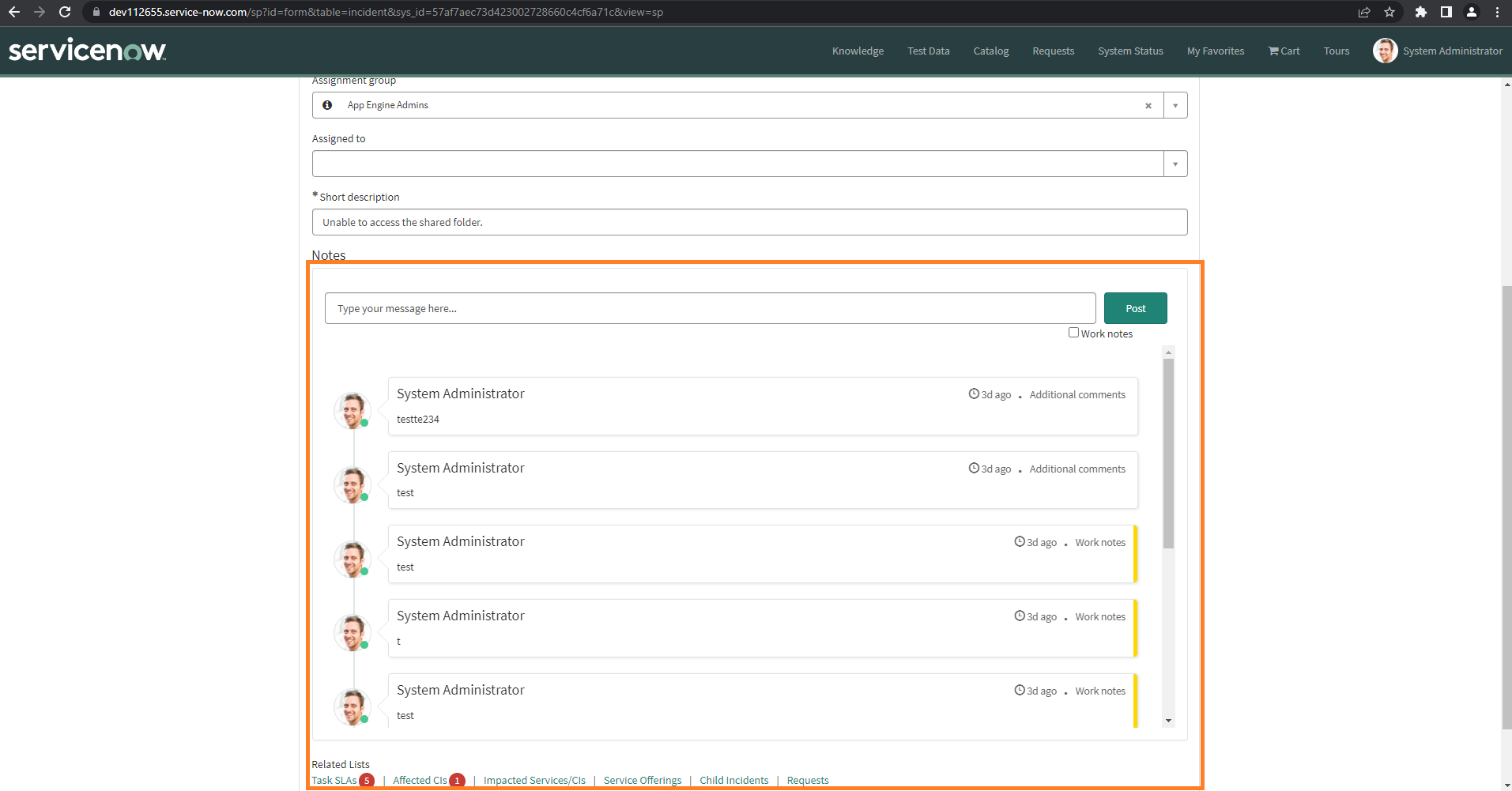
The activity stream brings several kinds of history together. Depending on the table’s auditing configuration and the fields selected for display, you may see:
- journal entries such as Work notes and Additional comments;
- changes to selected fields, such as State or Assigned to;
- system-generated messages;
- timestamps and the identity associated with an entry.
The two most common journal concepts are deliberately different:
| Journal input | Usual purpose | Typical visibility |
|---|---|---|
| Additional comments | Communication intended for the requester or customer | Often visible in self-service experiences |
| Work notes | Internal technical investigation and fulfillment notes | Usually restricted to internal fulfilment users |
The exact access rules depend on the instance’s roles, ACLs, and configuration. Do not rely on a label alone when deciding whether a note is safe to expose. In practice, treat Work notes as internal operational context and Additional comments as potentially customer-facing communication unless your organization’s design says otherwise.
A useful inspection routine is to read activity as evidence:
- Find the latest state or assignment change.
- Identify who or what made it and when.
- Read the work note or comment surrounding that change.
- Compare the sequence with the record’s present values.
For example, suppose a record is currently assigned to Network Support. The activity stream may reveal whether a user reassigned it manually, an assignment rule did it, or a flow updated it. Later, when you build Business Rules and flows, this habit will help you distinguish an expected update from unexpected automation.
Activity is useful, but it is not necessarily a complete forensic log of every database action. The fields displayed there depend on auditing and activity configuration; a missing entry does not automatically prove that a field was never changed.
ServiceNow’s Task and Workflows community article explains the storage model behind this display: journal inputs create journal entries, while changes to audited fields can appear through audit and history data. It also explains why task forms commonly combine comments, work notes, and historical changes in one formatter.
Related lists: inspect the record’s connections
Now scroll to Related Lists, or select the related-list tabs visible in your record. A related list shows records from another table that are connected to the record you have open.
For example, a Change Request can have lists for:
- Approvers;
- Change Tasks;
- Affected Configuration Items;
- Incidents caused by the change;
- Problems associated with the change.
An Incident might display related lists for child incidents, affected configuration items, SLAs, tasks, or attachments, depending on the instance configuration.
The key data-model idea is this:
- A reference field on the current record points outward to one related record. For example,
Assigned topoints to one user. - A related list generally looks inward at many records elsewhere that refer back to the current record. For example, several Change Task records can refer to one Change Request.
That is why related lists are a practical interface representation of one-to-many relationships. You are not merely seeing “extra tabs”; you are seeing related data across tables.
When inspecting a related list, check four things:
- List title: Which table or relationship does it represent?
- Row count: Are there zero, one, or many connected records?
- Key columns: What does each related record contribute—state, owner, approval decision, planned date?
- Context: Does the related record help explain the current record’s status?
An embedded list and a related list can look similar because both show rows from another table. The main difference is placement: an embedded list appears within a form area, while related lists are normally grouped in the related-list region. Both should be read as associated records, not as ordinary field values.
For your PDI observation notes, write down the title and row count of two related lists on the record you opened. If one is empty, that is still useful information: the relationship exists in the form design, but no matching child records currently exist.
System metadata: who, when, how often, and which record
Business fields describe the work: a short description, state, assignment, priority, and so on. System metadata describes the record’s platform identity and lifecycle.
Read the short official ServiceNow Developer Guide passage below before examining these values in your PDI.
No-Code Citizen Developer Guide for the Now Platform
In the “Create Tables and Fields” section, the official ServiceNow Developer Guide identifies the system fields that ServiceNow creates for every table. Read it to establish the exact field labels, database names, and purposes.
In “Create Tables and Fields,” read the six system fields, including the table immediately after that sentence. Focus on the distinction between the friendly field label and its database name beginning with sys_.
These six fields are especially important:
| Form label | Database name | What it tells you |
|---|---|---|
| Created by | sys_created_by | The user identity that created the record |
| Created | sys_created_on | When the record was created |
| Updated by | sys_updated_by | The identity associated with the latest update |
| Updated | sys_updated_on | When the latest update occurred |
| Sys ID | sys_id | The instance-wide unique identifier for the record |
| Updates | sys_mod_count | The count of updates since creation |
The Number on an Incident or Change record and its Sys ID solve different problems:
- The Number is the meaningful identifier people use in conversations and ticket queues:
INC0012345orCHG000001. - The Sys ID is a platform-generated unique identifier, typically used by scripts, APIs, references, URLs, and internal record relationships.
Do not try to infer business meaning from a Sys ID. It is an identifier, not a ticket number, category, or date.
Inspect metadata without changing the form
System fields may already be visible in a section such as Additional information, System, or Audit. If they are not, use one of these inspection approaches, depending on what your interface exposes:
- Open the form’s additional-actions or context menu and look for Show XML. This displays the record’s stored values, including system field names such as
sys_id,sys_created_on, andsys_updated_on. - If your instance permits it, open Configure > Form Layout only to inspect the available field list. Do not save a layout change in this lesson.
- Return to the list after inspecting the record and use existing visible columns or available record information to compare Created and Updated values.
For the record you opened, capture the following in a private study note:
| Observation | What to record |
|---|---|
| Human identifier | Record number and table, such as Incident and INC... |
| Current work state | State, Assignment group, and Assigned to values |
| Activity evidence | One recent state, assignment, comment, or work-note entry |
| Related data | Two related-list titles and their row counts |
| Lifecycle metadata | Created, Created by, Updated, Updated by, and Updates |
| Technical identity | The presence of sys_id; record only a short prefix if you do not want to copy the full value |
Interpret metadata carefully. “Updated by” identifies the account that performed the most recent write, which might be a human user, a service account, an integration, or platform automation. It is evidence of how the platform recorded the update, not always proof of who made a business decision.
A reusable record-inspection workflow
When a defect report says, “The request is stuck,” avoid immediately searching for scripts. First inspect the record in this order:
- Identify the record. Confirm the table, human-readable number, and current state.
- Read the decisive fields. Look at assignment, priority, dates, requested-for values, and any table-specific fields relevant to the problem.
- Follow references. Preview or open referenced records when their values affect the issue.
- Read activity chronologically. Find the last meaningful transition and the context around it.
- Inspect related lists. Check whether approvals, child tasks, affected records, or dependent work explain the outcome.
- Check metadata. Compare creation and update information with the activity history; retain the Sys ID when technical investigation requires precise identity.
This sequence prevents a common beginner mistake: treating the current field values as the whole story. A record’s present State might say “Awaiting Approval,” but its activity and related approval records reveal what happened, who acted, and what still needs to occur.
Key takeaways
A ServiceNow form is a structured view of one record, not merely a screen of editable inputs.
- Fields show values on the current record; their controls reflect underlying field definitions.
- Activity combines journal communication and selected historical changes, giving operational context for the record’s present state.
- Related lists show associated records from other tables and make one-to-many relationships visible in the interface.
- System metadata such as
sys_id, created/updated values, and modification count provides the record’s technical identity and lifecycle evidence. - A disciplined inspection order—fields, activity, related data, then metadata—will be useful for development, testing, and troubleshooting.
Next, you will modify a form and list layout deliberately, then verify that the configuration change is captured in WIT - Platform Foundation rather than treating interface changes as invisible or automatically deployable.
Can't find a good explanation? Sign up and we'll make it for you
Sign up