
Hello! Welcome back to our course on building your secure ThinkPad.
Introduction
In our last lesson, you put the principle of compartmentalization into practice by creating a new, dedicated Whonix AppVM named anon-research. You now have an isolated environment specifically for anonymous browsing, separate from the default anon-whonix qube.
Today, we will focus on using that environment effectively. The learning outcome for this lesson is to demonstrate the use of the Tor Browser within a Whonix AppVM, explaining the function of its different security levels. While the Whonix Gateway (sys-whonix) anonymizes your network connection, the browser itself remains a critical component that can be targeted. Understanding and configuring its security levels is a key skill for maintaining anonymity. This involves a direct trade-off between security and usability—a concept you'll be familiar with from fields like economics and product design.
1. The Browser as an Attack Surface
Before diving into the settings, it's important to understand why the browser needs its own security controls, even when all its traffic is routed through Tor.
Your Whonix Workstation (anon-research) has no knowledge of your real IP address; that's enforced by the Gateway. However, the websites you visit can still attempt to identify and track you through your browser's characteristics. This is known as browser fingerprinting.
A fingerprint is a unique identifier created by collecting numerous pieces of information about your browser and system, such as:
- Browser version and type
- Installed fonts
- Screen resolution and color depth
- Language settings
- Specific behaviors of the JavaScript engine
From your background in statistical science, you can appreciate how a collection of seemingly non-unique data points can, in aggregate, form a highly unique signature, allowing a user to be identified and tracked across different websites and browsing sessions.
The Tor Browser's security levels are your primary defense against this, designed to reduce the uniqueness of your browser's fingerprint by disabling or modifying features that leak identifying information.
2. Understanding the Security Levels
The Tor Browser offers a simple but powerful way to manage the trade-off between security and website functionality. To get a precise understanding of what each level entails, the best source is the official documentation from the Tor Project.
Security levels - Features - Tor Browser
This support page from the Tor Project clearly explains the purpose of the security levels and the specific features that are enabled or disabled at each one. It forms the basis of our understanding for this lesson.
Please read the introduction ('Adjusting security levels...') and the 'Security Levels' section that details the 'Standard', 'Safer', and 'Safest' settings. Pay close attention to the role of JavaScript and media handling at each level.
As you've just read, the levels represent a graduated approach to reducing your browser's attack surface. Here is a summary:
| Level | Key Features & Behavior | Primary Use Case |
|---|---|---|
| Standard | All browser and website features are enabled. | General browsing where usability is paramount and the risk of targeted attacks is low. |
| Safer | Disables JavaScript on non-HTTPS sites. Some fonts and symbols are disabled. Audio and video are "click-to-play". | A good balance for everyday anonymous browsing. It protects against attacks on insecure sites. |
| Safest | Disables JavaScript on all sites by default. Many fonts, icons, symbols, and images are disabled. Media is "click-to-play". | Maximum security for sensitive activities where preventing de-anonymization is the top priority. |
This tiered system allows you to make a conscious choice based on your threat model for a particular task.
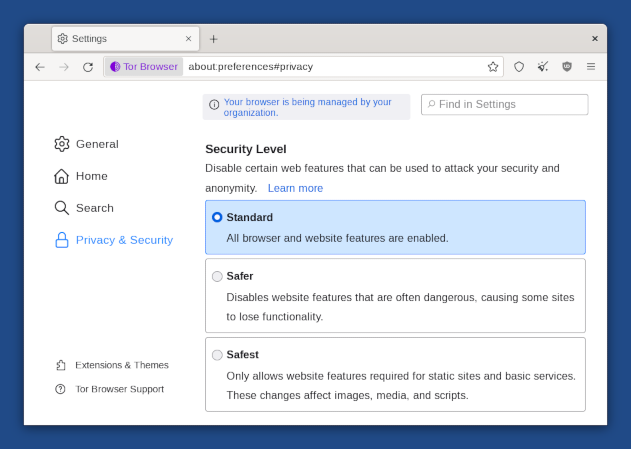
3. Practical Demonstration: Security vs. Usability
Now, let's observe the practical effects of these settings.
- Start your
anon-researchAppVM. If it's not already running, start it from the Qubes App Launcher. Also ensure its NetVM,sys-whonix, is running. - Launch Tor Browser from the
anon-researchmenu. - Navigate to the Security Settings. Click the shield icon in the toolbar, then click "Change..." in the Security Level section. You will see the interface from the image above.
- Experiment with a JavaScript-heavy site. A good site for this is
browserleaks.com/javascript.- On "Standard" level: Visit the site. You will see a long list of properties your browser is exposing.
- Change to "Safest" level: Go back to the security settings, select "Safest", and restart the browser when prompted. Now, revisit
browserleaks.com/javascript. Most of the sections will be empty or show generic information, as JavaScript is disabled. The site is far less functional, but your browser is revealing significantly less data.
- Experiment with a typical website. Visit a major news website or a service like Wikipedia.
- On "Safest" level: The site will likely look broken or very basic. Images may be missing, and interactive elements won't work.
- On "Safer" level: The site will be more functional, but you may need to click to enable video or audio content.
This exercise demonstrates the tangible trade-off: the "Safest" setting, recommended for maximum anonymity in the Qubes OS Complete Setup Guide we've referenced, provides the best protection but can make many modern websites unusable.
Conclusion
In this lesson, you've learned how to manage a critical aspect of your anonymity toolkit: the Tor Browser's security settings. You now understand that routing traffic through Tor is only part of the solution; hardening the browser against fingerprinting is equally important.
Key Takeaways:
- Browser fingerprinting is a technique used to identify users even when their IP address is hidden.
- Tor Browser's security levels allow you to manage the trade-off between security (protection against fingerprinting and exploits) and usability.
- The "Standard" level offers full functionality, "Safer" provides a balance, and "Safest" offers maximum protection by disabling JavaScript and other features.
- The appropriate security level depends on your threat model for the task at hand. For highly sensitive research, "Safest" is the recommended choice.
Preview of the Next Lesson:
So far, we have focused on achieving anonymity for web browsing using the purpose-built Tor Browser. However, you may want to use other applications anonymously. In the next lesson, we will learn how to route the traffic of a standard Fedora AppVM through the Whonix Gateway, a process often called "torifying" an application, to extend the reach of your anonymity architecture beyond just the browser.
Can't find a good explanation? Sign up and we'll make it for you
Sign up