Recommended resources
The freely available resources this lesson will direct you to.
- The Pinterest Strategy That's Actually Working for Me in 2026www.youtube.com
- Schedule Your Pinterest Pins for FREE using the NEW Native Schedulerwww.youtube.com
- How to schedule Pinterest posts (quick tutorial) - SocialBeesocialbee.com
- Schedule Your Pins for FREE using the Native Pinterest Schedulerheatherfarris.com
Introduction
Welcome back! In the last lesson, you did the foundational work of an expert Pinterest strategist by creating a set of organized, keyword-rich boards for your "cheap and cheerful lifestyle" niche. Your profile is now structured like a well-organized library, ready to be filled with valuable content.
This lesson focuses on the all-important next step: populating those boards consistently. Consistency is one of the most significant factors for growth on Pinterest. The algorithm rewards accounts that provide a steady stream of fresh content. But as a busy creator, you can't be tied to your phone or computer all day.
That's where scheduling comes in. Today, you'll learn how to pin your content consistently to your relevant boards using Pinterest's free, built-in scheduler. This tool will allow you to plan your content in batches, save a massive amount of time, and ensure your profile stays active and growing.
1. Why Consistency Matters on Pinterest
Before we get into the "how," let's quickly cover the "why." Consistently adding new pins to your boards does two things:
- It keeps your audience engaged. Followers see that you are an active and reliable source of new ideas.
- It signals to the Pinterest algorithm that your account is valuable. Active accounts are more likely to have their content shown in users' home feeds and search results.
A common concern for new creators is whether using a scheduler will harm their reach. The answer is no. Pinterest's algorithm values quality and consistency, not whether you published a pin manually or scheduled it.
To understand this better, let's look at a short article that explains the benefits of scheduling.
How to schedule Pinterest posts (quick tutorial)
This article from SocialBee, titled 'How to schedule Pinterest posts (quick tutorial)', clearly explains why scheduling is a key part of a successful Pinterest strategy.
First, read the section 'Why scheduling Pinterest posts matters' to understand the key advantages. Then, jump to the FAQ section and read question #2, 'Does scheduling affect reach on Pinterest?', to confirm that this practice is not penalized by the platform.
2. How to Schedule Pins with the Native Scheduler
Now for the practical part. Pinterest has a free, built-in tool that lets you schedule pins up to 30 days in advance. This is perfect for planning out your content without needing to pay for third-party software.
The following video is a complete walkthrough of how to use this tool on both desktop and mobile. We'll start with the desktop version.
Schedule Your Pinterest Pins for FREE using the NEW Native Scheduler
This video from Heather Farris, 'Schedule Your Pinterest Pins for FREE using the NEW Native Scheduler', will be our main guide. It provides a clear, step-by-step demonstration.
Watch from 01:27 to 07:20. Follow along as the creator uploads a pin, adds the title, description, and link, and then—most importantly—uses the 'Publish at a later date' option to schedule it. Notice her tip about having your titles and descriptions ready beforehand to speed up the process.
The most critical step in this process is selecting the "Publish at a later date" option. It's easy to miss if you're moving quickly!

3. Your Scheduling Strategy: Pinning Consistently
Knowing how to schedule is only half the battle. You also need a strategy for what to schedule and when. A highly effective strategy is to pin the same piece of content (like a blog post or a YouTube video) to multiple relevant boards, but spaced out over time. This maximizes the visibility of your core content without being spammy.
For example, if you created a pin about "5 Ways to Save on Groceries," you could schedule it like this:
- Today: Pin to your "Saving Money on Groceries" board.
- 1 Week from Today: Pin to your more general "Frugal Living Tips" board.
- 2 Weeks from Today: Pin to your "Budget Meal Planning" board.
This approach ensures a steady stream of content while targeting different, but related, interests.
The Pinterest Strategy That's Actually Working for Me in 2026
This short clip from Meghan's Media explains this exact strategy. Listen to how she rotates boards and spaces her pins out by a week for 'slow, intentional growth.'
Watch from 09:06 to 10:10. Pay close attention to the pinning cadence she describes: pinning to different boards one week apart. This is the core of a sustainable and effective Pinterest strategy.
4. Scheduling on the Go (Mobile App)
As an influencer, you'll often be working from your phone. Thankfully, Pinterest's mobile app also has a robust scheduling feature. The process is very similar to the desktop version.
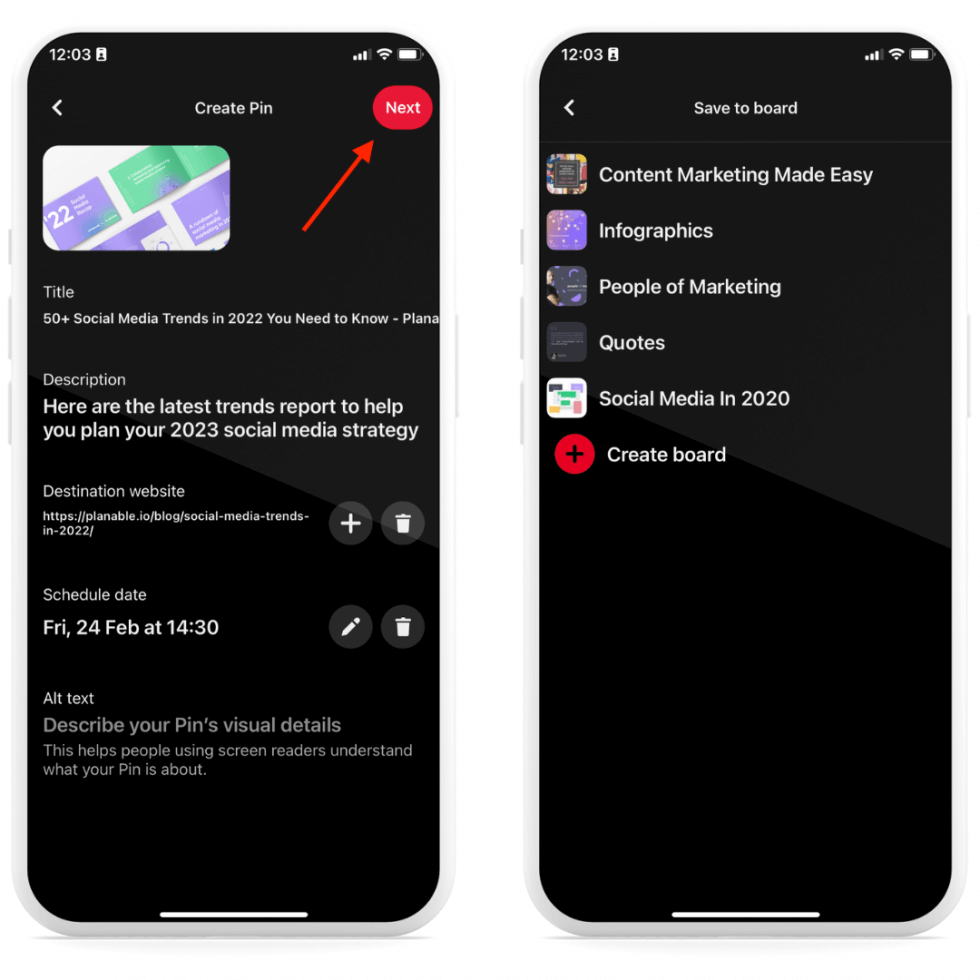
Let's return to our main video guide to see a walkthrough of this process on a phone.
Schedule Your Pinterest Pins for FREE using the NEW Native Scheduler
Let's watch the mobile scheduling tutorial from Heather Farris's video. This will equip you to manage your Pinterest account from anywhere.
Watch from 09:33 to 12:24. Follow the steps of uploading content, adding details, and selecting a schedule date and time using the mobile interface.
5. Finding and Editing Your Scheduled Pins
What happens if you schedule a pin and then realize you made a typo or want to change the date? Don't worry, it's easy to find and edit your scheduled content. Your scheduled pins are located in a special section on your profile.
Schedule Your Pinterest Pins for FREE using the NEW Native Scheduler
Finally, let's learn how to manage the pins you've queued up. This last segment from the Heather Farris video covers finding and editing scheduled pins on both desktop and mobile.
First, watch the desktop instructions from 07:20 to 09:33. Then, watch the mobile instructions from 12:24 to 13:14. Note how your scheduled pins appear at the top of your 'Created' tab on your profile.
Your Action Plan: Schedule Your First Pin Series
It's time to put this into practice. This task will combine what you've learned about creating pins, organizing boards, and now, scheduling.
Your Task:
- Choose one piece of content you want to promote. This could be a pin you designed in a previous lesson, a blog post, or a video.
- Identify 3 relevant boards from the list you created in our last lesson where this pin would fit perfectly.
- Schedule your pin three times using the strategy we learned:
- Schedule it to Board #1 to be published tomorrow.
- Schedule it to Board #2 to be published one week from tomorrow.
- Schedule it to Board #3 to be published two weeks from tomorrow.
This exercise will give you hands-on experience with the entire workflow, from content to strategy to execution.
Conclusion
Congratulations! You've unlocked one of the most powerful time-saving and growth-driving skills for any Pinterest creator. By mastering the native scheduler, you can ensure your account remains active and consistent, which is exactly what the Pinterest algorithm wants to see.
Key Takeaways:
- Consistency is king on Pinterest. Scheduling is the most practical way to achieve it.
- Pinterest's free native scheduler is a powerful tool for planning content up to 30 days in advance.
- A strong strategy involves pinning a single piece of content to multiple relevant boards over several weeks.
- You can easily schedule, view, and edit your queued pins from both desktop and mobile devices.
Preview of the Next Lesson:
You've made incredible progress in setting up and strategizing for Pinterest. Now we're going to shift gears and apply our growth mindset to another powerful platform. In the next module, we will dive into X (formerly Twitter) and start by learning how to write a concise, engaging post that encourages replies and retweets.