
Welcome back. Your local single-node KRaft broker is now running and reachable at localhost:9092. In the previous lesson, you established that a broker can accept Kafka protocol requests; now you will use that broker as a working event log.
By the end of this lesson, you will have created and inspected a topic, written test records with Kafka’s console producer, and read them with the console consumer. This is deliberately a command-line lab: it makes the topic, partition, offset, and replay behavior visible before you work with the Java client.
A topic is a named set of partition logs
A topic is Kafka’s named category of events: for example, orders, payments, or inventory-updates. It is not a single queue and it is not itself a single file. Kafka implements a topic as one or more partitions, each an append-only log.
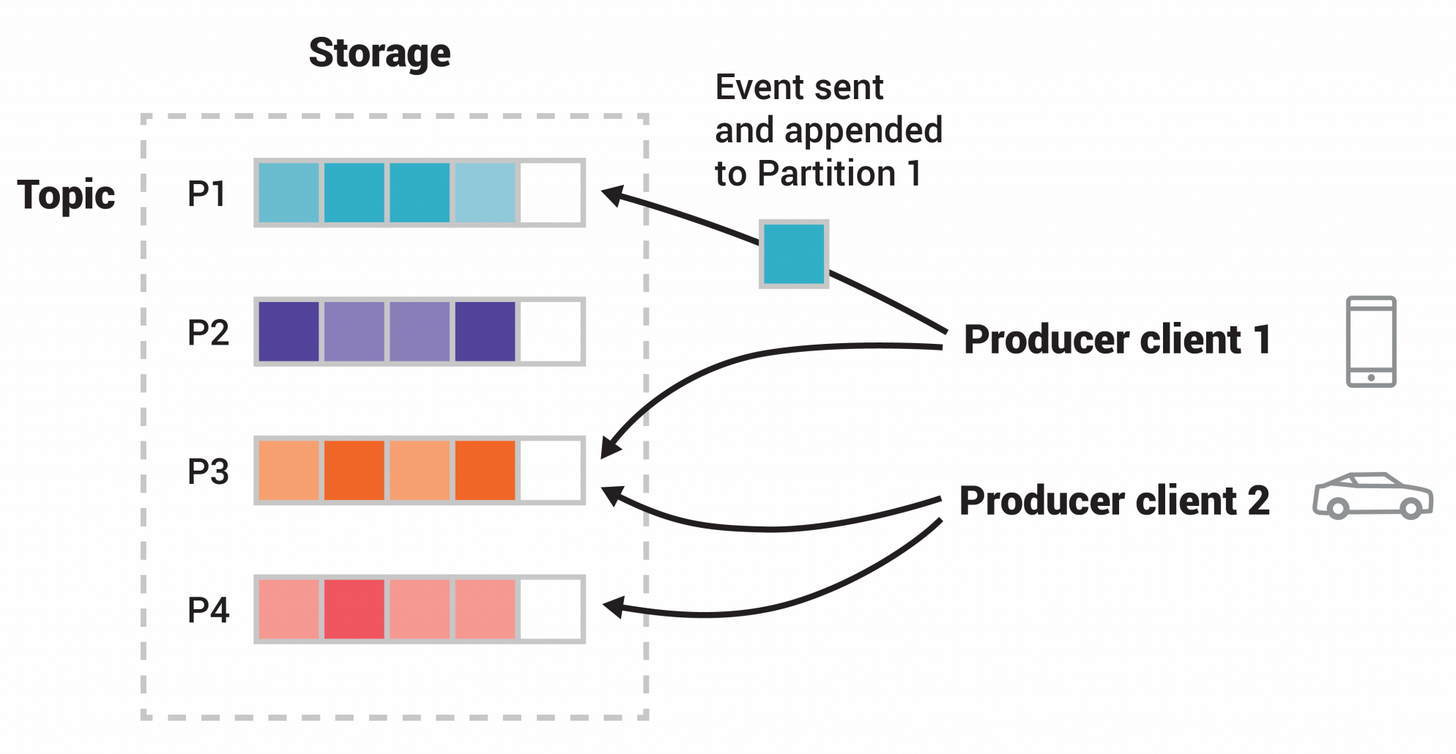
The diagram shows the essential physical model:
- A producer sends a record to one partition.
- Kafka appends that record to the end of that partition’s log.
- Kafka assigns the record an offset, its position within that partition.
- Consumers read records from those logs.
For this lab, you will create a three-partition topic. Three partitions make the topic structure concrete, even though one partition would be sufficient for a minimal test. Because the local environment contains only one broker, the replication factor must be one: Kafka cannot place a replica on a second broker that does not exist.
Read the official quickstart’s topic-management step before running the commands. Notice that creation is an administrative action: it creates Kafka metadata and partition logs, but it does not create any event records.
Read Apache Kafka’s official “Quickstart” section on creating and describing a topic. It establishes the core kafka-topics.sh workflow you will use in the lab.
In “Step 3: Create a topic to store your events,” read from the explanation beginning with the need to create a topic through the example --describe output. Focus on the purpose of --bootstrap-server, --create, and --describe, rather than copying the quickstart topic name.
Create and inspect lab-events
All the Kafka command-line programs are installed inside the Docker container at /opt/kafka/bin. Rather than opening an interactive shell first, run each tool directly from your host terminal with docker exec.
First, confirm the broker is still available:
docker ps --filter "name=kafka"
If the container is not Up, restart it with:
docker start kafka
Now create the topic:
docker exec kafka /opt/kafka/bin/kafka-topics.sh --bootstrap-server localhost:9092 --create --topic lab-events --partitions 3 --replication-factor 1
A successful response should state that the topic was created. If Kafka reports that lab-events already exists, that is not a broker failure; it simply means you have already completed this step. Continue by inspecting the existing topic.
The options express the important design choices:
| Option | Meaning in this lab |
|---|---|
--bootstrap-server localhost:9092 | Connect to the broker endpoint inside the container. |
--create | Create topic metadata and its partitions. |
--topic lab-events | Give the topic a stable name. |
--partitions 3 | Create three independent partition logs: 0, 1, and 2. |
--replication-factor 1 | Store one copy of each partition, the only possible value with one broker. |
Now list the topics known to the broker:
docker exec kafka /opt/kafka/bin/kafka-topics.sh --bootstrap-server localhost:9092 --list
Find lab-events in the output. Later, after consumers have run, Kafka may also create internal topics for its own coordination. For now, the key result is that your explicitly created topic is present.
Finally, inspect the topic in detail:
docker exec kafka /opt/kafka/bin/kafka-topics.sh --bootstrap-server localhost:9092 --describe --topic lab-events
The precise layout varies slightly by Kafka version, but it will contain a topic-level summary and one line per partition, conceptually like this:
Topic: lab-events  TopicId: ...  PartitionCount: 3  ReplicationFactor: 1
Topic: lab-events  Partition: 0  Leader: ...  Replicas: ...  Isr: ...
Topic: lab-events  Partition: 1  Leader: ...  Replicas: ...  Isr: ...
Topic: lab-events  Partition: 2  Leader: ...  Replicas: ...  Isr: ...
Interpret the fields in the context of this one-broker lab:
PartitionCount: 3confirms Kafka created three logs.ReplicationFactor: 1confirms there is only one stored copy of each partition.Leaderidentifies the broker responsible for reads and writes for a partition.Replicaslists brokers that store the partition’s data.Isr, short for in-sync replicas, lists replicas currently caught up with the leader.
Because there is only one broker, its broker ID should appear as the leader, sole replica, and sole in-sync replica for every partition. In a multi-broker cluster, those values can differ across partitions; here, they verify the limited but consistent structure of the local lab.
Write records with the console producer
Kafka’s console producer is a small client that turns every line you enter into one record value. It is ideal for verifying connectivity and log behavior, but it is not a substitute for your application producer.
Read the next portion of the official quickstart, which demonstrates the producer and consumer together.
Continue with the official Apache Kafka Quickstart. This section shows the simplest useful end-to-end path: enter text records with a producer, then replay them with a consumer.
In “Step 4: Write some events into the topic” and “Step 5: Read the events,” read the producer and consumer walkthrough. Pay attention to the fact that each input line becomes a separate record and that --from-beginning asks the consumer to read already stored records.
Start an interactive producer:
docker exec -it kafka /opt/kafka/bin/kafka-console-producer.sh --bootstrap-server localhost:9092 --topic lab-events
The command displays a > prompt. Enter several records, pressing Enter after each line:
order-created: 1001
order-created: 1002
payment-authorized: 1001
order-shipped: 1001
order-created: 1003
Then stop the producer with Ctrl-C.
Two details matter here:
- Each line is a separate Kafka record. The text is the record’s value.
- The colon in
order-created: 1001is merely text. You have not configured a Kafka record key yet. Key serialization and keyed publishing are coming in the Java producer module.
The console producer normally produces no confirmation line for every successful record. A clean exit without errors is expected. The consumer in the next section provides the practical verification that records were stored.
Replay the log and inspect partitions and offsets
Start a console consumer that reads the topic from its earliest available record:
docker exec -it kafka /opt/kafka/bin/kafka-console-consumer.sh --bootstrap-server localhost:9092 --topic lab-events --from-beginning --property print.partition=true --property print.offset=true --property print.timestamp=true
The output format varies somewhat across Kafka releases, but every produced value should appear with useful metadata. You should be able to identify:
- the partition containing the record;
- the record’s offset within that partition;
- a record timestamp;
- the original text value.
Offsets begin at zero per partition, not per topic. If a record has partition 2 and offset 0, it is the first record written to partition 2. Another record in partition 0 can also have offset 0; there is no ambiguity because a record position is identified by its topic, partition, and offset together.
Your records may all appear in one partition, or they may appear across more than one. Do not expect a simple alternating pattern from an unkeyed console producer. The producer implementation may keep using a partition for a batch before selecting another one. The important observation is that the metadata tells you where Kafka actually stored each record.
If records occupy multiple partitions, their display order may not match the exact order you typed them. Kafka guarantees order within each partition, but it does not establish one global ordering across a multi-partition topic. That distinction becomes critical when choosing record keys for real business events.
Stop the consumer with Ctrl-C after confirming your records.
This short video reinforces the difference between reading new records at the end of a topic and replaying records from the beginning. Its multi-partition demonstration also makes the per-partition ordering boundary visible.
Kafka Console Consumer on Kafla CLI Tutorial
Watch “Kafka Console Consumer on Kafla CLI Tutorial” by Stephane Maarek for a visual demonstration of console consumption behavior.
Watch tail consumption to see why a consumer started without replay options can wait silently for new records. Then watch producing and replay, focusing on --from-beginning and the explanation that records from multiple partitions need not appear in one global production order. The round-robin producer configuration shown is a teaching setup, not a configuration you need for this lab.
Watch new records arrive
Replay verifies historical data. A second useful mode is to start a consumer first and watch only newly arriving records.
Open one terminal and run a new console consumer without --from-beginning:
docker exec -it kafka /opt/kafka/bin/kafka-console-consumer.sh --bootstrap-server localhost:9092 --topic lab-events --property print.partition=true --property print.offset=true
With the console consumer’s default fresh-consumer behavior, it waits at the current end of the topic. Existing records do not print. This is why an apparently idle consumer is not automatically a broken consumer: it may simply have no new records to read.
Leave that terminal running. In a second terminal, start another producer:
docker exec -it kafka /opt/kafka/bin/kafka-console-producer.sh --bootstrap-server localhost:9092 --topic lab-events
Enter two new lines:
inventory-reserved: 1001
order-confirmed: 1001
Those values should appear in the consumer terminal soon after you press Enter. Stop both programs with Ctrl-C when you have observed the exchange.
At this stage, treat the console consumer as a diagnostic tool. In the next module, you will give application consumers stable group IDs and explicitly control when offsets are committed. Those settings determine how an application remembers its progress; --from-beginning is only the simple way to request a replay in this lab.
A compact troubleshooting routine
When a command does not behave as expected, isolate the failing layer rather than changing several things at once.
| Symptom | Likely explanation | First check |
|---|---|---|
| Connection refused or timeout | The broker is stopped or still starting | Run docker ps -a and docker logs kafka --tail 100. |
Topic ... does not exist | Typo in the topic name or topic was never created | Run the --list command, then --describe --topic lab-events. |
Topic ... already exists | You reran the creation command | This is expected; inspect and reuse the topic. |
| Producer appears to do nothing | It is waiting for text at the > prompt | Type one line, press Enter, then use a consumer to verify it. |
| Consumer prints nothing | It is waiting for new records at the log end | Use --from-beginning to replay stored records, or produce a new record. |
| Unexpected record ordering | Records are distributed across partitions | Print partition and offset metadata; assess ordering within each partition only. |
Takeaways
You now have a functioning Kafka command-line workflow:
kafka-topics.sh --createcreated a three-partition topic with replication factor one.kafka-topics.sh --describeexposed its partition count, leaders, replicas, and in-sync replicas.kafka-console-producer.shconverted each entered line into a Kafka record value.kafka-console-consumer.sh --from-beginningreplayed the durable records already in the topic.- Partition and offset output showed that Kafka identifies record position per partition, not through one topic-wide sequence.
Next, you will move from the console producer to a Maven-based Java application and configure a KafkaProducer to connect to this same local broker.
Can't find a good explanation? Sign up and we'll make it for you
Sign up