
Welcome back. In the previous lesson, you configured an Incident form and list, then verified that those metadata changes were captured in the WIT - Platform Foundation update set. You also inspected record metadata such as when and by whom a record was updated.
This lesson shifts from configuration to runtime behavior. You will trace one controlled edit to an Incident record: a user changes a value in the interface, the platform processes the submission and any eligible server-side logic, and the database stores the changed record. You will use Script Tracer to gather evidence rather than guessing which scripts ran.
A form is not the database
When you open an Incident, ServiceNow gives your browser a representation of a database record. You can change fields on that form, but those edits initially exist only in the browser.
For example, imagine you change an Incident’s Short description from:
VPN access issue
to:
VPN access issue — trace practice
At that moment, the browser displays the new value, but the database has not necessarily changed. The database write occurs only when you perform an action such as Update, Save, or Submit and the server accepts the request.
A useful mental model is to separate the interaction into three locations:
| Location | What happens there | Example |
|---|---|---|
| Browser (client side) | The user edits a form; client-side behavior can validate or alter the visible form | You type into Short description |
| ServiceNow server | The platform receives the submission and runs eligible server-side logic | A Before Business Rule validates or adjusts the pending record |
| Database | The row is inserted, updated, or deleted | The incident record stores the new Short description |
The boundary between the browser and server is especially important. A Client Script or UI Policy may respond immediately when a user changes a field, but it does not itself write directly to the database. A browser-side validation can also prevent the submission entirely, in which case no database update occurs.
For a standard form update, the broad lifecycle is:
- A user loads an existing record from the database.
- The user changes one or more values in the browser.
- Client-side logic may react to field changes or form submission.
- The user submits the form with Update or another UI Action.
- The server runs the applicable server-side logic.
- ServiceNow writes the pending values to the database.
- Server-side logic configured to run after the write may perform follow-up work.
- The platform returns an updated response, usually reloading or redisplaying the record.
Not every step necessarily has custom logic attached. A form may have no applicable Client Scripts, no qualifying Business Rules, or both. The point is that ServiceNow evaluates the appropriate places for logic at each stage.
Business Rule timing: where database writes sit
Business Rules are server-side scripts that run when a record is queried, displayed, inserted, updated, or deleted. Their timing determines what they can safely do.
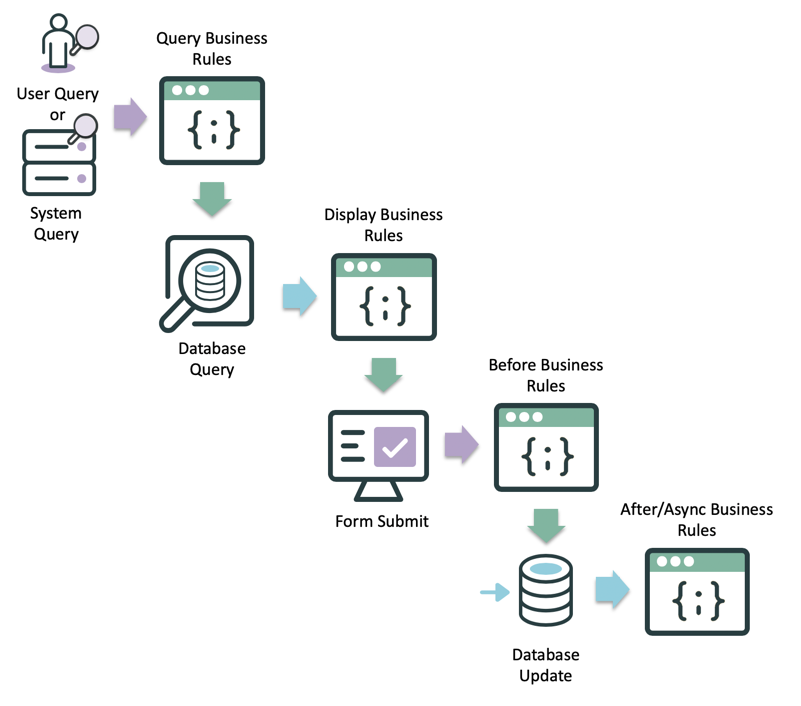
For this lesson, focus on the update path:
| Timing | Runs relative to database update | Typical purpose |
|---|---|---|
| Before | Before ServiceNow writes the record | Validate values, calculate a field, set a value on the record being saved |
| After | After ServiceNow writes the record | Carry out immediate follow-up work that depends on the saved record |
| Async | After the write, in a separate scheduled process | Do work that does not need to delay the user’s response |
| Display | When a record is being loaded for a form | Prepare server data for client-side use during form loading |
| Query | Before a database query is executed | Adjust or constrain a query in specialized cases |
A Before Business Rule can modify the record that is about to be written. For example, it might set a default assignment group when a particular category is selected. That adjusted value becomes part of the same database update.
An After Business Rule sees a record that has already been written. It is appropriate for follow-up work, such as creating a related record or queueing an event. An Async Business Rule is also follow-up work, but it runs later on a scheduler thread, so it normally does not make the user wait for it to finish.
Do not treat these as a guarantee that every Business Rule on a table runs for every action. A Business Rule must first be eligible:
- It must be active.
- Its When setting must match the operation, such as Update.
- Its filter condition or scripted condition must evaluate as true.
- Its table must match the record being processed, including applicable inheritance behavior.
This distinction matters during debugging:
A Business Rule that exists is not necessarily a Business Rule that executed.
Read: the official process model and Script Tracer
The following ServiceNow Developer material provides the official context for display-time server logic and the tool you will use to observe a real transaction.
Server-side Scripting Objectives
Read the “Display” material briefly for the distinction between preparing a form for display and saving a record. Then concentrate on Article 17 of 36, “Script Tracer,” which explains how ServiceNow records synchronous server-side execution for one transaction.
In the “Display” section, read from the display explanation. Notice that a Display Business Rule prepares data for the client; it is not an update to the current record. Next, find Article (17 of 36), “Script Tracer.” Under its “Tracing” subsection, read the tracing procedure. Then read the “Trace Details” subsections, especially “State,” from the State explanation. Focus on what the trace list proves: the server-side files that actually executed, their order in that transaction, and the changed record values shown for a selected step.
One practical limitation is worth retaining: Script Tracer is for synchronous server-side execution. A queued Async Business Rule may not appear as part of the same immediate trace, because it executes later.
Your controlled trace in the PDI
You will now trace a standard Update action on one Incident record. This is a diagnostic exercise, not an attempt to customize the Incident table.
Because the prior lesson used WIT - Platform Foundation, first keep the contexts straight:
- Your update set is for deployable configuration metadata.
- The Incident edit in this exercise is runtime data.
- Do not expect the updated Incident record to appear as a Customer Update in the update set.
1. Choose a safe record and record a baseline
Open Incident > All in your PDI and select a low-risk test Incident. Prefer a record you created yourself, if one exists.
Before editing anything, note:
- Incident number;
- current Short description;
- current State;
- current value of Updated or
sys_updated_on, if it is visible; - current value of Updated by, if visible.
If you need to create a record because no suitable test record exists, use a clearly recognizable Short description such as:
Trace practice record — do not use
Complete any mandatory fields required by your PDI. Then open the saved record before starting the actual trace.
2. Start Script Tracer
In the main ServiceNow window, use the Application Navigator to open:
System Diagnostics > Script Tracer
Script Tracer normally opens in a separate window or tab. If it does not, check whether your browser blocked a pop-up.
Click Start Tracer. Keep the tracer available, but return to your Incident form in the original browser tab or window.
The trace captures transactions that occur after you start it. Starting it only when you are ready keeps your evidence small and interpretable.
3. Make one intentional edit
On the Incident form:
-
Append a unique marker to the Short description, such as:
[trace-01] -
Do not modify State, Assignment group, Priority, or several fields at once.
-
Click the standard Update button.
-
Wait for the form to reload or return to the record.
This narrow edit is deliberate. If you change many fields, it becomes difficult to determine which value was changed by you, which was set automatically, and which was modified by server-side logic.
At this point, you have initiated one transaction. The browser submitted the edited form; ServiceNow processed the request on the server; and the incident record should now persist the updated Short description.
4. Stop and inspect the trace
Return to Script Tracer and click Stop Tracer.
You may see several rows. In a PDI with baseline functionality, that is normal. A standard Update can involve a UI Action and one or more server-side scripts. Focus first on rows where:
- File Type is UI Action or Business Rule;
- Table is
incident,task, or another relevant table; - the row corresponds to the Update or Save transaction you just performed.
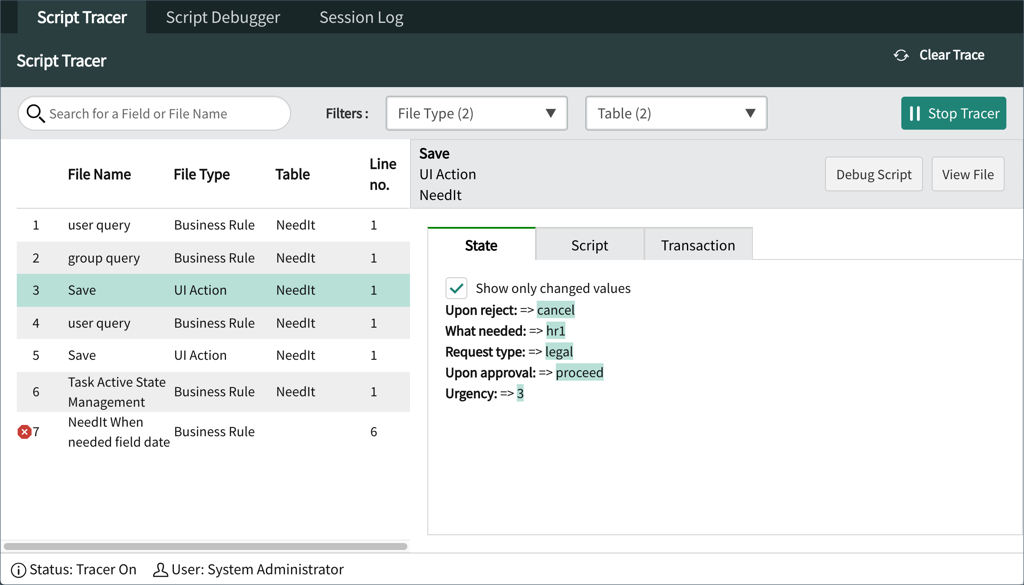
Select the row associated with Update or Save first. Then inspect the tabs:
| Tab | Question it helps answer |
|---|---|
| State | Which field values were changed or present at this point? |
| Script | What script line or condition is associated with this trace row? |
| Transaction | What request and transaction details identify this execution? |
On the State tab, leave Show only changed values selected initially. Look for your Short description containing the trace marker. You may also observe system-maintained fields such as Updated or Updated by.
Then select any Business Rule rows that appear relevant. For each one, determine:
- Did it execute in this transaction?
- Is it associated with the Incident or Task table?
- Does its State view show a value you recognize?
- Does the Script tab indicate a condition, action, or script relevant to this update?
Do not worry if the trace contains unfamiliar out-of-box logic. At this stage, the objective is not to understand every script. It is to make a defensible statement about the path your update took.
Build an evidence-based explanation
After reviewing the trace, write a short explanation in your study notes using this structure:
| Trace stage | Your evidence |
|---|---|
| User action | You changed Short description on Incident INC... and selected Update |
| Server entry point | The UI Action row or transaction details shown by Script Tracer |
| Server logic observed | Names and types of relevant Business Rule rows that actually executed |
| Database result | The Short description still contains your marker after reload; Updated metadata changed |
| Follow-up behavior | Any synchronous After Business Rule rows you observed, or “none identified” |
A concise completed explanation might read:
I changed the Short description on Incident
INC0012345and clicked Update. Script Tracer recorded the Update UI Action and the server-side scripts that executed for the transaction. The record reloaded with[trace-01]in its Short description, and its Updated timestamp changed, confirming that the database record was updated. The trace distinguishes scripts that ran from scripts that merely exist on the table.
That is much stronger than saying, “I clicked Update and it worked.” It identifies the user action, transaction, platform logic, and persistent database outcome.
Interpreting surprises without guessing
Tracing often reveals behavior that looks surprising at first. Use evidence to narrow the cause.
The Short description changed, but no Business Rule row seems relevant
That can be completely valid. The standard Update action can persist your edit even if no custom or qualifying Business Rule changes the Short description. The basic database operation is platform behavior; Business Rules are optional extensions around it.
A Business Rule exists but is absent from the trace
Do not immediately assume Script Tracer failed. Check whether the rule was active, configured for updates, and had a true condition. Its order may matter among rules of the same timing, but eligibility comes first.
Extra fields changed even though you edited only one
System metadata commonly changes as part of an update. sys_updated_on and sys_updated_by are useful evidence that the record was written. Other fields may be changed by business logic, data policies, assignment behavior, or other configured automation. The State tab lets you distinguish an observed value change from an assumption about its cause.
You expect an Async Business Rule but do not see it
Async work is queued separately and can run after the synchronous request finishes. Script Tracer is not the right evidence source for every asynchronous follow-up action. The important conclusion is not “it did not run,” but rather “it was not part of this synchronous trace.”
The form changes before you click Update
That is typically browser-side behavior, such as a Client Script or UI Policy. It may affect what you see and may prevent submission, but it does not prove that the database changed. Reloading the record or checking the saved value is the persistence test.
Key takeaways
A change made on a form is initially a browser-side edit, not a database change. Selecting Update, Save, or another submission action sends the record to the ServiceNow server, where applicable server-side logic can run before and after the database write.
For an update transaction:
- Before Business Rules can validate or adjust the pending record before it is stored.
- The platform writes the record to the database.
- After Business Rules can carry out synchronous follow-up work.
- Async Business Rules run later and are not normally part of the immediate synchronous trace.
- A rule’s existence does not prove execution; its timing, operation, and conditions must make it eligible.
Most importantly, Script Tracer turns the runtime path into evidence. You can connect a specific UI action to the server-side files that actually executed and to a verified persistent record change.
Next, you will learn how to locate relevant ServiceNow documentation for a platform feature or API—an essential skill when a trace exposes a script, table, or platform behavior you do not yet recognize.
Can't find a good explanation? Sign up and we'll make it for you
Sign up