
Good to see you again. In the previous lesson, you learned to inspect a record rather than treating a form as a simple data-entry page: visible fields, activity, related lists, and system metadata each tell part of the record’s story. You also established two separate development contexts: the Work Intake Training application scope and the WIT - Platform Foundation update set.
Now you will make a small, deliberate interface configuration in your PDI and prove that ServiceNow captured it in the intended update set. This is a core developer habit: a layout that “looks right” on your development instance is not automatically a deployable change. You must know what configuration was saved, where it was saved, and whether it is in the correct deployment package.
Layout is configuration, not record data
A form layout controls how one record is presented: which fields appear, their order, their sections, and sometimes the number of columns. A list layout controls which columns appear when users browse many records from a table.
Neither kind of change alters the business data in an Incident or other task record. If you add Updated to an Incident form, you have not updated any Incident. You have updated the platform’s definition of the interface for that table and view.
This distinction is essential:
| You change... | Example | Usually captured by an update set? |
|---|---|---|
| Configuration / metadata | Form sections, form fields shown, list columns, Business Rules, ACLs | Yes |
| Runtime / business data | An Incident’s State, a request’s Assigned to value, a catalog order | No |
| Personal preference | Your private list column choices or form personalization | Usually no; do not rely on it for deployment |
The word usually matters. ServiceNow has exceptions, dependencies, and application-specific deployment mechanisms. But for the form and list configurations you will make through Configure, the correct expectation is that the configuration is recorded as customer updates in your active update set.
Read the two short sections below from the ServiceNow Developer Guide. They establish both sides of today’s work: usable form/list design and disciplined update-set review.
Read the official ServiceNow Developer Guide for practical layout design rules and the deployment discipline behind update sets. The aim is not to memorize every deployment option, but to understand why a small UI change must be intentional and traceable.
In Build: Design, read the Forms and Lists guidance, beginning with form choices. Continue through the list-design recommendations, especially the advice to keep a default list to seven or fewer columns and avoid a reference field as the first column. Then go to Deploy and read the update-set practices beginning at review practices. Finally, read the explanation beginning the data boundary. Focus on why an update set is evidence of configuration work, not a backup of records created during testing.
Two design principles should guide every edit you make today:
- Make the frequent work visible early. Fields such as a short description, state, and assignment often belong near the top because people use them repeatedly.
- Do not solve clutter by exposing everything. A field can exist on a table without belonging on every form or list. Group less-frequent information into logical sections and keep lists concise.
Choose the correct tool and the correct context
ServiceNow exposes several ways to alter what you see. They are not interchangeable.
Form Layout and Form Design
For form configuration, the most common choices are Configure > Form Layout and Configure > Form Design.
| Tool | Interface | Best use in this lesson |
|---|---|---|
| Form Layout | Available and selected field lists, often with sections | A small, precise change: add, remove, or reorder a field |
| Form Design | Visual, drag-and-drop designer | Seeing the form structure and rearranging more visually |
| List Layout | Available and selected list columns | Adding, removing, or ordering columns in a table list |
The exact names and menu positions can vary slightly between platform releases and experiences. A classic form header often supports a right-click context menu; elsewhere, use the form’s additional-actions menu. Look for Configure rather than a menu labeled Personalize.
Form Design is useful because it makes the distinction between available field definitions and displayed form elements visible. A field in the navigator already exists on the table; placing it on the canvas changes the view, not the underlying value stored for a particular record.
Configuration versus personalization
Before changing anything, recognize the common trap:
- Configure > Form Layout, Configure > Form Design, and Configure > List Layout are administrative configuration tools. Their saved changes can be tracked for deployment.
- Personalize Form and Personalize List normally adjust an individual user’s experience. They can be useful, but are not the correct tool when implementing a team requirement.
A simple diagnostic question is: Should every appropriate user of this table and view receive this change after deployment? If yes, use configuration rather than personalization.
Preflight: make the update set evidence trustworthy
You will use a standard Incident record in your PDI as a controlled learning target. In a production project, do not change an out-of-box form merely to experiment; first confirm the requirement, the intended view, and the team’s customization standard. Your PDI is the appropriate place to make and inspect this small change.
Before opening Incident, verify both contexts deliberately:
-
Confirm that WIT - Platform Foundation is your current update set.
Navigate to System Update Sets > Local Update Sets, locate it, and use Make Current if necessary. Its state should remain In progress. -
Confirm the active scope is Work Intake Training if that is what your application picker currently shows.
Do not confuse this with the update set. The scope controls application boundaries and cross-scope behavior; the update set is the container that captures eligible configuration changes. -
Record a quick baseline in a study note:
- current update-set name:
WIT - Platform Foundation; - current time;
- current number of Customer Updates in that update set, if visible.
- current update-set name:
The baseline makes verification much easier. If the set already contains earlier work, you are not trying to prove that it is nonempty. You are looking for new entries created after this lesson’s saves.
Do not close the update set after this exercise. Later lessons in this module will build on the same controlled development workflow.
Configure one form field deliberately
Open an Incident form in your PDI:
- Use the Application Navigator filter to find Incident > All.
- Open any existing Incident record.
- Identify its current form view. For this exercise, use the Default view unless your instance clearly directs you to a training-specific view.
- Open the form context menu or additional-actions menu and choose Configure > Form Layout.
If Form Layout is not available but Form Design is, use Form Design instead. The intended result is the same.
The minimal change
Add the system field Updated to an appropriate existing section, such as Additional information or a similarly named details section.
In Form Layout:
- Locate Updated in the Available list. The underlying database field is commonly
sys_updated_on, but work with the display label Updated. - Add it to the selected fields in an existing lower-priority section.
- Place it near related audit information, such as Updated by, if that field is present.
- Save the layout.
In Form Design:
- Use the Field Navigator to find Updated.
- Drag it into an existing information or audit-oriented section.
- Avoid creating a new field, changing a default value, or changing field mandatory status.
- Save or apply the design.
This is intentionally a narrow change. You are practicing layout configuration, not data-model design. Creating a field or changing its properties modifies a different kind of configuration and makes it harder to identify exactly what today’s update set should contain.
After saving, reload the Incident form and verify:
- Updated appears in the intended section;
- its value is a date/time from the Incident record’s existing metadata;
- the Incident’s business values, such as State and Short description, were not changed;
- you used Configure, not a personal settings menu.
A form change should improve the user’s ability to do work. In this case, placing Updated among audit fields gives useful record-lifecycle context without crowding the top of the form.
Configure the list to support scanning records
Return to Incident > All. A list supports a different activity from a form: scanning, sorting, filtering, and choosing which record to open. It should expose a compact set of columns that help users distinguish one row from another.
Open the list’s context or additional-actions menu and select Configure > List Layout. Depending on your interface, you may access this by right-clicking a column header or by using a list menu.
Make this minimal list change:
- Find Updated in the available columns.
- Add it to the selected columns.
- Place it after a meaningful business column such as State or Priority.
- Keep Number as the first column when it is available. It identifies the Incident record itself.
- Save the list layout and refresh the list.
A sensible compact Incident list might contain:
| Column | Why it belongs in a scan-oriented list |
|---|---|
| Number | Identifies the Incident record |
| Short description | States the work at a glance |
| State | Shows progress |
| Priority | Supports triage |
| Assignment group | Shows operational ownership |
| Updated | Helps identify stale or recently active work |
You do not need to configure every one of those columns now. The point is to understand the selection criterion: a list should help a user decide which record deserves attention next. Too many columns slow visual scanning and force horizontal scrolling.
After saving, verify that Updated is visible as a column on the Incident list. Sort or filter only if you wish to inspect the result; do not edit an Incident record.
Verify the update set, not just the screen
Seeing the new field and column proves that the layout changed on your PDI. It does not by itself prove that a deployment artifact exists.
Navigate to System Update Sets > Local Update Sets and open WIT - Platform Foundation. Locate the Customer Updates related list. This is where ServiceNow records captured configuration updates.
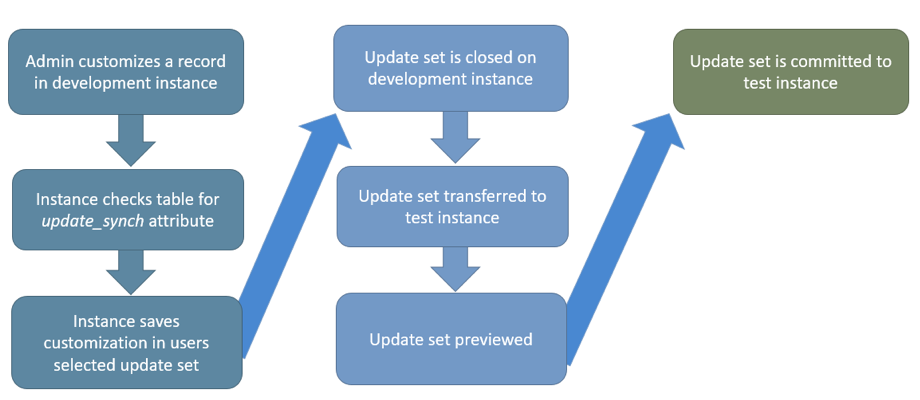
Look for new customer-update entries created after your baseline time. Exact record names vary by release and interface, so do not expect one fixed internal name. However, a form configuration commonly produces entries associated with form section or form-element configuration, and a list configuration commonly produces entries associated with the list definition or its elements.
Your verification standard is:
| Check | What good evidence looks like |
|---|---|
| Correct container | The updates appear in WIT - Platform Foundation, not Default or an unrelated set |
| Correct timing | Entries were created after you saved the form and list changes |
| Correct subject | Entries relate to the Incident form/view or Incident list layout |
| Correct boundary | No Incident business record was expected to be captured as update-set content |
| Correct visible outcome | The form shows Updated and the list contains the Updated column after refresh |
Open the new entries if their name is not self-explanatory. The update record may show technical table names such as sys_ui_section, sys_ui_element, or sys_ui_list. You do not need to memorize those names yet. What matters is the reasoning:
sys_ui...configuration records are evidence of interface metadata.- An
INC...record represents runtime task data and is not what you expect an update set to transport.
If no expected update appears
Do not recreate the configuration repeatedly. Diagnose in this order:
- Check the current update set. It may have changed, or you may have made the edit while Default was current.
- Confirm you saved the configuration. Closing a designer without saving does not create a captured change.
- Confirm the tool. A personalization can alter your screen without creating a deployable configuration update.
- Refresh the Customer Updates related list and sort by most recently updated if needed.
- Check the changed table and view. You may have configured a different list view or form view than the one you intended.
Do not manually move individual customer-update records between update sets. In a real project, that creates difficult-to-debug deployment history. The correct response to a wrong update set is to follow the team’s remediation process; for your PDI, note the error and discuss or reset it before migration work begins.
A practical completion record
Add this compact entry to your study notes:
| Item | Your evidence |
|---|---|
| Target table and view | Incident, plus the view you configured |
| Form change | Added Updated to the named form section |
| List change | Added Updated after the named list column |
| Update set | WIT - Platform Foundation |
| Capture evidence | Names/types and timestamps of the new customer updates |
| Validation result | Form and list both display the intended configuration after refresh |
This kind of note is a small version of real release evidence. It lets another developer—or future you—connect a stated requirement, a platform configuration, and a deployable change set.
Key takeaways
Form and list layouts are configuration metadata, not business-record data. Use Form Layout or Form Design to control fields and sections on a record form, and List Layout to control columns used for scanning many records.
Keep interfaces purposeful: put frequently needed information where users can find it quickly, group related fields, and avoid overloading lists with columns.
Most importantly, a visible UI result is only half the job. For a deployable change, verify that the change was saved through configuration tools and that the corresponding customer updates were captured in the intended update set, WIT - Platform Foundation.
Next, you will trace a simple user action through the ServiceNow platform—from an interface interaction, through platform logic, to a database record change.
Can't find a good explanation? Sign up and we'll make it for you
Sign up