
Welcome back. You can now navigate from the Application Navigator to a list, a form, and table-centered configuration. That navigation skill matters here because creating an application does not merely add a menu entry: it creates a development boundary with its own identity and set of configurable artifacts.
In this lesson, you will create a small scoped application in your PDI using Studio. More importantly, you will separate three ideas that are often conflated early on:
- application scope: the application’s internal identity and boundary;
- application files: the configurable artifacts built for the application;
- runtime data: the business records the finished application will store and process.
Do not add a table or scripts yet. The point is to establish a clean training application and understand what exists immediately after creation.
The three layers of an application
A custom ServiceNow application has a user-facing name, such as Work Intake Training, but ServiceNow also assigns it a system-facing scope value, such as:
x_12345_work_intake
Your PDI will have its own company code, so your actual scope will differ. The scope is not simply a display label. It is a stable internal identifier that ServiceNow uses to identify application resources and apply boundaries between applications.
A useful way to organize the concepts is this:
| Layer | What it is | Example in the future Work Intake Training app |
|---|---|---|
| Application scope | The internal application identity and boundary | x_12345_work_intake |
| Application files | Configuration artifacts that define the app | A custom table definition, a field definition, a Business Rule, a role, a Flow |
| Runtime data | Business records created while people use the app | A submitted work request, its status, its assigned group |
The closest JavaScript analogy is a module namespace combined with an access contract. A scoped application’s files receive a recognizable namespace, and other applications do not automatically get unrestricted access to them. However, scope is not a separate physical database. It does not, by itself, make every record secret or grant users access. User access to data is ultimately controlled through application access settings, roles, and ACLs, which you will study later.
For now, retain this distinction:
Scope identifies and governs an application boundary. Files define behavior and structure. Runtime data is what the application handles once people start using it.
Why create custom applications in scope?
ServiceNow has a long-standing Global scope containing many platform and baseline capabilities. A custom business application should normally be created in a private scope. This reduces naming conflicts, makes ownership clearer, and allows ServiceNow to control interactions between the custom application and other applications.
Read the official ServiceNow Developer material before building. It establishes the vocabulary used in Studio and explains why scope matters.
Read this ServiceNow Developer learning material to establish the official distinction between application scope, Studio, and application files. The screenshots may not exactly match your PDI release, but the underlying model and creation workflow are the important parts.
In the article titled Application Scope (Article 6 of 29), read the scope explanation. Focus on scope as a unique identity for application files, the difference between Global and a custom scope, and the application-scope control in the main platform window. Then read the short ServiceNow Studio section (Article 7 of 29), paying attention to its description of Studio as the central place to create and manage application files. Finally, in Creating an Application (Article 8 of 29), read the creation workflow. Notice the expected result after opening a newly created application: an application can exist before you have created its meaningful files or business data.
A scope is normally generated in this form:
x_<company code>_<application name fragment>
All custom scopes begin with x_. The company code is controlled by the instance, not invented by the developer. ServiceNow limits the complete scope value to 18 characters, so longer application names may produce a shortened final portion.
The display name can be changed later, but treat the scope as a durable technical identifier. Choose a clear application name now rather than treating it as temporary filler.
What Studio manages: application files, not business records
Studio is ServiceNow’s application-development environment. In it, you select one application and work with the files that define that application.
An application file is normally a configuration artifact, often represented by one or more metadata records in the platform. Later in this course, your application files will include items such as:
- custom table and field definitions;
- application menus and modules;
- client scripts and Business Rules;
- Script Includes;
- roles and ACLs;
- flows, catalog items, and UI artifacts.
The file list is therefore an inventory of how the application is built, not a list of the requests, tasks, or other business records it eventually manages.
The exact interface differs across releases. Some PDIs surface ServiceNow Studio, while newer experiences may label a similar area ServiceNow IDE. The key behavior is consistent: select the target application first, then create a configuration artifact within that application’s development context.
By contrast, imagine that Work Intake Training later contains a custom table called Work Item:
- The Work Item table definition is an application file.
- A field called Requested for is an application file.
- A Business Rule that assigns a new item is an application file.
- A particular record, such as “Laptop access request for Jordan,” is runtime data.
A runtime record can be viewed in a list or form, filtered, updated, and processed. It is not an item you would normally browse as a source file in Studio.
Create the training application in your PDI
Allocate about 20 minutes for this build. Use a name that is descriptive but narrow enough to remain useful throughout this course:
- Name:
Work Intake Training - Description:
Training application for learning ServiceNow development
This is a PDI learning application, not a production application. In a real organization, an application intended for deployment should be created in the organization’s designated development instance so that it follows that organization’s testing and deployment process.
1. Open Studio
- In your main PDI browser tab, open All.
- Filter for
studio. - Select System Applications > Studio.
- Studio should open in a separate browser tab and display an application-selection dialog.
If your PDI opens an App Engine experience instead, first verify that you are operating with the admin role. Some releases expose more than one development interface. For this lesson, use Studio if it is available rather than starting from an unrelated app template.
2. Create the application
In Studio:
- Select Create Application.
- If the Guided App Creator welcome screen appears, select Let’s get started.
- Enter the name and description listed above.
- Confirm that the application is being created as a scoped or private scoped application. This is normally the default.
- Locate the generated Scope value.
Before selecting Create, write the following in your development notes:
| Item | What to record |
|---|---|
| Display name | Work Intake Training |
| Generated scope | Your actual value beginning with x_ |
| Instance | Your PDI URL or instance name |
| Purpose | Training application; no production use |
Do not try to replace your PDI’s company-code prefix. The generated scope is the technical identity that will prefix custom resources created in the application.
- Select Create.
- When the wizard offers Continue in Studio (Advanced), select it.
- In the application-selection dialog, choose Work Intake Training to load it in Studio.
At this stage, the application itself exists, but it has no business table and therefore no business records. This is expected.
3. Inspect the initially empty application
Look at the Studio Application Explorer or file navigation area. The official Studio creation workflow describes a newly opened app as having no default application files.
Depending on your PDI release and the choices made by the wizard, you may see no files or a small number of supporting artifacts. Either result is useful:
- If it is empty, you have confirmed that an application can exist before its custom data model exists.
- If artifacts appear, read their type and name. They are configuration metadata, not end-user work records.
Do not create a table yet. The next module begins by turning a small business requirement into the right tables, fields, and relationships. Creating a table now would blur that planned boundary.
You may open Create Application File or Create File only to inspect the available categories, then cancel without creating anything. Notice that the choices describe configuration types such as tables, scripts, policies, or user-interface artifacts. That menu does not offer “create a customer request” or “create a work item,” because those would be runtime records created from the application’s eventual tables.
Confirm the scope in two places
Studio selects the application you are editing, but developers also need to recognize the active application scope in the normal ServiceNow interface. Return to your original PDI browser tab.
- Locate the Application scope control or application picker in the header.
- Check whether Work Intake Training is the active scope.
- If it is not active, select it from the available application scopes.
- Record the display name and generated scope one more time.
The application-settings view is another place where the identity of an application is visible.
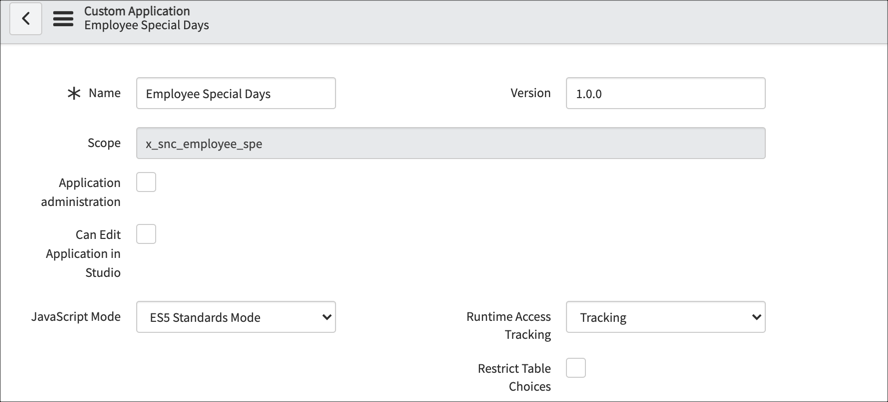
The screenshot also contains settings that you will not configure today, such as runtime access tracking. For now, your goal is simply to recognize that this form describes the application definition: its name, scope, version, and behavior settings.
If your Studio version provides File > Settings, open it and inspect the equivalent application settings for Work Intake Training. Do not modify access or runtime-tracking settings yet.
Verify that you can classify what you see
Complete this short evidence check in your notes. It will make later troubleshooting much easier.
| Item you observed | Classification | Why |
|---|---|---|
Work Intake Training | Application definition | It identifies the custom application itself |
x_<your code>_... | Application scope | It is the internal identity and boundary for application artifacts |
| Studio Application Explorer | Application-file area | It lists configurable artifacts that define the app |
| The application settings record | Metadata | It configures the application, rather than representing a user request |
| A future Work Item request | Runtime data | It will be an individual business record stored in a table |
A particularly common mistake is to assume that selecting an application scope makes every record you create part of the application. It does not. The scope control establishes a context and influences which configuration artifacts you can work with, but it does not turn ordinary business records into Studio files.
A second mistake is to assume scope alone provides complete data security. It does not. Scope helps control interactions among applications. Later, roles, ACLs, table access settings, and field-level rules will determine who can create, read, modify, or delete actual runtime records.
Key takeaways
You have created Work Intake Training as a scoped application in Studio and recorded its generated scope.
- A scope is the application’s stable internal identity and a boundary for application interactions. Custom scopes normally begin with
x_. - Studio manages the configurable artifacts that build an application: its application files.
- An application file is configuration metadata, such as a table definition, script, role, or flow—not an end-user business record.
- Runtime data is the record-level information the finished application will store and process. Your training application has no such data yet because it has no custom table.
- The application’s display name, application settings, and scope are metadata about the app itself.
- Scope is important for isolation, but it is not a substitute for roles and ACLs.
Next, you will create and select a local update set, then distinguish that change-capture mechanism from the active application scope before you begin configuring the training application further.
Can't find a good explanation? Sign up and we'll make it for you
Sign up