
Hello! Welcome to the fourth module of our course, MSSQL Integration & Query Building.
In the previous module, we took a deep dive into advanced Eloquent features, culminating in our last lesson on implementing soft deletes. You now have a solid grasp of how to manage the data lifecycle and optimize relationship queries within Laravel.
Now, we pivot from the application's ORM layer to the database itself. As per your goal to master MSSQL, this module is dedicated to bridging the gap between Laravel and Microsoft SQL Server. Our first step is to establish the connection.
This lesson is designed to help you configure a Laravel application to connect to a Microsoft SQL Server (MSSQL) database. We will cover the necessary PHP extensions, the Laravel configuration settings, and how to verify that everything is working correctly.
1. Understanding the Connection Stack
Before we start installing files, it's helpful to understand how your Laravel application actually communicates with an MSSQL database. It's not a direct connection; it happens through several layers of technology:
- Your Laravel App: Uses Eloquent or the Query Builder.
- Laravel's Database Abstraction Layer: Translates your code into generic database commands.
- PHP's PDO (PHP Data Objects): A consistent interface for PHP to talk to various databases.
- The
pdo_sqlsrvDriver: A specific PHP extension that allows PDO to communicate with SQL Server. - Microsoft SQL Server: The database itself.
The key takeaway is that Laravel relies on underlying PHP extensions to do the heavy lifting. Our first task is to ensure PHP has the correct drivers installed and enabled.
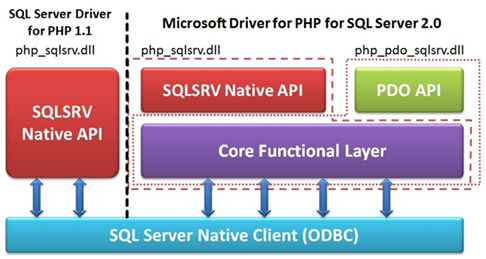
2. Step 1: Install the Required PHP Drivers
To connect to MSSQL, you need two specific PHP extensions: sqlsrv and pdo_sqlsrv. These are not typically enabled by default in a standard PHP installation like XAMPP.
The official Laravel documentation confirms this requirement.
Database: Getting Started - Laravel Docs
Let's first consult the official Laravel documentation to confirm the prerequisites for connecting to MSSQL.
Read the short subsection titled "Microsoft SQL Server Configuration". It explicitly mentions the sqlsrv and pdo_sqlsrv extensions and their dependencies, like the Microsoft SQL ODBC driver.
Now, let's get and install them. This process involves downloading the correct driver files and placing them in your PHP extension directory.
This video provides a complete walkthrough of the entire setup process. We will follow its steps.
Connect laravel 9 to sql server | sql server with laravel 9
This video by S.M. Sadid demonstrates the full process on a Windows machine with XAMPP. We will use it as our primary guide for the hands-on steps.
Watch the video from the beginning until 02:16. The narrator will guide you through finding and downloading the correct Microsoft Drivers for PHP for SQL Server. Pay close attention to matching the driver version with your PHP version (e.g., PHP 8.1, 8.2, etc.) and architecture (x64 for most modern systems).
Here is a summary of the steps shown in the video and supplemented with official Microsoft guidance:
-
Identify Your PHP Environment:
- Run
php -vin your terminal to find your PHP version (e.g.,PHP 8.2.4). - Run
php -i | findstr "Thread Safety"(on Windows) orphp -i | grep "Thread Safety"(on Mac/Linux) to see if you have a "Thread Safe" (ts) or "Non Thread Safe" (nts) build. XAMPP on Windows is typically Thread Safe.
- Run
-
Download the Drivers:
- Go to the Microsoft Drivers for PHP for SQL Server download page. You can find this by searching for it or by following the links from the Microsoft documentation.
This is what the Microsoft documentation page for system requirements looks like. The prominent "Download PHP Driver" link will take you to the GitHub releases page where you can find the driver packages.- Download the
.zipfile that corresponds to your operating system.
-
Extract and Place the Driver Files:
- Unzip the downloaded package. You will see many
.dllfiles. - Find the two files that match your PHP version, thread safety, and architecture. For example, for a 64-bit, thread-safe PHP 8.2 installation, you would look for
php_pdo_sqlsrv_82_ts_x64.dllandphp_sqlsrv_82_ts_x64.dll. - Copy these two files into your PHP extension directory. You can find this directory path by running
php -i | findstr "extension_dir". For XAMPP, this is usuallyC:\xampp\php\ext.
- Unzip the downloaded package. You will see many
)
The following Microsoft documentation provides more detail on this process.
Loading the Microsoft Drivers for PHP for SQL Server
For a detailed explanation, you can refer to Microsoft's official guide on loading the drivers.
Read the sections "Moving the Driver File into Your Extension Directory" and the introductory paragraphs. This reinforces the process of finding the extension directory and placing the correct files within it.
3. Step 2: Configure PHP to Use the Drivers
Now that the files are in the right place, you need to tell PHP to load them on startup by editing your php.ini file.
Connect laravel 9 to sql server | sql server with laravel 9
Let's return to the video to see how to enable the extensions in php.ini.
Watch from 04:08 to 06:02. This part shows how to find the php.ini file (via the XAMPP control panel in this case), search for the extension section, and add the lines to load the two driver files you just copied.
As shown in the video and confirmed by Microsoft's documentation, you need to add the following lines to your php.ini file. Make sure the filenames exactly match the ones you copied.
extension=php_sqlsrv_82_ts_x64.dll
extension=php_pdo_sqlsrv_82_ts_x64.dll
(Note: Your version numbers and ts/nts suffix may differ based on your PHP installation).
After saving the php.ini file, you must restart your web server (e.g., Apache in XAMPP) for the changes to take effect. The video also shows how to verify the installation by checking phpinfo(), which should now list pdo_sqlsrv as an enabled PDO driver.
4. Step 3: Configure Your Laravel Application
With PHP ready, the final step is to tell Laravel how to connect to your MSSQL database. This is done primarily in the .env file.
Database: Getting Started - Laravel Docs
The Laravel documentation provides a clear overview of the configuration process, which is driven by environment variables.
Read the "Configuration" section. It explains that database connections are defined in config/database.php but are driven by values in your application's .env file.
Now let's apply this by editing your .env file.
Connect laravel 9 to sql server | sql server with laravel 9
The video provides a practical example of filling out the .env file with the correct credentials for an MSSQL server.
First, watch from 03:01 to 03:30 to see the initial view of the .env file. Then, jump to 06:30 and watch until 07:34. This segment shows the specific changes needed for the DB_* variables to connect to a local SQL Server instance.
Based on the video and Laravel conventions, update the following variables in your .env file:
DB_CONNECTION=sqlsrv
DB_HOST=127.0.0.1
DB_PORT=1433
DB_DATABASE=your_database_name
DB_USERNAME=your_sql_server_username
DB_PASSWORD=your_password
DB_CONNECTION: This is the most important change. Set it tosqlsrvto tell Laravel to use the SQL Server driver.DB_HOST: The address of your database server. For a local installation, this is typically127.0.0.1orlocalhost.DB_PORT: The default port for MSSQL is1433.DB_DATABASE: The name of the database you want to connect to. You must create this database in MSSQL beforehand (e.g., using SQL Server Management Studio).DB_USERNAMEandDB_PASSWORD: The credentials for a user that has access to your database.
5. Step 4: Test the Connection
The moment of truth! The best way to confirm that your entire setup is working is to run Laravel's database migrations. This command will test the full stack: it will read the .env file, use the PHP drivers, connect to the database, and attempt to create tables.
Connect laravel 9 to sql server | sql server with laravel 9
The final part of the video demonstrates creating a database and running migrations to confirm a successful connection.
Watch from 07:40 to the end. The narrator runs php artisan migrate, and you can see the command successfully execute, creating Laravel's default tables in the SQL Server database. This is the confirmation that your connection is working.
In your terminal, at the root of your Laravel project, run:
php artisan migrate
If the command completes without errors and you see tables being created, congratulations! Your Laravel application is successfully connected to your MSSQL database.
If you encounter an error, read it carefully. Common errors include:
could not find driver: This meansphp.iniis not configured correctly or you haven't restarted your web server.Login failed for user ...: This indicates incorrect username/password credentials in your.envfile or that the user doesn't have permissions on the database.Connection timed out: This could be a firewall issue or an incorrectDB_HOSTorDB_PORT.
Conclusion
In this lesson, you have successfully configured your local development environment and a Laravel application to communicate with a Microsoft SQL Server database. This is the foundational step for all the database-specific work we will be doing.
Let's recap the key takeaways:
- Driver Dependency: Laravel connects to MSSQL via PHP's PDO interface, which requires the
sqlsrvandpdo_sqlsrvextensions. - Installation Process: You must download the correct driver files for your PHP version, place them in the
extdirectory, and enable them in yourphp.inifile. - Laravel Configuration: The connection is configured in the
.envfile by settingDB_CONNECTION=sqlsrvand providing the correct host, port, database, and credentials. - Verification: Running
php artisan migrateis the standard and most reliable way to test that the entire connection stack is working correctly.
Up Next:
Now that you have a working connection, it's time to start querying the database. In the next lesson, we will focus on writing complex SELECT queries in MSSQL using JOINs, GROUP BY, and window functions. We'll start by writing raw SQL to understand MSSQL's specific syntax and power before translating those concepts to Laravel's Query Builder.