
Hello again. In the previous lesson, you chose a personal subscription, a single European region, a disposable application resource group, and a separate resource group for Terraform state. Those boundaries make deletion and access control manageable. This lesson adds the financial boundary: a lab should have a known cost hypothesis, alerts that provide time to act, metadata that makes charges traceable, and an explicit exit plan.
By the end, you will have a cost-estimation method suitable for the later Container Apps, PostgreSQL, AKS, registry, and monitoring labs; a pair of budget guardrails; a small tag standard; and a cleanup runbook. No billable application resources are deployed in this lesson.
Estimate before you create
Azure cost control starts with a simple distinction:
- An estimate is a pre-deployment prediction based on the configuration and consumption assumptions you enter.
- A budget compares observed and forecasted costs with a chosen threshold.
- Neither is a spending limit or an automatic shutdown mechanism.
A budget tells you that you need to act; it does not prevent a resource from continuing to consume capacity. This matters especially for a personal account: a PostgreSQL server, Kubernetes worker nodes, retained logs, or a registry may continue generating charges while no one is actively using the application.
Use the Azure Pricing Calculator to construct an estimate from services and expected usage, rather than looking for a single “application hosting” price.
Estimate costs with the Azure pricing calculator - Microsoft Learn
Read Microsoft Learn's guide to the Azure Pricing Calculator. It explains both the calculator layout and the process of turning a planned configuration into a monthly estimate.
First, in the section "Understand the Azure pricing calculator", read the page layout so you know where services, configuration panels, and the summary appear. Then continue to the numbered workflow beginning after "Build an estimate" and read the estimation workflow. Focus on changing defaults such as region, SKU, and monthly hours; default settings often assume a full month of use.
The calculator is most useful when you make two estimates, not one:
- Expected lab use: what you intend to run during a normal month.
- Worst plausible month: what you would pay if you forgot to remove an always-on service until the end of the month.
For any hourly service, a full calendar month is commonly modeled as roughly 730 hours. If you plan to use a service for two evening sessions but leave it provisioned for the rest of the month, the relevant estimate is usually close to the full-month case, not the hours you actively interact with it.
Build an estimate by billing driver
Do not try to estimate the complete course today, because several later design choices affect the price. Instead, maintain one named estimate—for example, grasp-azure-dev-lab—and add or revise services before every module that creates them.
| Planned component | Main variables to configure in the calculator | Cost risk if forgotten |
|---|---|---|
| Terraform remote state storage | Redundancy option, stored capacity, operations, network transfer | Usually low, but it intentionally survives application cleanup |
| Azure Container Registry | Chosen SKU and storage | Moderate fixed cost while the registry is retained |
| Azure Container Apps | CPU and memory allocation, running duration, request volume, minimum replicas | Low to moderate for brief use; higher if replicas remain active |
| Azure Database for PostgreSQL | Compute tier, provisioned hours, storage, backup retention | High for a short lab because it is stateful and can run continuously |
| AKS | Worker-node VM size and count, node running hours, disks, load balancing, log ingestion | High; worker nodes create costs while the cluster exists |
| Azure Monitor and Application Insights | Telemetry and log ingestion, retention | Variable; verbose logs can turn a low-cost deployment into an unexpected bill |
| Outbound network traffic | Expected data leaving Azure | Usually low for a small lab, but workload-dependent |
A useful discipline is to record every estimate line with its assumption, not only its amount. For example:
| Estimate line | Assumption to record |
|---|---|
| Container Apps backend | Minimum replicas set to the planned value; tested for a limited number of hours |
| PostgreSQL | Smallest acceptable development configuration; deleted immediately after the module |
| AKS nodes | Cluster exists only for a scheduled practical session, then is destroyed |
| Monitoring | Development-level telemetry volume and short retention where configurable |
This prevents a common error: using the lowest possible configuration in the calculator while deploying a materially different configuration later.
Practical planning action: create the initial estimate
Open the calculator and create grasp-azure-dev-lab. Use the European region selected in the previous lesson, and set the calculator currency to the currency in which you want to compare options. Add only the services you currently expect to create in the next few modules: remote state storage, container registry, Container Apps, PostgreSQL, and monitoring. Add AKS later as a separate scenario, because its worker-node choice deserves its own deliberate review.
Export or save the estimate after each significant revision and keep its assumptions in your repository, for example in docs/cost-plan.md.
Cost of this practical action: USD 0 in Azure usage. The Pricing Calculator does not create Azure resources or reserve capacity. Its displayed prices are estimates, not a contractual quote or a guarantee of your final invoice.
A realistic limit for this course
Your intended maximum is about USD 50 per month. Treat that as a hard operating limit, not as the amount you should aim to spend.
For this course, use two internal planning levels:
| Level | Suggested amount | Purpose |
|---|---|---|
| Disposable application environment | USD 35 equivalent in your billing currency | Early warning for frontend, backend, database, registry, and monitoring experiments |
| Whole personal subscription | USD 50 equivalent in your billing currency | Final guardrail against all subscription spending, including a forgotten state-storage or shared resource |
The smaller application amount preserves room for retained operational resources and billing variation. It is not a claim that every future lab, particularly AKS, can remain below that figure if left running. The AKS module should be treated as a short-lived, scheduled experiment: estimate it first, deploy it for a limited window, and destroy it promptly.
Configure budget alerts as an operational signal
Azure budgets can be scoped to a subscription or to a resource group. At the present stage, configure a subscription-level budget first: it exists before workload resources and catches charges that accidentally appear outside the planned application resource group. When the disposable application resource group is created, configure a second resource-group budget with the lower amount.
Read the budget workflow before configuring either one.
Tutorial - Create and manage budgets - Microsoft Cost Management | Microsoft Learn
Read the Microsoft Learn tutorial for the portal workflow and the distinction between actual-cost and forecasted-cost alerts.
In "Create a budget in the Azure portal", read the creation steps. Pay particular attention to scope, reset period, expiration date, and filters. Then read all of "Configure actual costs budget alerts", beginning at alert behavior. Focus on when actual and forecasted alerts are evaluated and on the fact that notifications are normally delivered within an hour, not instantly.
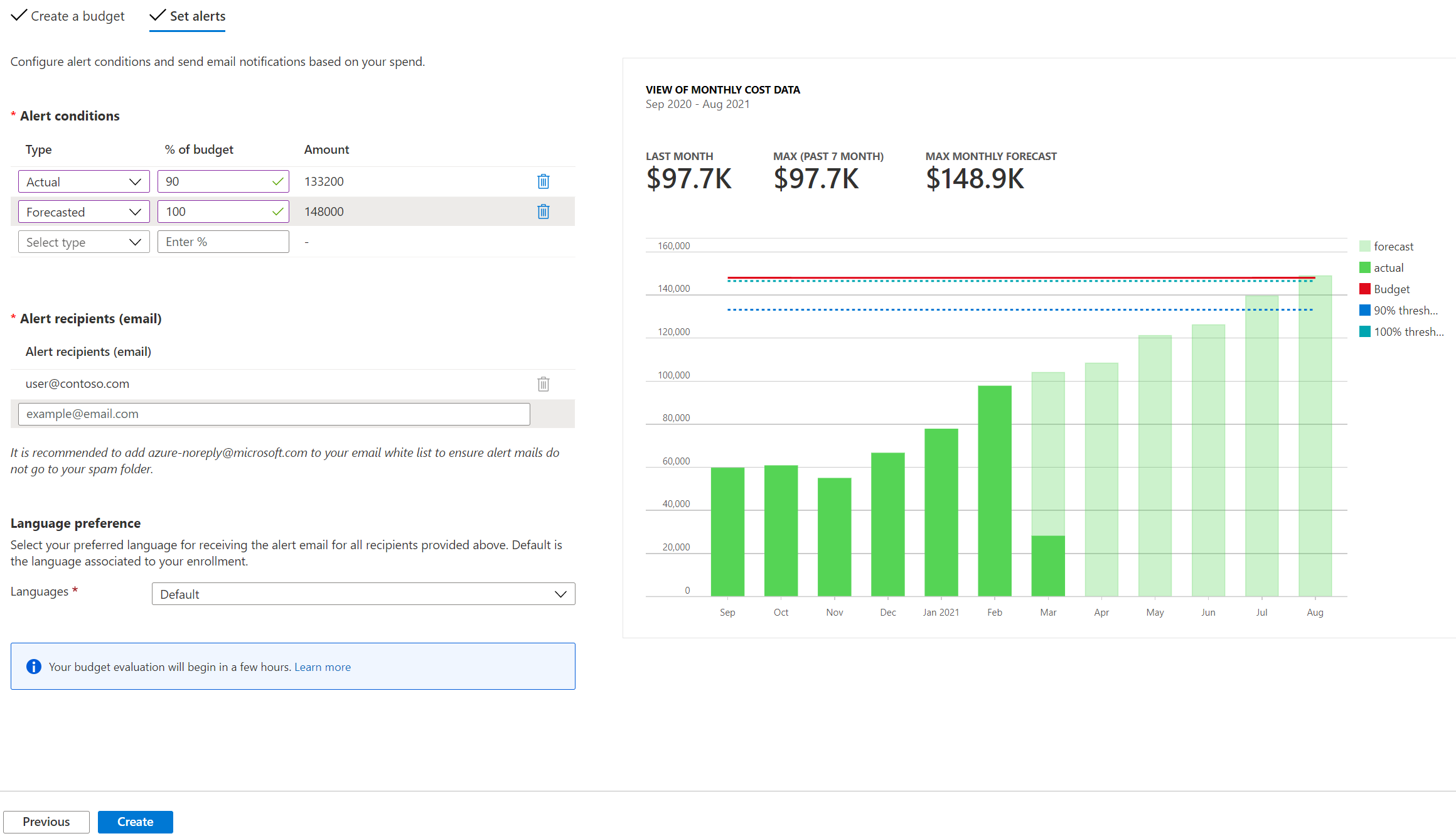
The image below shows the Set alerts stage. Notice that an alert condition combines a type—Actual or Forecasted—with a percentage of the budget, while the chart provides context about current costs and the forecast.
Create two budgets
Use the portal route described in the reading: open the selected subscription, choose Budgets, and select Add.
1. Subscription safety budget
Configure this budget now:
| Field | Recommended value |
|---|---|
| Scope | Your personal course subscription |
| Name | budget-subscription-monthly-50 |
| Reset period | Monthly, or Billing month if you deliberately want it aligned with the invoice period |
| Amount | USD 50 equivalent in the subscription’s billing currency |
| Expiration | A date about 12 months ahead, reviewed before it expires |
| Filters | None initially |
| Recipient | Your regularly monitored personal email address |
Do not add a filter to this first budget. It is intended to reveal unexpected subscription-wide charges, including resources created in the wrong resource group.
If your subscription already has unrelated resources, this budget still provides protection, but its alerts reflect the total subscription cost. Record those pre-existing costs separately so that you do not mistake them for costs from this course.
2. Application-environment budget
Once rg-grasp-app-dev-<region> exists, create a second budget from that resource group’s Budgets page:
| Field | Recommended value |
|---|---|
| Scope | rg-grasp-app-dev-<region> |
| Name | budget-grasp-app-dev-35 |
| Reset period | Monthly |
| Amount | USD 35 equivalent in the subscription’s billing currency |
| Expiration | Same review date as the subscription budget |
| Recipient | The same monitored email address |
The resource-group scope makes this budget an accurate signal for the disposable application environment. It will not include Terraform state storage in the separately retained state resource group; that is intentional.
Alert thresholds and response
For both budgets, configure these alerts:
| Type | Threshold | Meaning | Your response |
|---|---|---|---|
| Actual | 50% | Half the planned budget has been incurred | Review Cost Analysis and confirm the running resources are expected |
| Actual | 80% | The lab is approaching its limit | Stop new experimentation; identify and delete unnecessary resources |
| Actual | 100% | The threshold has been reached | Begin cleanup immediately unless you have consciously approved the extra cost |
| Forecasted | 100% | Current usage trends predict the limit will be exceeded | Act before actual spend reaches the limit |
For the USD 35 application budget, the first three actual-cost thresholds correspond to USD 17.50, USD 28, and USD 35 equivalent. Use the actual billing currency shown by Azure when entering the amounts.
Cost of this practical action: USD 0 in new workload usage. Creating a budget and configuring email thresholds does not create a container, database, cluster, or virtual machine. Existing Azure resources in the subscription can of course continue to generate charges while you configure it.
Budgets are deliberately not automatic deletion
It can be tempting to connect the 100% threshold to automatic deletion. Do not do that for this course. Budget data and notifications have a delay, and destructive automation can remove database data or a working environment without allowing a diagnosis.
For a personal lab, the safer first control loop is:
- Receive the email alert.
- Open Cost Analysis at the same scope as the alert.
- Group or filter by resource, service, and resource group.
- Confirm whether the charge matches the estimate and the intended lab activity.
- Perform the documented cleanup action.
Later, Action Groups can support more elaborate notifications or automation, but email plus a clear deletion runbook is the appropriate guardrail before the application exists.
Tags: metadata that makes the bill explainable
A resource group gives the application one lifecycle boundary. Tags add metadata across resources, allowing you to classify them by purpose, environment, ownership, and intended deletion date.
A tag is simply a key-value pair. It does not itself enforce security, move money, stop a resource, or delete infrastructure. Its value is consistency: the same keys make portal inventory, Cost Analysis, and later automation easier to use.
Adopt this minimal tag contract for the course:
| Tag key | Example value | Why it is useful |
|---|---|---|
application | grasp-app | Identifies all parts of this course application |
environment | dev | Distinguishes the lab from any future non-lab work |
owner | your-email-or-alias | Gives a responsible contact |
cost-center | personal-lab | Supports cost grouping even in a personal subscription |
managed-by | terraform | Identifies resources expected to be under infrastructure-as-code control |
lifecycle | temporary | Makes the disposal expectation visible |
delete-after | 2025-12-31 | Supplies a concrete review and cleanup date |
course | azure-basics | Separates this course from other experiments |
Use ISO date format, , for delete-after. A vague value such as later is not operationally useful.
Apply tags deliberately
Apply the full relevant set to the application resource group and to each resource created inside it that supports tags. Do not assume tags on a resource group automatically appear on contained resources; they are separate objects and must be tagged at creation time.
The Terraform modules later in the course should carry these tags as a shared input so that registry, database, Container Apps, monitoring, and AKS resources receive them consistently. Until then, applying the tags to the resource group establishes the visible ownership and lifecycle contract.
The Terraform-state resource group should have a different tag profile:
| Tag key | State resource group value |
|---|---|
application | terraform-state |
environment | dev |
owner | your-email-or-alias |
managed-by | terraform |
lifecycle | retained |
course | azure-basics |
The critical distinction is lifecycle=temporary for the application environment and lifecycle=retained for Terraform state. Without it, an enthusiastic cleanup could erase the state that records what Terraform manages.
Cost of this practical action: USD 0 in new workload usage. Tags are metadata. They do not by themselves create billable compute, storage, databases, or network resources.
Write the cleanup plan before the first deployment
Deletion is not an emergency response; it is part of the lab design. Put the following runbook in docs/cleanup-plan.md or the repository README before deploying the application.
Cleanup trigger and ownership
| Item | Course-lab decision |
|---|---|
| Owner | You, identified by the owner tag |
| Normal cleanup point | Immediately after completing each billable module or practical session |
| Mandatory review point | On the delete-after date |
| Early warning | Actual cost reaches 50% of a budget |
| Stop-and-review point | Actual cost reaches 80%, or forecast reaches 100% |
| Immediate cleanup point | Actual cost reaches 100%, unless you consciously accept additional expense |
Normal cleanup procedure
- Open Cost Analysis at the application resource-group scope and check the services and resources contributing to cost.
- Confirm that any useful test output, logs, configuration values, or database schema notes have been saved outside the temporary environment. Do not place real personal or customer data in this course lab.
- Once Terraform manages the application resources, run the Terraform destruction workflow from the same configuration and state used to create them. This preserves an auditable record of what is being removed.
- Verify in the Azure portal that the application resource group no longer contains billable application resources.
- Check Cost Analysis again on the following day or billing refresh cycle. Cost reporting is not instantaneous, so a charge displayed after deletion may reflect earlier usage rather than a still-running resource.
- Keep the Terraform-state resource group unless you are finishing the course permanently and have consciously decided to remove its state as well.
Emergency fallback
If a later Terraform destroy fails and a costly lab resource remains, delete the disposable application resource group from the portal after recording what failed. Deleting the application group removes the resources contained in that group, which is why the earlier lifecycle boundary matters.
Do not use this fallback casually once Terraform state exists. Deleting resources outside Terraform first can leave state that no longer matches Azure. In a normal case, Terraform should perform the cleanup; resource-group deletion is the controlled recovery option when cost containment is more urgent than preserving perfect state continuity.
Cost of this practical action: writing and storing the cleanup plan locally or in a Git repository has USD 0 Azure usage cost. Deleting resources stops future charges for those resources, but usage already incurred can still appear in Cost Management after the deletion.
You now have four complementary controls:
- The Pricing Calculator turns an intended deployment into explicit monthly assumptions.
- A USD 50-equivalent subscription budget watches total personal-subscription exposure.
- A USD 35-equivalent application budget provides an earlier signal for the disposable workload once its resource group exists.
- Tags and a cleanup plan make ownership, purpose, lifecycle, and deletion decisions visible before infrastructure is created.
Next, you will begin the Terraform workflow: authenticate Azure CLI and the AzureRM provider without embedding long-lived credentials in configuration files.
Can't find a good explanation? Sign up and we'll make it for you
Sign up