
Hello! Welcome to the next lesson in our n8n journey.
In our last session, we mastered using JavaScript expressions to transform data within a single item. You learned how to parse strings, calculate with numbers, and manipulate dates using Luxon. Now, we'll shift our focus from individual items to collections of items.
Today's learning outcome is to summarize or aggregate data from multiple items into a single item. This is a fundamental pattern you'll use constantly. Imagine you have a list of sales from a spreadsheet; you might want to calculate the total revenue. Or, you might have a list of new user sign-ups and want to generate a single summary report to post to Slack. These are all acts of aggregation.
We will explore two primary methods to achieve this:
- The No-Code Approach: Using n8n's built-in
Aggregatenode for quick and easy summarization. - The Developer's Approach: Using the
Codenode with a sprinkle of JavaScript for maximum power and flexibility, which will feel right at home for you.
1. Preparing Data for Aggregation
Before you can aggregate data, you often need to gather it into a single stream. A common scenario is having data processed in different branches of your workflow that you now want to combine. The Merge node is the primary tool for this.
While the Merge node has several modes, the most relevant for aggregation is Append. This mode simply takes all the items from its various inputs and stacks them into one long list, which can then be fed into an aggregation step.
A critical consideration when merging data from different sources is ensuring the data has a consistent structure or "schema". As a developer, you know the pain of dealing with objects that have differently named keys for the same concept (e.g., email vs. email_address). The Set (or Edit Fields) node is perfect for normalizing this data before merging.
This video provides an excellent practical example of using Merge in Append mode and highlights why normalizing your data with the Set node first is a best practice.
Set, Merge, and Split Out Nodes in n8n Explained
Watch this clip from the 'Set, Merge, and Split Out Nodes in n8n Explained' video by Tommy Eberle. It demonstrates how to combine two lists of items and, more importantly, how to use the Set node to unify their data structures.
Watch from 01:24 to 06:39. Focus on two key ideas: How the Merge node in 'Append' mode takes two lists of 15 items and creates a single list of 30. Why the Set node was necessary to rename fields (name to customer name) to create a consistent data shape across all 30 items.
2. The No-Code Method: The Aggregate Node
Once you have a single stream of items, the simplest way to summarize them is with the Aggregate node. This node is designed specifically to take many items as input and produce a single item as output.
This pattern is so common that you can visualize it as a funnel: multiple streams enter a Merge node, creating one wide river of items, which then flows into an Aggregate node that distills it into a single result.

The Aggregate node has two main modes of operation that you'll need to understand.
The official n8n documentation for the Aggregate node is the best place to learn its specific parameters. Please read the following sections.
Read the introduction and the sections 'Individual Fields' and 'All Item Data'. Pay close attention to the difference between them. 'Individual Fields' is for plucking out specific values from each item into a new list, while 'All Item Data' bundles the entire items.
To solidify this, let's consider an example. Suppose we have 100 items, each representing a product sale with the structure { "productName": "Widget", "amount": 99.99 }.
- Using
Individual Fields: We could configure the Aggregate node to target theamountfield. The output would be a single item containing one field, perhaps namedall_amounts, which would be an array of 100 numbers:{ "all_amounts": [99.99, 45.50, ...] }. - Using
All Item Data: This would produce a single item containing a field, perhaps namedsalesData, which would be an array of 100 objects:{ "salesData": [ { "productName": "Widget", "amount": 99.99 }, { "productName": "Gadget", "amount": 45.50 }, ... ] }.
The Aggregate node is excellent for these common use cases. However, what if you want to calculate the sum of all amounts? Or create a complex, formatted report string? For that, we turn to the Code node.
3. The Developer's Method: The Code Node
The Code node gives you a full JavaScript environment to perform any transformation you can imagine. The key to using it for aggregation lies in one setting: changing Execute Once from the default "For Each Item" to "Once for All Items".
When you do this, you gain access to a special variable: $input.all(). This variable gives you an array of all incoming n8n items, allowing you to iterate over them and perform batch operations—a concept very familiar from general programming.
This article provides a concise, developer-focused explanation of this pattern.
Mastering the n8n Code Node: A Deep Dive into $input.all ...
This article from Medium, 'Mastering the n8n Code Node', clearly explains the difference between item-by-item and batch processing.
Read the sections 'The Most Important Setting: Execute Once vs. For Each Item' and 'Batch Processing with $input.all()'. Note the data structure of $input.all()—it's an array of n8n item objects, where your data lives inside the json key of each object.
As the article shows, you can now use standard JavaScript array methods like .reduce(), .map(), and .filter() on the entire dataset.
Example: Calculating Total Sales
Using our previous sales data, we could calculate the total revenue with a Code node set to run once:
// Get the array of all incoming items
const allItems = $input.all();

// Use .reduce() to sum the 'amount' field from each item's JSON data
const totalAmount = allItems.reduce((sum, item) => {
  return sum + item.json.amount;
}, 0);

// Return a new single item with the result
return [
  {
    json: {
      totalRevenue: totalAmount,
      numberOfSales: allItems.length
    }
  }
];
This approach is incredibly powerful. You can create richly formatted summaries, perform complex calculations, and structure the final output object exactly as you need it.
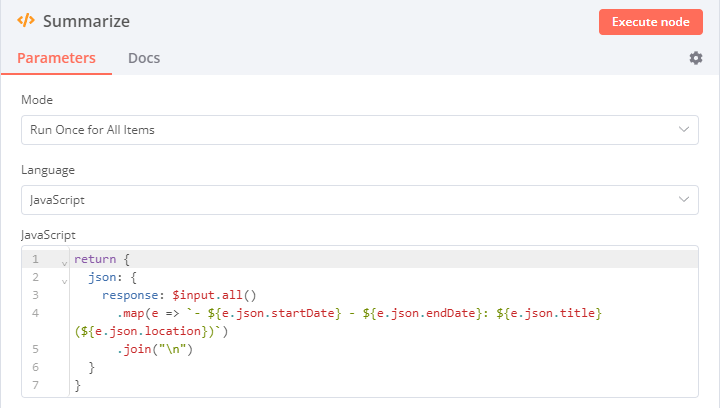
The image below shows another practical example, where a Code node (named "Summarize") iterates over multiple calendar events to create a single, formatted text response.
Test your understanding!
You have a workflow that produces a list of log entries. Each item has the structure { "level": "ERROR", "message": "Database connection failed." }. You might have other levels like "INFO" or "WARNING".
Your goal is to produce a single output item that contains a field named error_messages, which is an array of strings containing only the messages from the "ERROR" level logs.
For example, given these three input items:
{ "level": "INFO", "message": "User logged in." }{ "level": "ERROR", "message": "Database connection failed." }{ "level": "ERROR", "message": "API timeout." }
The final output item should be:{ "error_messages": ["Database connection failed.", "API timeout."] }
Describe how you would solve this using the Code node. Write out the JavaScript code you would use.
Show answer
Here is one effective way to solve this using a Code node set to Execute Once for All Items:
// Use .filter() to keep only items where the level is 'ERROR'.
// Then, use .map() to extract just the 'message' from each of those items.
const errorMessages = $input.all()
  .filter(item => item.json.level === 'ERROR')
  .map(item => item.json.message);

// Return a single new item containing the array of error messages.
return [
  {
    json: {
      error_messages: errorMessages
    }
  }
];
This solution cleanly chains standard JavaScript array methods to filter and transform the data, demonstrating the power and expressiveness of using the Code node for aggregation. You could also achieve this by first using a no-code Filter node and then an Aggregate node, but this single Code node is often more efficient.
Conclusion
You now have the skills to condense large amounts of data into meaningful summaries. This is a major step up from processing items one by one.
Key Takeaways:
- Aggregating data means reducing many items to a single item.
- The
Mergenode'sAppendmode is often used first to combine items from different branches into a single list. - The
Aggregatenode provides a simple, no-code way to either bundle all item data or pluck out specific fields into a list. - The
Codenode, when set to run "Once for All Items," gives you ultimate flexibility. Using$input.all()with standard JavaScript array methods (.reduce,.map,.filter) allows you to perform any custom aggregation logic you need.
In our previous lessons, we've used the If, Switch, and Filter nodes for logic. Today we've added powerful aggregation techniques. The final piece of the data transformation puzzle is learning how to write more complex, multi-line logic that goes beyond a simple expression.
In our next lesson, we will do a deep dive into the Code node, exploring its full potential for writing custom JavaScript that can handle any business logic you can throw at it.