
Hello! Welcome back.
In our previous lesson, we mastered extracting and mapping data from JSON responses, the most common format for modern APIs. You learned to use the Expression Editor to navigate and transform data, which is a cornerstone skill in n8n.
But what happens when a service doesn't speak JSON? You'll often encounter systems, especially older enterprise software or specific content feeds like RSS, that use different data formats. This lesson will equip you to handle these situations by focusing on the learning outcome: Parse non-JSON responses using nodes like the XML node.
We will primarily explore how to work with XML, a widely used data format. As a related and very common use case, we will also cover how to extract information from raw HTML, the language of web pages. Your background as a software developer means you're likely familiar with the hierarchical structure of these markup languages, which will make understanding their processing in n8n quite straightforward.
1. The XML Node: Taming XML with JSON Conversion
Imagine you want to build a workflow that automatically reads an RSS feed. RSS feeds are structured using XML (eXtensible Markup Language). While it looks similar to HTML, its purpose is to describe data, not just to display it.
Since n8n's data handling is optimized for JSON, the first step is always to convert XML data into a JSON object. For this, n8n provides a dedicated XML node.
Processing different data types
The official n8n documentation provides a concise overview of the XML and HTML nodes. Let's start here to get the formal definition.
Read the short section titled 'HTML and XML data'. Focus on the description of the XML node's purpose: 'to convert XML to JSON and JSON to XML'.
As the documentation states, the XML node is your bridge between the XML and JSON worlds. When you receive an XML response from an API, you simply pass it through this node to get a workable JSON object.
Hands-On: Parsing an RSS Feed
Let's build a simple workflow to see this in action. We'll fetch the RSS feed for the n8n blog and parse it.
- Create a new workflow. Start with a Manual trigger or simply execute nodes as you build them.
- Add an HTTP Request node.
- URL:
https://n8n.io/blog/rss/ - Under Options, set Response Format to
File. This tells n8n to treat the response as raw text data rather than trying (and failing) to parse it as JSON. - Execute the node. In the output, you'll see a single item with a
dataproperty containing the raw XML of the RSS feed.
- URL:
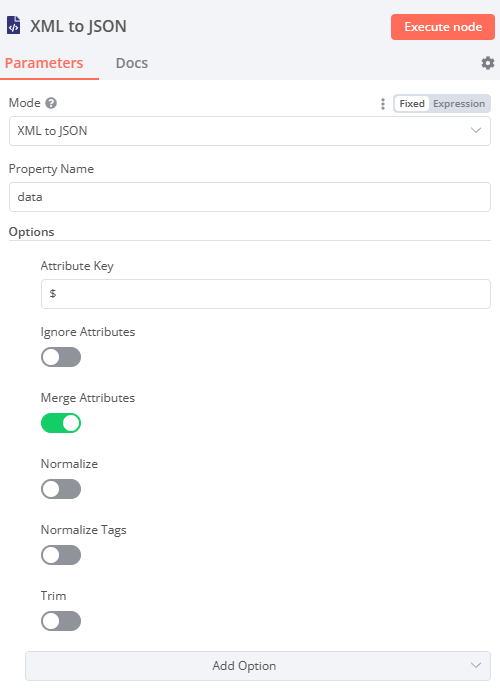
- Add an XML node and connect it to the HTTP Request node.
- The default Mode is
XML to JSON, which is what we need. - The Source Key should be
data, matching the output property name from the previous node. - Execute the node.
- The default Mode is
Now, inspect the output of the XML node. You'll see that the nested structure of the RSS feed (rss -> channel -> item) has been perfectly translated into a JSON object. This structure is now ready for you to work with using the expression skills you learned in the last lesson.
This technique is extremely common in real-world workflows, as seen in the community-built project below which uses an XML node to parse RSS subscription information.
Building Your Own RSS Feed Subscription Management & ...
This dev.to article details a complex workflow for managing RSS feeds. You don't need to read the whole thing, but it's a great example of our current topic in a real project.
Briefly look at the first workflow diagram under 'RSS Link Subscription Processing Workflow'. Notice the node named '抽取 RSS 信息' (which translates to 'Extract RSS Information'). This is an XML node, placed right after an HTTP Request, demonstrating the exact pattern we just built.
Test your understanding!
After parsing the n8n blog's RSS feed with the XML node, the output JSON contains the path rss.channel.item, which is an array of blog post objects. Each post object has a title property.
Write an expression in a Set node to extract the title of the first blog post in the feed.
Show answer
The expression would be: {{ $json.rss.channel.item[0].title }}
This demonstrates how skills for handling JSON are immediately applicable once the XML is converted.
2. A Related Case: Parsing HTML for Web Scraping
What if the data you need isn't in a structured API response at all, but is simply part of a webpage? This is the domain of web scraping. The process is similar: fetch the page content, then parse it. For this, n8n has the HTML node.
Unlike the XML node which does a full conversion, the HTML node is designed to extract specific pieces of information from a webpage's HTML structure using CSS Selectors. If you've done any web development, this concept will be very familiar.
The following video provides an excellent walkthrough of this process.
n8n Web Scraping: Complete Automation Guide
This guide from Oxylabs demonstrates a complete web scraping workflow. We'll focus on the part that uses the core HTTP Request and HTML nodes.
Watch from 05:04 to 10:37. Pay close attention to how they use the browser's 'Inspect' tool to find the correct CSS selector for an element (like 'h2' for a title or '.price' for a price) and then use that selector in the HTML node to extract the data.
To summarize the key steps from the video for basic web scraping:
- HTTP Request Node: Use this to get the full HTML source of the target URL.
- HTML Node:
- Set the Operation to
Extract HTML Content. - In the Extraction Values, you define what you want to extract. For each piece of data, you give it a Key (the name of your output field, e.g., "productTitle") and a CSS Selector (the path to the data in the HTML, e.g.,
h2.title). - If you're extracting a list of items (like all products on a page), you first use one HTML node to extract the container for each item (e.g.,
.product-card) with the Return Array option enabled. Then, you pass this array to a second HTML node to extract the details from each item.
- Set the Operation to
3. An Alternative: Converting HTML to Markdown for AI
Extracting specific data with CSS selectors is powerful but can be brittle; if a website changes its layout, your selectors might break.
An alternative approach, especially relevant given your interest in AI, is to convert the entire HTML page into a clean, text-only format called Markdown. This stripped-down content is perfect for tasks like summarization, classification, or entity extraction with a Large Language Model (LLM), as it removes all the "noise" of HTML tags and scripts, saving you processing costs (tokens) and improving the model's focus.
n8n Web Scraping: Complete Automation Guide
Let's continue with the same Oxylabs video to see how to use the Markdown node.
Watch from 10:37 to 11:54. This short segment shows how the Markdown node, in 'HTML to Markdown' mode, transforms messy raw HTML into clean, readable text, ideal for AI processing.
The workflow for this is even simpler: HTTP Request -> Markdown (Mode: HTML to Markdown) -> OpenAI node. This is a powerful pattern for building AI-driven content analysis workflows.
4. Note on Dynamic Websites
It's important to know that the HTTP Request node can only see the initial HTML sent by the server. It cannot see content that is loaded dynamically using JavaScript after the page loads.
Testing for this is simple: disable JavaScript in your browser's developer tools and reload the page. If the content you want disappears, the HTTP Request node won't be able to grab it.
Solving this is a more advanced topic, but the main approaches are:
- Using community nodes like Puppeteer or Playwright in a self-hosted n8n instance to control a real browser.
- Employing third-party scraping services that can render JavaScript and can be called via their own API.
We won't dive deep into this now, but it's good to be aware of this limitation and the available solutions as you tackle more complex scraping tasks.
Conclusion
You can now confidently integrate with services that provide data in formats other than JSON. This significantly broadens the range of automations you can build.
Key Takeaways:
- For XML data (like RSS feeds), use the XML node to convert the response into a standard n8n JSON object.
- For HTML data (web scraping), use the HTTP Request node to fetch the page, followed by:
- The HTML node with CSS selectors to extract specific, structured data.
- The Markdown node to convert the page to clean text, ideal for analysis by AI models.
- The standard
HTTP Requestnode does not execute JavaScript; more advanced tools are needed for dynamic websites.
In our last few lessons, we've focused on fetching and parsing a single API response. But what happens when the data you need is spread across hundreds or thousands of pages? In our next lesson, we will implement pagination patterns to retrieve large datasets from APIs, a crucial skill for working with real-world data at scale.