
Hello! Welcome back to our journey into mastering n8n.
In our last lesson, you learned how to securely authenticate with APIs using various methods like API keys, Bearer tokens, and OAuth2. You're now equipped to make successful, authorized requests to a vast range of services. The result of a successful request is typically a block of data, most often in JSON format.
This lesson tackles the crucial next step: making sense of that data. We'll focus on how to extract and map data from JSON API responses using expressions. You'll learn how to pinpoint the exact information you need within a complex JSON structure and transform it into a usable format for the next steps in your workflow.
Given your background as a software developer, you'll find n8n's approach very familiar. It directly leverages JavaScript's object notation and functions, so concepts like dot notation, array indexing, and string manipulation will feel right at home.
1. JSON and the n8n Data Structure: A Quick Refresher
Before we start extracting data, let's quickly solidify our understanding of how n8n handles it. Every piece of data moving between nodes is contained within an "item," and the data itself is structured as a JSON object.
To get a clear picture of JSON's building blocks in the context of n8n, the following video provides a great overview.
Master JSON & Data Transformation in 19 Minutes (Most Valuable n8n Skill)
Watch this brief segment from the video 'Master JSON & Data Transformation' by Michele Torti. It offers a concise recap of JSON fundamentals—key-value pairs, objects, and arrays—and why they are the 'language of computers' and, by extension, the language of n8n.
Watch from 00:27 to 03:43. Focus on the distinction between different data types (string, number, boolean, object, array).
When you run a node, you can inspect its output in the panel on the right. You'll see different views like 'Table' and 'JSON'. The 'Table' view is a user-friendly summary, but for development, the JSON view is your source of truth. It shows you the exact data structure you have to work with.
2. Accessing JSON Data: The Expression Editor
n8n's power lies in its Expression Editor. You can open it in almost any input field by typing {{ }}. Anything you write between these double curly braces is treated as a JavaScript-based expression.
Basic Access: Dot and Bracket Notation
To access data from the JSON output of the current node, you use the $json variable. From there, you can navigate the structure using standard dot notation for object properties and bracket notation for array elements.
- Dot Notation (for object properties):
{{ $json.user.name }} - Bracket Notation (for array elements):
{{ $json.users[0] }}(accesses the first element) - Bracket Notation (for keys with spaces or special characters):
{{ $json['user data']['first name'] }}
This is identical to how you would access properties in a JavaScript object.
This cheat sheet on GitHub provides excellent, practical examples.
This document, 'n8n Expression Examples', contains a wealth of real-world scenarios. We'll refer to it throughout the lesson.
Quickly scan 'Example 1' to see simple {{$json.body.name}} access, 'Example 2' for array access with [0], 'Example 5' for more array operations, and 'Example 8' to see the bracket notation for field names with spaces. You don't need to study them in depth yet; just see the patterns.
Accessing Data from Previous Nodes
A workflow is a chain of operations. Often, you need to use data from a node that ran several steps earlier. To do this, you can reference a node by its name:
{{ $node["HTTP Request"].json.order.customer }}
This expression retrieves the customer field from the order object in the JSON output of the node named "HTTP Request". This is a fundamental pattern for building multi-step automations. "Example 3" in the GitHub resource you just reviewed shows this in action.
3. Transforming Data with JavaScript Functions
Expressions aren't just for retrieving data; they're for transforming it. Since expressions are JavaScript, you have a rich set of built-in functions at your disposal.
The following video is an excellent deep dive into data types and transformations. We will focus on a few key segments.
Master n8n JSON & Data Transformation in 30 Minutes (Most Valuable n8n Skill)
This video, 'Master n8n JSON & Data Transformation' by Jono Catliff, covers data handling in great detail. We will watch specific clips to understand data types, indexing, and common transformation functions.
Please watch the following segments: Data Types (09:11 - 13:45): Pay attention to the different icons and syntax for arrays [] vs. objects {}. Understanding data types is crucial for debugging. Indexing (22:44 - 26:27): This explains how array indexes start at 0 and how to access specific elements in an array or characters in a string. Functions (26:27 - 30:54): Focus on the .join() and .split() functions. These are two of the most common and powerful tools for reformatting data.
Let's summarize the key transformation functions:
.split(separator): Splits a string into an array of substrings. Incredibly useful for parsing.- Example:
{{ $json.response.date.split('T')[0] }}takes an ISO date string like"2023-10-26T14:00:00Z"and returns just the date part,"2023-10-26".
- Example:
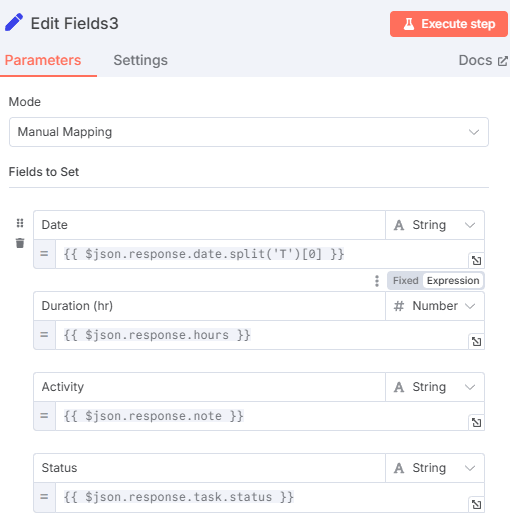
.join(separator): Joins all elements of an array into a string.- Example:
{{ $json.order.items.join(', ') }}takes an array["Widget", "Gadget"]and turns it into the string"Widget, Gadget".
- Example:
.map(callback): Creates a new array populated with the results of calling a provided function on every element.- Example:
{{ $json.users.map(u => u.email) }}takes an array of user objects and returns a new array containing only their emails.
- Example:
- String Functions:
.toLowerCase(),.toUpperCase(),.trim(),.replace(old, new).- Example:
{{ $json.user.email.toLowerCase().trim() }}ensures an email address is in a consistent, clean format.
- Example:
Test your understanding!
An API returns the following JSON object in the output of an HTTP Request node:
{
  "product_id": "SKU-123-ABC",
  "tags": [
    "electronics",
    "audio",
    "headphones"
  ]
}
You need to create a new field called product_code containing just "123-ABC", and another field tag_string containing the tags as a single string separated by spaces (e.g., "electronics audio headphones").
What expressions would you use?
Show answer
- For
product_code:{{ $json.product_id.split('-')[1] + '-' + $json.product_id.split('-')[2] }}or more simply{{ $json.product_id.substring(4) }} - For
tag_string:{{ $json.tags.join(' ') }}
4. Hands-On: Mapping an API Response
Let's put this all together with a practical exercise. We'll use the Random User Generator API, which provides a realistic, nested JSON response.
Your Task:
- Create a new, blank workflow.
- Add an HTTP Request node.
- Set the URL to
https://randomuser.me/api/. - Execute the node. You'll see a JSON response containing a
resultsarray with one user object inside.
- Set the URL to
- Add a Set node and connect it to the HTTP Request node. The Set node is perfect for creating a new, clean data structure.
- In the Set node, configure the following fields using expressions to extract and map data from the HTTP Request node's output:
fullName: Concatenate the user's first and last name (e.g., "Terry Wade").email: Extract the user's email address.street: Extract just the street name and number (e.g., "9492 W Gray St").registeredDate: Extract only the date part (YYYY-MM-DD) from theregistered.datefield.username: Extract theusernameand convert it to all uppercase letters.
Hint: The user data is inside the first element of the results array. Your expressions will likely start with {{ $json.results[0]. ... }}.
Take your time to explore the JSON output and build the expressions. This is the single most valuable skill for working with APIs in n8n.
Show Solution Expressions
fullName(String):{{ $json.results[0].name.first }} {{ $json.results[0].name.last }}email(String):{{ $json.results[0].email }}street(String):{{ $json.results[0].location.street.number }} {{ $json.results[0].location.street.name }}registeredDate(String):{{ $json.results[0].registered.date.split('T')[0] }}username(String):{{ $json.results[0].login.username.toUpperCase() }}
Conclusion
Congratulations! You've just mastered the art of navigating and manipulating API data within n8n. This skill unlocks the true potential of automation, allowing you to connect any two systems by precisely mapping data from a source to a destination.
Key Takeaways:
- The Expression Editor
{{ }}is your primary tool for data extraction and transformation. - Access data using familiar JavaScript patterns: dot notation for objects (
$json.user.name), and bracket notation for arrays ($json.users[0]) and keys with spaces ($json['user data']). - Reference data from other nodes using the
$node["Node Name"].jsonsyntax. - Leverage powerful built-in JavaScript functions like
.split(),.join(),.map(), and.toLowerCase()directly within expressions to clean and reformat data on the fly.
In this lesson, we assumed the API returned data in JSON format, which is the web standard. However, you will occasionally encounter older systems or specific use cases that use other formats. In our next lesson, "Parse non-JSON responses using nodes like the XML node," we will explore how n8n handles these alternative data structures.