
Welcome to the first lesson in your AI infrastructure course. Over the next 12 weeks, you will build from Linux and Python fundamentals toward containers, model serving, Kubernetes, GPU workloads, cloud deployment, and production operations. The recurring question throughout is: what is actually happening between an AI application and the machine that runs it?
Linux is the starting point because an AI workload—whether it is a training script, a FastAPI inference service, a Docker container, or a distributed GPU job—ultimately runs as one or more Linux processes. Those processes read files, use memory and CPU time, communicate over networks, and often access GPUs. Linux supplies the controlled interface for all of that.
By the end of this lesson, you should be able to describe the relationship among the filesystem, users, processes, and kernel in a concrete AI workload. You are not expected to memorize every directory or low-level kernel component; the goal is a reliable mental model you can use when later diagnosing a failed service, an out-of-memory error, a missing model file, or a permission problem.
One machine, three layers
A Linux machine can be understood as three connected layers:
- Hardware — CPU cores, RAM, storage drives, network interfaces, and possibly a GPU.
- The Linux kernel — the privileged core of the operating system that manages access to that hardware.
- User-space processes — the programs you run: a shell, Python, an inference server, a database, or a monitoring agent.
The kernel is not an application you normally open or interact with directly. It is the system’s trusted coordinator. When a Python program needs to read a model checkpoint, allocate memory, accept an HTTP connection, or launch GPU work, it requests those services through the kernel.
This division matters because the kernel has broad access to the machine, while ordinary applications do not. A bug that crashes a Python process usually ends that one process; it should not give the program unrestricted access to all memory or hardware. This separation is a major reason Linux can run many users and services on the same server.
Read Red Hat’s overview to establish the kernel’s four core responsibilities and the boundary between user space and kernel space. It provides the foundation for the rest of this course: every container, API, GPU workload, and cloud virtual machine eventually relies on these functions.
In “What the kernel does,” read the kernel overview, concentrating on memory management, process management, device drivers, and system calls. Then, in “Where the kernel fits within the OS,” read the three layers. Finally, read the passage after that section beginning with execution modes; focus on why user-mode failures are usually contained while kernel failures can affect the whole machine.
The kernel’s role in an AI workload
Consider a simple command that runs a training job:
python train.py
It looks like one action, but several things happen:
- Your shell asks the kernel to start the Python executable as a new process.
- The new process reads
train.py, data files, and installed Python packages from the filesystem. - The kernel gives the process portions of CPU time and virtual memory.
- If training uses a GPU, user-space libraries communicate with a GPU driver, and the kernel mediates the driver’s access to the physical device.
- The process writes checkpoints, metrics, and logs back to storage.
- When the process opens a network connection—for example, to download data or report an experiment metric—the kernel’s networking stack carries the traffic.
The kernel decides how resources are shared, not what your ML code means. Your training loop decides how to update model weights; Linux decides when its process gets CPU time, whether it may open a file, and whether memory is available.
The filesystem: where an AI workload keeps its state
Linux organizes files beneath one root directory, written /. Unlike systems that conventionally expose separate drive letters, Linux presents one directory tree. A disk, USB drive, network share, or cloud-backed volume becomes accessible by being attached—mounted—somewhere within that one tree.
Do not confuse:
/— the root directory, the top of the entire filesystem.root— the administrative root user./root— the root user’s home directory.
For day-to-day development, your work should normally live in your own home directory, such as /home/alex, rather than in system directories or /root.
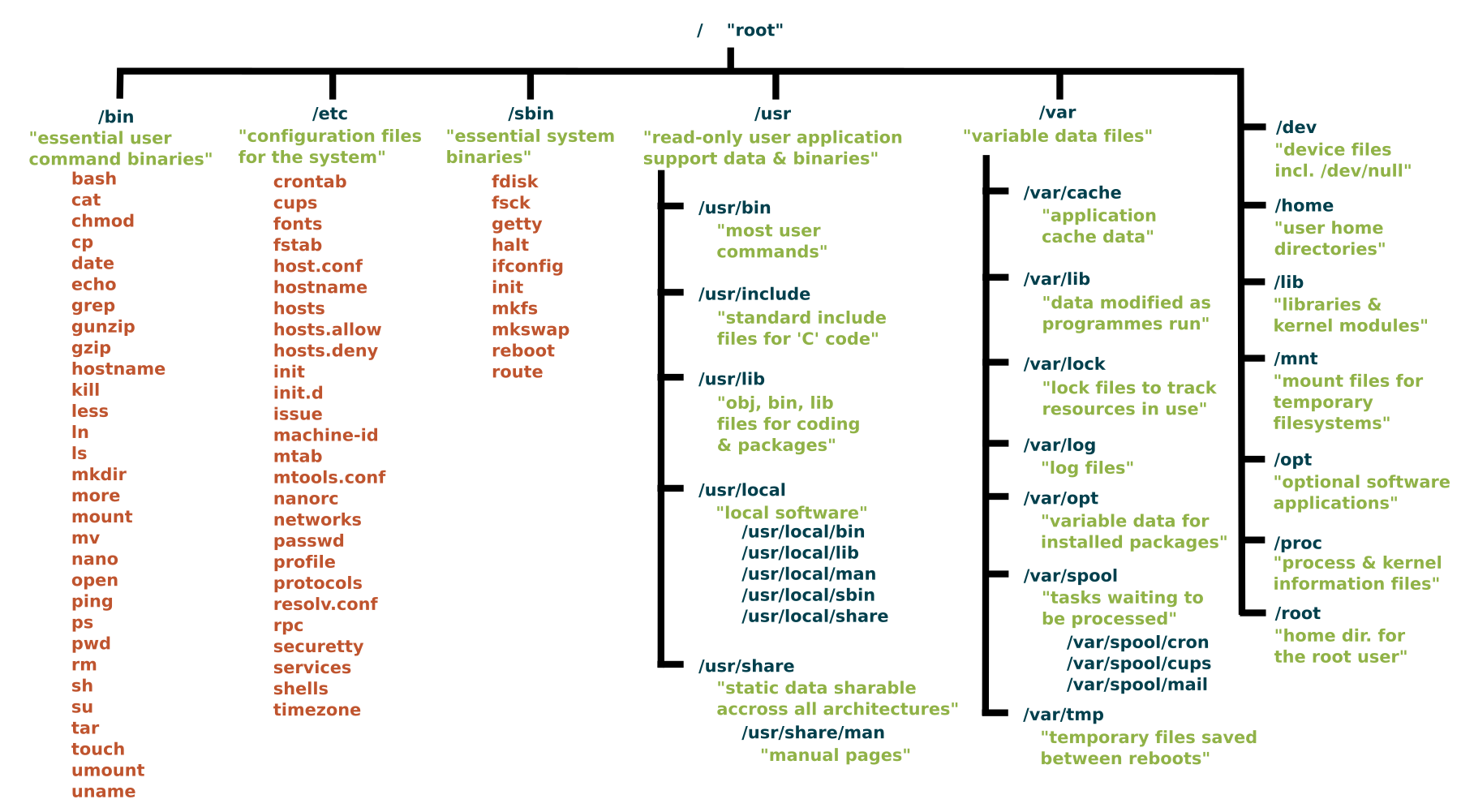
The exact contents differ by Linux distribution and machine configuration, but these locations are especially useful for infrastructure work:
| Path | Main purpose | AI-infrastructure relevance |
|---|---|---|
/home | Home directories for regular users | A sensible place for your code, virtual environments, downloaded datasets, and local experiments. |
/etc | System-wide configuration | Service, network, and application configuration often lives here. Changes can affect the entire machine. |
/usr | Most installed user-space programs, libraries, and documentation | Python, package-managed tools, and shared libraries are commonly installed here. |
/var | Files that change during operation | Logs, caches, service state, and application data commonly appear here. /var/log is important for diagnosis. |
/tmp | Short-lived temporary files | Programs may use it for scratch data; do not treat it as durable storage. |
/dev | Device nodes: filesystem entries representing hardware or pseudo-devices | Disks, terminals, and, when relevant drivers are installed, accelerator devices are exposed through this interface. |
/proc | A virtual view of processes and kernel state | Useful for observing live CPU, memory, and per-process information. It is generated by the kernel, not stored as ordinary disk files. |
/sys | A virtual view of devices, drivers, and kernel-managed hardware | Low-level hardware and driver information; generally inspect rather than edit. |
/run | Temporary runtime state since boot | Services may keep process IDs, sockets, and lock files here. It is cleared after reboot. |
/boot | Files needed to boot Linux, including kernel-related files | Essential system area; normally leave it alone. |
A useful distinction is between persistent data and live system interfaces:
- A model checkpoint such as
model.ptis an ordinary persistent file. It might be stored under a project directory, attached volume, or object storage mount. /proc/meminfolooks like a file, but it is a live report created when you read it.- A path in
/devis not a normal document either; it represents a route through which software can interact with a device.
This is why a filesystem listing can reveal more than stored files. In Linux, paths also expose controlled interfaces to processes, devices, and the kernel.
Linux File System Structure Explained: From / to /usr | Linux Basics
Watch selected parts of “Linux File System Structure Explained: From / to /usr” by WhiteboardDoodles. The video provides a visual tour of the directories that will recur when you build and operate AI services.
Start with the root tree to distinguish / from /root. Then watch configuration and homes for /etc and /home. In the next selected segment, begin at live kernel views, focusing on why /proc, /sys, and /run are different from ordinary stored files. Finish with variable data to connect /var and /var/log to operational debugging.
A practical example: locating the evidence
Imagine an inference API has become slow. Different parts of the filesystem help answer different questions:
- Is the application configuration wrong? Look for the relevant configuration under
/etcor its deployment-specific configuration location. - Did the service report an error? Check its service logs, often accessible through system logging tools and sometimes reflected in
/var/log. - Is the model file missing or mounted in the wrong location? Inspect the configured project or volume path.
- Is the process consuming too much memory? Inspect live information in
/proc. - Is a device or driver unavailable?
/devand/sysare part of the lower-level picture.
You will learn the actual inspection commands in later lessons. For now, remember the principle: filesystem location tells you what kind of state you are looking at.
Users: identity determines what a workload may do
Linux is a multi-user operating system. Even on a personal laptop, the system tracks which user owns a file and which user a process is running as.
A regular user account has:
- a username and numeric user ID;
- a home directory, usually below
/home; - one or more group memberships;
- limited permissions on system-wide files and actions.
The root user is the administrative identity, conventionally associated with user ID . Root can bypass many ordinary permission checks, which is necessary for system administration but dangerous for routine development. A typo made as root can change or erase critical system files. This is why commands requiring elevated authority are deliberately explicit, often using sudo.
For an AI system, user identities help establish boundaries:
- A developer may edit code in their own home directory but should not modify global service configuration.
- An inference service can run under a dedicated, low-privilege account, reducing the damage if the application is compromised.
- A training job may need read access to a dataset volume but not permission to change the original dataset.
- A process that cannot read a checkpoint file will fail even if the file exists—because existence and permission are separate facts.
When you start a process from a terminal, it usually inherits your user identity and groups. When a service manager starts a server at boot, the server may instead run as a dedicated service user. Containers add another layer of isolation, but Linux user identities and permissions remain fundamental underneath.
Later in this module, you will inspect ownership and explicitly set read, write, and execute permissions. At this stage, the key idea is simply:
The kernel checks a process’s identity when it requests access to protected resources such as files, ports, and devices.
Processes: running instances of programs
A program is stored code, such as the Python interpreter or a file named serve.py. A process is a running instance of that program.
If you launch two copies of the same training script, you have two distinct processes. They can run at the same time, use separate memory, have different process IDs, and potentially consume competing CPU or GPU resources.
Each process has several important properties:
- PID (process ID): a numeric identifier assigned by Linux.
- Parent process: the process that started it. A shell often starts the processes launched from that terminal.
- User and groups: the identity used for permission checks.
- Virtual memory: the process’s private view of memory. It cannot normally read another process’s memory directly.
- State: it may be running, ready to run, sleeping while it waits for I/O, or stopped.
- Open resources: files, network sockets, and device handles it is currently using.
A modern AI deployment typically involves more than one process:
| Workload component | Typical process role |
|---|---|
| Shell | Starts commands and shows their output |
| Python training process | Loads data, computes gradients, saves checkpoints |
| Inference server | Receives requests and returns predictions |
| Background service or daemon | Runs without an interactive terminal, providing a long-lived capability |
| Logging, monitoring, or database service | Collects operational data or stores state |
| Kernel threads | Internal kernel work, including work related to device handling and system I/O |
A process is not guaranteed to be using CPU continuously. A server waiting for an HTTP request is usually asleep, using little CPU. A training process may alternate between CPU preprocessing, GPU execution, disk reads, and waiting for data. The kernel scheduler coordinates which runnable process gets CPU time and for how long.
Linux Essentials part 3: Kernel and user spaces
Watch “Linux Essentials part 3: Kernel and user spaces” by Red Hat Developer for a concise explanation of the privilege boundary and the properties Linux tracks for each running process.
Watch the system boundary to reinforce the distinction between kernel space and user space. Continue directly with process anatomy; focus on a process’s private virtual memory, user and group identity, PID, state, and the distinction among foreground processes, daemons, and kernel threads.
A safe first observation
On your Linux computer, run the following commands in a terminal. They only display information; they do not change anything.
id
ps -o pid,ppid,user,stat,comm -p $$
cat /proc/meminfo
Interpret the output at a high level:
idshows your current user identity and groups.ps ... -p $$displays the shell process you are currently using. The$$is expanded by the shell to its own PID. Notice the process’s PID, parent PID, user, state, and command name.cat /proc/meminforeads a kernel-generated report about memory. It demonstrates that/proccan be read like a directory tree of files even though it represents current system state.
Do not worry about every field yet. The point is to connect abstract concepts to a real machine: you are a user; your shell is a process; /proc is a kernel-provided interface.
Bringing the model together: one inference request
Suppose you eventually deploy an API that receives text and returns a model prediction. A single request ties together all four ideas from this lesson:
- Filesystem: The service process loads code, Python libraries, configuration, and model weights from configured paths. It may write logs and temporary files.
- User: The service runs under a particular identity. That identity must be allowed to read the model, bind to its network port, and write only where necessary.
- Process: The API server is a long-running process, possibly with multiple worker processes. Each worker handles requests and consumes CPU, memory, and perhaps GPU memory.
- Kernel: The kernel schedules the workers, manages their memory, mediates file and network access, and routes GPU access through device drivers.
Containers and Kubernetes do not replace these fundamentals. They package, isolate, and coordinate processes, but the actual work remains rooted in Linux:
- Containers use Linux mechanisms to restrict what processes can see and consume.
- Kubernetes starts and supervises containerized processes.
- GPU scheduling ultimately concerns access to devices and memory managed through the operating system and its drivers.
- Observability begins with processes, files, sockets, and kernel-visible resource use.
Key takeaways
- Linux separates hardware, the kernel, and user-space processes. AI applications run in user space and request hardware-related services through the kernel.
- The kernel manages memory, CPU scheduling, device drivers, system calls, and key security boundaries.
- The filesystem is more than stored documents:
/home,/etc, and/varhold different kinds of persistent state, while/proc,/sys,/dev, and/runexpose live system interfaces. - A user identity determines what a process is permitted to access. The root directory
/, root user, and/rootdirectory are distinct concepts. - A process is a running program with a PID, owner, state, memory, and open resources. Training jobs, inference APIs, and background services all run as processes.
Next, you will turn this mental map into practical fluency by navigating the filesystem with absolute paths, relative paths, and core shell navigation commands.
Can't find a good explanation? Sign up and we'll make it for you
Sign up