
Hello. In the previous lesson, you built a map of Linux: the kernel manages hardware resources; processes do work; users determine access; and the filesystem holds both persistent data and live system interfaces. This lesson turns that map into a practical skill: moving deliberately through the filesystem from a terminal.
By the end, you will be able to identify where you are with pwd, inspect a location with ls, and use cd with absolute paths, relative paths, and the key navigation shortcuts. These commands will become routine when you later locate logs, configuration, datasets, model artifacts, and container-mounted directories.
Your shell has a current location
A terminal shell always has a current working directory: its current position in the Linux filesystem tree. Unless you explicitly give a different path, commands that operate on files and directories interpret names relative to that location.
Three commands form the core navigation loop:
pwd
ls
cd
pwdmeans print working directory. It reports your current location.lsmeans list. With no path supplied, it shows what is in your current location.cdmeans change directory. It moves the shell to another directory.
For example, if your working directory is /etc:
pwd
prints:
/etc
And:
ls
lists entries inside /etc, because that is where the shell currently is.
The working directory belongs to the shell process, not to the whole computer. Opening another terminal creates another shell, which can be in a completely different directory. This matters when you have one terminal examining logs under /var/log and another working in a project directory under your home folder.
A beginner's guide to navigating the Linux filesystem
Read this short Red Hat article by Keerthi Chinthaguntla for a compact reference to the symbols and commands used in shell navigation.
Start with the “The basics” section. Read the explanation of the navigation symbols: ., .., /, and ~. Then read “Print working directory (pwd)” and the beginning of “Change directory (cd)”. Focus on why pwd reports an absolute path. Finish the “Change directory (cd)” section, following its examples of cd .., cd /, cd ~, and cd -.
One useful habit begins now:
Before acting on files, run
pwdif you are not completely sure where you are.
Later, when you create or remove files, this habit will prevent many avoidable mistakes.
Paths are directions through the filesystem
A path specifies the location of a file or directory. Linux uses the forward slash / to separate directory names:
/home/sam/projects
This path means: begin at the filesystem root, enter home, then enter sam, then enter projects.
The root directory is written as a single slash:
/
It is the top of the unified Linux filesystem tree. Recall that it is different from both:
- the root user, the administrative account;
/root, the root user’s home directory.
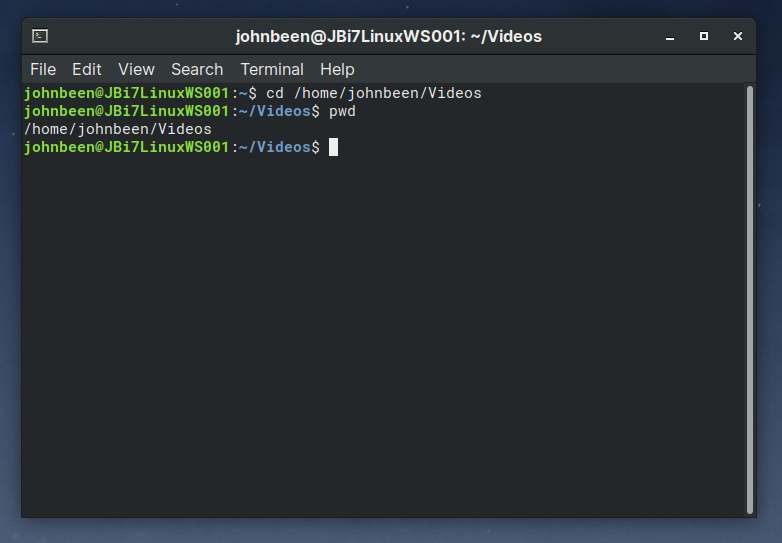
The following terminal image shows a shell changing into a directory using a full path, then confirming the result with pwd.
Absolute paths: start from /
An absolute path begins with /. It gives a complete route from the root directory, so its meaning does not depend on where the shell is currently located.
For example:
cd /etc
always means “go to the etc directory directly beneath the root directory.”
Likewise:
cd /
always takes you to the top of the filesystem.
Try this safe sequence:
pwd
cd /
pwd
ls
cd /etc
pwd
The first and last pwd results may differ, but after cd /, pwd will print /; after cd /etc, it will print /etc.
Absolute paths are useful when you need to identify a known system location precisely. In AI infrastructure work, typical examples include:
/etc/...              system or service configuration
/var/log/...          logs
/usr/bin/...          installed executables
/models/...           a model volume mounted by a deployment
The exact locations vary by application and deployment, but the navigation rule does not: if the path begins with /, it starts at the filesystem root.
Relative paths: start from where you are
A relative path does not begin with /. Its meaning is evaluated from the current working directory.
Suppose you are at the filesystem root:
cd /
cd etc
pwd
Here, etc is a relative path. It works because /etc exists directly below /.
But now return home:
cd
pwd
Your home directory is commonly something like /home/yourname, although its actual location depends on your system. From there, this command will usually fail:
cd etc
The error does not mean that /etc has disappeared. It means there is no directory named etc inside your current directory. The relative path etc asks the shell to look for:
<current working directory>/etc
When a relative path fails, diagnose it in this order:
pwd
ls
First confirm your location, then inspect what is actually available there.
The special relative paths . and ..
Linux reserves two compact relative paths:
| Path | Meaning | Example use |
|---|---|---|
. | The current directory | ls . lists the current directory explicitly. |
.. | The parent directory, one level up | cd .. moves upward one level. |
./name | An entry named name inside the current directory | cd ./logs is equivalent to cd logs. |
../name | An entry named name inside the parent directory | cd ../var from /etc goes to /var. |
The shell processes a path from left to right. If you are in /etc, this command:
cd ../var
means:
..— move from/etcto its parent,/;var— enter thevardirectory beneath/.
The resulting location is /var.
A trailing slash is generally optional for directories. These usually mean the same thing:
cd /etc
cd /etc/
The version without the trailing slash is more common.
Relative and Absolute Paths - Linux Tutorial 7
Watch “Relative and Absolute Paths - Linux Tutorial 7” from Caleb Curry for a visual walkthrough of the current directory, parent directory, home shortcut, and the distinction between relative and absolute paths.
Watch path basics to see . and .. connected to the working directory. Continue with relative navigation, paying particular attention to moving to a parent directory and then into a sibling directory with ../name. Finish with absolute paths, where pwd reveals a full path and cd / establishes the root as the starting point.
Home and previous-location shortcuts
Two navigation shortcuts are especially valuable.
~: your home directory
The tilde ~ represents the home directory of the current user. It is typically displayed in your prompt as a compact substitute for a longer path.
cd ~
pwd
This returns you to your home directory. The command:
cd
with no argument does the same thing.
You can also use ~ at the beginning of a path:
~/projects
This means “the projects directory inside my home directory.” Do not assume that particular directory exists yet; it is simply an example of the notation.
Your home directory is the appropriate default location for personal code, experiments, downloaded files, and local project work. Avoid treating /, /etc, or /var as places for ordinary development files.
-: the previous working directory
The dash shortcut returns you to the directory you were in immediately before the current one:
cd -
It is useful when switching back and forth between two locations, such as a project directory and its logs. Unlike most successful cd commands, cd - usually prints the path it moves to.
For example:
cd /
cd /etc
cd -
After the final command, you are back in /. If you run cd - again, you return to /etc.
Think of these commands as different kinds of navigation:
| Command | Destination |
|---|---|
cd / | Filesystem root |
cd /etc | A specific absolute location |
cd etc | A directory named etc under the current location |
cd .. | Parent of the current location |
cd ../var | The var directory under the parent location |
cd ~ or cd | Your home directory |
cd - | The immediately previous directory |
Guided terminal run
This short sequence uses standard locations and only lists or changes directories. It does not create, modify, or remove anything.
pwd
ls

cd /
pwd
ls

cd etc
pwd

cd ../var
pwd

cd -
pwd

cd
pwd

ls -a
Interpret the sequence as you run it:
- The initial
pwdtells you where your terminal started. cd /establishes a known starting point.cd etcis a relative move from/into/etc.cd ../varcombines “go up” and “go down” into one relative path; it should land in/var.cd -returns to the preceding location,/etc.cdreturns safely to your own home directory.ls -alists all entries, including hidden entries. You should see.and..; they are the current and parent directory references discussed above.
A navigation error is useful information. For example:
bash: cd: something: No such file or directory
means that the route you supplied cannot be resolved from your current location. Do not guess repeatedly. Use:
pwd
ls
and rebuild the path from what you observe.
Choosing absolute or relative paths
Neither type is universally better; choose based on what you need to express.
Use an absolute path when the exact system location matters regardless of where the command is launched:
cd /var/log
Use a relative path when you are intentionally moving within a known nearby directory structure:
cd ../var
This distinction will matter increasingly in infrastructure work. A Python application that refers to a relative file such as config.yaml may succeed when started from one directory and fail when started from another. The file did not necessarily move—the application’s working directory may have changed.
For a first response to a “file not found” error, check:
- What directory is the process or shell working in?
- Is the path absolute or relative?
- If it is relative, relative to which directory?
- Does that directory actually contain the expected entry?
That simple method applies equally to a local training script, a containerized API, and eventually a Kubernetes workload.
One final efficiency feature: Tab completion. Begin typing a path and press Tab; the shell can often complete a unique directory name, or show possible matches if you press Tab again. It reduces typing errors, especially with long paths. If you want to abandon an unfinished command line, press Ctrl+C; this cancels the current input without changing directory.
Key takeaways
- The shell has a current working directory. Use
pwdto see it andlsto inspect it. cdchanges the working directory.- An absolute path begins with
/and has the same meaning from anywhere in the filesystem. - A relative path is interpreted from your current working directory.
.means the current directory;..means its parent.~andcdlead to your home directory;cd -returns to your previous location.- When navigation fails, use
pwdandlsrather than guessing.
Next, you will build on navigation by creating directories and files, then copying, moving, and removing them safely from the shell.
Can't find a good explanation? Sign up and we'll make it for you
Sign up