
Welcome back. In the previous lesson, you learned to inspect CPU, memory, disk, and processes, then stop a known malfunctioning process cautiously. Those commands are useful individually, but an operator often needs the same diagnostic snapshot repeatedly—before and after a deployment, during an incident, or when comparing a machine’s normal behavior with a suspected problem.
This lesson turns that manual routine into a small Bash program. You will write and run a safe host-diagnostic script that captures a timestamped report of CPU, memory, disk, and active processes. It writes only to your lab directory; it does not install software, change configuration, or stop anything. Plan for about 40 minutes.
From repeated commands to a reusable tool
A shell script is a plain-text file containing commands that Bash runs in sequence. Rather than retyping a diagnostic sequence and risking omissions or typos, you describe the sequence once and invoke it with one command.
This matters in AI infrastructure because the same patterns recur:
- recording a host snapshot before starting CPU-based preprocessing;
- collecting evidence when an inference service becomes slow;
- checking disk space before writing datasets, logs, or model checkpoints;
- creating a repeatable setup or diagnostic procedure that another engineer can inspect and run.
A script is not magical automation: it is an explicit record of commands, variables, and decisions. That visibility is valuable. Someone can read the script to see precisely what information it collects.
Before building yours, use the following short video for the central idea of Bash scripts, the shebang, and executable permissions.
Bash Scripting Tutorial for Beginners
Watch “Bash Scripting Tutorial for Beginners” from TechWorld with Nana for a concise explanation of why Bash is useful for repeated operational tasks, followed by the mechanics of creating an executable script.
Watch shell and Bash to distinguish the command-line interface, a shell, and Bash. Then watch creating scripts for the shebang, executable permission, and direct script execution. The log-analysis example is broader than today’s lab; focus on the principle that a script runs a saved sequence of commands.
Three details will guide the rest of the lesson:
- A script must be saved as plain text, not as a formatted word-processing document.
- The shebang on the first line tells Linux which interpreter should run the file when you execute it directly.
- A useful script should avoid depending accidentally on whichever directory you happen to be in when you run it.
How Bash executes a script
Consider this tiny script:
#!/usr/bin/env bash
printf 'Hello from Bash\n'
The first line is the shebang:
#!/usr/bin/env bash
It says: find bash in the current environment and use it to interpret this file. The # begins a comment in ordinary Bash code, but #! in the first line has a special meaning to the operating system.
You can run a script in two main ways:
bash host-check.sh
This explicitly asks Bash to read the file. The file does not need execute permission for this form.
./host-check.sh
This asks Linux to execute the file in the current directory. The ./ matters: Linux does not normally search the current directory for programs automatically. For this form, the file needs execute permission, such as:
chmod u+x host-check.sh
The .sh suffix is a useful convention, but not what makes a file executable. The shebang and execute permission matter when using ./script-name.
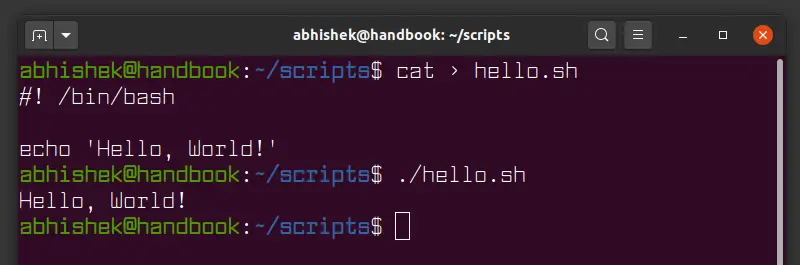
For this course, prefer #!/usr/bin/env bash and run Bash scripts with ./script-name after granting yourself execute permission. This makes the script’s intended interpreter clear.
Build a safe diagnostic-report script
Create a directory for scripts, then open a new plain-text file in nano:
mkdir -p ~/ai-infra-lab/scripts
cd ~/ai-infra-lab/scripts
nano host-check.sh
Paste the following script exactly. In nano, save with Ctrl-O, press Enter to confirm the filename, then exit with Ctrl-X.
#!/usr/bin/env bash

# Capture a timestamped diagnostic report for this Linux host.

report_dir="$HOME/ai-infra-lab/reports"

if ! mkdir -p "$report_dir"; then
    printf 'Error: cannot create report directory: %s\n' "$report_dir" >&2
    exit 1
fi

timestamp=$(date -Is)
safe_timestamp=$(date +%Y%m%d-%H%M%S)
report_file="$report_dir/host-check-$safe_timestamp.txt"

{
    printf '%s\n' 'AI Infrastructure Host Check'
    printf 'Generated: %s\n' "$timestamp"

    printf '\n== CPU and load ==\n'
    uptime
    printf 'Logical CPUs: '
    nproc

    printf '\n== Memory and swap ==\n'
    free -h

    printf '\n== Disk space for home directory ==\n'
    df -h "$HOME"

    printf '\n== Top CPU processes ==\n'
    ps -eo pid,ppid,user,stat,%cpu,%mem,etime,cmd --sort=-%cpu | head -n 6

    printf '\n== Top memory processes ==\n'
    ps -eo pid,ppid,user,stat,%cpu,%mem,etime,cmd --sort=-%mem | head -n 6
} > "$report_file"

printf 'Report saved: %s\n' "$report_file"
This is a compact but genuine diagnostic tool. Read it from top to bottom as Bash will.
Variables make the script maintainable
These lines assign values to named variables:
report_dir="$HOME/ai-infra-lab/reports"
timestamp=$(date -Is)
safe_timestamp=$(date +%Y%m%d-%H%M%S)
report_file="$report_dir/host-check-$safe_timestamp.txt"
In Bash, do not put spaces around = in assignments. This is correct:
report_dir="/some/path"
This is not an assignment:
report_dir = "/some/path"
The variable report_dir gives the script one consistent output location. Using $HOME makes the location independent of the terminal’s current directory. You can run the script from ~/ai-infra-lab/scripts, your home directory, or elsewhere, and it will still write reports beneath your home directory.
The syntax $(...) is command substitution: Bash runs the command inside the parentheses and stores its output. Here, date supplies both a human-readable timestamp and a filename-safe timestamp.
Notice the quotes around variable expansions:
"$report_dir"
"$report_file"
"$HOME"
Quotes protect a value from being split into multiple pieces if it contains spaces or other special characters. Make this a default habit for paths and filenames.
The first conditional handles a real failure
This block creates the report directory if it does not already exist:
if ! mkdir -p "$report_dir"; then
    printf 'Error: cannot create report directory: %s\n' "$report_dir" >&2
    exit 1
fi
mkdir -p is safe to repeat: if the directory already exists, it leaves it in place. Commands report success or failure through an exit status. An exit status of means success; nonzero means some form of failure.
ifchecks whether the command succeeded.!reverses the result, so the block runs only whenmkdirfails.>&2sends the error message to standard error, rather than mixing it into the report’s normal output.exit 1stops the script and tells the calling shell that the script failed.
A diagnostic script should not pretend it completed successfully when it could not create its report.
The braces collect one report
The commands inside these braces are run as a group:
{
    # commands that produce the report
} > "$report_file"
The final > redirects the group’s standard output to the timestamped report file. Each run therefore creates a separate snapshot rather than overwriting a fixed report name.
The individual commands should now look familiar:
| Report section | Command | Question it answers |
|---|---|---|
| CPU and load | uptime, nproc | Is demand high relative to available logical CPUs? |
| Memory and swap | free -h | Is available RAM low or swap active? |
| Disk capacity | df -h "$HOME" | Is the filesystem used for your home directory nearing capacity? |
| CPU-heavy processes | ps ... --sort=-%cpu | Which exact processes currently use the most CPU? |
| Memory-heavy processes | ps ... --sort=-%mem | Which exact processes currently use the most memory? |
head -n 6 keeps each process section short: one header row and five process rows. A report should be focused enough to scan quickly.
One security caution: the cmd field can include full command-line arguments. On shared systems, command lines may sometimes expose paths, tokens, or other sensitive values if applications were started insecurely. Treat diagnostic reports as operational data; do not upload or share them blindly.
Validate, run, and inspect the report
First, grant yourself execute permission and ask Bash to check the script’s syntax:
chmod u+x host-check.sh
bash -n host-check.sh
bash -n parses the script but does not execute its commands. No output usually means Bash found no syntax error.
Now run it:
./host-check.sh
You should see a message like:
Report saved: /home/your-user/ai-infra-lab/reports/host-check-20250101-120000.txt
List the reports, then view the newest one:
ls -lt ~/ai-infra-lab/reports
latest_report=$(ls -t ~/ai-infra-lab/reports/host-check-*.txt | head -n 1)
cat "$latest_report"
The latest_report variable exists only in your current interactive shell. By contrast, variables inside host-check.sh exist only while that script runs; a child script does not normally set variables in the terminal that launched it.
When you read the report, apply the diagnostic sequence from the previous lesson:
- Compare load from
uptimewith the number fromnproc. - Check
availablememory and swap infree -h. - Check whether the filesystem containing your home directory has sufficient free space.
- Inspect the PID, user, elapsed time, and full command line before drawing conclusions from the CPU and memory process tables.
The report is a snapshot, not a live monitor. Use top when you need to watch values change over time; use this script when you need a saved, comparable record.
Debug carefully when a script fails
A script can have valid syntax but still fail because of a misspelled command, incorrect path, or unexpected environment. Bash offers a useful trace mode:
bash -x host-check.sh
The -x option prints each command as Bash expands and runs it. This helps identify where execution diverges from your expectation. The report is still written normally because the report block redirects standard output to its file, while Bash’s trace messages appear in the terminal.
Here are common beginner failures and their direct causes:
| Symptom | Likely cause | Safe response |
|---|---|---|
Permission denied from ./host-check.sh | Execute permission is missing | Run chmod u+x host-check.sh |
No such file or directory from ./host-check.sh | You are not in the script’s directory, or typed its name incorrectly | Run pwd, ls, then use the correct relative or absolute path |
Script runs with bash host-check.sh but not ./host-check.sh | Usually missing execute permission or a malformed first line | Check chmod u+x, then inspect the shebang |
| Report directory cannot be created | The path is inaccessible, or a file exists where a directory is expected | Read the error; do not use sudo reflexively |
| A report command is missing | The host lacks a utility expected by the script | Use bash -x to find the command, then inspect whether it is appropriate for that Linux distribution |
A useful design principle is visible here: diagnose before changing. This script gathers evidence only. It does not try to “fix” high CPU, delete files, install packages, or kill processes automatically. Automated repair is much riskier than automated observation and should include explicit safeguards.
Key takeaways
- A Bash script is a plain-text, reusable sequence of shell commands.
#!/usr/bin/env bashidentifies Bash as the interpreter when a script is run directly.- Use
chmod u+x script.shand./script.shto execute a script from the current directory. - Variables store values such as stable directories and generated filenames; quote path variables with
"$variable". $(command)captures a command’s output for later use.ifcan check whether a setup step succeeded and stop cleanly on failure.{ ... } > report.txtredirects the output of several commands into one report.bash -nchecks syntax without running the script;bash -xtraces execution for debugging.- A safe first automation task collects diagnostic information without making destructive changes.
You have now completed the Linux and command-line foundations module. Next, the course moves into Python for infrastructure automation, where you will write programs with variables, collections, loops, and conditionals—building on the same habit of turning a repeatable operational task into explicit, testable code.
Can't find a good explanation? Sign up and we'll make it for you
Sign up