
Hello again. In the last lesson, you used Python’s interactive shell to evaluate expressions such as 2 + 2 and "Py" + "thon". The shell showed expression results automatically. A saved Python program works differently: if you want a person running the program to see a message, you normally tell Python explicitly with print().
In this lesson, you will write output with print(), control how text is quoted, and add comments that explain your code without changing what the program does. You will finish by creating and running a short “about me” program in VS Code. Allow about 35–40 minutes.
Make a program display text
print() is a built-in Python function that displays information in the terminal. To display text, place the text inside quotation marks, then put it inside print():
print("Hello, World!")
When you run the file, the terminal shows:
Hello, World!
Break the line into its parts:
| Part | Meaning |
|---|---|
print | The name of the function that displays output |
( and ) | Parentheses that contain what you want print() to use |
"Hello, World!" | Text to display; Python calls text a string |
Python needs the parentheses. This will work:
print("Welcome to Python!")
This will not:
print "Welcome to Python!"
The second version uses a style from a much older version of Python. In current Python, it produces a syntax error.
A string can use either double quotes or single quotes:
print("Good morning")
print('Good morning')
Both lines display the same result. For consistency, use double quotes in this course. Double quotes are particularly convenient when the text includes an apostrophe:
print("I'm learning Python.")
If you surrounded that text with single quotes, Python would mistake the apostrophe in I'm for the end of the string.
👩💻 Python for Beginners Tutorial
Watch “Python for Beginners Tutorial” by Kevin Stratvert for a brief visual demonstration of printing text, choosing quotes, and adding comments in VS Code.
Watch strings and comments. Focus on the distinction between quotation marks, which tell Python where text begins and ends, and the hash mark, which begins a comment.
print() in a script versus the interactive shell
In the interactive shell, you previously entered this:
>>> "Hello"
'Hello'
The shell displayed the value automatically because it is designed for exploration. But put the same text alone in a saved .py file:
"Hello"
and run it. Nothing appears. Python creates the text value, but your program does not instruct it to show the value.
Use print() when you want visible output:
print("Hello")
That distinction is important: expressions produce values; print() displays values.
You can write several print() calls in one program. Each call normally begins output on a new line:
print("Welcome!")
print("This is my first multi-line program.")
print("Python follows instructions from top to bottom.")
Output:
Welcome!
This is my first multi-line program.
Python follows instructions from top to bottom.
A call with no text inside makes a blank line:
print("First section")
print()
print("Second section")
Output:
First section

Second section
The blank print() is useful when you want output to be easier to read.
Read Programiz’s short introduction to the classic first Python program. It reinforces the exact structure of a print() call and the relationship between code and terminal output.
In the “Working of the Program” section, read the two rules about parentheses and quoted text. Then read the following example that uses single quotes, noting that the output remains the same. Keep your attention on the code and output examples rather than the later video links.
Comments: notes for people, ignored by Python
A comment is a note in your source code. Python ignores comments when it runs the program. Comments let you record a purpose, clarify a decision, or leave a useful reminder for your future self.
In Python, a hash mark, #, starts a comment. Everything after # on that line is ignored.
# This program displays a welcome message.
print("Welcome to Python!")
The output is only:
Welcome to Python!
The comment is present in the file, but it is not printed and does not affect execution.
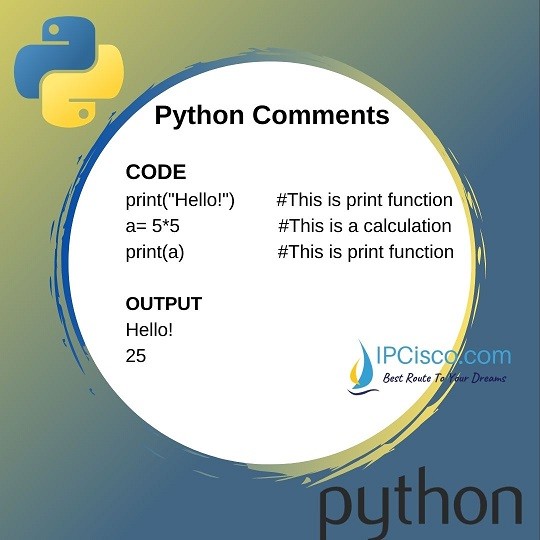
You can also place a comment after working code on the same line:
print("Welcome to Python!") # Display the opening message
Python runs the print() call, reaches the hash mark, and ignores the rest of that line.
Inline comments are sometimes helpful, but use them sparingly. A long line containing both code and explanation becomes difficult to scan. For a beginner, a separate comment above the code is often clearer:
# Tell the user what this program is for.
print("Welcome to Python!")
How to Use Python: Your First Steps – Real Python
Read the “Comments” subsection in Real Python’s beginner guide. It explains why comments are ignored, shows both full-line and inline forms, and gives useful advice about keeping comments concise.
Within “How to Use Python: What’s the Basic Syntax?”, find the “Comments” subsection. Read the core comment rule, then continue through the inline-comment example and its explanation. Pay special attention to inline comments: they should clarify something that is not already obvious from the code.
Comments should explain purpose or reasoning
Compare these two comments:
# Print a greeting
print("Hello!")
# Start with a friendly message so the program has a clear purpose.
print("Hello!")
The first merely repeats what the code already says. The second explains why the greeting is there. As programs become larger, comments that capture purpose, assumptions, or decisions are more useful than comments that translate every line into English.
For now, use comments for things such as:
- a one-line description at the top of a small program
- labels for clearly different sections of a program
- reminders about a value you intend to change later
- a short explanation when the reason for a line is not obvious
Avoid using comments as decoration or writing a comment for every simple line. Clear code plus a few meaningful comments is easier to maintain.
Temporarily disabling a line
Because Python ignores a comment, you can temporarily stop a line of code from running by putting # at its beginning:
print("This line appears.")
# print("This line is temporarily disabled.")
print("This line appears too.")
Output:
This line appears.
This line appears too.
This can be useful while testing a small program. Do not treat commented-out code as a permanent storage place, though; once you are certain you no longer need code, delete it.
In VS Code on Windows, select one or more lines and press Ctrl+/ to add or remove # markers quickly. It is a convenient way to test whether a particular print() call is responsible for some output.
A common mistake is to write an ordinary English note without the #:
This prints a greeting
print("Hello!")
Python tries to interpret the first line as Python code and reports an error. Correct it by making the note a comment:
# This prints a greeting.
print("Hello!")
Build and run a short introduction program
Now use both skills in a real .py file.
- In VS Code, open the project folder you have been using.
- Create a new file named
about_me.py. - Enter the following code. Replace
Your Namewith your own name, keeping the quotation marks.
# A short introduction program

print("Hello, my name is Your Name.")
print("I am learning Python.")
print()
print("My goal is to build useful programs.")
- Save the file with Ctrl+S.
- Run it using the Run Python File button in the upper-right corner of VS Code, or open the terminal and enter:
py .\about_me.py
Your output should have this shape:
Hello, my name is Your Name.
I am learning Python.

My goal is to build useful programs.
Notice two important details:
- The comment at the top does not appear in the terminal.
- The empty
print()creates the blank line between the two parts of the message.
Make a few safe changes, saving and running after each one:
- Change the greeting text.
- Add one more
print()line about something you would like to create with Python. - Add a short comment above that new line explaining its purpose.
- Temporarily comment out one
print()call, run the program, then restore it.
This edit-run-observe cycle is the core habit of programming. Small, deliberate changes make it much easier to understand what each instruction does.
Key takeaways
- Use
print()to deliberately display output from a Python script. - Text must be inside matching quotation marks; double quotes are a good default.
- Each
print()call normally produces output on its own line, whileprint()with no content creates a blank line. - Start a comment with
#. Python ignores the rest of that line. - Useful comments explain purpose or reasoning rather than restating obvious code.
- In VS Code, Ctrl+/ can comment or uncomment selected lines.
Next, you will combine these basics into a personalized greeting program that produces a message designed by you and runs successfully from VS Code.
Can't find a good explanation? Sign up and we'll make it for you
Sign up