
Welcome back. In the previous lesson, you ran a saved file with:
py .\hello.py
That workflow is ideal for programs you want to keep. In this lesson, you will use Python in a different mode: a live interactive session where you type a small piece of Python, immediately see the result, and try another one.
By the end, you will be able to start Python’s interactive shell from PowerShell, recognize its prompt, evaluate arithmetic and text expressions, recover from a simple mistake, and exit back to PowerShell. Plan for about 30–40 minutes.
Entering the interactive shell
Open a PowerShell terminal in VS Code, just as you did in the previous lesson. It does not matter which folder you are currently in for this activity, because you are not running a particular file.
At the PowerShell prompt, type:
py
Then press Enter.
You should see information about your installed Python version, followed by this prompt:
>>>
A session will look roughly like this:
PS C:\Users\YourName\Documents\python-beginnings> py
Python 3.x.x ...
Type "help", "copyright", "credits" or "license" for more information.
>>>
Do not type the >>> characters yourself. Python displays them to show that it is ready for Python code.
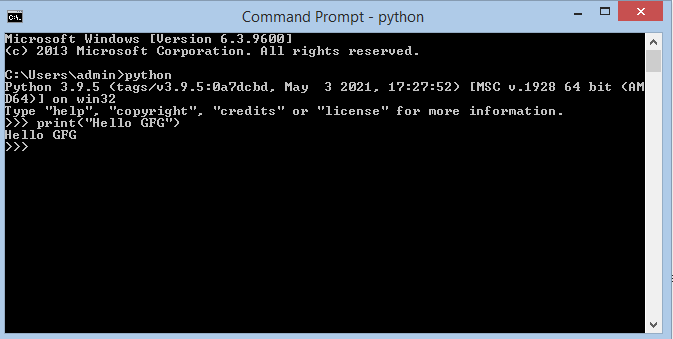
Notice that the prompt has changed:
| Prompt | Meaning | What you should type there |
|---|---|---|
PS C:\...> | PowerShell is active | Windows commands such as py --version or dir |
>>> | Python interactive shell is active | Python code such as 2 + 2 |
This distinction matters. For example, py --version is a PowerShell command, so it does not belong after >>>.
The interactive shell is also called the REPL, which stands for:
- Read: Python reads what you typed.
- Evaluate: Python works out the value or performs the instruction.
- Print: Python displays a result when there is one.
- Loop: Python shows a fresh
>>>prompt and waits for the next entry.
Watch this short demonstration for the central idea of entering code and seeing the response one line at a time.
👩💻 Python for Beginners Tutorial
In “Python for Beginners Tutorial” by Kevin Stratvert, watch a concise demonstration of the interactive shell. It reinforces what the >>> prompt means, why ordinary English is not valid Python syntax, and how to leave the shell.
Watch the shell demonstration. The presenter opens Python, enters 1 + 2, tries an invalid sentence to show a syntax error, uses print(), and exits. The launch method differs slightly from yours; continue using py in PowerShell.
Expressions: asking Python to work out a value
An expression is a piece of Python code that produces a value. The interactive shell is especially useful for expressions because it displays the value automatically.
At the >>> prompt, enter each line below separately. Press Enter after each one.
>>> 2 + 2
4
>>> 10 - 3
7
>>> 6 * 7
42
>>> 8 / 2
4.0
The first line in each pair is what you type; the next line is what Python displays.
Python understands the usual arithmetic symbols:
| Symbol | Operation | Example |
|---|---|---|
+ | addition | 9 + 4 |
- | subtraction | 9 - 4 |
* | multiplication | 9 * 4 |
/ | division | 9 / 4 |
One result may be surprising:
>>> 8 / 2
4.0
Python shows 4.0 rather than 4 because / division produces a decimal-style number, even when the result has no fractional part. You will learn more about number types and division in the next module; for now, treat this as Python’s normal division behavior.
Python also follows the familiar order of operations. Multiplication happens before addition:
>>> 2 + 3 * 4
14
Use parentheses when you want to group a calculation:
>>> (2 + 3) * 4
20
The parentheses make Python calculate 2 + 3 first.
The official Python tutorial provides a compact reference for these calculator-style expressions.
3. An Informal Introduction to Python
Read the opening of the official Python tutorial’s “Using Python as a Calculator” section. It shows the interactive prompt, basic arithmetic operators, parentheses, and the way ordinary division is displayed.
In Section 3.1.1, “Numbers,” begin at the sentence “The interpreter acts as a simple calculator” and read the calculator examples, ending just after the 8 / 5 example. Focus on the distinction between what follows >>> and the result Python prints on the next line. Try the examples in your own shell rather than only reading them.
Text can be an expression too
Expressions do not have to be arithmetic. A piece of text inside quotation marks is also a Python value.
Try these:
>>> "Python"
'Python'
>>> "Good " + "morning"
'Good morning'
>>> "ha" * 3
'hahaha'
The quotation marks tell Python that the characters are text, rather than a variable name or instruction.
When the shell shows a text value, it usually includes quotation marks in its response:
>>> "Good morning"
'Good morning'
That is Python’s way of making clear that the result is text. The quotes were not added to the text itself.
You can use either double quotes or single quotes consistently:
>>> 'Welcome!'
'Welcome!'
>>> "Welcome!"
'Welcome!'
For now, prefer double quotes in your own code. They match the style you used in hello.py and make it easier to include an apostrophe in ordinary text:
>>> "I'm learning Python."
"I'm learning Python."
In the next lesson, you will use print() to display text deliberately in saved scripts. The shell’s automatic display is convenient for exploration, but a script normally needs print() when you want it to show a result to a person.
What errors and prompts are telling you
The shell is a safe place to make small mistakes. An error is not a sign that Python has stopped working; it is information about what Python could not understand.
For example, Python cannot interpret an English question as code:
>>> what is 2 + 2?
  File "<stdin>", line 1
    what is 2 + 2?
                  ^
SyntaxError: invalid syntax
Python reports a SyntaxError because that line does not follow Python’s grammar. Enter the expression itself instead:
>>> 2 + 2
4
After an error, look for >>> again. Its return means Python is ready for another attempt.
A useful boundary: shell commands versus Python code
While you are inside the shell, these are valid Python examples:
>>> 5 * 8
40
>>> "go" * 2
'gogo'
But this is not Python code:
>>> dir
dir is a PowerShell command. To use PowerShell commands again, first exit the Python shell.
Type:
exit()
Then press Enter. You should return to a prompt beginning with PS, such as:
PS C:\Users\YourName\Documents\python-beginnings>
You are now back in PowerShell, where commands such as these work again:
py --version
dir
py .\hello.py
The Python documentation’s Windows FAQ gives the same core rule: start interactive mode with py, experiment with expressions, then use exit() to return to the Windows command prompt.
Use the shell as a small experiment space
The interactive shell is not a replacement for your .py files. It is a quick workspace for testing an idea before you build it into a program.
A useful routine is:
- Start the shell with
py. - Enter a small expression.
- Read the result carefully.
- Change one part of the expression and observe what changes.
- Exit with
exit()when you are finished.
Spend a few minutes exploring expressions such as these. Enter them one at a time, predict the result before pressing Enter, and then compare your prediction with Python’s result.
>>> 15 + 6
>>> 15 - 6
>>> 15 * 6
>>> 15 / 6
>>> 3 * (4 + 5)
>>> "Py" + "thon"
>>> "!" * 5
Do not worry about saving this work. Everything entered in the interactive shell is temporary: when you run exit(), that session ends. When you want instructions to be saved, edited, and run repeatedly, create a .py file as you did with hello.py.
If you ever see a prompt made of three dots instead:
...
Python is waiting because it thinks your entry is incomplete—often because of an unclosed quotation mark or parenthesis. Check what you typed. You can press Ctrl+C to cancel the unfinished entry and return to >>>.
You can now distinguish a PowerShell prompt from Python’s >>> prompt, start the interactive shell with py, and use it to evaluate small arithmetic and text expressions immediately. The REPL is particularly useful for testing one idea at a time without creating a file.
Next, you will make output intentional in a saved program: using print() to display text and using comments to leave useful notes in your code.
Can't find a good explanation? Sign up and we'll make it for you
Sign up